avatarTeri Radichel

Free AI web copilot to create summaries, insights and extended knowledge, download it at here

2424

Abstract

VM by passing in a list of security group IDs:</p><figure id="63a6"><img src="https://cdn-images-1.readmedium.com/v2/resize:fit:800/1*U0ZDosDgq-CAfhZaLqCJPw.png"><figcaption></figcaption></figure><p id="3dcb">We’ll need to get the security group ID for our user-specific security group. We can get that from the outputs of our security group stacks by using the stack name concatenated with the specific username.</p><figure id="bb5f"><img src="https://cdn-images-1.readmedium.com/v2/resize:fit:800/1*mC5Zyk8UmSBbp3XZrB88Lg.png"><figcaption></figcaption></figure><figure id="99f2"><img src="https://cdn-images-1.readmedium.com/v2/resize:fit:800/1*YFSZj0s3wGUbwaAhDeT3_Q.png"><figcaption></figcaption></figure><p id="5e73">We’ll need to get those outputs to add to our function that deploys our developer vm and add them to the list of security group IDs:</p><figure id="8666"><img src="https://cdn-images-1.readmedium.com/v2/resize:fit:800/1*u51y4ZPHTzRwdOHK8iffdg.png"><figcaption></figcaption></figure><p id="85c1">This function is currently for a Linux VM so we’re just deploying the SSH security group. Just add -$user to the end of the stack and export name</p><figure id="1ed7"><img src="https://cdn-images-1.readmedium.com/v2/resize:fit:800/1*osKCNKyy8C7-_hpoSEVqGw.png"><figcaption></figcaption></figure><p id="5f47">Update the deploy script to add the second developer. Notice that I moved the code to get the latest AMI up so we only retrieve it once for both developers.</p><figure id="326c"><img src="https://cdn-images-1.readmedium.com/v2/resize:fit:800/1*Ntx7tVOnokk6D4qnh68gfA.png"><figcaption></figcaption></figure><p id="b6e6">We’ll also need to deploy an SSH key for the second developer:</p><figure id="dfe7"><img src="https://cdn-images-1.readmedium.com/v2/resize:fit:800/1*VuPjyRZm-Hx_XnwT5l43ZA.png"><figcaption></figcaption></figure><p id="2513">And prior to deploying the key, a secret where our script attempts to deploy the key:</p><figure id="a006"><img src="https://cdn-images-1.readmedium.com/v2/resize:fit:800/1*9NHyqNjOnJpY1-9c46ZvVg.png"><figcaption></figcaption></figure><p id="f804">We will probably want to think through our new user creation process a bit more later but for now just added that code above, deployed the secret, then the SSH key, and then the VMs.</p><p id="16d6">After that’s done you can see now we have two VMs — one for each developer — with the name of the developer

Options

in the VM name.</p><figure id="faa7"><img src="https://cdn-images-1.readmedium.com/v2/resize:fit:800/1*fgw3tgnWbktdQTFhpCJfig.png"><figcaption></figcaption></figure><p id="f612">You may not want usernames in your VM names depending on who has access to your account. If someone has the username they could try to use the username and enumerate passwords, but if people can get the usernames out of the logs or from somewhere else it’s a bit of a moot point. Hopefully you are using MFA — correctly — so attackers require more than one factor to get access to your cloud environment.</p><p id="7dc9">Now you’ll notice when we start the new instances they are automatically running. We want to make sure we are only running instances when in use to save money. We’ll take a look at that in the next post.</p><p id="7180">Follow for updates.</p><p id="4a3a">Teri Radichel | <i>© <a href="https://2ndsightlab.com/?source=post_page---------------------------">2nd Sight Lab</a> 2022</i></p><div id="8b5f"><pre><span class="hljs-section">About Teri Radichel:

⭐️ Author: Cybersecurity Books
⭐️ Presentations: Presentations by Teri Radichel
⭐️ Recognition: SANS Award, AWS Security Hero, IANS Faculty
⭐️ Certifications: SANS ~ GSE 240
⭐️ Education: BA Business, Master of Software Engineering, Master of Infosec
⭐️ Company: Penetration Tests, Assessments, Phone Consulting ~ 2nd Sight Lab</pre></div><div id="caae"><pre><span class="hljs-section">Need Help With Cybersecurity, Cloud, or Application Security?
~~~~~~~~~~~~~~~~~~~~~~~~~~~~~~~~~~~~~~~~~~~~~~~~~~~~~~~~~~~~~</span>
🔒 Request a penetration test or security assessment
🔒 Schedule a consulting call
🔒 Cybersecurity Speaker for Presentation</pre></div><div id="5a42"><pre>Follow <span class="hljs-keyword">for</span> more stories like <span class="hljs-keyword">this</span>:

❤️ Sign Up my Medium Email List ❤️ Twitter: <span class="hljs-meta">@teriradichel</span> ❤️ LinkedIn: https:<span class="hljs-comment">//www.linkedin.com/in/teriradichel</span> ❤️ Mastodon: <span class="hljs-meta">@teriradichel</span><span class="hljs-meta">@infosec</span>.exchange ❤️ Facebook: 2nd Sight Lab ❤️ YouTube: @2ndsightlab</pre></div><figure id="faf5"><img src="https://cdn-images-1.readmedium.com/v2/resize:fit:800/0*H9Ew1KCl-29nZiPR.jpeg"><figcaption></figcaption></figure></article></body>

User-Specific EC2 Instances

ACM.115 A dedicated and easy-to-identify virtual machine for a specific user on a zero-trust security group and personal SSH key

Part of my series on Automating Cybersecurity Metrics. The Code.

Free Content on Jobs in Cybersecurity | Sign up for the Email List

In our last post we created a user-specific security group that limits traffic to a single remote user’s IP address.

In this post we are going to use it to deploy a user-specific EC2 instance.

Creating a unique VM name per user

In order to create a user-specific VM we need to add the username to the VM. We’re already doing that because we are passing in the user name (Developer) as the NameParam.

We use that in the instance name via a tag:

We also use the username in an output.
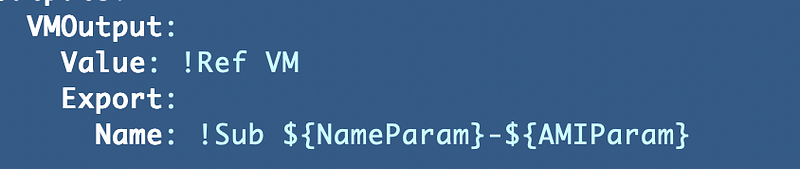
Assigning our user-specific Security Group

If you recall we create our user VM by passing in a list of security group IDs:

We’ll need to get the security group ID for our user-specific security group. We can get that from the outputs of our security group stacks by using the stack name concatenated with the specific username.
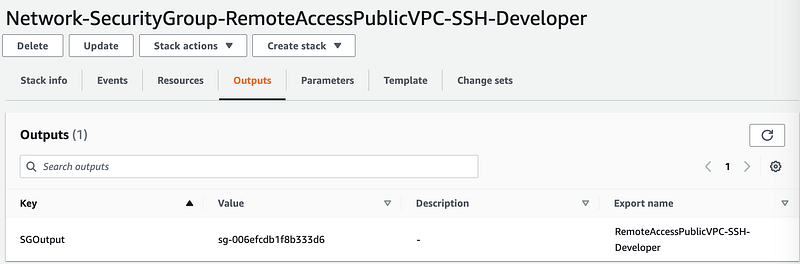
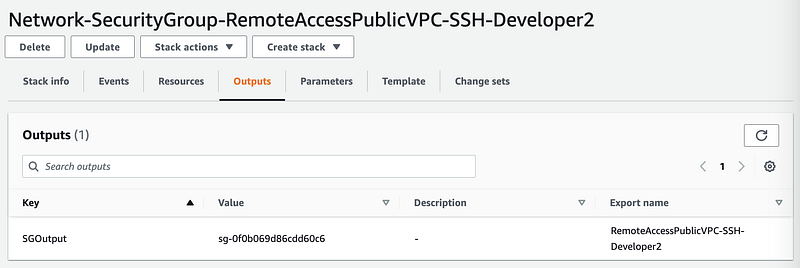
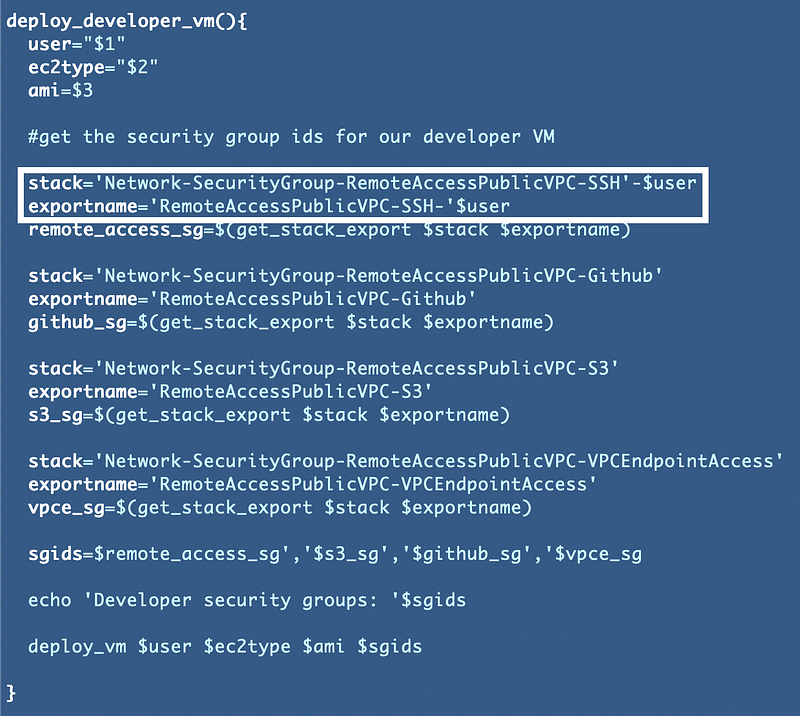
We’ll need to get those outputs to add to our function that deploys our developer vm and add them to the list of security group IDs:
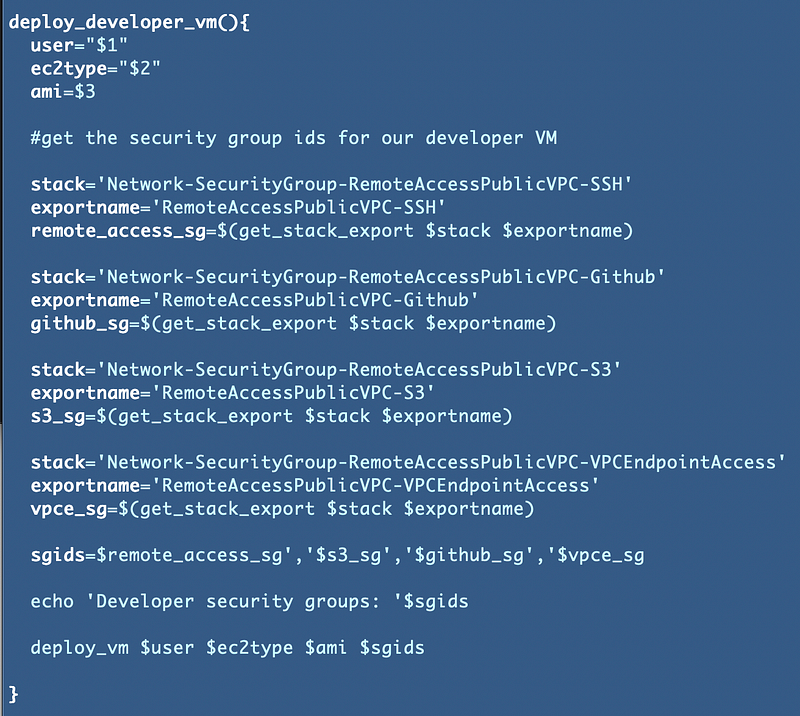
This function is currently for a Linux VM so we’re just deploying the SSH security group. Just add -$user to the end of the stack and export name
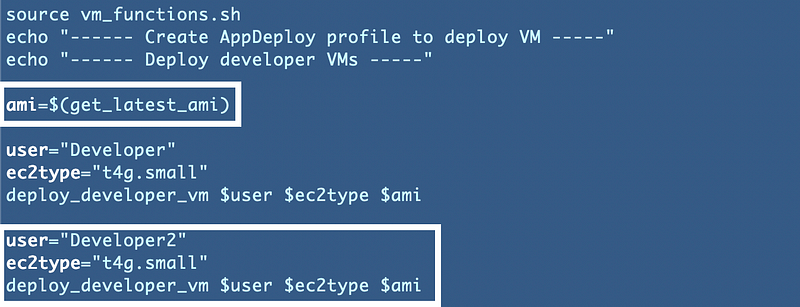
Update the deploy script to add the second developer. Notice that I moved the code to get the latest AMI up so we only retrieve it once for both developers.
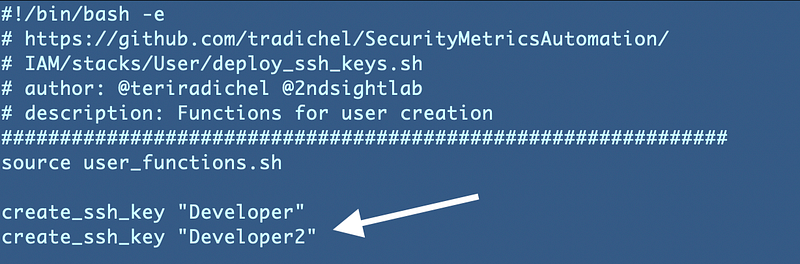
We’ll also need to deploy an SSH key for the second developer:
And prior to deploying the key, a secret where our script attempts to deploy the key:
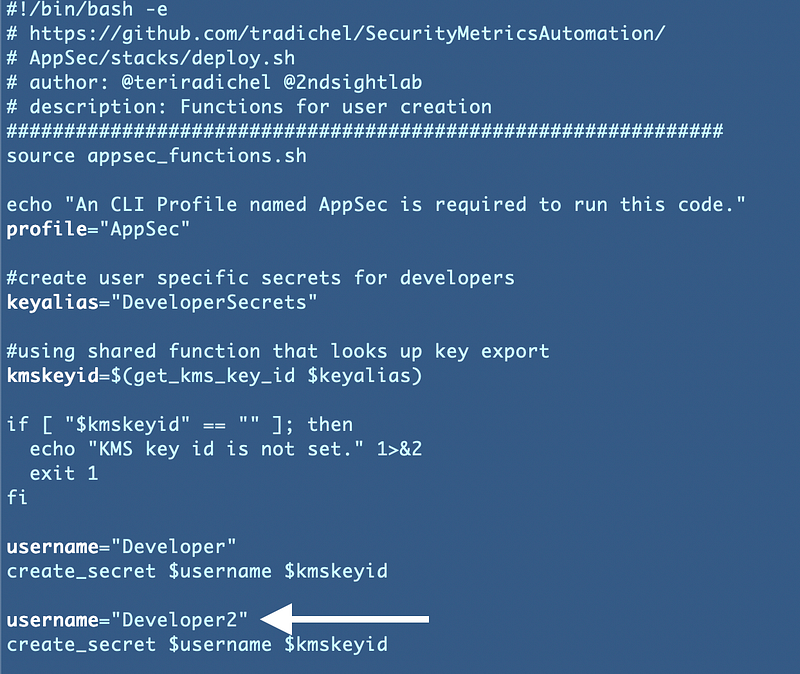
We will probably want to think through our new user creation process a bit more later but for now just added that code above, deployed the secret, then the SSH key, and then the VMs.

After that’s done you can see now we have two VMs — one for each developer — with the name of the developer in the VM name.

You may not want usernames in your VM names depending on who has access to your account. If someone has the username they could try to use the username and enumerate passwords, but if people can get the usernames out of the logs or from somewhere else it’s a bit of a moot point. Hopefully you are using MFA — correctly — so attackers require more than one factor to get access to your cloud environment.

Now you’ll notice when we start the new instances they are automatically running. We want to make sure we are only running instances when in use to save money. We’ll take a look at that in the next post.

Follow for updates.

Teri Radichel | © 2nd Sight Lab 2022

About Teri Radichel:
~~~~~~~~~~~~~~~~~~~~
⭐️ Author: Cybersecurity Books
⭐️ Presentations: Presentations by Teri Radichel
⭐️ Recognition: SANS Award, AWS Security Hero, IANS Faculty
⭐️ Certifications: SANS ~ GSE 240
⭐️ Education: BA Business, Master of Software Engineering, Master of Infosec
⭐️ Company: Penetration Tests, Assessments, Phone Consulting ~ 2nd Sight Lab
Need Help With Cybersecurity, Cloud, or Application Security?
~~~~~~~~~~~~~~~~~~~~~~~~~~~~~~~~~~~~~~~~~~~~~~~~~~~~~~~~~~~~~
🔒 Request a penetration test or security assessment
🔒 Schedule a consulting call
🔒 Cybersecurity Speaker for Presentation
Follow for more stories like this:
~~~~~~~~~~~~~~~~~~~~~~~~~~~~~~~~~~~~~~~~~~~~~~~~~~~~~~~~~~~~~ 
❤️ Sign Up my Medium Email List
❤️ Twitter: @teriradichel
❤️ LinkedIn: https://www.linkedin.com/in/teriradichel
❤️ Mastodon: @teriradichel@infosec.exchange
❤️ Facebook: 2nd Sight Lab
❤️ YouTube: @2ndsightlab

Cloudsecurity
AWS
Ec2
User
Zero Trust
Recommended from ReadMedium