
User-Specific Security Group for Remote Access
ACM.114 Create a security group with a specific user’s IP address
Part of my series on Automating Cybersecurity Metrics. Network Security. The Code.
Free Content on Jobs in Cybersecurity | Sign up for the Email List
In the last post I explained how failure to report errors causes systems and software to break.
Now we’re going to move on to deploying a user-specific VM on AWS.
We’ve deployed an EC2 instance
With a security group that limits access to SSH from a specific IP address:
What if you have a number of remote users that are logging in from different IP addresses?
VPN: A typical way to resolve that problem would be a VPN as that is the purpose of a VPN. Users must authenticate before connecting to the networking. The IPs allowed to authenticate can come from anywhere. Once you connect then the reported IP address for that user is the VPN and that VPN has access to internal networks and resources.
User-Specific Security Groups: What if you could restrict access to each user based on their own IP address? Then allow that user to connect to a specific host that acts kind of like a bastion host for that user on the network. Then, in your logs, you wouldn’t see the general VPN address for traffic initiated by that user, you would see the IP address of a specific host assigned to a specific user (presuming you track if and when hosts go up and down or IPs change.)
Let’s see how we can make that work.
Deploy a User Specific Security Group
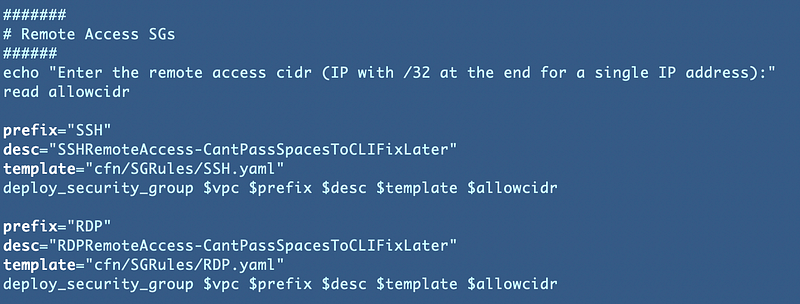
We created a CloudFormation template to deploy a security group that allows SSH access for as single IP CIDR or a single IP (a CIDR consisting of the IP address with /32 at the end).
Here’s the code in the deploy script:
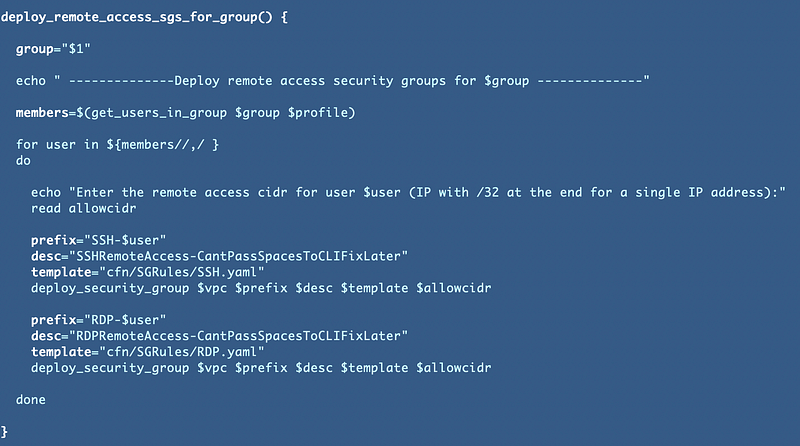
Let’s change this to create a security group for every member of a specified group. Create a function to retrieve a list of users in a group and create a security group for each user.
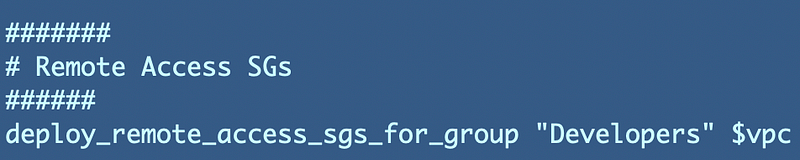
Call the function from the deploy script, replacing the existing code above:
Now we have one problem. In order to get the users in a group the network admins (Network profile) need permissions to read group users. We’ll add that to the appropriate IAM Policy.
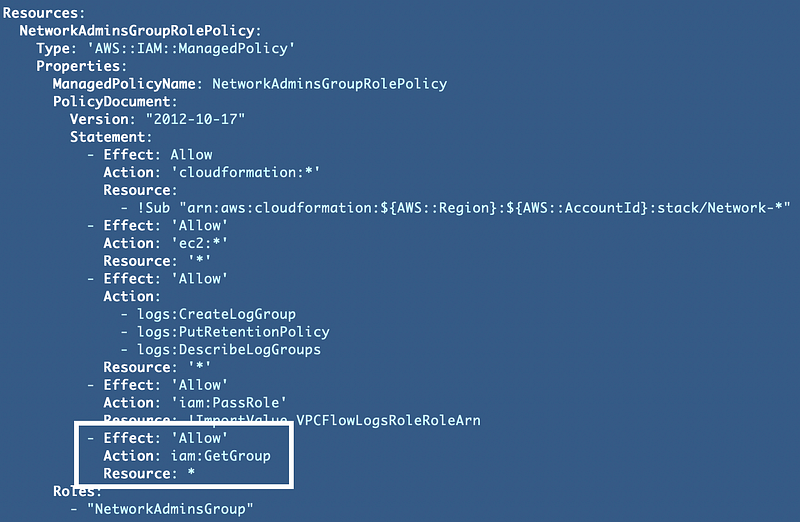
Deploy the IAM changes.
To make sure this actually works for multiple users in a group, let’s add one more developer:

Deploy the new developer user.
Update the group script we created to add the new user to the group.
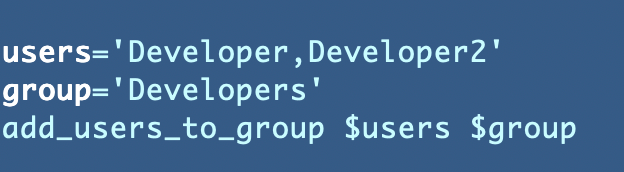
Deploy that script and verify the user is in the group. Make sure you completely refresh the groups page even if you click on it from the link on the users page.
Next run network deploy.sh script to see if the new security groups deploy correctly.
By the way, I actually created a small test script to test just this function rather than run all the network stacks over and over again while I worked through some bugs.Check to make sure the four new groups got created:
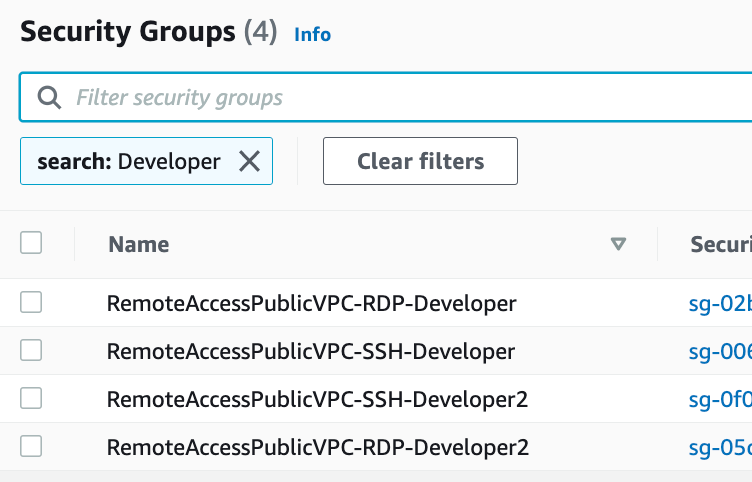
Also check that the security groups have the correct rules with the IP address for each user in the appropriate group rules.
Follow for updates.
Teri Radichel | © 2nd Sight Lab 2022
About Teri Radichel:
~~~~~~~~~~~~~~~~~~~~
⭐️ Author: Cybersecurity Books
⭐️ Presentations: Presentations by Teri Radichel
⭐️ Recognition: SANS Award, AWS Security Hero, IANS Faculty
⭐️ Certifications: SANS ~ GSE 240
⭐️ Education: BA Business, Master of Software Engineering, Master of Infosec
⭐️ Company: Penetration Tests, Assessments, Phone Consulting ~ 2nd Sight Lab
Need Help With Cybersecurity, Cloud, or Application Security?
~~~~~~~~~~~~~~~~~~~~~~~~~~~~~~~~~~~~~~~~~~~~~~~~~~~~~~~~~~~~~
🔒 Request a penetration test or security assessment
🔒 Schedule a consulting call
🔒 Cybersecurity Speaker for PresentationFollow for more stories like this:
~~~~~~~~~~~~~~~~~~~~~~~~~~~~~~~~~~~~~~~~~~~~~~~~~~~~~~~~~~~~~
❤️ Sign Up my Medium Email List
❤️ Twitter: @teriradichel
❤️ LinkedIn: https://www.linkedin.com/in/teriradichel
❤️ Mastodon: @teriradichel@infosec.exchange
❤️ Facebook: 2nd Sight Lab
❤️ YouTube: @2ndsightlab