Git: useful alias
It’s well known That developers want to optimize and simplify repetitive tasks. We like to make shortcuts, type fewer characters to run this or that command. With this aim in mind, I suggest some git aliases.

1. Pretty logging
Problem:
The default display of the log is complicated, difficult to use.
$ git log
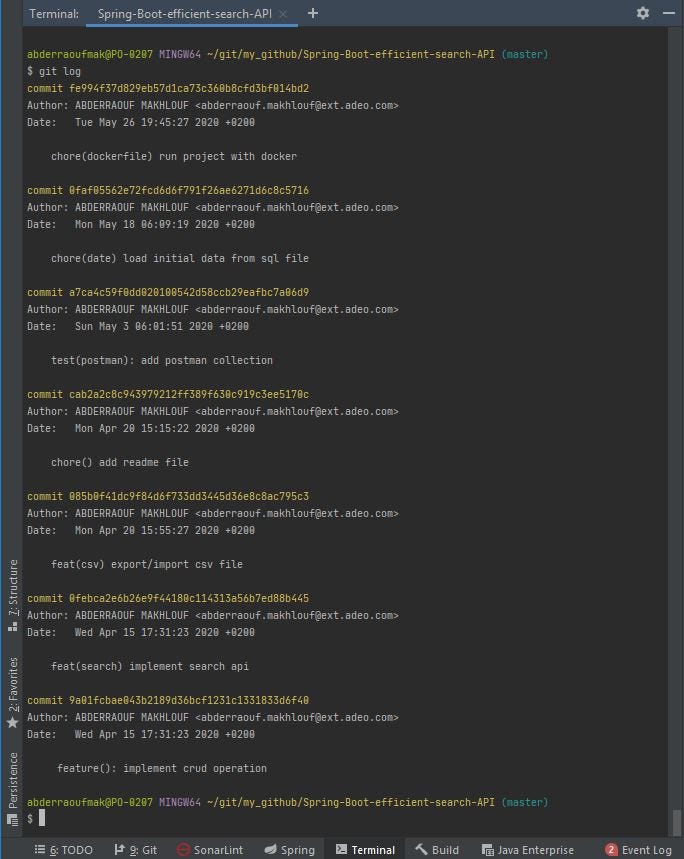
Solution: We create an alias called lg, which is a customized and simplified log with colors.
$ git config --global alias.lg " --no-pager log --color --graph --pretty = format: '% Cred% h% Creset -% C (yellow)% d% Creset% s% Cgreen (% cr)% C ( bold blue) <% an>% Creset '--abbrev-commit "Now you can run: $ git lg
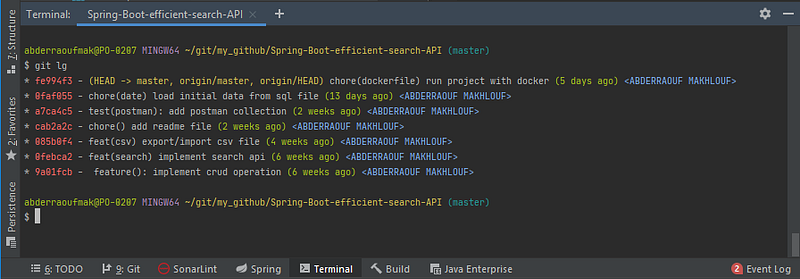
It is still much more readable! :)
2. Quick fix
Problem: Sometimes we have to fix a typo in a previous commit after a few new commits. But the goal is to keep a “clean” git history with consistent commits adding features to facilitate the code reviews.
Solution:
With two useful options in git that work together, we can solve the problem:
1. to mark your commit as a fix of a previous commit
$ git commit --fixup <commit to fix>
2. to organize merging of these fixup commits and associated regular commits
$ git rebase -i --autosquash <commit to fix>~
Example: Suppose that we have the following git history:

We found a typo in the README file, so we can fix and want to modify the ‘chore() add README’ commit instead of creating a new commit for a typo:
${fix the typo}
$git add .
$git commit --fixup cab2a2c
Note that Git has created a commit with a message prefixed with ‘!fixup’ :

To clean-up the history, we interactively rebase our changes with
$ git rebase --autosquash --interactive cab2a2c~.
This will produce a clean history again:

The option--autosquash, has automatically reordered and applied the fixup commit. Note that this option only works with an interactive rebase.
With these, we can easily merge little fixes with the original feature and keep our branch clean.
In one shot with alias:
Open the config file, $ git config --global -e then at the alias level, add:
[alias]
       fixup =! sh -c 'SHA =$git rev-parse $1) \
       && git commit --fixup $SHA \
       && git rebase -i --autosquash $SHA~ '-
Once the alias has been added, we can also fix bugs then fixup the modification.
We will obviously use the alias we just created. The only thing to do is copy the SHA of the commit to which we want to apply the fixup.
Then:
git fixup <commit to fix>The rebase window opens, and we need to verify that everything is correct. Save, quit, and look at history.
That’s great, isn’t it! 👍
3. Bonus: List Git aliases
Alias is a great trick, but how do I print a list of my git aliases?
I created a git alias called (strangely enough) alias for precisely this purpose. It handy from time to time if you use useful aliasing.
Once you run :
git config --global alias.alias "! git config --get-regexp ^alias\. | sed -e s/^alias\.// -e s/\ /\ =\ /"This will create a permanent git alias named alias Which gets stored in your ~/.gitconfig file. Using it will list all of your git aliases in nearly the same format as they are in the ~/.gitconfig file. To use it, type: git alias

Wrapping Up
In this blog, we mentioned why git alias is essential, and we showed how easy using them. Overall, the alias is super useful to automatize some repetitive tasks or to improve console output.
✉ Let’s keep in touch! Sign up for my weekly newsletter
❤ If you liked this post, you might also love:


