
Use UPS API to Get Rates, Generate Labels, and Track Shipments
Shipments are an essential part (and a pain) for many businesses. Recently, I was working with a startup in California that started to get new clients from all over the US and things got messy for them fast. They used different couriers and shipped everything manually, which was fine when they had a few orders a day. When the number of orders started to grow, different labels, boxes, stickers, tracking numbers, and returns started to drive them crazy. They had a small, homegrown database based on FileMaker, so by leveraging that and integrating a few shipment APIs we were able to streamline the whole process quickly.
I already discussed how to get started with a FedEx API so today, let’s take a closer look at another popular carrier — UPS. We are not going to get into details of FileMaker development today but instead, we will use our good old friend Postman to test a few API calls that you’ll need to perform basic requests:
- Get available options and rates for your shipment
- Create a shipment label
- Track your shipment by using the tracking number you received in a previous call
But first, our favorite — Authorization!
How to authorize your API call with UPS
It all starts with registering an account and navigating to a Developer Dashboard.
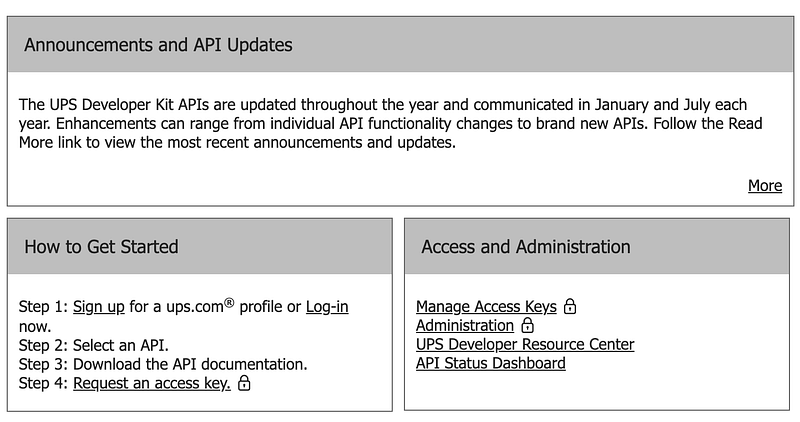
Just like FedEx, UPS has its own collection of fun PDFs with examples. The examples are updated twice a year, which is nice, but all of the calls we need today are located in different documents. Once you register and get an access key (save that information is some secure place!), scroll to see the full list of available APIs and download three of them to start:
- Rating
- Shipping
- Tracking
In a long run, you’ll probably need a few more, like address validation, but for now, we’ll focus on these three calls.
Rating
POST https://wwwcie.ups.com/ship/v1/rating/Rate
This is the first request you would want to perform in order to get all available options for your specific shipment. The body of the request is fairly straightforward: it’s in JSON format and you can copy the example from their official documentation. Once you change a few values in there, you are all set.
The interesting thing about UPS though is how it handles the authorization part. If you are testing the calls in Postman, you won’t even need to open the Authorization tab. Instead, go to Headers and add these 7 key/value pairs to your call:
- AccessLicenseNumber
- Username
- Password
- transId
- transactionSrc
- Accept
- Content-Type
The last two headers might be already supplied by Postman so if you are using it, just make sure that both of them are set to application/json. AccessLicenseNumber will be given to you when you request an access key while transId and transactionSrc are something that you’ll supply to UPS. In my case, I assigned a unique ID of this record from a FileMaker database and specified the name of the application that performed the calls.
In response, you’ll get a RatedShipment array that contains objects with service codes, days in transit, and corresponding prices. Once your user selects a preferred way to ship, store that service code value somewhere because you’ll need it in the next API call.
Shipping
POST https://wwwcie.ups.com/ship/v1/shipments
Now, you are halfway there! You know the shipment details, you know how the user wants to ship it, and all you need now is to create a label. To get that, copy the previous tab in Postman, change the URL and the body (using one of the examples in a Shipping PDF). The headers will stay the same and in your body, you can specify the selected methods in a Service object.
Once you hit Send, you’ll get a 200 OK response with a long Base64 encoded string next to the “GraphicImage” key and an HTML image. To make sure you got it right, you can use a free website like this one to decode the string and check your label right away. Besides the label, you’ll need a tracking number located in the PackageResults.
Tracking
GET https://wwwcie.ups.com/track/v1/details/ & <
And finally, the easiest call out of all. Since it’s a GET request, you don’t need a body for it and can reuse your headers. Just copy the URL, change the method to GET, and add the tracking number that you got from the previous call.


