
Updated for 2022: How To Track Your Habits in 2022 in Google Sheets (Free Template)
A new year, a new template (sort of)
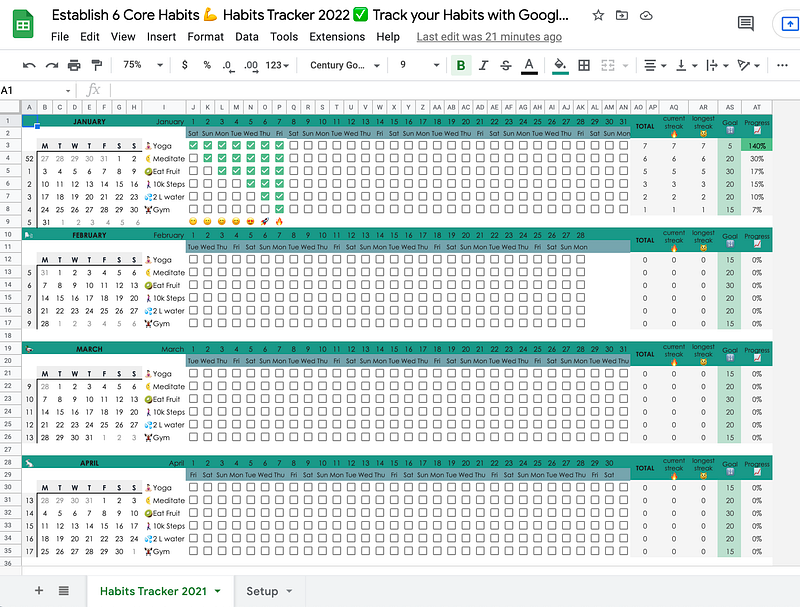
Looking for a simple habit tracker in a spreadsheet program you already use? This habit tracking template for Google Sheets may come in handy.
How to get the template
Make sure you’re logged into your Google account. Click this link for the Google Sheets 2022 Habit Tracker Template. You’ll get a copy that is saved directly to your Google Drive. You can then rename it, change the formatting, insert cat photos… Nothing is off-limits. If I happen to see requests for edit access, then I’ll know you have been naughty by skipping over the instructions above.
Using the template is pretty straightforward. There are no big changes, except the updated dates and mini calendars. Here’s how to proceed:
- Write down your habits in the Setup tab. You want to be clear on what you’re tracking, no? To prevent overwhelm or overcommitting, let’s start with six habits. There’s little point in trying to track ten or fifteen when doing six already is a challenge. In fields B3 to B8, delete the habits I wrote there, and input your own.
- Write down emojis to get you fired up in the Setup tab. Below each day in the Habit Tracker tab, you’ll see an emoji, depending on the number of habits you ticked off for that day.
- Set a monthly target you want to hit in column AS underneath “Goal.” Once you continue to tick off habits and, subsequently, reach your goal? Then the progress percentage in the adjacent column AT will turn green.
At one glance, you’ll see your streak per habit. Towards the right, you’ll see stats: total habits done, current streak, longest streak, monthly goal, and progress on your monthly goal.
A tiny addition: the mini calendars have conditional formatting. Today’s date will be highlighted.
For a more thorough explanation, take a look at last year’s blog.
Help! I want to add extra habits. How do habit?
It comes down to creating “space” for this extra habit by inserting a new row.
You’ll have to update the array formulas that are responsible for copying your habits from the Setup tab into the Habit Tracker tab. You find these in column I, in fields I3, I12, I12, etc.
Currently, B8 is the last field that is copied from the other tab. But, if you added a bunch of habits into B9, and B10, we also want those to be copied.
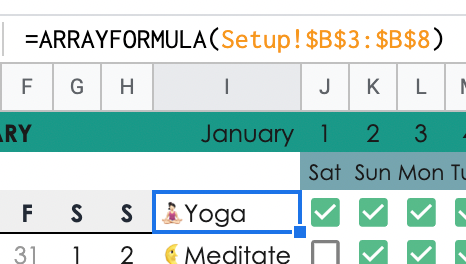
See the screenshot above.
Change the 8 to 10, if that’s the last field where you added your extra habit in the other tab. After that, you’ll also need to select the fields with stats and pull them down a few rows to fill up the empty space where you inserted a new row(s).
Prefer visuals? Here’s a video walkthrough I made last year:
Happy New Year and happy habit tracking! If you like these templates, feel free to follow the Google Sheets Geeks publication.


