
How To Track Your Habits in 2021 with Google Sheets (Free Template)
Start the new year off right by establishing six core habits with the help of this Habit Tracker 2021, made in Google Sheets.
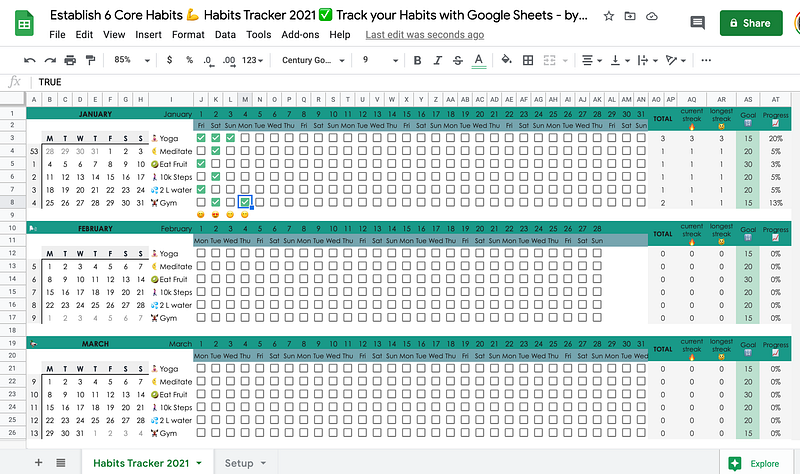
In this article you will find two Google Sheets Habit Tracker 2021 templates:
- The Original Habit Tracker, updated for 2021.
- The Premium Habit Tracker 2021 with extra features.
If you’re interested in how the spreadsheet is set up, you may read through the text. Otherwise, feel free to skip the texts and go to the “Summary: How to use” sections to get your copy of the template by following the simple instructions. Please note that I use the word spreadsheet and template interchangeably.
Table of Contents· Original Habits Tracker 2021: Spreadsheet setup
· Summary: How to use Original Habits Tracker 2021· Premium Habits Tracker 2021: Spreadsheet setup
· Summary: How to use Premium Habits Tracker 2021Original Habit Tracker 2021: Spreadsheet setup
First we will have a look at the Original Habit Tracker for 2021.
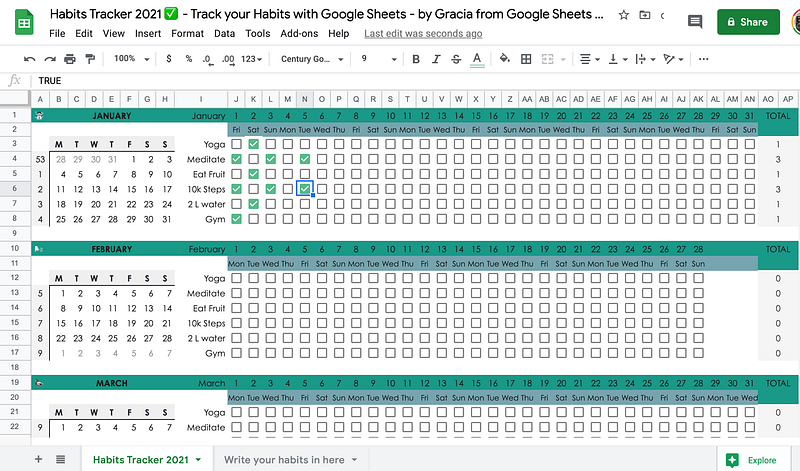
First, make sure you are logged into your Google account. Then, click this link to make a copy of the template. Edit requests will be ignored and deleted. This copy of my template is only for you. No one else will be able to see or edit it. You can recognise a private spreadsheet by the green button in the upper right corner. It will have a lock icon on it.

This spreadsheet has two tabs called “Habits Tracker 2021” and “Write your habits in here”.

Go to the second tab and write your six habits in the box. Write out one habit per line.

Now, back to the “Habits Tracker 2021” tab. The habits you just wrote in the other tab are automatically pulled into this main tab for every month via an =ARRAYFORMULA that points to the other tab “Write your habits in here”. This way, we don’t have to write out our habits twelve times. We just do it once.
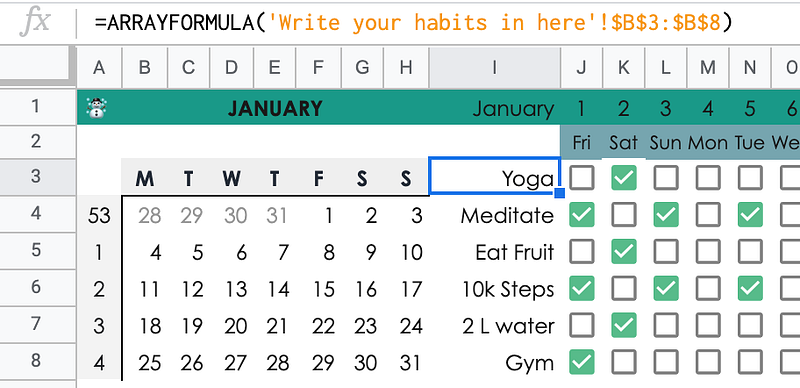
The setup is already done! You can go ahead and start ticking off habits.
The fields in column AO have a =COUNTIF formula. An empty tickbox has a value of FALSE. Once you tap or click on it, it gets checked or ticked. The value will then be TRUE. Each time the =COUNTIF spots a TRUE in the range we specified (fields J3 to AN3 in our example), it adds +1, and shows the total.

Summary: How to use Original Habit Tracker 2021
- DO NOT request edit acces, please. Follow the instructions below. Make sure you’re logged into your Google account. Ready? Click this link to make a copy of the Original Habits Tracker 2021.
- In the tab “Write your habits in here”, write your habits inside the box in column B.
- Go to the other tab, and start tracking your habits. The totals column will show you the total amount of times you consolidated your habit per month.
- Need to track more than six habits? Follow the walkthrough in this YouTube video.
Premium Habit Tracker 2021: Spreadsheet setup
The Premium Habit Tracker 2021 is a fancier version with some helpful customizations. Let’s have a look.
In order to get started, make sure you’re logged into your Google account. Click this link to get a copy of the Premium Habit Tracker 2021 Google Sheets template. Again, this one is just for you and shared with no one else. Edit requests will be ignored and deleted.
We go to the “Setup” tab. In the left box in column B, choose the six core habits you want to focus on this year. Make sure to write one habit per line only. If you like to, you can add emojis to your habits.
How to get the emoji keyboard:
On Windows: press Windows logo key + . (period)
On Mac: Ctrl + cmd + space bar
Still in the “Setup” tab, in the right inside the box in column E, you’ll see some further emojis. Depending on the amount of habits you tick off per day, you can choose which emoji you’d like to appear beneath this day (these will appear on the main “Habits Tracker 2021” tab). You can leave these emojis here as they are, but feel free to choose your own.
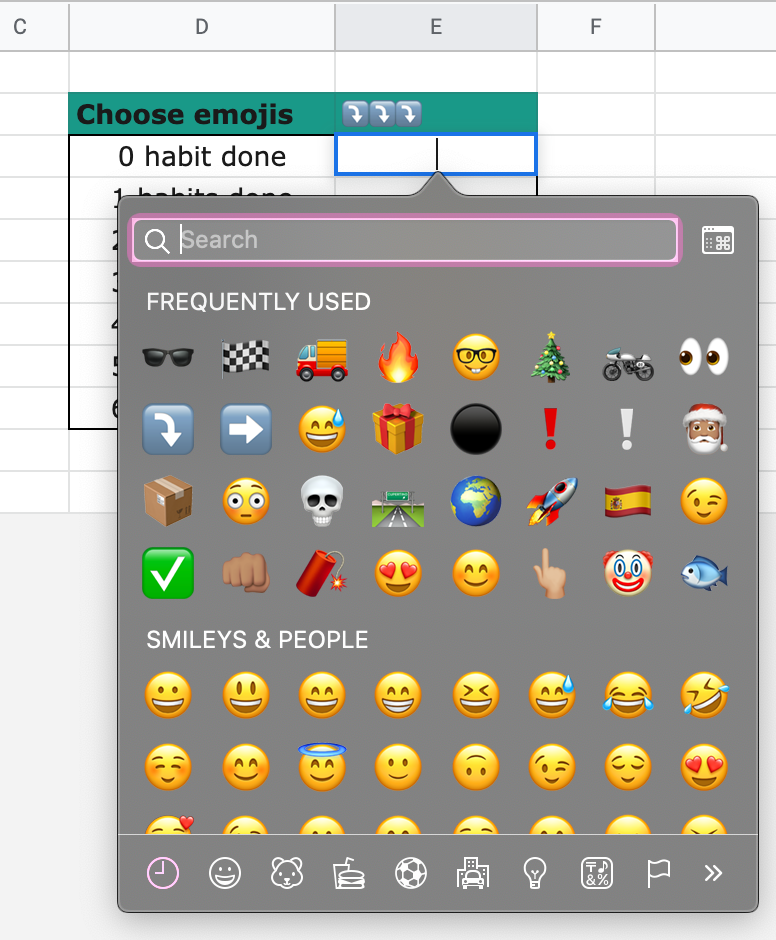
This tab is all done. Back to the main tab “Habits Tracker 2021”.
Before we can start tracking our habits, there’s one final action we need to do. Each month has a column titled “Goal” in column AS. It can be that you don’t want or need to do a habit every single day. Maybe 20 times a month, or every other day with 15 days in total will suffice. You can set your monthly goal in the green fields, and the template will show you how well you’re doing.
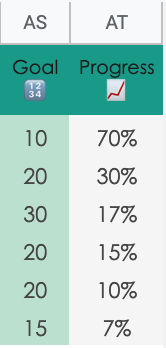
Now, in the adjacent column AT titled “Progress”, you can see how much progress you’ve booked already for one habit. When you hit 100%, this field will turn green.
Two new columns are added that display the current streak and the longest streak per habit. To be extremely honest with you, I found those formulas on forums after doing heavy Googling and modifying and testing out different findings in my template.
If coding taught me one skill, it has to be learning to Google the “right” search terms. The information you are looking for is probably out there. You just have to ask the right questions.
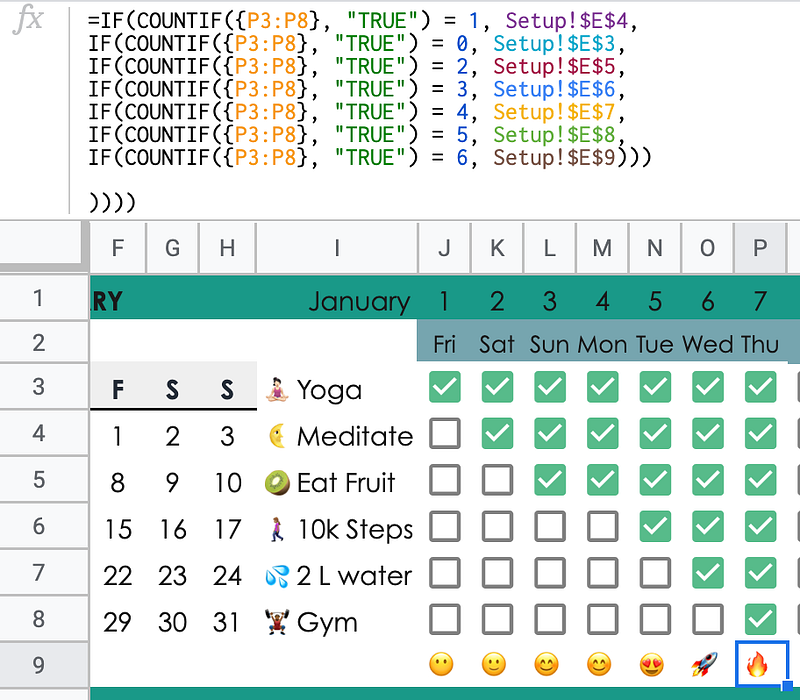
Another fun thing I added: remember the emojis you chose in the other tab in column E? Different ones will appear depending on how many habits you complete in a day. The intention behind it is to turn it more into a game and get yourself eager to get the more positive emojis to appear.
How it works: The =IF formula below the tickboxes for each month checks how many values of TRUE are counted. Depending on the outcome, the formula will fetch one of emojis from the other tab. For example: if we count four values that equal TRUE in the range P3 to P8, we fetch the value from the Setup tab in field E7.
Summary: How to use Premium Habit Tracker 2021
- Please, *DO NOT* request edit access! All edit requests will be ignored and deleted. It tells me you’re being naughty and not following the instructions. Ready? Make sure you’re logged into your Google account. Click this link to make a copy of the Premium Habits Tracker 2021.
- In the “Setup” tab, write your habits inside the box in column B.
- Still in the “Setup” tab, fill out emojis you want to appear per X amount of habits done in column E.
- In the main tab “Habits Tracker 2021” in the green column, write out per habit how often you want tick it off per month.
- Start tracking your habits. The totals, current streak count, longest streak count and progress percentage will update automatically.
Enjoy tracking your habits!