avatarPrashant Patel

Free AI web copilot to create summaries, insights and extended knowledge, download it at here

3148

Abstract

cd"><img src="https://cdn-images-1.readmedium.com/v2/resize:fit:800/0*SGA4dG0L7qHCgwVh"><figcaption>Photo by <a href="https://unsplash.com/@cbpsc1?utm_source=medium&amp;utm_medium=referral">Clint Patterson</a> on <a href="https://unsplash.com?utm_source=medium&amp;utm_medium=referral">Unsplash</a></figcaption></figure><p id="bcf7"><b>Now let me introduce to you, some really popular desktop application launchers for Windows:</b></p><p id="afc3"><b>Launchy</b> Launchy is a free and open-source application launcher that allows you to quickly launch applications, files, and folders with just a few keystrokes. You can customize Launchy to include your most commonly used applications and files, and you can even use it to perform web searches. <i>(Not available for windows 11 yet)</i></p><p id="9470"><b>Executor</b> Executor is another free and open-source application launcher that provides a customizable interface for launching applications, files, and folders. It also includes a variety of plugins that allow you to perform tasks like web searches and sending emails.</p><p id="fb3c"><b>Wox</b> Wox is a free and open-source application launcher that provides a customizable interface and support for plugins. It includes a variety of built-in features, including support for web searches and file operations.</p><h2 id="198d">Now, the last and the best one is from Microsoft itself;</h2><p id="c70e">On Windows 11, download Microsoft <b>PowerToys</b> and hit <b>Alt+Spacebar</b> to launch PowerToys Run.</p><p id="e27a">Once launched, you can start typing to search for an application, file, or setting, and the Launcher will display results in real-time as you type.I have been using this lately, it is super useful.</p><p id="cfa8">The Launcher also supports plugins, which can extend its functionality.</p><p id="fceb">For example, you can install a plugin to search your web browser bookmarks or search your email inbox directly from the Launcher.</p><figure id="abb3"><img src="https://cdn-images-1.readmedium.com/v2/resize:fit:800/0*54EUmj6j5rSSTESN"><figcaption>Photo by <a href="https://unsplash.com/@markusspiske?utm_source=medium&amp;utm_medium=referral">Markus Spiske</a> on <a href="https://unsplash.com?utm_source=medium&amp;utm_medium=referral">Unsplash</a></figcaption></figure><p id="451c"><b>Here are some popular desktop application launchers for macOS:</b></p><p id="1957"><b>Spotlight </b>Spotlight is a built-in search feature for Apple’s MacOS and iOS. Simply hit Command+Spacebar on your desktop and type in the beginning letters of an application, file, or website you’d like to open.</p><p id="cc6a"><b>Alfred</b> Alfred is a popular application launcher for macOS that provides a variety of features, including a customizable interface, support for plugins, and the ability to perform web searches. Alfred also includes a clipboard manager and a built-in calculator.</p><p id="115f"><b>Quicksilver</b> Quicksilver is a free and open-source application launcher that provides a customizable interface and support for plugins. It also includes a variety of built-in features, including support for web searches an

Options

d file operations.</p><p id="d589"><b>LaunchBar</b> LaunchBar is a commercial application launcher for macOS that provides a customizable interface and support for plugins. It includes a variety of built-in features, including support for web searches and file operations.</p><p id="d862">These desktop application launchers offer a fast and efficient way to launch applications, files, and folders on your computer.</p><p id="ffee">By using a keyboard shortcut to bring up a search bar or launcher window, you can quickly find what you need and get back to work. Whether you’re using Windows or macOS, there are a variety of desktop application launchers available to choose from, each with its own unique set of features and customization options.</p><p id="88e8"><b>So why waste time clicking through menus and folders when you can use a desktop application launcher to work more.</b></p><p id="778d">Thank you for reading till the end. Do not forget to check out my other stories.</p><p id="3397"><a href="https://readmedium.com/7-creative-and-easy-ideas-for-a-faceless-youtube-channel-cf2a7a33de42"><b><i>7 Creative and Easy Ideas for a Faceless YouTube Channel</i></b></a></p><p id="f474"><i>Best <a href="https://readmedium.com/best-youtube-channels-to-accelerate-your-learning-967a7ae90d62"><b>YouTube channels to accelerate your learnings</b></a></i></p><p id="c230"><a href="https://readmedium.com/i-am-developing-these-6-habits-to-become-super-productive-75f2fed464da"><b><i>Be Productive</i></b></a><b><i>!</i></b></p><p id="0f80"><a href="https://readmedium.com/7-ted-talks-i-wish-i-had-watched-earlier-8642994bdbf3?source=your_stories_page-------------------------------------"><b><i>7 Best Ted Talks</i></b></a></p><p id="8ffa"><a href="https://readmedium.com/what-is-a-5-minute-rule-to-avoid-procrastination-57a704695ce1"><b><i>5-Minutes Rule To Avoid Procrastination</i></b></a></p><p id="63dd">If you like my work, <b>a follow and few claps</b> will encourage me to write more for everyone!</p><p id="80e1">Show your support, buy me a book <a href="https://www.buymeacoffee.com/9c6ddy4pjyz"><b>here</b></a><b>.</b></p><p id="31c6"><b>check out my other stories <a href="https://innovix55.wordpress.com/">here for free</a>.</b></p><p id="ee7c">Read more stories from <a href="https://letsmeetpp.medium.com/?source=---two_column_layout_sidebar----------------------------------"><b>me</b></a> and from other brilliant writers by <a href="https://medium.com/membership/@letsmeetpp?source=publishing_settings"><b>becoming a Member</b></a> of Medium community.</p><blockquote id="fa64"><p><b><i>If you sign up using my <a href="https://medium.com/membership/@letsmeetpp?source=publishing_settings">link</a>, I’ll eventually earn a small commission. Thanks!</i></b></p></blockquote><figure id="d87d"><img src="https://cdn-images-1.readmedium.com/v2/resize:fit:800/0*QohwIFTPCirJ4y4T"><figcaption>Photo by <a href="https://unsplash.com/@hannynaibaho?utm_source=medium&amp;utm_medium=referral">Hanny Naibaho</a> on <a href="https://unsplash.com?utm_source=medium&amp;utm_medium=referral">Unsplash</a></figcaption></figure></article></body>

Unlock Your Productivity Potential: How Desktop Application Launchers Can Revolutionize Your Workflow

Have you ever found yourself frustrated with the time it takes to navigate through menus and search for specific applications on your computer?

Desktop application launcher apps offer a solution to this problem, allowing you to quickly access your most commonly used applications and files with just a few keystrokes

Let us explore the benefits of using a desktop application launcher.

I will recommend some popular options for Windows and macOS and you can try these as per your need.

Photo by Souro Souvik on Unsplash

What is a desktop application launcher?

A desktop application launcher is a type of software that provides a shortcut for launching applications, files, and folders on your computer.

Instead of using the traditional method of navigating through menus and folders, you can use a keyboard shortcut to bring up a search bar or launcher window, where you can type in the name of the application or file you want to open. The launcher will then display a list of matches, and you can select the one you want to open using the keyboard or mouse.

Why use a desktop application launcher?

There are several benefits to using a desktop application launcher instead of relying on traditional navigation methods. M

ouse clicks can be irritating sometimes, when you really needs to focus on some important task. Here are 4 keybenefits of using these Launchers:

  1. Speed A desktop application launcher allows you to access your applications and files much faster than traditional navigation methods. Instead of clicking through menus and folders, you can launch an application with just a few keystrokes.
  2. Efficiency A desktop application launcher can help you work more efficiently by reducing the amount of time you spend searching for applications and files. With a launcher, you can quickly find what you need and get back to work.
  3. Customization Many desktop application launchers allow you to customize the interface and set up shortcuts for your most commonly used applications and files. This can help you work even faster and more efficiently.
  4. DistractionFree Avoiding mouse and working your way with keyboard and screen only, can be as critical as giving 100% concentration on each task. A web developer, for example, can feel this pain when he needs to shift it from mouse to keyboard while working on the specific app or website. Hence, using a launcher can help you by providing a distraction free environment.
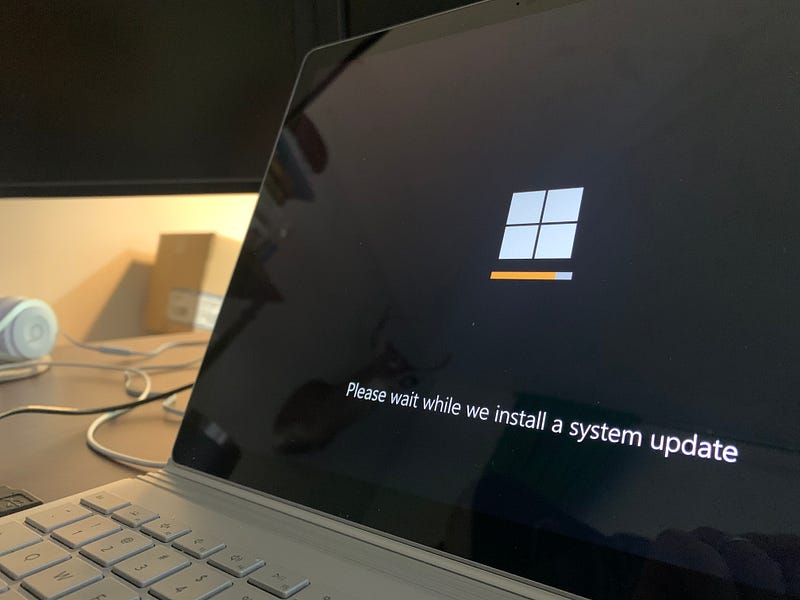
Photo by Clint Patterson on Unsplash

Now let me introduce to you, some really popular desktop application launchers for Windows:

Launchy Launchy is a free and open-source application launcher that allows you to quickly launch applications, files, and folders with just a few keystrokes. You can customize Launchy to include your most commonly used applications and files, and you can even use it to perform web searches. (Not available for windows 11 yet)

Executor Executor is another free and open-source application launcher that provides a customizable interface for launching applications, files, and folders. It also includes a variety of plugins that allow you to perform tasks like web searches and sending emails.

Wox Wox is a free and open-source application launcher that provides a customizable interface and support for plugins. It includes a variety of built-in features, including support for web searches and file operations.

Now, the last and the best one is from Microsoft itself;

On Windows 11, download Microsoft PowerToys and hit Alt+Spacebar to launch PowerToys Run.

Once launched, you can start typing to search for an application, file, or setting, and the Launcher will display results in real-time as you type.I have been using this lately, it is super useful.

The Launcher also supports plugins, which can extend its functionality.

For example, you can install a plugin to search your web browser bookmarks or search your email inbox directly from the Launcher.
Photo by Markus Spiske on Unsplash

Here are some popular desktop application launchers for macOS:

Spotlight Spotlight is a built-in search feature for Apple’s MacOS and iOS. Simply hit Command+Spacebar on your desktop and type in the beginning letters of an application, file, or website you’d like to open.

Alfred Alfred is a popular application launcher for macOS that provides a variety of features, including a customizable interface, support for plugins, and the ability to perform web searches. Alfred also includes a clipboard manager and a built-in calculator.

Quicksilver Quicksilver is a free and open-source application launcher that provides a customizable interface and support for plugins. It also includes a variety of built-in features, including support for web searches and file operations.

LaunchBar LaunchBar is a commercial application launcher for macOS that provides a customizable interface and support for plugins. It includes a variety of built-in features, including support for web searches and file operations.

These desktop application launchers offer a fast and efficient way to launch applications, files, and folders on your computer.

By using a keyboard shortcut to bring up a search bar or launcher window, you can quickly find what you need and get back to work. Whether you’re using Windows or macOS, there are a variety of desktop application launchers available to choose from, each with its own unique set of features and customization options.

So why waste time clicking through menus and folders when you can use a desktop application launcher to work more.

Thank you for reading till the end. Do not forget to check out my other stories.

7 Creative and Easy Ideas for a Faceless YouTube Channel

Best YouTube channels to accelerate your learnings

Be Productive!

7 Best Ted Talks

5-Minutes Rule To Avoid Procrastination

If you like my work, a follow and few claps will encourage me to write more for everyone!

Show your support, buy me a book here.

check out my other stories here for free.

Read more stories from me and from other brilliant writers by becoming a Member of Medium community.

If you sign up using my link, I’ll eventually earn a small commission. Thanks!

Photo by Hanny Naibaho on Unsplash
Productivity
Application
Work
Work Life Balance
Work From Home
Recommended from ReadMedium