avatarSorin Dolha

Free AI web copilot to create summaries, insights and extended knowledge, download it at here

3633

Abstract

as common storage, and read/write files from there using git, just like before, even if they won’t be source code. But wouldn’t this be kinda… overkill? (Moreover, it would require an Internet connection, at least temporarily, when transferring items, if we were to go with this approach…)</p><p id="e266">Then I attempted to enable network file sharing on macOS (even tried <i>SMB</i>), thinking that I could, with the help of some nice packages, read and write files from a host machine’s folder directly inside NetBSD.</p><p id="e41c">Everything failed miserably, so I moved on and considered creating some disk image file to mount on macOS and to connect the virtual machine to it as well. Guess what: nothing worked in this direction either (or not for the unlucky me). I’ve tried literally all paths I could think of. Most types of disk images that Apple’s <i>Disk utility</i> can create won’t even be recognized under NetBSD, while those that do, don’t seem — for some unknown reason — to be mountable, at least inside this special “in-dev” OS flavor.</p><p id="fbd7">Virtualizing storage devices seemed similarly difficult — that if it could have been done at all…</p><figure id="18d0"><img src="https://cdn-images-1.readmedium.com/v2/resize:fit:800/0*6h0E_V_cDEcIFSFe"><figcaption>Photo by <a href="https://unsplash.com/@icons8?utm_source=medium&amp;utm_medium=referral">Icons8 Team</a> on <a href="https://unsplash.com?utm_source=medium&amp;utm_medium=referral">Unsplash</a></figcaption></figure><h2 id="0dd3">The solution; the actual solution; no, the really actual solution</h2><p id="f73d">But then it struck me: why not using FTP! It’s a protocol that should do just that: file transferring. Sounded good, but then I remembered: for some years already, macOS doesn’t include built-in FTP server support anymore. And as stated, I just didn’t want to install anything risky on my host system.</p><p id="df17">Oh well, what can I do? And then it struck me again: I could try enabling FTP on the guest OS side instead! But there was one problem with this too: all guides on setting up FTP under NetBSD (those that I could find on the Web myself) included a lot of steps and required complex configurations. In order to enable both anonymous and authenticated, to be able to access specific folders, and so on.</p><p id="daf3">Yet eventually, it struck me one final, good time! I could just go and enable FTP under NetBSD with the default settings, and see how it works. That has technically meant just:</p><div id="fd95"><pre><span class="hljs-keyword">su</span> vim /etc/inetd.<span class="hljs-keyword">conf</span></pre></div><p id="c280">… and enabling FTP access by removing the hash character in front of the appropriate <i>ftp</i> line:</p><figure id="fb3f"><img src="https://cdn-images-1.readmedium.com/v2/resize:fit:800/1*Rm2AbqHt3IFT5LyHX3eyJg.png"><figcaption></figcaption></figure><p id="2ee0">Then I simply had to save the configuration and restart <i>inetd</i> or… just reboot the machine:</p><div id="ea16"><pre><span class="hljs-attribute">reboot</span></pre></div><p id="c5a2">After the restart, I looked up the IP address of the VM:</p><div id="08f8"><pre><span class="hljs-attribute">ifconfig</span></pre></div><figure id="83d3"><img src="https://cdn-images-1.readmedium.com/v2/resize:fit:800/1*WU8WRS0k002BOpafUxpDGg.png"><figcaption></figcaption></figure><p id="6b94">… and I tried to connect to the machine (by FTP) from macOS’s <i>Finder</i>, i.e. <i>Connect to Server</i> from the <i>Go</i> menu and entering the IP address URL there: <code>ftp://192.168.66.10</code>.</p><p id="6784">Whoa, after typi

Options

ng the NetBSD username and password (which were requested), I could see the files inside!</p><figure id="463f"><img src="https://cdn-images-1.readmedium.com/v2/resize:fit:800/1*OdqGyrJyzew3_bi-y9yTZA.png"><figcaption></figcaption></figure><figure id="1be5"><img src="https://cdn-images-1.readmedium.com/v2/resize:fit:800/0*Ke0zck8bBxz4C1L-"><figcaption>Photo by <a href="https://unsplash.com/@siora18?utm_source=medium&amp;utm_medium=referral">Siora Photography</a> on <a href="https://unsplash.com?utm_source=medium&amp;utm_medium=referral">Unsplash</a></figcaption></figure><h2 id="1e82">And then… an inconvenience, and the final really actual solution! 😉</h2><p id="9d46">The last problem I have encountered was that unfortunately the files seem to have been all read-only in Finder, so with this approach I could only send files from NetBSD to the outside world, and not the other way around.</p><p id="52f9">After some more digging, however, I came to understand that this was not an FTP configuration issue, but rather an Apple thing: by design, Finder isn’t a read-write FTP client, but a read-only <i>only</i> one!</p><p id="d28e">To mitigate this I eventually ran to the Mac App Store and have found a free FTP client app that seems to work just fine in both directions: ForkLift, here we come!</p><div id="0ea2" class="link-block"> <a href="https://apps.apple.com/app/forklift-file-manager-and-ftp-sftp-webdav-amazon-s3-client/id412448059"> <div> <div> <h2>‎ForkLift - File Manager and FTP/SFTP/WebDAV/Amazon S3 client</h2> <div><h3>‎*** ForkLift 3 is currently not available in the Mac App Store. To avoid confusion we made ForkLift 2 free. If you…</h3></div> <div><p>apps.apple.com</p></div> </div> <div> <div style="background-image: url(https://miro.readmedium.com/v2/resize:fit:320/0*dktCAxgBTnJPTBkb)"></div> </div> </div> </a> </div><figure id="8d26"><img src="https://cdn-images-1.readmedium.com/v2/resize:fit:800/1*GjZtEQf9IpGYlg79ghP9AQ.png"><figcaption></figcaption></figure><figure id="20e4"><img src="https://cdn-images-1.readmedium.com/v2/resize:fit:800/1*ul5bmkvysDZ9sOCg7nYWlw.png"><figcaption></figcaption></figure><p id="3464">Using this small app (set up to run without a sidebar and in single pane mode, like I prefer), I could easily drag and drop to copy <i>hello.rs</i> to my macOS Desktop, the I edited it in <i>TextEdit</i> there:</p><figure id="7c6c"><img src="https://cdn-images-1.readmedium.com/v2/resize:fit:800/1*DQbfkFbNZnYBrX-H2P2BfA.png"><figcaption></figcaption></figure><p id="ca15">… and then saved and dragged it back to the FTP window, replacing the original file, in order to be able to compile and run again the code inside NetBSD — and yes, with this we’re done:</p><figure id="c42c"><img src="https://cdn-images-1.readmedium.com/v2/resize:fit:800/1*PZPk6pzik1c0Gpdidxsq4g.png"><figcaption></figcaption></figure><p id="0b03">PS: Since ForkLift’s privacy policy indicates that they do not collect any data from the app itself, it seems we’ve managed to solve everything we wanted, and this respecting all of the imposed constraints. Great day!</p><figure id="955a"><img src="https://cdn-images-1.readmedium.com/v2/resize:fit:800/0*qYiVYAHyc5lVSZQZ"><figcaption>Photo by <a href="https://unsplash.com/@kundeleknabiegunie?utm_source=medium&amp;utm_medium=referral">Agnieszka Boeske</a> on <a href="https://unsplash.com?utm_source=medium&amp;utm_medium=referral">Unsplash</a></figcaption></figure></article></body>

Transferring files between macOS and a NetBSD VM instance under UTM

(sometimes the best solution is the simplest one)

Photo by Marcus Urbenz on Unsplash

Although it can be read on its own, this story can be considered a follow up to my previous one, where I was showing how to use UTM to host a special aarch64 flavor or NetBSD on an Apple Silicon based Mac (like my M1 MacBook Air) such as to build software there, e.g. using Rust:

We’ve used git then to save our work on GitHub (online), but what if we’d just want to grab some source code or any other files from the virtual machine to process (or just store) also on host machine?

Or, what if we wanted to also send some files from the Mac down to the VM for later processing?

An important requirement needs to be mentioned, however: The things discussed above should work without installing anything on macOS outside of the Mac App Store. (Read this if you want to understand more about this self-imposed constraint.) Moreover, we should check the privacy policy of any app we’d choose to install against any data collection issues we could think of.

It’s easy, you may say [at first]: we could simply use the shared folder support from SPICE Guest Tools that UTM team recommends, right?

Well… not so fast!

As (at least at the time of writing) the only version of NetBSD that appears to work under UTM on an M1 machine is a very special one (current-evbarm-aarch64), you’ll easily find out that it doesn’t support the required packages for Spice.

(Nor does it support desktop environments, from what I could see, but for now let’s say we can live without any GUI, welcoming vim as our new best friend instead!)

Photo by Soroush Karimi on Unsplash

Brainstorming; again and again

A few ideas crossed my mind (during the last week or so) in order to turn this non-spicy file transferring “dream” into reality:

First, I could use a private git repo on GitHub as common storage, and read/write files from there using git, just like before, even if they won’t be source code. But wouldn’t this be kinda… overkill? (Moreover, it would require an Internet connection, at least temporarily, when transferring items, if we were to go with this approach…)

Then I attempted to enable network file sharing on macOS (even tried SMB), thinking that I could, with the help of some nice packages, read and write files from a host machine’s folder directly inside NetBSD.

Everything failed miserably, so I moved on and considered creating some disk image file to mount on macOS and to connect the virtual machine to it as well. Guess what: nothing worked in this direction either (or not for the unlucky me). I’ve tried literally all paths I could think of. Most types of disk images that Apple’s Disk utility can create won’t even be recognized under NetBSD, while those that do, don’t seem — for some unknown reason — to be mountable, at least inside this special “in-dev” OS flavor.

Virtualizing storage devices seemed similarly difficult — that if it could have been done at all…

Photo by Icons8 Team on Unsplash

The solution; the actual solution; no, the really actual solution

But then it struck me: why not using FTP! It’s a protocol that should do just that: file transferring. Sounded good, but then I remembered: for some years already, macOS doesn’t include built-in FTP server support anymore. And as stated, I just didn’t want to install anything risky on my host system.

Oh well, what can I do? And then it struck me again: I could try enabling FTP on the guest OS side instead! But there was one problem with this too: all guides on setting up FTP under NetBSD (those that I could find on the Web myself) included a lot of steps and required complex configurations. In order to enable both anonymous and authenticated, to be able to access specific folders, and so on.

Yet eventually, it struck me one final, good time! I could just go and enable FTP under NetBSD with the default settings, and see how it works. That has technically meant just:

su
vim /etc/inetd.conf

… and enabling FTP access by removing the hash character in front of the appropriate ftp line:
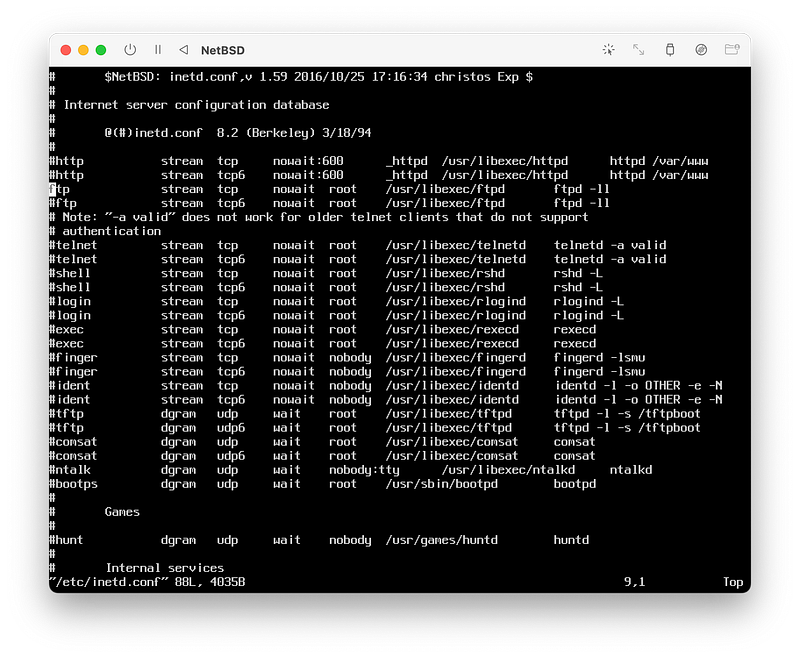
Then I simply had to save the configuration and restart inetd or… just reboot the machine:

reboot

After the restart, I looked up the IP address of the VM:

ifconfig
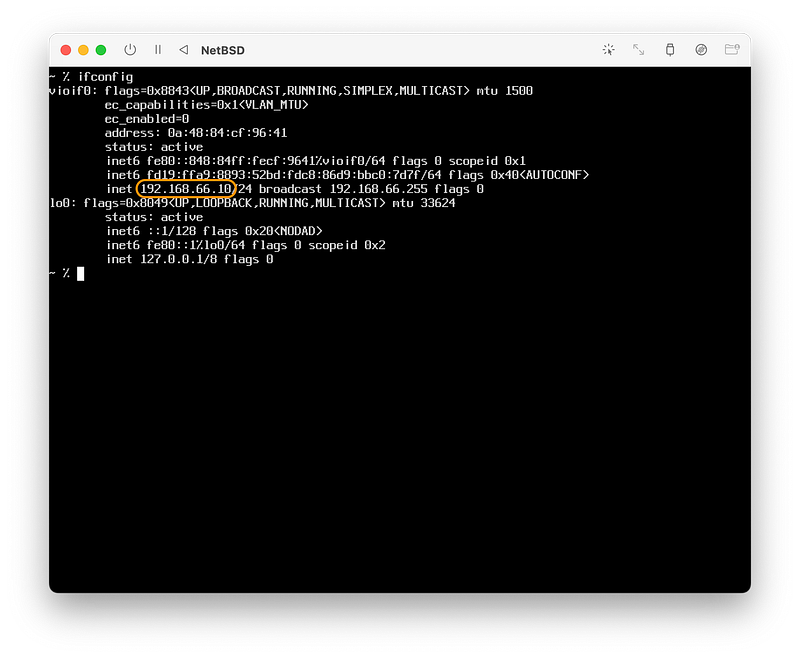
… and I tried to connect to the machine (by FTP) from macOS’s Finder, i.e. Connect to Server from the Go menu and entering the IP address URL there: ftp://192.168.66.10.

Whoa, after typing the NetBSD username and password (which were requested), I could see the files inside!
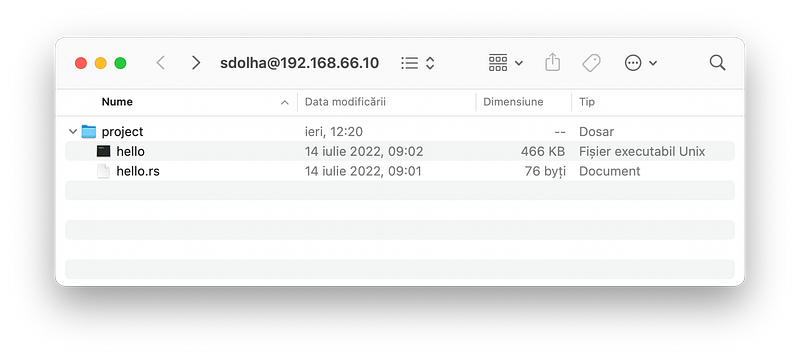

Photo by Siora Photography on Unsplash

And then… an inconvenience, and the final really actual solution! 😉

The last problem I have encountered was that unfortunately the files seem to have been all read-only in Finder, so with this approach I could only send files from NetBSD to the outside world, and not the other way around.

After some more digging, however, I came to understand that this was not an FTP configuration issue, but rather an Apple thing: by design, Finder isn’t a read-write FTP client, but a read-only only one!

To mitigate this I eventually ran to the Mac App Store and have found a free FTP client app that seems to work just fine in both directions: ForkLift, here we come!
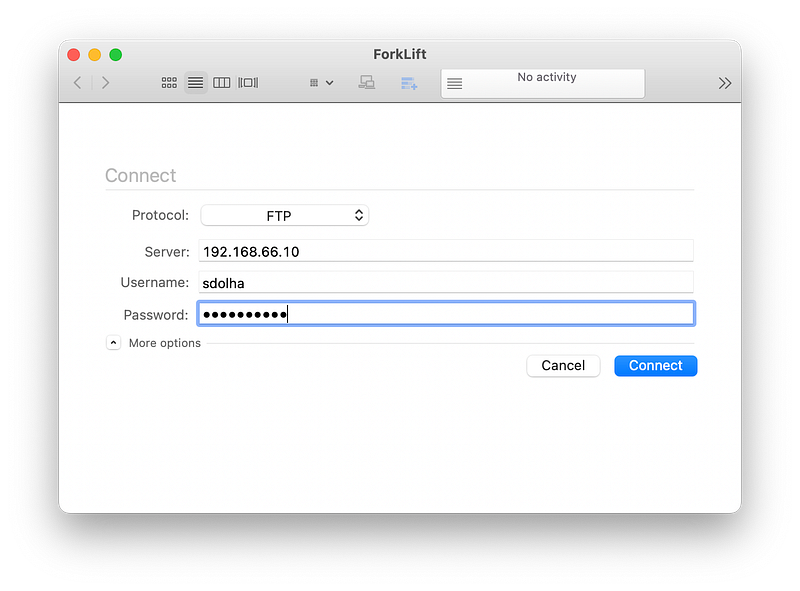
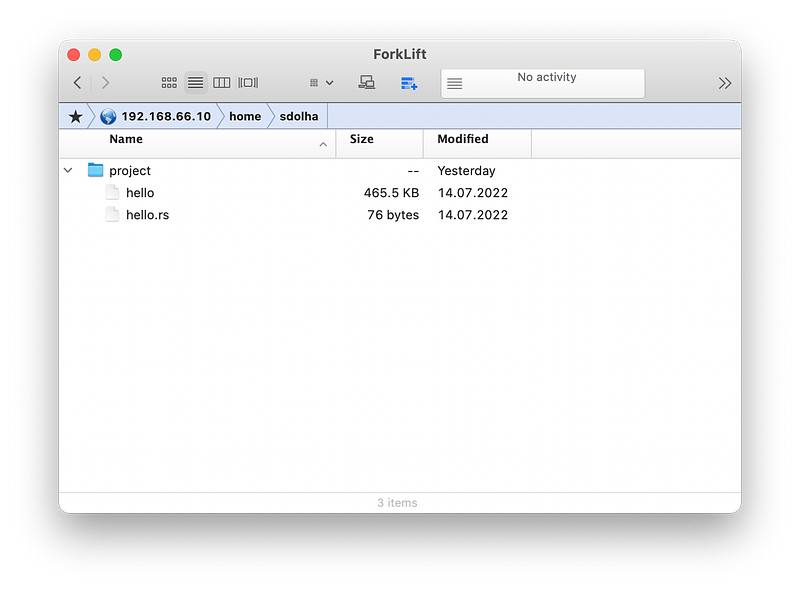
Using this small app (set up to run without a sidebar and in single pane mode, like I prefer), I could easily drag and drop to copy hello.rs to my macOS Desktop, the I edited it in TextEdit there:
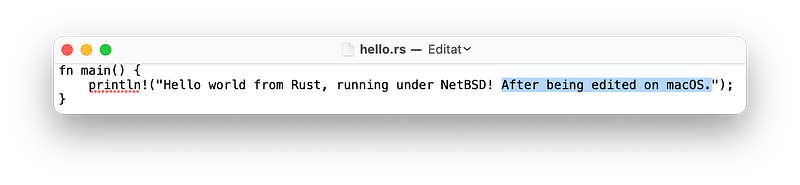
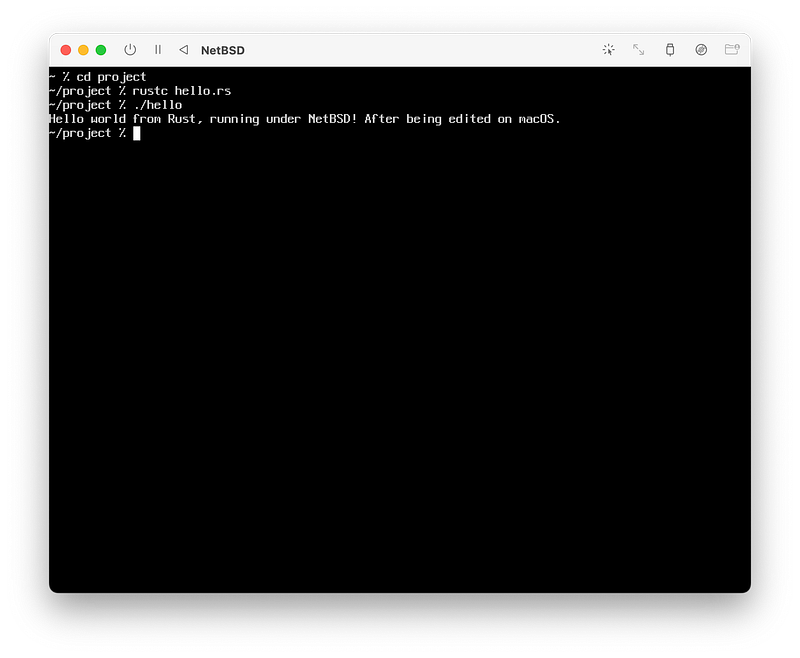
… and then saved and dragged it back to the FTP window, replacing the original file, in order to be able to compile and run again the code inside NetBSD — and yes, with this we’re done:
PS: Since ForkLift’s privacy policy indicates that they do not collect any data from the app itself, it seems we’ve managed to solve everything we wanted, and this respecting all of the imposed constraints. Great day!

Photo by Agnieszka Boeske on Unsplash
Netbsd
Macos
Ftp
Transfer
Files
Recommended from ReadMedium