
Tools for layering online videos
Tools for layering online videos
While we have long made use of some video in instruction, this type of content was mostly used on special occasions and was limited by cost and availability. Times and technology have changed. With YouTube and other online services, teacher and student created video have become far more common. We search for short online videos we can use to demonstrate specific phenomena and some educators replace what were lengthier class presentations with video to be reviewed before class (i.e., flipping the classroom). Some of the generative concepts applied to static content can also be applied to video. If we are going to use more video, we should give thought to how we can help students process and study this content. Some layered additions can be made to Internet-based video.
VideoAnt
VideoAnt is a free, browser-based video annotation service developed and maintained at the University of Minnesota. Because the service is based in HTML5 eliminating the need for browser extensions, teachers/designers can create Ants (the annotated videos) using any browser and both computers and tablets. The opportunity to work on Ants with a tablet or chromebook will be beneficial for schools with programs providing these devices to individual students and programs that have students work on different devices.
A layered video can be created to be private, public, or shared with a group. Shared videos can be offered in view or annotate mode with the opportunity to apply these settings to individuals within a group. Potentially, some students could be invited to contribute annotations probably on a rotating basis with the others in a class expected to study only. The service also allows the teacher to make copies of ants and this practice is encouraged to break a group intended to add annotations or respond to annotations down to a manageable size.
Creating an account and adding a group — An account is created by establishing a login. An account can be created with or without authentication. An existing Google or Facebook account is used to create an authenticated account. Logging in with an email address creates a Guest account that allows access to fewer features. The difference between an account that is or is not authenticated is a security measure.
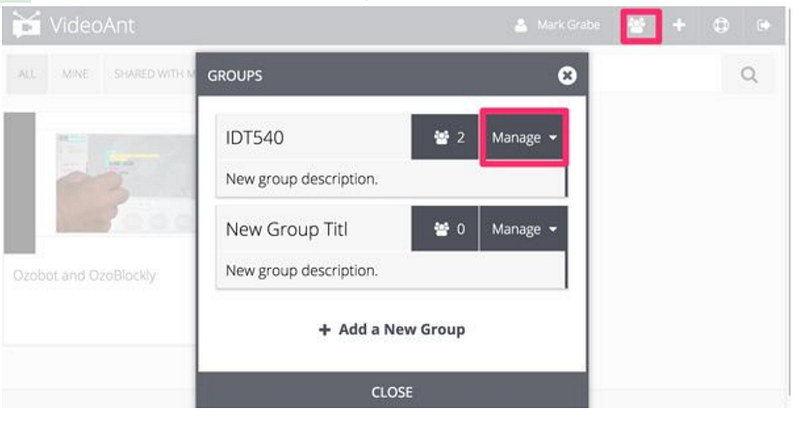
Connecting to a VideoAnt account opens the dashboard to what is called the ant farm. The dashboard shows layered videos that have been completed or are being developed and through the menu bar provides access to other functions. The Groups menu icon in the image that follows (Figure 5.1) has been boxed in red and the window providing access to create and modify groups has been opened.
5.1 VideoAnt dashboard with Groups function selected
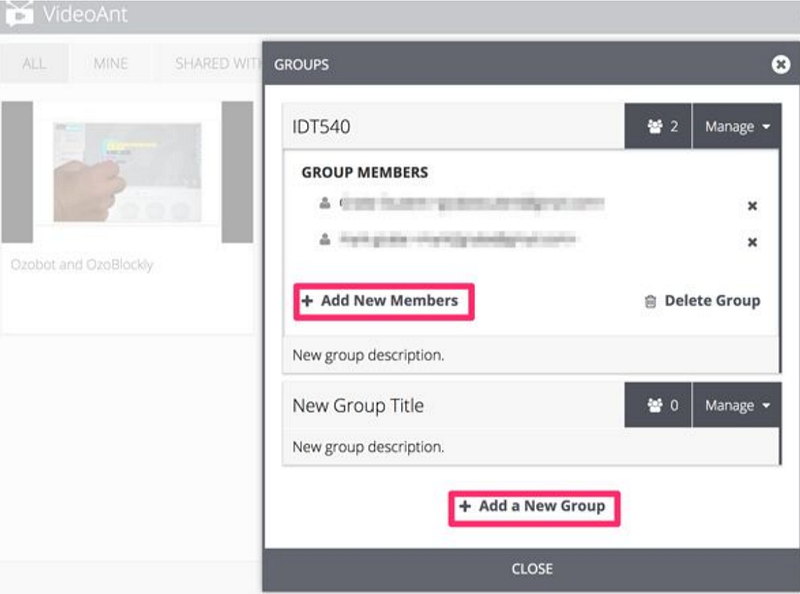
The Manage button (Figure 5.1) opens another window allowing members to be added to a group and new groups to be created (Figure 5.2). New group members are added with accompanying email addresses. Once groups have been established newly created ants (layered videos) can be shared with all members of a group saving time compared to sharing with many individuals.
5.2 VideoAnt group creation and addition of group members
Annotating a new video — The process of annotating a new video begins from the dashboard. A prominent “+ New Ant” button appears at the top of the dashboard and selection of this button opens a dialog box with a textbox for adding the address of an online video. Adding an address and then clicking the “Load” button opens up the window for adding annotations (Figure 5.3).
5.3 Adding an Ant
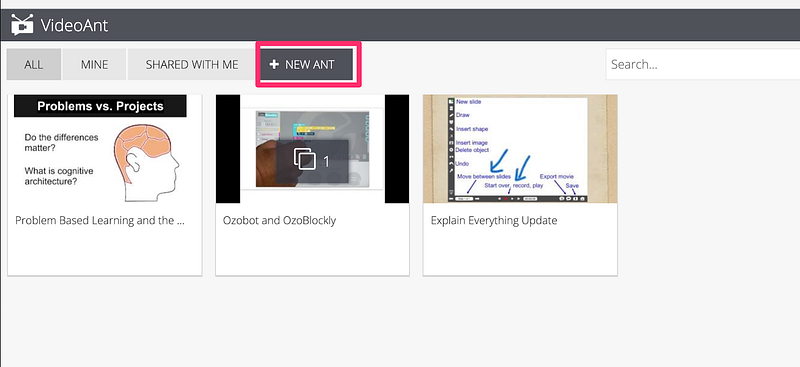
Figure 5.4 provides a view of the screen you experience while viewing and annotating a video. The video will play on the left-hand side of the screen. Underneath the area within which the video is viewed are controls. Several have been enclosed in a red box. From left to right, these boxes mark controls including the play/pause button, the ant button (movie camera) for pausing the video and opening a textbox so that an annotation can be added, and the gear button which allows access to additional controls that are used to set permissions and share the annotated video to individuals or groups.
5.4 AntVideo display while viewing and annotating
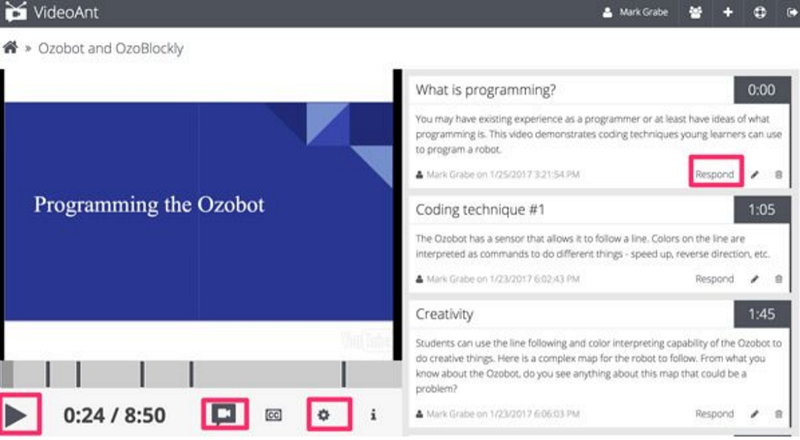
You can see several annotations that have been added in the right-hand side of the figure. Within one of these annotations, you see a red box around the “response” option. If a video is being viewed by someone who has the privilege of annotating, existing annotations can be appended and new annotations can be added. The response button could be used to request the answer to a question.
Clicking within one of the annotations will cause the video to jump to the linked location in the video. The play button would then play the video from that time marker. Because most users would add an annotation after viewing a section of video, starting the video at the point where the annotation was written would likely miss the related information from the video. This is easy enough to fix. The timeline below the video is clickable. You learn to move to the point of an annotation and then click before that point to begin viewing.
Sharing layered videos
5.5 Sharing layered videos
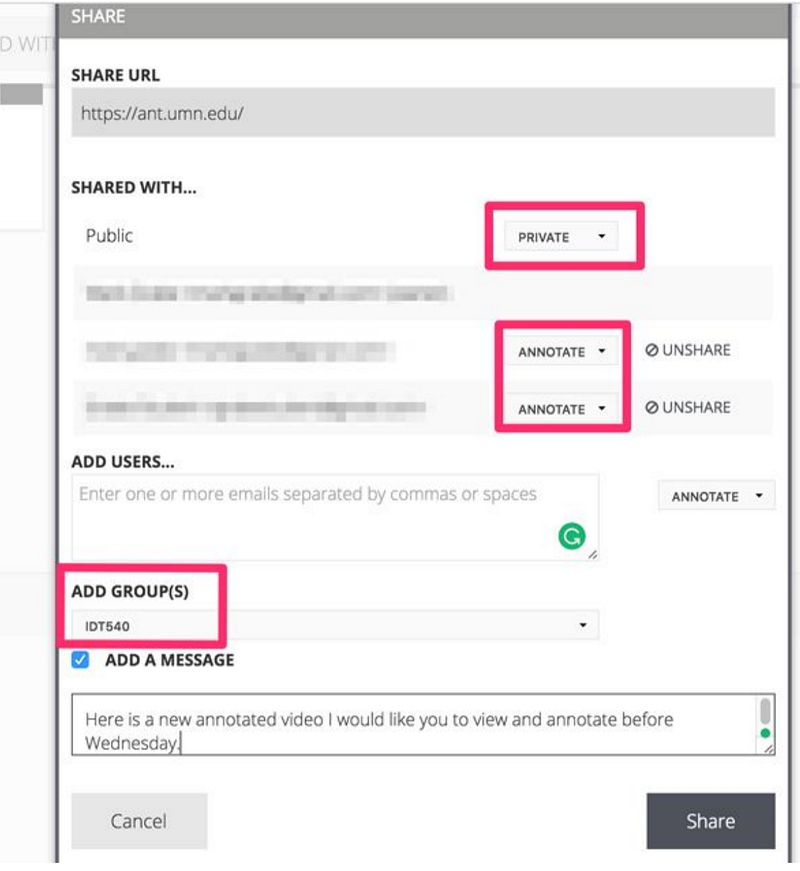
Once layering a video has been finished, it is time to share with students. The gear icon (Figure 5.4) opens a dialog window offering multiple settings for sharing (Figure 5.5). I have set several variables for this video. I have declared it private, but then shared it with group IDT540. All members of this group will be able to annotate the video. Members of this group will be sent an email notifying them that a new layered video has been prepared for them. The video will also show up on their dashboard.
Thoughts on student use — Understanding how the learner will experience an Ant encourages certain suggestions. Once play is pressed, the video will continue unless paused by the student. The existing annotations do not scroll with the video so the student may not even see all annotations unless making the effort to scroll the video panel. For short videos, students might be asked to first scroll through the existing annotations. This will acquaint students with requests that have been made of them and the issues the teacher has raised. Following this preview, they might then view the video and then return to the annotations to respond to any specific requests. Clicking the time stamp within an annotation links the viewer back to the location within the timeline and the play button will then play from that point (remember to click earlier in the timeline to review the content likely associated with a note). A similar strategy might be applied to longer videos by having students pause the video from time to time and repeat the process just recommended for segments of the video.
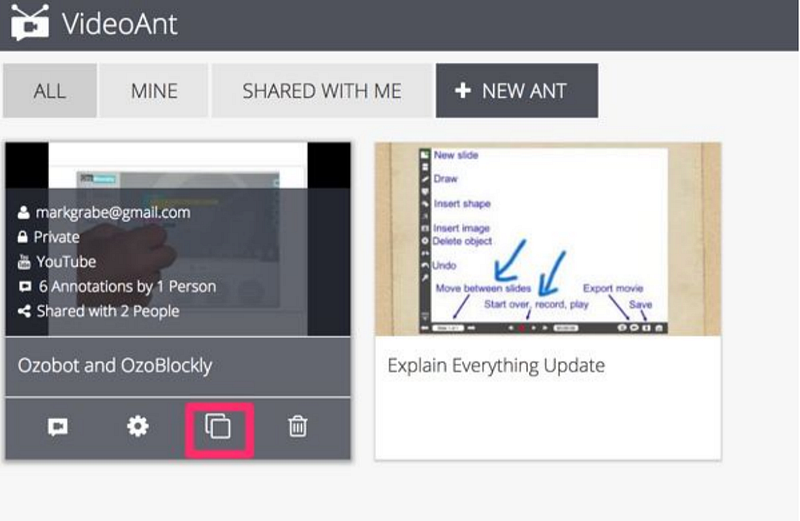
You can probably tell just by examining the figures provided here that if very many people added annotations it would get impossibly messy. The developers of VideoAnt propose that this problem be addressed through duplication. Hovering over an annotated video in the dashboard brings up several tools for working with completed ants. Note the red box surrounding the duplication icon (Figure 5.6).
5.6 Tools for completed layered videos
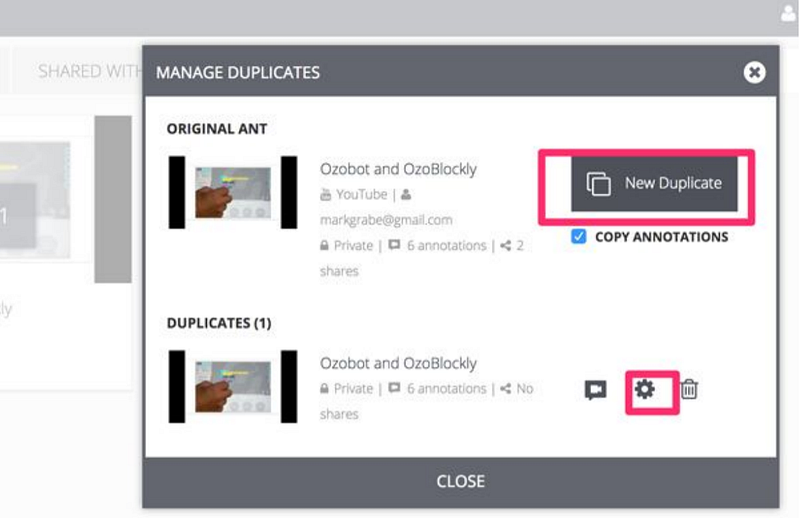
Selecting the duplication icon opens another window (Figure 5.7). This window provides access to a button for creating a duplicate of the ant and to determine whether existing annotations are copied as well. The gear icon associated with each duplicate can then be used to assign that version of the video to a manageable number of students. It is important to understand that all associated annotations are shared when a duplicate is created so in most situations the teacher/designer would duplicate an ant before sharing with groups of students.
5.7 Duplicating ants
MoocNote
MOOCNote was designed as an educational video annotation tool. The basic unit of organization within the service is the “course” with annotated videos added to a course to create what the developers describe as a playlist. While a teacher/designer can contribute videos, the assumed external source is YouTube. MoocNote allows both the teacher/designer to add notes, questions, and links. These additions can be public, private or shared to individuals or groups.
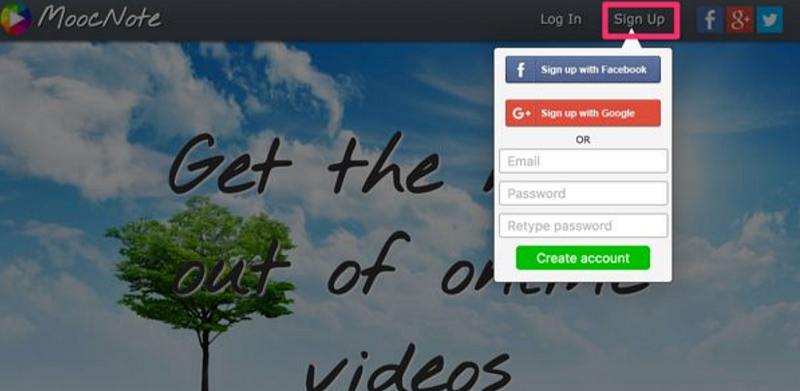
Signup and course creation — Signing up for a free MoocNote account is a simple process requiring that a new user connect from the MoocNote home page. Users authenticate using Google or Facebook or connect by providing an email address and a password. Access to the signup and login dialog boxes is offered from the top of the screen (see red box in Figure 5.8).
5.8 MoocNote home page
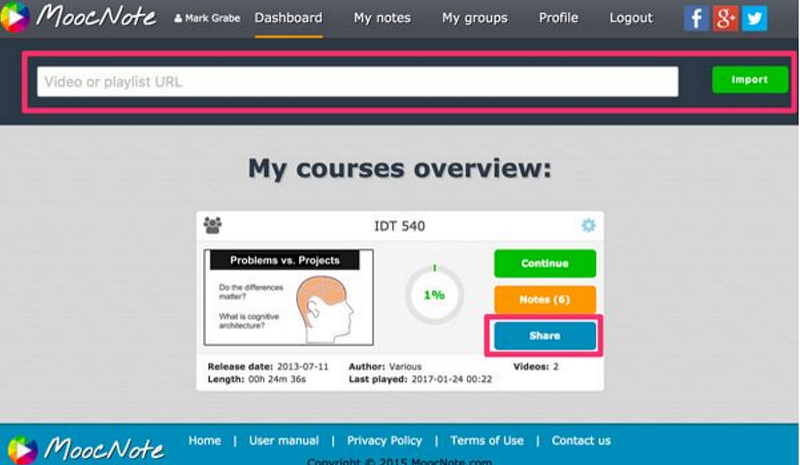
Signing in opens the MoocNote dashboard which provides access to existing courses, menus for viewing existing notes and for creating and adding students to courses, and a text window for submitting a new video for annotation (see red box near the top of Figure 5.9). Adding a video allows the identification of a new course or allows the new video to be added to an existing course. To be clear, adding a video means providing the web address (e.g., YouTube address) for a video. You do not directly upload a video to the service.
One other important item has been identified in this same image. You will see another red box added to the one course that appears in this figure. This box identifies the placement of the button used to share that course with individuals or groups. I will provide additional information on sharing to groups at a later point.
5.9 MoocNote dashboard
Groups and adding students
5.10 Adding students to a group
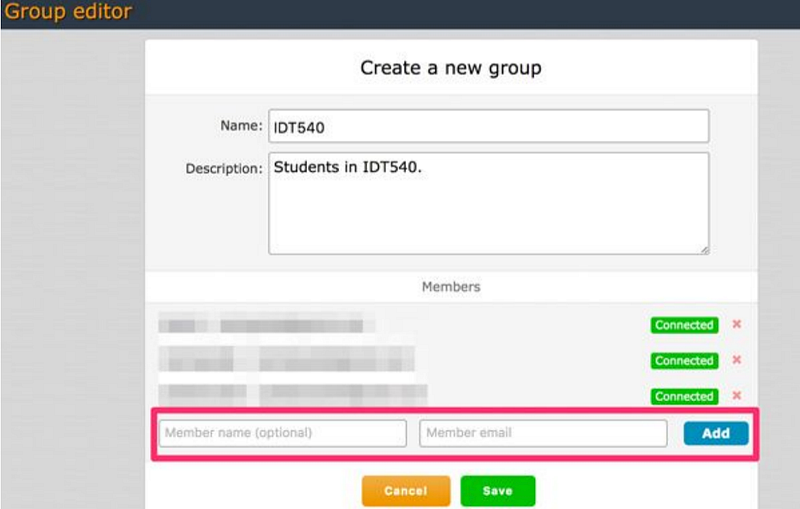
Groups are created using the pull-down “Groups” menu bar option at the top of the Dashboard. Once a group is created and given a name, group members are added by specifying a name with a related email address (see Figure 5.10). Members will receive an email and must accept the request before they will become members of the group. A group is given access to a course using the share button associated with that course as it appears on the Dashboard (see Figure 5.9).
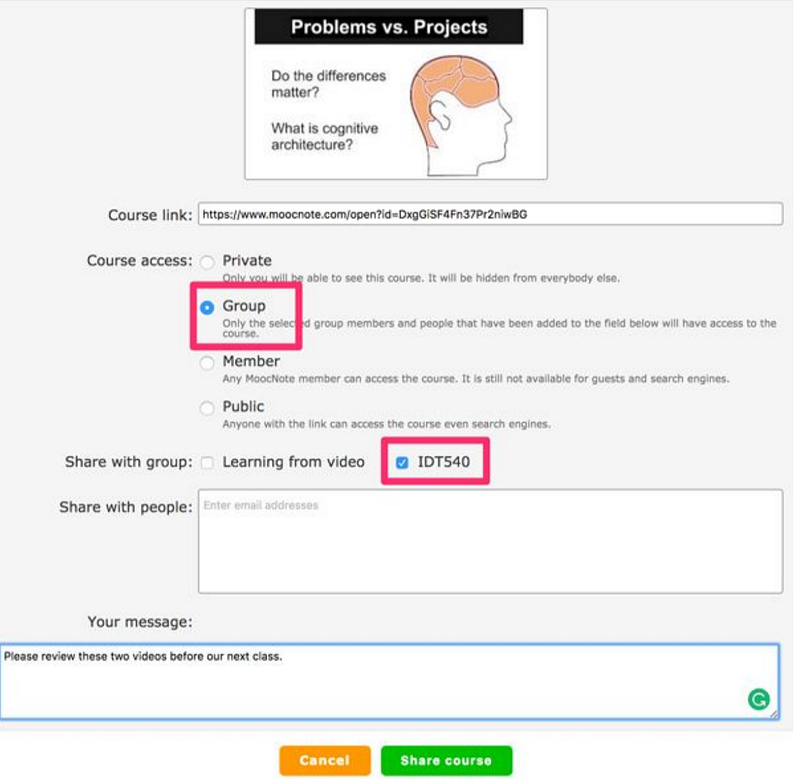
MoocNote offers several important options for sharing courses. The share page appears in Figure 5.10. The annotated video can be stored as private, public, and shared with a designated group (or with specific individuals). Selecting the group option identifies the existing groups and allows the desired group to be selected. Group members will receive an email and must accept access to the course. A message may be written to accompany this invitation.
5.11 MoocNote share page
Annotating with MoocNote
5.12 MoocNote annotation and viewing window
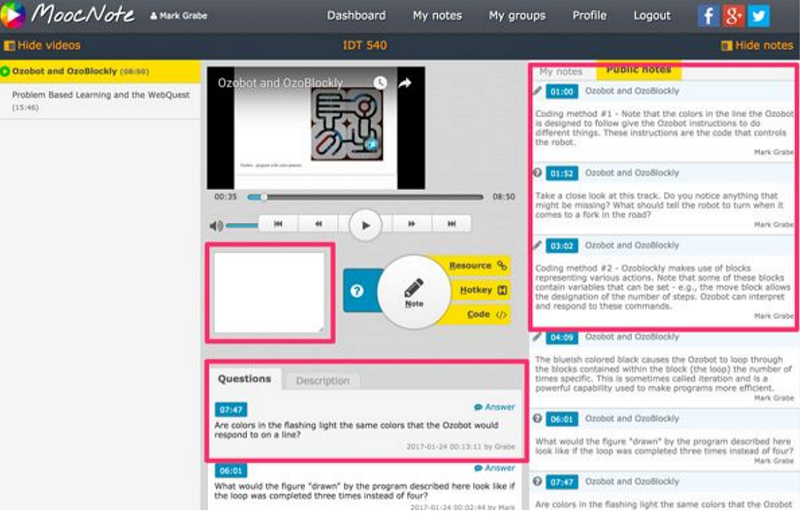
The MoocNote window (Figure 5.12) is complex and with three panels allowing accessing to individual videos, viewing videos, and reviewing notes and questions. The leftmost panel lists the videos associated with a given class. Selecting a video from this list brings it up in the other two panels. The rightmost panel contains a listing of all layered content. Tabs at the top of the panel allow personal annotations to be separated from public annotations.
The middle panel displays the video with typical controls for playing and resuming, and a scrub bar (top portion). The tools for annotation (middle) and an area for responding to questions (bottom). The process for adding an annotation follows this sequence. The user pauses the video at the point an annotation is to be added. There are several possible annotation types — note, question, link. The information for all annotations is entered in the area enclosed by the red square (see Figure 5.12). The button appropriate to the type of annotation is then selected — note, ? (question) or link (buttons appear to the right of the area for entering the content to be added).
The questions appear at the bottom of the central panel. If you look closely, you should be able to see the “response” icon associated with each question. This icon opens a text window for adding a response.
Thoughts on student use and general summary — Of the two video annotation tools reviewed here MoocNote offers the opportunity to apply more types of annotations (notes, questions, links). Or, perhaps to be fair, MoocNote makes the addition of these types of annotations more concrete and straightforward. On the other hand, VideoAnt offers a more direct way to address the overload that requiring the participation of a class-size group would create by making use of the duplication option.
Both tools seem best suited to personal use or to student viewing with guidance from a teacher/designer. With the annotation of video, you have two content systems (video, annotations) sequenced in different ways; time based for video, and spatially based for annotations. Neither of the services described here integrate these sequencing systems so that the annotations would scroll forward as the video plays. Annotating web pages offers some advantages in that linking the original content and layered additions is easier to display within the user interface. With web pages, the original content and the additions scroll up or down together. In contrast to reading web pages, annotated video offers a lower level of learner control. While it is true that a learner can stop the video or scrub ahead or back through the video, such control options seem far less natural and attention-demanding than the methods of control we have learned to apply naturally while reading. Of course, video is now often used in classrooms as a replacement for teacher presentations (i.e., flipped classroom approaches). In contrast to live presentations, students do have greater learner control when attempting to process important ideas presented with video. There are advantages and disadvantages to both video and live presentations. With video annotation systems, teachers/designers have the opportunity to add back at least some elements of learner participation lost when using more traditional video as a substitute for live presentations. Moving the presentation components out of class time also allows more focused time for discussion and individual attention.