avatarJulien Dimastromatteo, PhD

Free AI web copilot to create summaries, insights and extended knowledge, download it at here

2615

Abstract

iness. This is because colors act deeply in our human brains. Understanding this effect each color has on our behavior gives us a path to follow toward self-regulation.</p><p id="6e15">Red is one of the primary colors that has a powerful effect on us. The human mind associates <a href="https://www.nature.com/articles/srep05899">the red color with alertness situation, attraction, excitement, and romance</a>. Therefore, the use of this warm tone in the design of app icons or notifications’ bubbles is not without consequences on human behavior.</p><p id="5003">To prevent or minimize such excitement that brings us back every single time to our screens, let’s deem the long-wavelength color from your screen.</p><h2 id="1313">Grayscale Filter</h2><p id="81f2">One way to achieve a reduction of colors on our screens is to set a grayscale filter on your iPhone.</p><p id="fc5d">With iOS 14, go to <b>Settings</b>> <b>Accessibility</b> > <b>Display & Text Size</b>> <b>Color Filters</b>. Turn “<b>Color Filters</b>” on, and you’ll find the option for <b>Grayscale</b> at the top.</p><h2 id="3350">New Home Screen Design</h2><p id="162c">Another way is to design the main homescreen using black and white icons, only. In the following example, I used a <a href="https://icons8.com/">free set of lined icons</a> that I saved to my Photo folder. This is a great iOS feature. With a <b>long touch</b> on the image, a menu will pop-up and give you the option to save to the folder of your choice.</p><h2 id="3aaa">DIY: Build Your Home Screen</h2><ol><li>In the Shortcuts app, tap on the <b>“+” button</b>.</li><li>Add an action with “<b>Add Action</b></li><li>Scroll down and select “<b>Open App</b></li><li>Tap on “<b>Choose</b>” and select which app you would to see on your home screen. Indeed, I would recommend the essentials. In this example, I’m using Spark for my emails.</li></ol><figure id="eed6"><img src="https://cdn-images-1.readmedium.com/v2/resize:fit:800/1*hvdUQyrx1RfIYDAoMQ_-kw.jpeg"><figcaption>Home Screen Design: Steps 1 to 4 (Own Creation)</figcaption></figure><p id="7494">5. Click on the <b>3 dots (…)</b> located below the <b>“Next” button</b>.</p><p id="94d4">6. Enter a <b>Shortcut name</b>. Here, I choose E-mails.</p><p id="2302">7. Tap on “<b>Add to Home Screen</b>”.</p><p id="3b56">8. In a case where we did not want to customize the icon, a simple click on “Add” would do the trick. But we do want to change the icon and the name, so keep going to <b>step 9</b>.</p><figure id="4ab9"><img src="https://cdn-images-1.readmedium.com/v2/resize:fit:800/1*AjKwIepRp_0xCSuDi4hc6

Options

Q.jpeg"><figcaption>Home Screen Design: Steps 5 to 8 (Own Creation)</figcaption></figure><p id="82d8">9. Change the <b>name of the icon</b>. I used the same name as the Shortcuts name in step 6. Then <b>click on the icon</b>.</p><p id="dc00">10. A menu will open. Depending on where you stored your icon's image library, <b>tap on the appropriate option</b>. Here, I choose “<b>Choose Photo</b>” because my icon’s images are saved in my Photo library.</p><p id="048d">11. I picked a very simple mail icon. I now click on the <b>“Add” button</b>.</p><p id="637e">12. <b>Return to your home screen</b>, you will see your icon.</p><figure id="6977"><img src="https://cdn-images-1.readmedium.com/v2/resize:fit:800/1*6NGQ795BMzhMdvN39CRSuw.jpeg"><figcaption>Home Screen Design: Steps 9 to 12 (Own Creation)</figcaption></figure><p id="6239">Congratulation you just made your first non-attention-seeking icon. This is a first step toward using more of your attention span toward important and meaningful activities.</p><p id="a2ef">Using the same 12 steps, add extra icons to launch apps of your choice. Indeed, I would recommend adding just the necessary. In my example, only 8 icons are displayed on the home screen and some would say it is already too much.</p><p id="9f03">On my home screen, you certainly noted a calendar and a wordy clock. These are widgets — another great feature offered by iOS14. Many apps come with a set of widgets. However, WidgetSmith adds some flexibility and aesthetics.</p><h2 id="c00d">Home Screen Pages Management</h2><p id="a95d">Once you are satisfied with the home screen you built, it is now time to get rid of the extra home screen pages. Here again, the new version of iOS features the possibility to hide those pages.</p><ol><li><b>Long touch on the screen </b>to make the icons dancing.</li><li>Tap on the <b>bottom gray shape</b> to access home screen pages.</li><li><b>Untick all pages</b> besides the main one.</li></ol><figure id="cf23"><img src="https://cdn-images-1.readmedium.com/v2/resize:fit:800/1*5zq_yuKl-BewG97YuiOoRg.jpeg"><figcaption>Edits Home Screen Pages (Own Creation)</figcaption></figure><p id="ad7d">Et Voila!</p><p id="cde7">You have a minimalistic, black, and white homescreen page that you won’t use unless you need it.</p><p id="d57a">To launch an app that is not on your main page, swipe down and tape the name in the search bar. Try it, this is also good for your brain!</p><p id="57cc">Your attention is can now be more focused on tasks that matter to you.</p><p id="2041">You won’t be distracted by visual notifications anymore.</p></article></body>

Reprogramming

This iOS 14 Home Screen will Help to Deal with Attention-Seeking Apps

The latest Tim Cook’s operating system is a game-changer.
Photo by Tatiana Syrikova from Pexels

If you are an Apple aficionado like I am, there always been a specific feature that I missed from day one after I transitioned from Android to iOS.

It has to do with homescreen customization. Until now, Apple’s operating systems have been particularly locked in regard to customization.

Since the beginning, Apple oriented us to the use of its own proprietary design, restricting at the same time the user’s liberty to perform actions it’s own way.

As iOS versions advanced in privacy and sophistication, Apple is giving back more and more freedom and flexibility to its users.

iPhone users can now design their own homescreen and decide the way to interact with it.

Lately, expert psychologists raised their voices to alarm the general population and health authorities of the danger of misusing social media and mobile devices. By seeking our attention a bit too much, social media apps prevent us to focus on important tasks i.e., learning and setting goals for our future.

Indeed many credible options can be used to get out of this vicious attention-seeking cycle, the more drastic being to delete your social media accounts.

However, in my opinion, social media are not entirely bad. They offer some valuable purposes like disease awareness or give us the hope to find missing loved ones.

Without going to an extreme measure and completely removing the apps, know that it is possible to abolish the attention-seeking behaviors of social media apps by rethinking the way we interact with our smartphones.

Colorful Life

A colorful life is an exciting concept. A life full of color contributes to our happiness. This is because colors act deeply in our human brains. Understanding this effect each color has on our behavior gives us a path to follow toward self-regulation.

Red is one of the primary colors that has a powerful effect on us. The human mind associates the red color with alertness situation, attraction, excitement, and romance. Therefore, the use of this warm tone in the design of app icons or notifications’ bubbles is not without consequences on human behavior.

To prevent or minimize such excitement that brings us back every single time to our screens, let’s deem the long-wavelength color from your screen.

Grayscale Filter

One way to achieve a reduction of colors on our screens is to set a grayscale filter on your iPhone.

With iOS 14, go to Settings> Accessibility > Display & Text Size> Color Filters. Turn “Color Filters” on, and you’ll find the option for Grayscale at the top.

New Home Screen Design

Another way is to design the main homescreen using black and white icons, only. In the following example, I used a free set of lined icons that I saved to my Photo folder. This is a great iOS feature. With a long touch on the image, a menu will pop-up and give you the option to save to the folder of your choice.

DIY: Build Your Home Screen

  1. In the Shortcuts app, tap on the “+” button.
  2. Add an action with “Add Action
  3. Scroll down and select “Open App
  4. Tap on “Choose” and select which app you would to see on your home screen. Indeed, I would recommend the essentials. In this example, I’m using Spark for my emails.
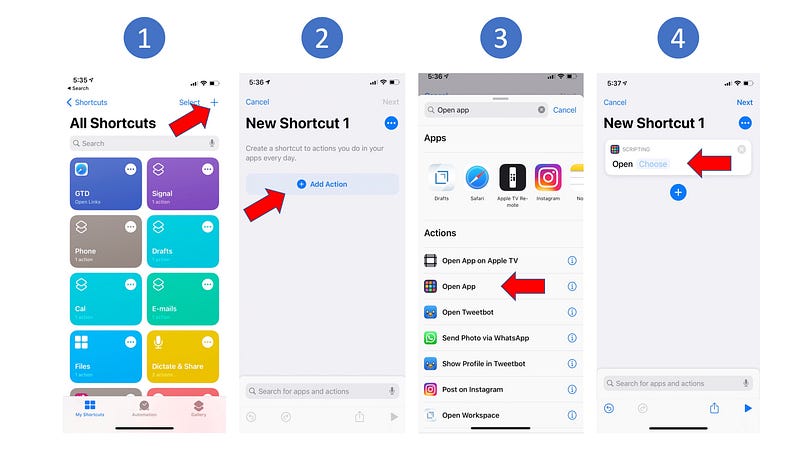
Home Screen Design: Steps 1 to 4 (Own Creation)

5. Click on the 3 dots (…) located below the “Next” button.

6. Enter a Shortcut name. Here, I choose E-mails.

7. Tap on “Add to Home Screen”.

8. In a case where we did not want to customize the icon, a simple click on “Add” would do the trick. But we do want to change the icon and the name, so keep going to step 9.
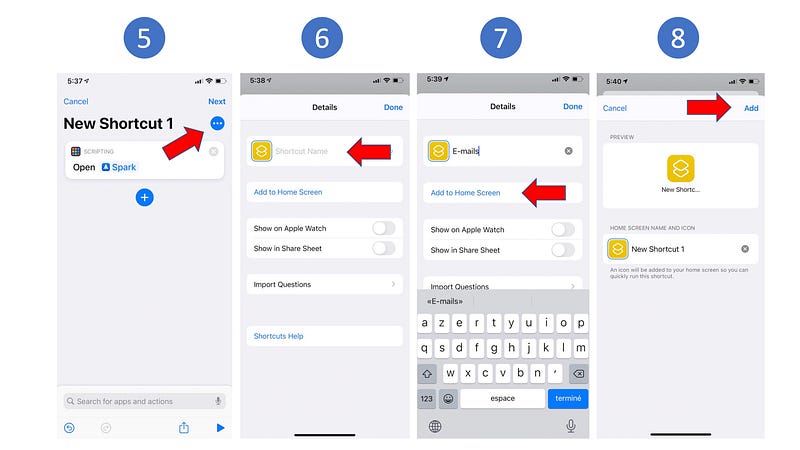
Home Screen Design: Steps 5 to 8 (Own Creation)

9. Change the name of the icon. I used the same name as the Shortcuts name in step 6. Then click on the icon.

10. A menu will open. Depending on where you stored your icon's image library, tap on the appropriate option. Here, I choose “Choose Photo” because my icon’s images are saved in my Photo library.

11. I picked a very simple mail icon. I now click on the “Add” button.

12. Return to your home screen, you will see your icon.
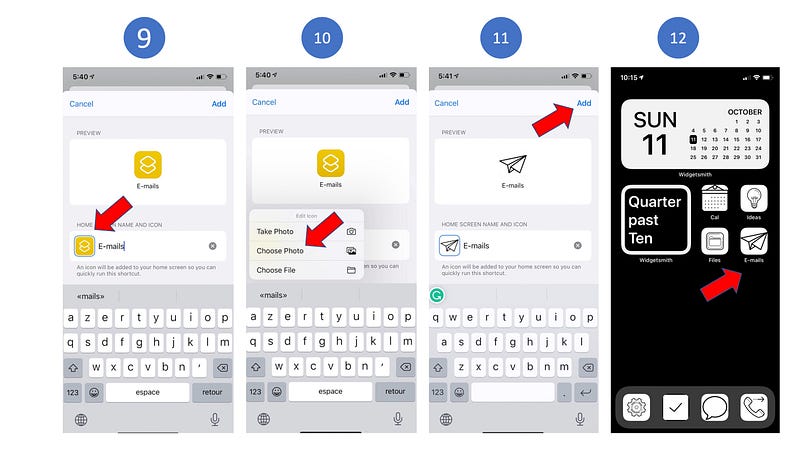
Home Screen Design: Steps 9 to 12 (Own Creation)

Congratulation you just made your first non-attention-seeking icon. This is a first step toward using more of your attention span toward important and meaningful activities.

Using the same 12 steps, add extra icons to launch apps of your choice. Indeed, I would recommend adding just the necessary. In my example, only 8 icons are displayed on the home screen and some would say it is already too much.

On my home screen, you certainly noted a calendar and a wordy clock. These are widgets — another great feature offered by iOS14. Many apps come with a set of widgets. However, WidgetSmith adds some flexibility and aesthetics.

Home Screen Pages Management

Once you are satisfied with the home screen you built, it is now time to get rid of the extra home screen pages. Here again, the new version of iOS features the possibility to hide those pages.

  1. Long touch on the screen to make the icons dancing.
  2. Tap on the bottom gray shape to access home screen pages.
  3. Untick all pages besides the main one.
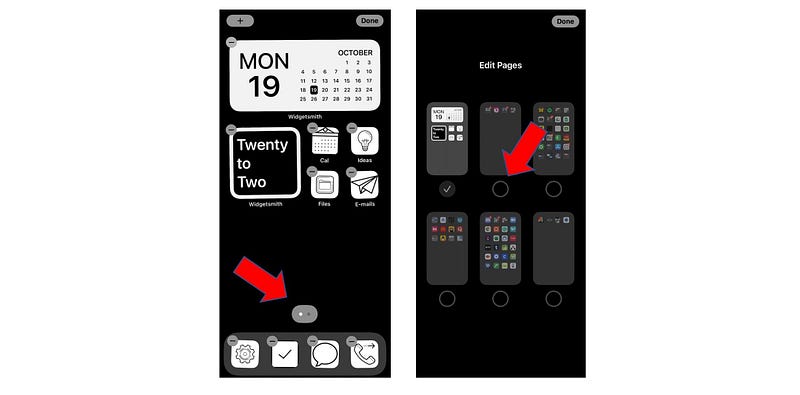
Edits Home Screen Pages (Own Creation)

Et Voila!

You have a minimalistic, black, and white homescreen page that you won’t use unless you need it.

To launch an app that is not on your main page, swipe down and tape the name in the search bar. Try it, this is also good for your brain!

Your attention is can now be more focused on tasks that matter to you.

You won’t be distracted by visual notifications anymore.

Programming
iOS Apps
Psychology
Social Media
Neuroscience
Recommended from ReadMedium