
This Hack Will Solve Your Medium Header Problem
The perfect solution to remove the unwanted filter in front of your header!
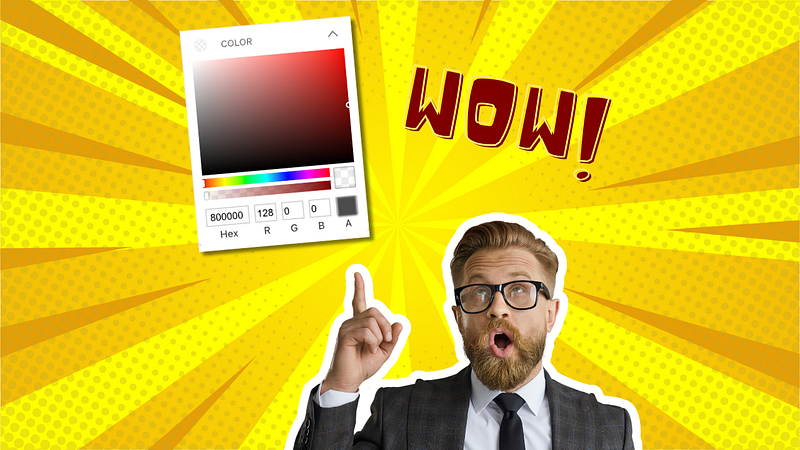
On Medium, one thing that frustrated me when setting up my profile was the header setup. They give you 3 choices:
- No header
- A mono color header
- An image header
🤗 “Great, they give us the choice!” you might say, right?
You’re absolutely right. Except that the third option is a real battle with yourself that you’re starting without knowing it.
In this story, I’m going to focus on a setting that will make your experience a nightmare if you don’t know how to use it, but most importantly, I’m going to give you the solution to setting it up correctly!
Let’s use the example of Eve Arnold’s Medium profile
If you don’t know her, you should definitely check out her stories. She writes about how to build a side hustle while having a 9–5 job.
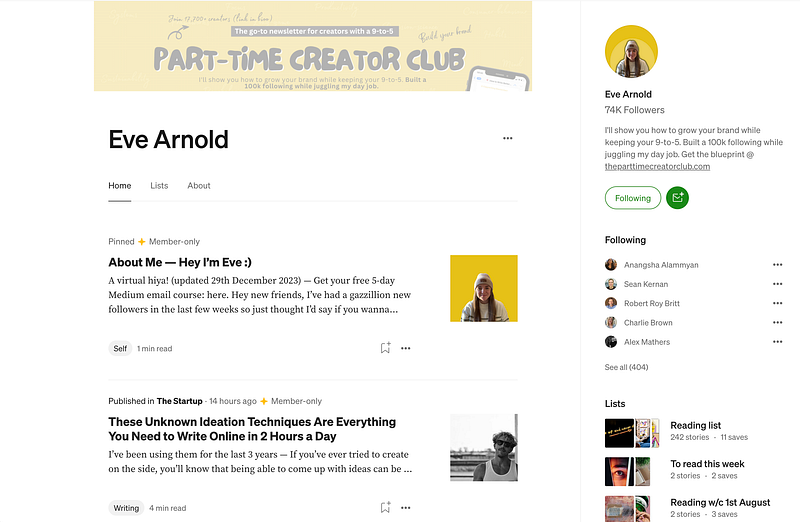
We are not here to talk about her stories, but about her header. Can you see the problem at a glance?
- If you did, you rock 🤝!
- If you didn’t, don’t worry, let me help you: doesn’t it look like a sad gray filter over it?
She probably doesn’t even notice it anymore. And I understand her, because you are clueless about where it can come from. In fact, Medium doesn’t even explain how to get rid of it in its guide. (And that’s a problem, Tony Stubblebine 👋.)
I have been able to see by inspecting the code of her profile the original header that she wanted to put on there:
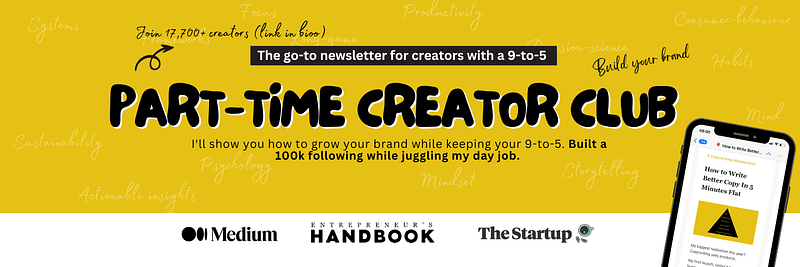
It is a beautiful image. But the sad filter that Medium put on her header by default on her page wastes it all.
How to fix the filter effect on your Medium header?
If you have the same problem, all you and Eve need to do to fix it, is to go on the Design page.
You access it on your profile, by clicking the three dots below your header, and clicking the “Design your profile link”.
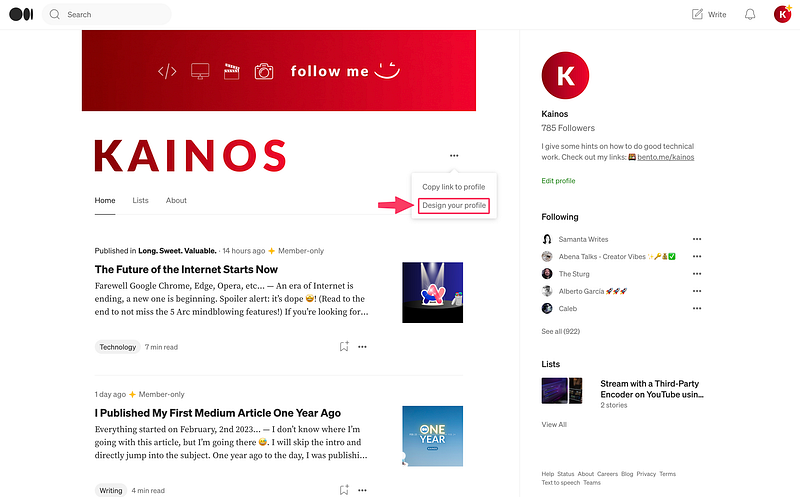
Once you access the Design page, on the left, you have a panel with the “Header” and “Blogroll” options.
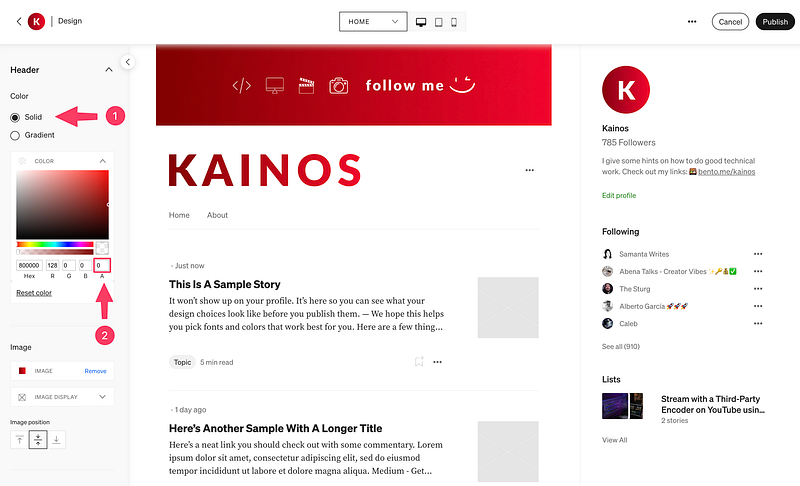
What we want to do here is change the header options. Under the title “Header” you have a section “Color”.
- Make sure the “Color” is set to “Solid” (number 1 in the above screenshot).
- Set your “A” parameter“0” (number 2 in the above screenshot).
- Don’t forget to click the “Publish” button at the top right of the screen to save your changes.
And that’s it. That’s all you need to do to fix your header!
🤔 What does “A” mean exactly?
“A” means “Alpha layer”. It is a percentage of opacity for the colored block Medium forces you to use by default as a header. When it’s 100%, you don’t see the header anymore. It’s a vulgar colored rectangle that is displayed. Some people do that, and I don’t recommend that.
When it’s 0%, the opacity of this colored rectangle is completely void. It disables the undesired filter effect on your beautiful header.
Conclusion
Eve isn’t the only one. Veronica Llorca-Smith seems to have the same problem, as does Sinem Günel (unless it’s a desired effect?). I mention them because I really want their header to be seen to their full potential.
Anyway, all you have to do if you want to get rid of the sad filter is to follow the steps above. But the most important thing is to set the “A” parameter, which is the “alpha layer” for opacity, to “0”. This way, no unwanted filter will hide your beautiful header.
Did you find this hack useful? Let me know in the comments 💬.
If you want to learn more about how to glow your Medium profile, you can read my ultimate guide below 👇
Sincerely yours,

