
The Ultimate Guide to Glow-Up Your Medium Profile
Each detail matters 🧐.
If you’re new to Medium or not, this article is for you. I’ve been going around on Medium for a little while and I came out to the conclusion that a lot of people are not aware of this… they do not realize the importance of having a decent profile picture (it doesn’t necessarily have to be your selfie!), and a header.
Your Medium Profile is Important
Think of your profile as the clothes you wear when you go out… or the storefront of your business… and for some people here on this platform, it’s the storefront of their business!
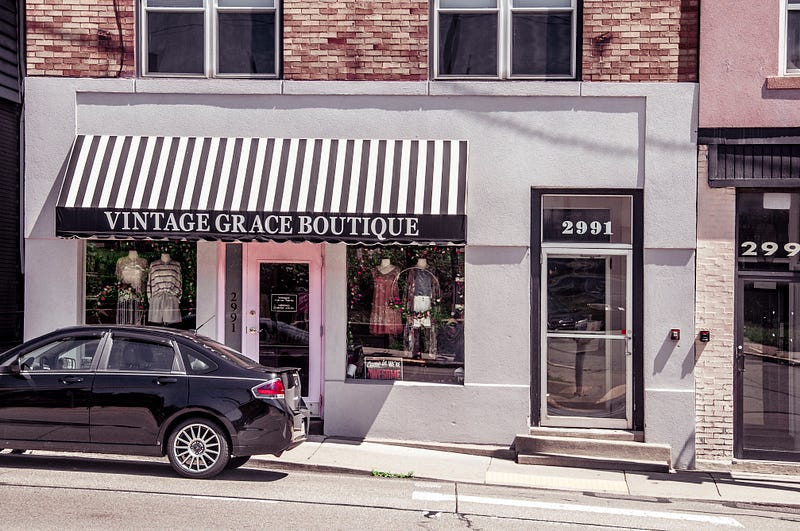
That’s the first thing people will see from you. It is a part of yourself that you show to the public, and it gives the first impression about the person you are.
So, if you realize the importance of clothing yourself nicely every day, you will have no problem realizing the importance of having a beautiful Medium Profile.
Before getting started…
❌ You don’t know what “dimensions” or “ratio” mean 🤔… ❌ You are not really familiar with graphic design 🤯… ❌ You don’t want to spend too much time on it 👀… ❌ You simply don’t want to bother yourself to create/design anything 😅…
👉 I highly recommend you to read the entire article and discover the perfect solution for you to glow-up your Medium profile at the end 👌.
The Components of Your Medium Profile
Since April 12th, 2023, it is no longer possible to customize your fonts, background, and colors. However, you can still have some control over how your profile looks, thanks to several components that I will introduce to you right now.
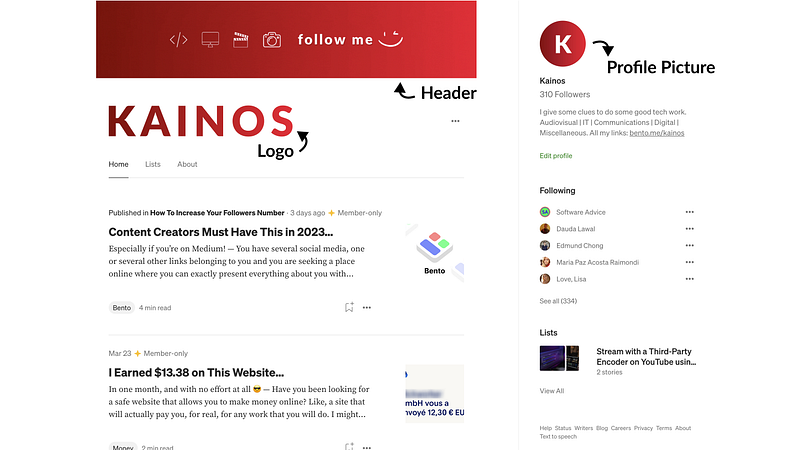
The same way you have your t-shirt, pants, and shoes visible to the public, the same way you have a header, logo, and profile picture.
1/ The Header
The header is located at the top of your profile. The perfect dimensions are 1500x750 px. You can easily create one with Canva. (or wait until the end of the article to see another easy solution…)
💡 Did you know that you can also use a GIF to have an animated header? It’s good to know if you want to create a “wow” effect for your visitors.
2/ The Logo
Contrary to what you may think, what Medium calls “logo” is actually the place for the name of your page. But you can still add a logo that represents your brand in this space. It’s really up to you what look you want to give your profile.
3/ The Profile Picture
This profile picture appears on the right side of your profile, just above your name and bio. This part of your profile is the image that also will appear next to your comments or anywhere else on the platform where your profile name is associated.
4/ The Name & Bio
Even though there is no design required here, it is really essential to make the right choices!
The name is… the name (duh!) that you want people to see for your profile. For me, it’s Kainos (duh! again).
The bio is a short description of your profile. I suggest you add a unique link to it so that people can have all your links in the same place.
😬 You don’t know how to have this kind of link? Don’t panic, I explain you how in the article below 👇
Both your Name & Bio are displayed on the right side of your page and also when we hover over your name anywhere on the platform.
Where Can You Glow-Up Your Profile?
There are two menus to look at to modify the components presented above: the Profile Design Editor, and the Profile Editor (Yes, both names look the same, but there are two separate things 😉).
1/ The Profile Design Editor
This is the place where you will be able to add/modify both your Header and Logo.
You can access it by clicking the three dots at the top of your profile, and selecting the “Design your profile” option in the dropdown menu that will be displayed.
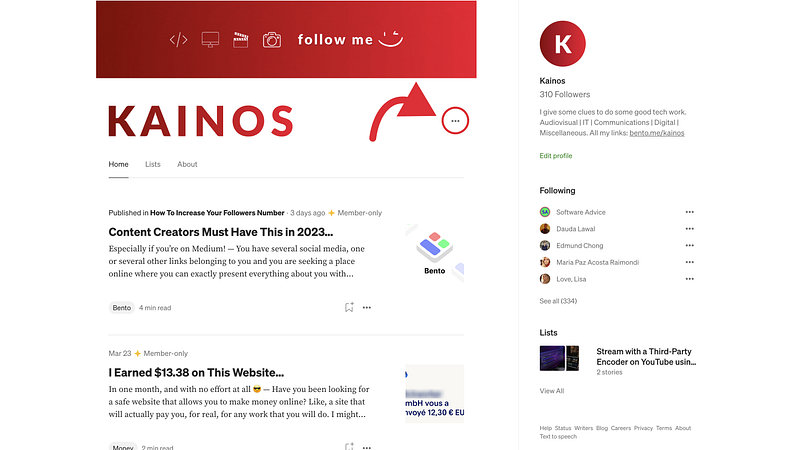
Then, you will arrive at the Profile Design Editor:
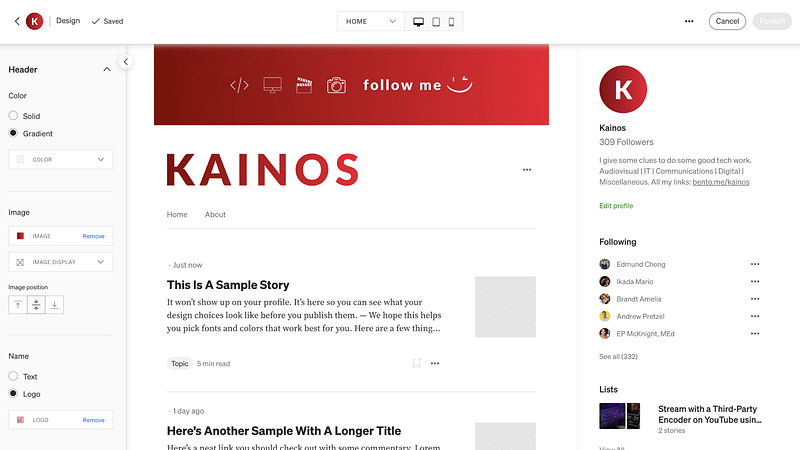
Your focus must be on the left panel: the Header section. This is where you can “do the magic”!
a) Modify Your Header
I know, you may be tempted to just play with the “Color” options… but you’re wrong. You shouldn’t be doing anything with that! All you will get is a block of colors above your profile. It is not personal at all, and you’re not taking the pain to read my article to learn how to put a vulgar color block above your profile, but to add a beautiful header image for your profile!
You have to look at the “Image” section. If you already have an image here, you should have the same thing as me. Otherwise, if you never added any image, you should have the following:
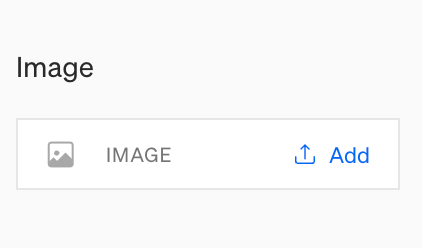
Click “Add” and select the image you want for your header.
⚠️ Make sure your image respects the ratio 2:1, or the minimal resolution of 1500x750 px. If you have litteraly no clue about what I am talking about, there is something you need to see at the end of this article 🤪!
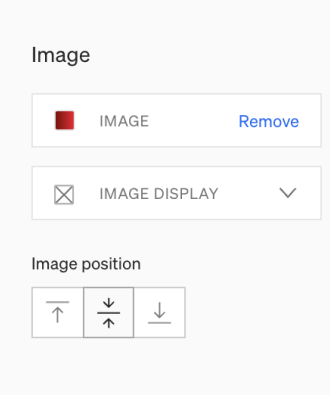
Once you’ve added your image, you have two more options that are displayed:
- “Image display”: This dropdown menu will propose several choices… I recommend you to use the choice “Fill” (trust me on that 😉).
- “Image position”: It is the part of the image that will be seen on your image. Since the image is bigger than the allocated frame by Medium for your header, you have to position your image in that frame. Either you use the top part, either you center it, or you use the bottom part. In my case, since all my information is centered, I use the centered position.
b) Modify your Logo
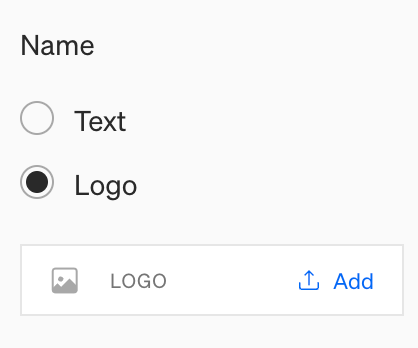
You have to look at the “Name” section. By default, it is the choice “Text” that is selected. But what you can do is select “Logo”, and you’ll be able to upload… your Logo, i.e. a nice way to display your name/universe!
c) Preview and Publish
On the top bar of your editor, at the center, you have three icons.

- The “Desktop” icon: selected by default. It allows you to see exactly how people will see your profile using their Desktop.
- The “Tablet” icon: It allows you to have a preview of your profile on a Tablet.
- The “Phone” icon: the preview of your profile, on a Phone. Duh! 🤪
Once everything looks good, press the “Publish” button at the right of the top bar.
2/ The Profile Editor
This is a place where you can add/modify both your Profile Picture and Name/Bio.
To access it, click on the “Edit profile” link on the right side of your profile, just below your name and bio.
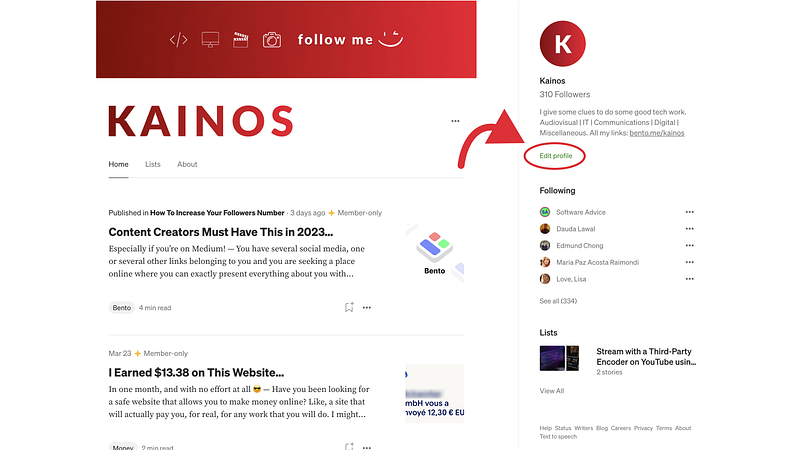
Once you’ve clicked it, you will be redirected to your Profile Editor.
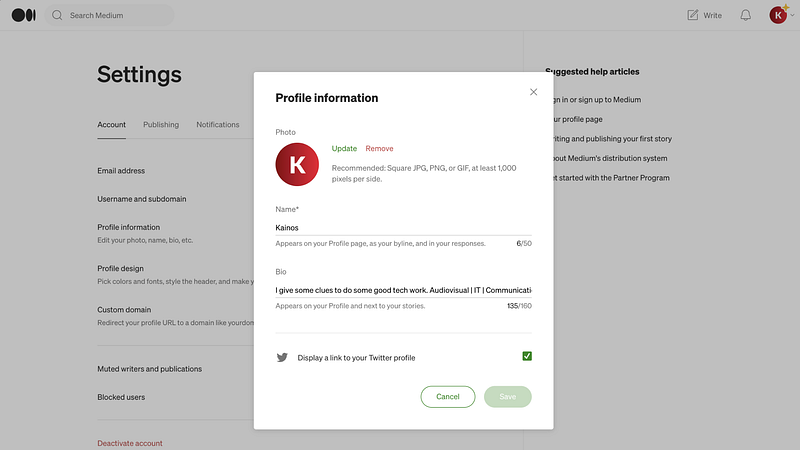
Here, you can see that I already have everything set, with no surprise. It is now your job to upload/modify your profile picture (Photo), modify your Name (if you need to), and your Bio.
💡 If you wonder what kind of photo you should choose:
- You can put a nice portrait of yourself
- An abstract icon representing you or your brand.
- Your official logo (as long as it is different than what you put in the “Logo” area that we saw before).
👉 The goal is to have something professional, and not a landscape that we can barely see in a too-small circle! 😅
Of course, don’t work for nothing: press “Save” when you’re done.
What Is The Perfect Solution I’ve Been Teasing You Since?
Since the beginning of this article, I’ve been teasing you something… that you don’t have to design everything yourself… I will avoid the “fluff”, as Robin Wilding 💎 would say!
I put together an easy way to glow-up your Medium profile, even though you have no skills in graphic design.
🔥 For only $15 😱, I will glow-up your Medium profile and create for you a professional header, logo (and profile picture if needed).

⭐️ I’ve worked with 5 people so far and they are all satisfied.
A service at this price is almost a given, I promise that I have nowhere seen such a price for such a quality service that I offer you.
Ok, now that I did my self-promotion…
Why are you making that face? 😅 Like everybody else on earth, I have to put something in my plate at lunch and dinner to feed myself… No? Well, you can still help me drink one or several coffee(s) then…
… I remain available on Fiverr to receive your order and in the comments here to answer your questions or read your feedback!

🙏 Thanks for reading this. I hope you enjoyed it as much as I enjoyed writing it.
🔔 Make sure you follow and subscribe so you don’t miss my next release!



