avatarKainos

Free AI web copilot to create summaries, insights and extended knowledge, download it at here

2016

Abstract

ento, now!</h1><p id="cb4c"><i>Even though it is really a piece of cake </i>🍰<i>, I will guide you through the signing up process.</i></p><h2 id="1a9b">Step #1: Go to Bento.me, and click Sign-up</h2><figure id="25f6"><img src="https://cdn-images-1.readmedium.com/v2/resize:fit:800/1*y9Mr0EZUhntmP-ftgD7krw.png"><figcaption>Click on the Sign Up button. | Screenshot from <a href="http://bento.me">Bento.me</a></figcaption></figure><h2 id="8d31">Step #2: Choose your username.</h2><blockquote id="d129"><p><i>⚠️</i> Choose it very carefully, because it will be in your URL.</p></blockquote><figure id="2a34"><img src="https://cdn-images-1.readmedium.com/v2/resize:fit:800/1*7ZwkadZHwb6uSkWHmgZTBA.png"><figcaption>Enter your username as indicated, and click the “Grab my link” button. | Screenshot from <a href="http://bento.me">Bento.me</a></figcaption></figure><h2 id="f6a6">Step #3: Create your account.</h2><figure id="377d"><img src="https://cdn-images-1.readmedium.com/v2/resize:fit:800/1*dUQtgV1xwe_bVAEGGVhYbQ.png"><figcaption>Enter your favourite email address and password. | Screenshot from <a href="http://Bento.me">Bento.me</a></figcaption></figure><h2 id="f330">Step #4: Add your social media… ALL of them.</h2><p id="0b7a"><i>Twitter, Instagram, LinkedIn, GitHub, YouTube, Dribbble, Figma, Medium, Behance, …</i></p><figure id="a40c"><img src="https://cdn-images-1.readmedium.com/v2/resize:fit:800/1*N_misI1BVXN2Ufo9AeDf2w.png"><figcaption>… the list is long… just add your social media usernames. | Screenshot from <a href="http://Bento.me">Bento.me</a></figcaption></figure><blockquote id="44b0"><p>👉 For this example, I left everything empty. But when you add one social media, you see it appearing on the right under “Your page”.</p></blockquote><h2 id="9a87">Step #5: Add a link that was not in the list above…</h2><p id="e4b1"><i>… if you want to! Like your own website for example.</i></p><figure id="af0a"><img src="https://cdn-images-1.readmedium.com/v2/resize:fit:800/1*QMhK_lKCuc8x0uzHf7AvK

Options

A.png"><figcaption>Just add the link and press “Next”, or click on “Skip” if you don’t have one! | Screenshot from <a href="http://Bento.me">Bento.me</a></figcaption></figure><h2 id="a931">Step #6: Edit your Bento</h2><figure id="432a"><img src="https://cdn-images-1.readmedium.com/v2/resize:fit:800/1*JimZSNK_bTvJwHpPrsgc4g.png"><figcaption>You can find all your links on your fresh Bento 🍱✨ | Screenshot from <a href="http://bento.me">Bento.me</a></figcaption></figure><p id="e614">The first thing to do when you arrive on your Bento’s page, is to <b>upload your Avatar, edit your name and your bio</b>.</p><p id="23b1">Next, feel free to move the little squares (cards) around, change their shape, the text, <i>etc</i><b>you can literally customise everything</b>!</p><p id="5035">You can also add new components by clicking the circled “+” at the bottom right of your screen. You can add pictures, notes, links, maps and sections, the sky’s the limit with Bento!</p><p id="bcbf">Last thing… <b>Bento is responsive</b>! That means that you can customize your Bento for both Desktop and Mobile 😎. The buttons are centered at the bottom of your screen.</p><p id="5956">If you want to find some inspirations to create yours, I recommend you to visit <a href="http://bento.me/kainos">mine</a> or <a href="http://bento.me/explore">from other people of the platform</a>.</p><p id="21e8">Don’t wait any longer, and start your <a href="http://bento.me">Bento</a> now!</p><figure id="98b1"><img src="https://cdn-images-1.readmedium.com/v2/resize:fit:800/0*NndEv7frnNRTceet.png"><figcaption></figcaption></figure><p id="da5b">🙏 <i>Thanks for reading this. I hope you enjoyed it as much as I enjoyed writing it.</i></p><p id="0b5a">🔔 <i>Make sure you follow and subscribe so you don’t miss my next release!</i></p><figure id="50c3"><img src="https://cdn-images-1.readmedium.com/v2/resize:fit:800/0*vFgnEVbDyFnPe0GV.png"><figcaption>Twitter, Instagram, BuyMeACoffe, Fiverr | By me.</figcaption></figure></article></body>

Content Creators Must Have This in 2023…

Especially if you’re on Medium!

You have several social media, one or several other links belonging to you and you are seeking a place online where you can exactly present everything about you with simplicity? A platform where you can put some pictures, some notes, some locations, and above all, some links that you want to easily share to the whole world?

Ladies and gentlemen, please let me introduce you to…

Photo by kofookoo.de on Unsplash

🤪 Bento!

Bento’s Logo | Montage by Author.

What is Bento?

No, it’s not a new fastfood…

Bento is the must-have tool for keeping all your links in one place. (click on the link to know their story in detail)

You don’t know what link to put in your Twitter or Instagram bio? Your Bento is the one! (Don’t even talk to me about Linktr.ee, we’re in 2023, not 2016…)

You don’t want to go through the hassle of creating a website, but you do want to have a link you can give to someone to showcase your skills or your links that can reflect your work or simply yourself? Bento is here for you!

Not only can you add links, but you can add pictures, notes, sections and maps! It’s beautiful, aesthetic and so simple!

Create your own Bento, now!

Even though it is really a piece of cake 🍰, I will guide you through the signing up process.

Step #1: Go to Bento.me, and click Sign-up
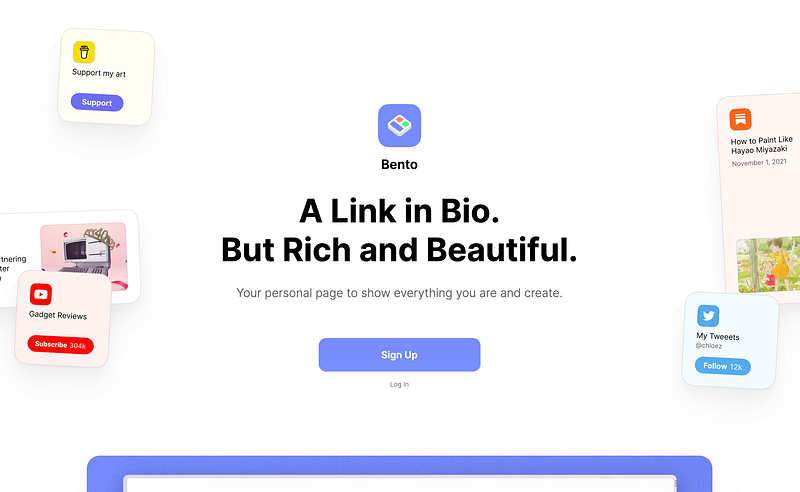
Click on the Sign Up button. | Screenshot from Bento.me

Step #2: Choose your username.

⚠️ Choose it very carefully, because it will be in your URL.
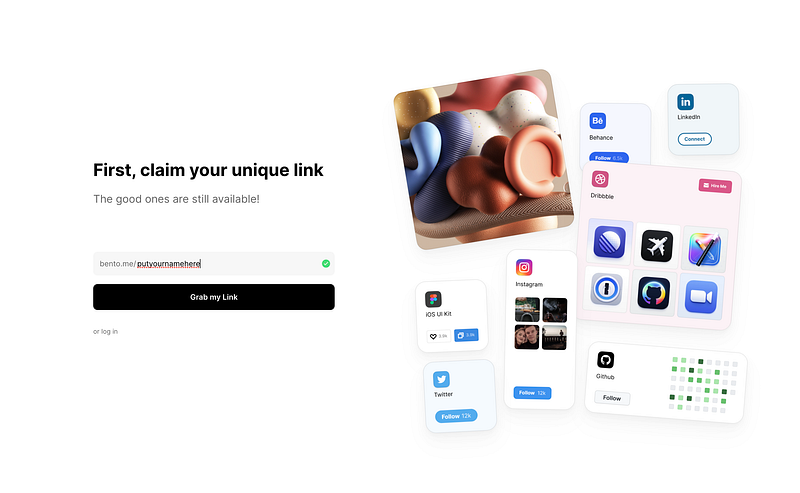
Enter your username as indicated, and click the “Grab my link” button. | Screenshot from Bento.me

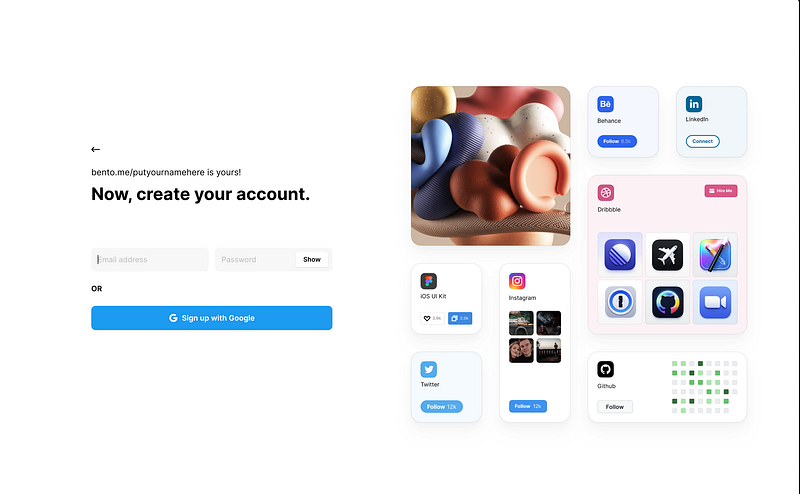
Step #3: Create your account.

Enter your favourite email address and password. | Screenshot from Bento.me

Step #4: Add your social media… ALL of them.

Twitter, Instagram, LinkedIn, GitHub, YouTube, Dribbble, Figma, Medium, Behance, …
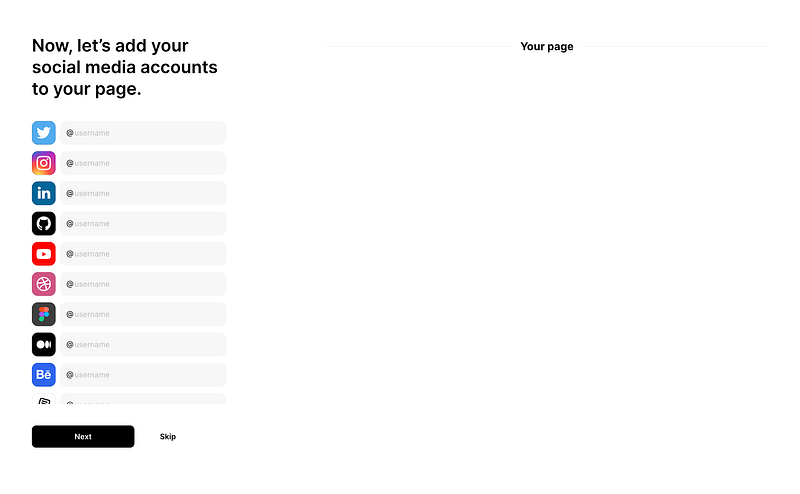
… the list is long… just add your social media usernames. | Screenshot from Bento.me

👉 For this example, I left everything empty. But when you add one social media, you see it appearing on the right under “Your page”.

Step #5: Add a link that was not in the list above…

… if you want to! Like your own website for example.
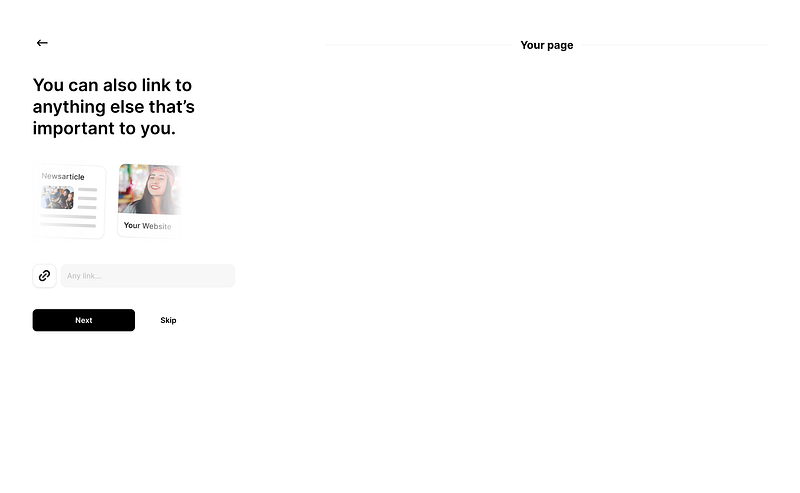
Just add the link and press “Next”, or click on “Skip” if you don’t have one! | Screenshot from Bento.me

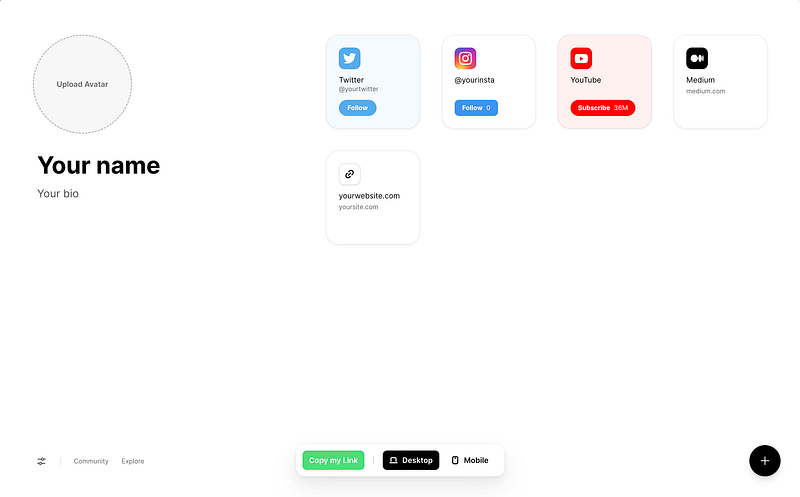
Step #6: Edit your Bento

You can find all your links on your fresh Bento 🍱✨ | Screenshot from Bento.me

The first thing to do when you arrive on your Bento’s page, is to upload your Avatar, edit your name and your bio.

Next, feel free to move the little squares (cards) around, change their shape, the text, etcyou can literally customise everything!

You can also add new components by clicking the circled “+” at the bottom right of your screen. You can add pictures, notes, links, maps and sections, the sky’s the limit with Bento!

Last thing… Bento is responsive! That means that you can customize your Bento for both Desktop and Mobile 😎. The buttons are centered at the bottom of your screen.

If you want to find some inspirations to create yours, I recommend you to visit mine or from other people of the platform.

Don’t wait any longer, and start your Bento now!

🙏 Thanks for reading this. I hope you enjoyed it as much as I enjoyed writing it.

🔔 Make sure you follow and subscribe so you don’t miss my next release!

Twitter, Instagram, BuyMeACoffe, Fiverr | By me.
Bento
Social Media
Followers
Tips And Tricks
Ideas
Recommended from ReadMedium