
The Most Important Thing Nobody Ever Told You About Windows PCs

One of the most important things about Windows PCs is also the least known to most end users. Your PC will die one day — pretty much anything can go bad, especially in a consumer PC. Yes, you don’t want to deal with this — I know! but you are going scream and cry when all your data is lost because your machine died. You are going to be miserable while your PC is queued up at the Geek Squad waiting to even know if something is recoverable or not.
You may already know a lot about Windows Backups. But trust me on this — this article will contain many things you know and much that you don’t. Unless you work or have worked in this specialized field, chances are this article is useful for you.
Don’t be like me where I have some photos which are only on my old video iPod, and it works for now, but the data can no longer be read from the iPod as nobody makes the broken electronic part anymore.
If you use a PC for home or work, you really need to know how to save your data from destruction, and how to recover your data — and not lose all of your personal family photos like I did when my old Windows PC died a long time ago (I should have just printed them out — damn me!).
The two most common reasons for PC death is memory gone bad and HDD/ SSD death. It is worse when it is your work PC, and very, very common with consumer hardware (and the smaller companies who provide consumer PCs to their employees).
Consumer laptops, especially the thin ones are very prone to die under work conditions. Desktops not so much because they manage heat and other parameters much better.
There are two issues when your computer dies like mine did on Thursday (mine died a slow, horrible death):
- When can you get back to work?
- Will you be able to recover anything of your work at all?
To do both, you have to get into the murky world of BMR, which is short for Bare Metal Recovery, which is a technical way of saying “recovering into different hardware”, because you had to replace the hardware.
Over time, especially in the larger businesses, you could get up & running right away because even while the hardware is being repaired, a VM can be spun up which works exactly like the real thing. Basically, zero downtime.
This can definitely be done by someone who is tech savvy. But, for the vast majority of people who use PCs, but don’t want to deal with the complexities or pay for a better solution, an image backup is the best and fastest way to backup your entire computer and recover from a disaster — fast.
Or so, it is meant to be. It is supposed to work as easily as a Mac backup, but for Windows people, that is a pipe dream.
There are two major issues with Windows based Image backups:
- It is very hard to create successful image backups in Windows, especially over time (as we keep adding more backups over time).
- If you thought creating backups were hard, successfully restoring from a full image backup is even harder.
Because of the difficulty in creating image backups to begin with, it is best to go with a company who knows their backup technology like Acronis:
https://www.acronis.com/en-us/products/true-image/features/imaging/
I am not endorsing this product (as you will see from my experience in this article), but I do use it myself, and it does take backups more successfully than Windows. I have not really had an opportunity to try its recovery mode, and when I did try it today, it was a real let down (I did not see any option to recover from an existing backup, and creating the restore drive was confusing, and in the end, unusable).
- I will update if I find a better tool.
I did everything right, but I was still let down by everyone involved!
Because of all that nonsense, atleast for my work PCs, I have always used RAID 5 for the past few years (even on my work laptop which does take 3 nVME SSDs).
On my main office desktop, I did not need a lot of space (when I started out), and so I had a RAID 5 setup with three Samsung 970 Evo 250gb nVME SSDs. One drive died recently & when I had to replace it, because I also needed more space, I decided to go with an extra SSD to get a four disk nVME RAID 5 array. This is described in the article:
What happened after expanding my RAID 5
What I did not find out until a few days later is that Intel VROC seems to have a bug with RAID 5 setups having more than 3 SSDs. I started find slow performance and disk party errors with my RAID 5 setup. It was not just a bad report, my development environment kept getting corrupt over & over again — I had to fix this.
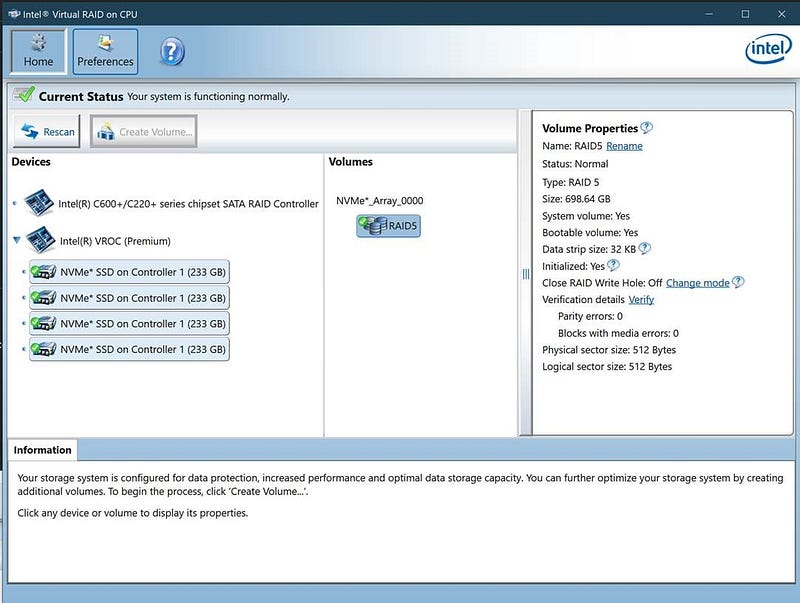
I made a mistake of setting the stripe size to 32kb which is too low (Not a great interface without adequate confirmation dialogs from Intel).
I wrote a program to analyze all my files to find my average file size. I suspect this should be similar to anyone having a similar development environment like I do:
The Avg file size of ALL 434k files is: 427.29 kb (0.42 mb).
The Avg file size of 395k/434k (91%) files which are SMALLER than 90% of the average size (384.56 kb) is: 44.27 kb (0.04 mb).
The Avg file size of 33k/434k(7%) files which are GREATER than 110% of the average size (470.02 kb) is: 4,935.40 kb (4.93 mb).
The max size, I ended up setting after recreating the RAID array was 128kb as Intel does not allow it to be any larger than that.
As a note, I know for a fact that when files are split across disks like RAID does, it does cause problems with development tools which sometimes stores state in files larger than what can fit on a single disk (in this case 128 kb).


To fix Windows corruptions, you need to do this:
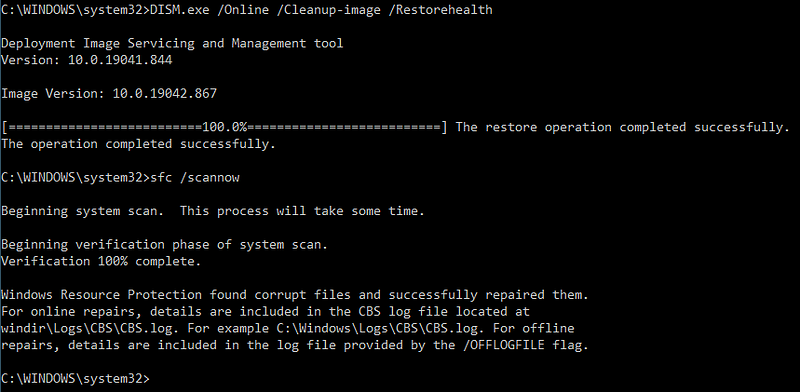
- You will be surprised to see these tools find and fix repairs even if you think your PC is currently working great.
Plan of Action & Strategy
My Visual studio was getting corrupted daily and becoming unusable. I had to do something. Here is what I determined could be the issue:
- Too small stripe size of 32kb
This was unlikely, but I have seen this happen before. A stripe size too low can cause VS issues because one file spans multiple disks
- A known issue with Intel VROC RAID 5 having parity errors with more than three drives.
I opened a support ticket with Intel, but they refuse to acknowledge that this is a known issue.
End users are unsure if this is a reporting issue, or genuine bug. In my case, I do see corruption issues 100% sure.
- Intel RAID 5 Write Hole Issue causing corruption
This has been “closed” by a setting, which I was not using before. But it is unclear if this will fix the issue.
My plan was to take a full image backup, delete and recreate the RAID 5 with MAX stripe size anything near ~157kb and then try again. If I still see corruption, I would have no choice but to get three 512gb SSDs to replace three of the drives, because I need the extra space + no more corruption.
This is what I ended up doing:
- Took a Windows 10 Image Backup — ultimately this backup did work, but it was very, very painful to use it for a restore.
This is done from: Control Panel > Backup & Restore (Windows 7). You can find a hundred references online on how to set this up. I let windows decide what to backup, and more importantly go into: Manage Space > Change Settings > Keep only the latest system image
If you don’t do this, it is supposed to deal with it, but eventually it is unable to create new backups as they keep piling up over time.
Also, a quick note is that if you are simply unable to create the first backup, use an SSD to do it, copy it over to a HDD later, and then subsequent “incremental” backups will succeed more easily.
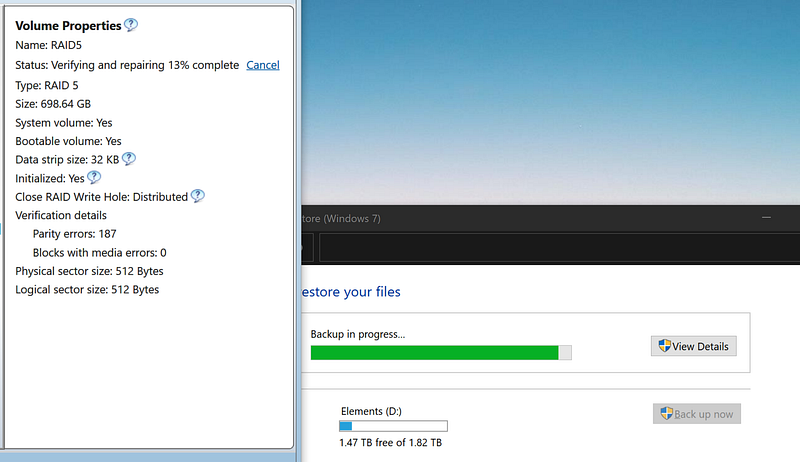
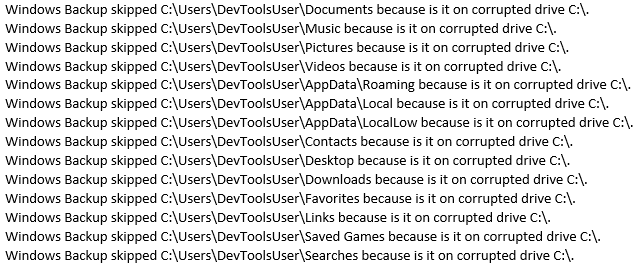
I had to run a chkdsk after reboot which found and fixed a lot before I could successfully take an image backup.
- Created a Dell Recovery Drive using a program from Dell — this is useless with an image backup, and while it does let you recreate the factory install of Windows as they call it, that install is useless because even though you do get an account with Admin access, you are still unable to access some Admin functions like the Windows disk utility.
- Created a Windows 10 Recovery Drive — this ultimately worked, but boy was it painful! and it just barely scraped through in the end.
- I copied the important files to a USB drive for a worst case scenario where I had to reinstall everything on the PC if the image restore failed.
So, I did everything & beyond. Then I deleted the existing RAID Array and recreated it with a larger stripe size. For Intel VROC remember not to enable the option to span the RAID across across multiple Intel VMD Controllers — f you do this, that RAID Array cannot be used for the OS drive — it can only be used as a data drive.
After this, I tried to recover from the image backup, and every single thing I did failed:
- OS Recovery failed
- Dell Recovery could not restore from a backup.
- Acronis which really should be able to recognize any image backup was clueless in its recovery program.
I spent an entire night and much of the day trying to figure out why I was getting strange errors:
- I was trying to figure out how to get to the advanced options after bootup from Windows 10, for image recovery as my OS recovery disk failed the recovery process with errors.
- Yeah, I got this error, and this seemed hopeful, but in the end did not work for me.
- Great article, and the previous one seems to be inspired from this one. But it did not work for me, although I did learn how to use diskpart. I really thought this would work, but it did not.
- A totally useless article Microsoft refers you to for “debugging” BMR issues.
How I saved my Work PC
I remember from “ancient” times something which had made a big impression on me. Image backups are finicky, when they are restored, they need to “fit” perfectly within the available disk where they are restored to. If they don’t then they simply do not work, and arcane errors show up.
Because of this, the best Backup companies provide a custom Win RE (Windows Recovery Environment), which allows you to customize the backup image so that it can “fit” into the space available to restore into (because as an example the image includes free space as well, and is not just data). Technically, the boundaries of the backup image can be “adjusted” to fit into the space of the available disk, if it is atleast as big and slightly bigger than the “used space” in the backup image.
I realized that even though I was recreating the RAID on the same set of SSDs, available free space was affected because of the change in stripe size from 32 kb to 128 kb. Also, I had made the mistake of “expanding” my RAID disk beyond its initial size while trying to extend my OS drive after the first RAID setup.
https://www.easeus.com/partition-manager/epm-pro.html
- This is a most useful program because it lets you “move the partitions around” on your disk, so that free space can be moved to “sit” right next to the existing “C:” drive (as an example), so that you can easily extend your C: drive to give it more available space.
- A rare company which has made it a lot easier to use their user interface over time!
As I had not used this program initially after the original setup and could not find the extra space I knew I had after the first setup (where I added the extra SSD), I had mistakenly increased the RAID size from the Intel VROC utility which actually is not recommended to do.
Second time, I got that right, and did use easeus in the end.
Anyway, the problem was that the image was not “fitting” in the available disk, and I went to BestBuy and purchased three 500gb Samsung 970 Evo Plus nVME SSDs at $79.99 each. As a note, they are actually faster than the 980, even though the 980 is faster and there is no way I could find three 980's today.
- Great article from AnandTech as usual. I would rather use the 970 Evo Plus which still comes with inbuilt memory.
I recreated RAID 5 using three of these 500gb drives and the restore went through like a charm, even using what I thought was the useless OS recovery drive which had failed till now.
I use the old 970 Evo Plus as a Journaling drive for the RAID Write Hole fix from Intel — better than not using it at all.
- If the RAID Write Hole is “closed”, it disables disk caching significantly affecting performance.
- So, I got a 1000VA APC UPS after speaking with Dell Sales.
- I had to turn off the RAID Write Hole to let Window/ the RAID Utility be able to enable disk caching.
- With the UPS being able to provide ~21 minutes of backup power, I am good with the write hole closed, because there won’t be unscheduled power outages anymore.
So far so good, everything is working well & I will update my findings next week as I get a chance to really use my work PC again.
In the meantime, I got some extra 64gb USB drives and I have configured them for recovery — for the next time things fail.
Summary
Here are the basic few necessities you really need to mitigate complete disaster:
USB 3.0 Drive (> 20gb) with Windows Recovery Disk.
Note, this does take a while to complete & this is specific to your PC (not reusable as it has hardware specific drivers).
USB 3.0 Drive (> 20gb) with Manufacturer Specific Recovery Disk.
This is what I used, as I have all Dells for Work. Again, this is specific to your PC with hardware specific drivers “injected” into the media.
This is for a worst case scenario when nothing works.
USB 3.0 Drive (> 20gb) with Windows 10 Install
Use the second button to “Create Windows 10 Installation Media”. This is reusable for any Windows 10 PC having the same OS version as the installer.
A complete Image backup of your PC.
All the above are basic requirements if you do any kind of business on your PCs. I would say because your PC may contain photos and such, it is a necessity even more for your Home PC.
There are many, who backup the backup image remotely — either on the cloud, or to another person’s house/ apartment in case there is a disaster in one location.
- This is highly recommended for a small business for sure.
- I would do this for family photos and videos.
March 22, 2021
I got the extra USB Drives today. This is what I got:
https://www.amazon.com/gp/product/B081QSHG13/ref=ppx_yo_dt_b_asin_title_o00_s00?ie=UTF8&psc=1
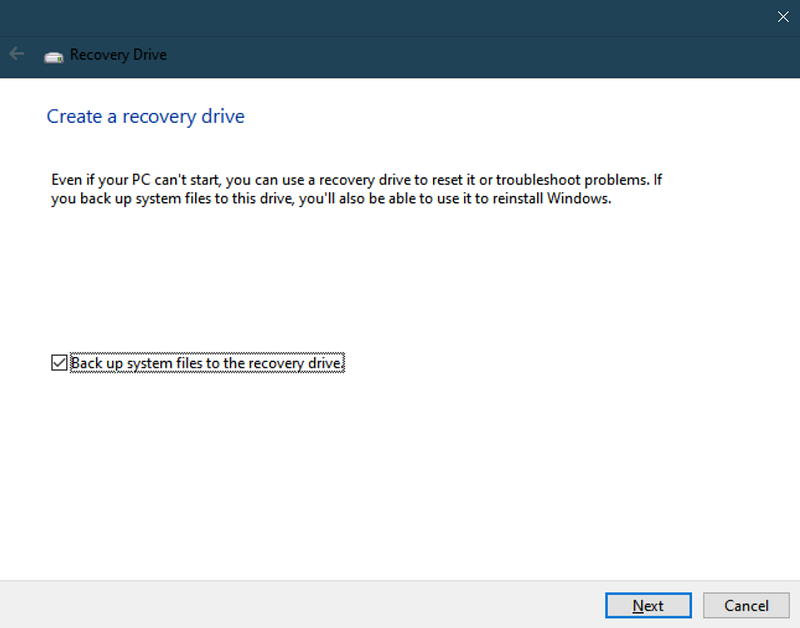
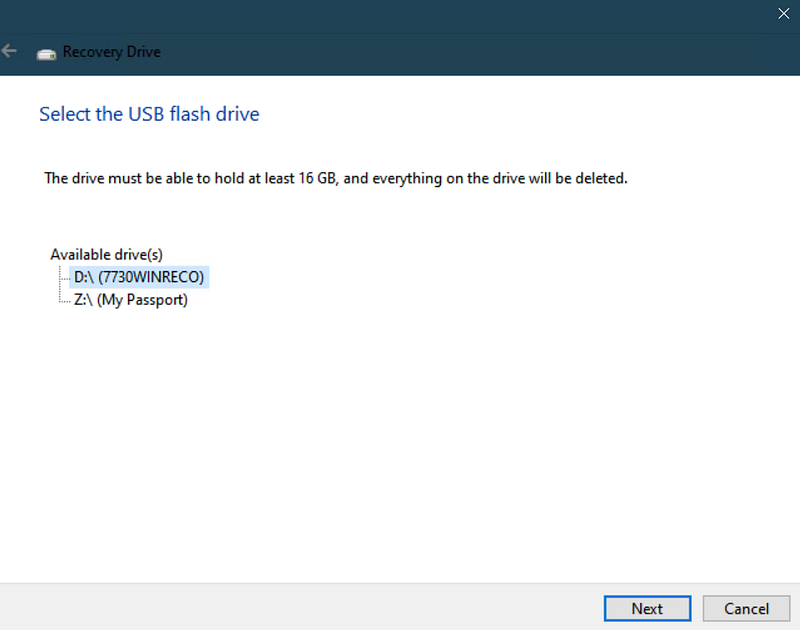
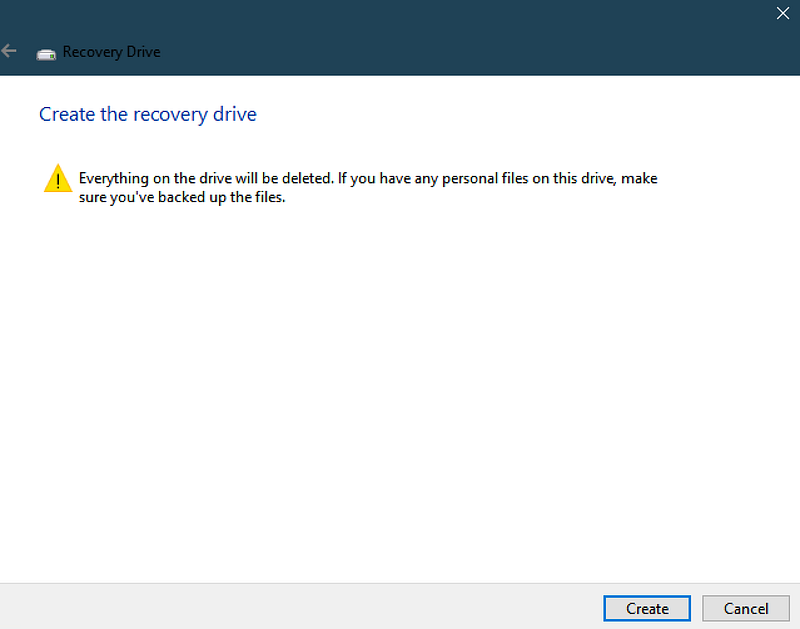
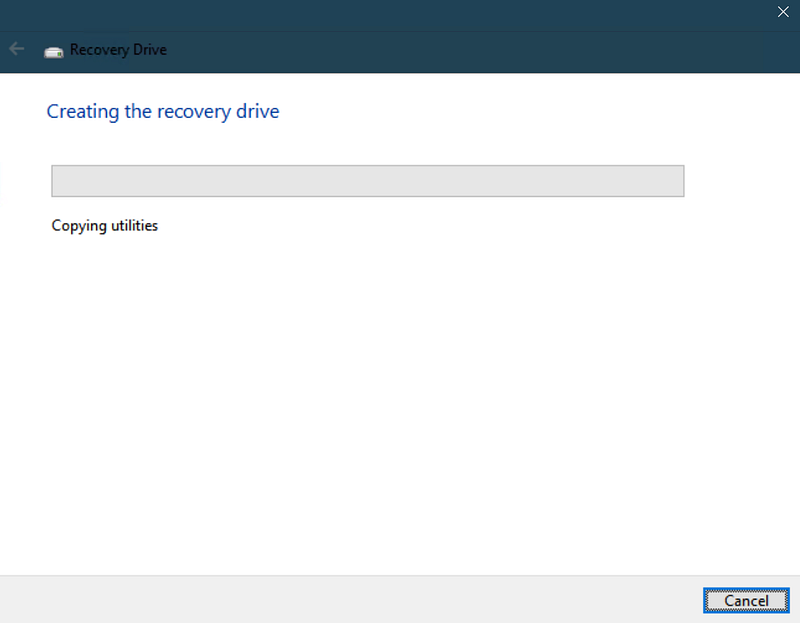
This is how to create the Windows 10 recovery disk. This is something you should do, even if you have nothing, and no backup image. At least you will be able to recover your windows even if it is a fresh install.
- First search for recovery in windows search and click it:

- Ensure the options are selected as shown below and click Next:
- Let it finish:

- Select the correct USB drive:
- Click Create on the next dialog:
- Let it complete
To be continued…