avatarProto Bioengineering

Free AI web copilot to create summaries, insights and extended knowledge, download it at here

5114

Abstract

.readmedium.com/v2/resize:fit:800/1*7vXo5V10e5r9sNdSzwG4Tg.png"><figcaption></figcaption></figure><p id="ae77">Click the first option, <b>Terminal</b>, and a blank, black screen will pop up.</p><figure id="69b1"><img src="https://cdn-images-1.readmedium.com/v2/resize:fit:800/1*qNmgbwqdiaO98rz-b0KHNQ.png"><figcaption></figcaption></figure><p id="60ca">This is where you’ll type the example commands that we discuss below.</p><h1 id="c9da">Command Line Example #0: Echo</h1><p id="2cef">Before we get to the 6 easy commands listed above, let’s do a “<b>Hello World</b>” using the <code>echo</code> command.</p><p id="807f">Open the command line, and type the following:</p><div id="92e0"><pre><span class="hljs-built_in">echo</span> <span class="hljs-string">"Hello, World"</span></pre></div><figure id="e066"><img src="https://cdn-images-1.readmedium.com/v2/resize:fit:800/1*vITlkb1owZBzk6tYufAXOQ.png"><figcaption></figcaption></figure><p id="86ec">Press Enter.</p><figure id="050b"><img src="https://cdn-images-1.readmedium.com/v2/resize:fit:800/1*cYMGE-jRWebhrCCx1Enlfg.png"><figcaption></figcaption></figure><p id="b84b"><b>Your computer will “echo” whatever you wrote back to you! </b>It’s kind of like the <code>print</code> statement in Python or R. It just writes stuff to the screen.</p><p id="4bc0">You won’t use <code>echo</code> much day-to-day, but it illustrates the simplicity of typing in commands.</p><h1 id="c392">Command Line Example #1: CD</h1><p id="9a39">The <code>cd</code> command is <b>used to switch folders</b>.</p><p id="e7e6">CD stands for “change directory.” (A directory is another name for a folder.)</p><p id="9010"><b>Since we can’t click any apps or buttons on the command line,</b> we use <code>cd</code> to move around instead.</p><p id="9427">On the command line, type <code>cd Documents</code>. This will move you into your Documents folder.</p><figure id="5e09"><img src="https://cdn-images-1.readmedium.com/v2/resize:fit:800/1*Fm_CnhnGksAMjXG9CqQPLg.png"><figcaption></figcaption></figure><p id="c6ea">Now, you’re in your Documents folder. We’ll explore what is in your Documents folder with the next command.</p><p id="5414">To go back to the previous folder, you can type <code>cd ..</code>, where the <code>..</code> means “the parent folder.”</p><figure id="e16c"><img src="https://cdn-images-1.readmedium.com/v2/resize:fit:800/1*bGrbsvFJiSDe7xhcC_JNug.png"><figcaption></figcaption></figure><h1 id="4f05">Command Line Example #2: LS</h1><p id="0032">The <code>ls</code> command <b>lists all the files in your current folder.</b> If you’re in your home folder, it will list all the contents of the home folder.</p><p id="68c1"><b>On Windows</b>,<b> </b>the <code>ls</code> command is actually <code>dir</code>, but it does the same thing.</p><p id="9d63">To try it out, type <code>ls</code> on Mac or <code>dir</code> on Windows:</p><figure id="db07"><img src="https://cdn-images-1.readmedium.com/v2/resize:fit:800/1*HZ4KZahh0fEfqzKxxzSNsg.png"><figcaption></figcaption></figure><p id="f003">You’ll see everything in the home folder (usually named after your username), including other folders and files.</p><h1 id="daae">Command Line Example #3: MKDIR</h1><p id="8907">The <code>mkdir</code> command <b>makes a new folder</b> (AKA a “directory”) in the current folder.</p><p id="6a55">If we’re in the home folder and want to make a new folder called “Code,” we would type:</p><div id="b124"><pre><span class="hljs-built_in">mkdir</span> Code</pre></div><figure id="cafe"><img src="https://cdn-images-1.readmedium.com/v2/resize:fit:800/1*0EAQRtWN5D2Q3Q7PU9bLbA.png"><figcaption></figcaption></figure><p id="6a3f">Now, we have a folder in the home folder called <code>Code</code>, which we can also <code>cd</code> into with <code>cd Code</code>.</p><h1 id="1ed6">Command Line Example #4: touch</h1><p id="1009">The <code>touch</code> command is used to <b>create a file</b>.</p><p id="f953">What we’re really doing is telling the computer to nudge a file to change its “last modified” date. <b>But if that file doesn’t exist, it creates one.</b></p><p id="6cfb"><b>On Windows</b>, the equivalent is <code>type nul</code>. (If you’re annoyed at the differences between coding on Windows and Mac/Linux, consider <a href="https://learn.microsoft.com/en-us/windows/wsl/install">installing the Windows Subsystem for Linux</a>.)</p><p id="9a98">To create a file called <code>hello.txt</code> on <b>Mac OS</b>, type:</p><div id="c71a"><pre><span class="hljs-built_in">touch</span> hello.txt</pre></div><figure id="87a3"><img src="https://cdn-images-1.readmedium.com/v2/resize:fit:800/1*alEBFIImxhUk0qRp-GWflQ.png"><figcaption></figcaption></figure><p id="066a">To create a file called <code>hello.txt</code> on <b>Windows</b>, type:</p><div id="7acb"><pre><span class="hljs-built_in">type</span> nul > hello.txt</pre></div><figure id="273e"><img src="https://cdn-images-1.readmedium.com/v2/resize:fit:800/1*HiGU4r4749zF4aLQ60RCNg.png"><figcaption></figcaption></figure><p id="80f2">Now, we have an empty file called <code>hello.txt</code> in the <code>Code</code> folder.

Options

Type <code>ls</code> to see it.</p><figure id="cdb0"><img src="https://cdn-images-1.readmedium.com/v2/resize:fit:800/1*1v4veWaK_CZu8ObHj2KJ4A.png"><figcaption></figcaption></figure><h1 id="3c2f">Command Line Example #5: RM</h1><p id="4f30">The <code>rm</code> command will <b>delete</b> (“remove”) files. Again, on <b>Windows</b>, it is different. We type <code>del</code> instead.</p><p id="bfe8">Let’s test this using the <code>hello.txt</code> file we just made.</p><p id="ccb2"><b>Note</b> that the <code>rm</code> and <code>del</code> commands <b>permanently delete things,</b> so be careful.</p><p id="14f4">To delete <code>hello.txt</code> on <b>Mac</b>, type;</p><div id="d57d"><pre><span class="hljs-built_in">rm</span> hello.txt</pre></div><p id="8a15">On <b>Windows</b>, type:</p><div id="cd48"><pre><span class="hljs-selector-tag">del</span> hello<span class="hljs-selector-class">.txt</span></pre></div><figure id="2ec9"><img src="https://cdn-images-1.readmedium.com/v2/resize:fit:800/1*nvv7z0P3QspQvgrubb6S7Q.png"><figcaption></figcaption></figure><p id="805d">And if we type <code>ls</code> or <code>dir</code> after that, we’ll see that <code>hello.txt</code> is gone.</p><h1 id="c2f3">Command Line Example #6: MV</h1><p id="7202">The <code>mv</code> command<b> moves or renames files.</b></p><p id="2482"><b>On Windows</b>, the command is <code>move</code>.</p><p id="f65f">To rename a file, we write:</p><div id="9ff4"><pre><span class="hljs-built_in">mv</span> OLD_filename.txt NEW_filename.txt

OR

move OLD_filename.txt NEW_filename.txt</pre></div><p id="d358">To test this out, make another <code>hello.txt</code> file (with either <code>touch hello.txt</code> or <code>type nul > hello.txt</code>).</p><p id="85a3">Then, run the following:</p><div id="a180"><pre><span class="hljs-built_in">mv</span> hello.txt hello2.txt</pre></div><p id="4a65">Or on Windows:</p><div id="f085"><pre><span class="hljs-keyword">move</span> hello.txt hello2.txt</pre></div><figure id="98b3"><img src="https://cdn-images-1.readmedium.com/v2/resize:fit:800/1*qYLkX3UcaH5p17osTRHT5g.png"><figcaption></figcaption></figure><p id="8dd4">Now, <code>hello.txt</code> has been renamed to <code>hello2.txt</code>:</p><figure id="49a8"><img src="https://cdn-images-1.readmedium.com/v2/resize:fit:800/1*sBYoserYdnBUr-5gOnNqmQ.png"><figcaption></figcaption></figure><h1 id="1b65">What about running code and other tools?</h1><p id="aa81">We can run code, apps, and other tools with similar, one-word commands.</p><p id="cc06">For example, to run a Python script, we type:</p><div id="a7ec"><pre>python file<span class="hljs-selector-class">.py</span></pre></div><p id="f10d">To run an R script, we type:</p><div id="5241"><pre><span class="hljs-title class_">Rscript</span> file.<span class="hljs-property">R</span></pre></div><p id="4a90">There’s also a command to <b>download virtually anything from the Internet</b> called <code>curl</code>. We have a <a href="https://readmedium.com/how-to-see-where-the-international-space-station-is-right-now-with-code-32f63cd3334">tutorial on getting the current location of the International Space Station</a>, in which we run the following:</p><div id="55f8"><pre>curl http://api.open-notify.org/iss-now.json</pre></div><p id="353a">Running the above command will get us the latitude and longitude of the ISS right this second from the <a href="http://api.open-notify.org/">Open Notify API</a>.</p><figure id="aaf1"><img src="https://cdn-images-1.readmedium.com/v2/resize:fit:800/1*ZIDXak1Szf7B76HqrerXkA.png"><figcaption></figcaption></figure><p id="daba"><b>Generally, this is what it looks like to use the command line:</b> moving around from folder to folder and running commands and programs with a few keywords.</p><p id="e75c">For more detail on running Python scripts, check out our <a href="https://readmedium.com/how-to-make-a-standalone-python-script-44aa9b83ee26">How to Create and Run a Standalone Python Script</a> tutorial.</p><h1 id="a399">Bonus Tip: Getting Help</h1><p id="96a3">Typing <code>command -h</code> on virtually any command gives you a help menu about that command.</p><figure id="5ec8"><img src="https://cdn-images-1.readmedium.com/v2/resize:fit:800/1*iN-eka3m4g_KuHmoRkNQOQ.png"><figcaption>Typing “curl -h” prints out the curl command’s help menu.</figcaption></figure><h1 id="5aaf">What else can the command line do?</h1><p id="6bef">To learn intermediate skills for the command line, check out this <a href="https://www.dataquest.io/course/command-line-intermediate/"><b>free </b>command line course from Dataquest.io</a>. It will teach you how to use the command line to link commands line together, clean your data, and more.</p><h1 id="406e">Questions and Feedback</h1><p id="28ed">If you have any questions or feedback, email us at [email protected] or message us on <a href="http://instagram.com/protobioengineering">Instagram (@protobioengineering)</a>. Thanks for reading.</p><p id="308b">If you liked this article, consider supporting us by <a href="https://ko-fi.com/protobio/">donating a coffee</a>.</p></article></body>

The Command Line for Scientists

The gateway to coding, bioinformatics tools, hacking, and more.
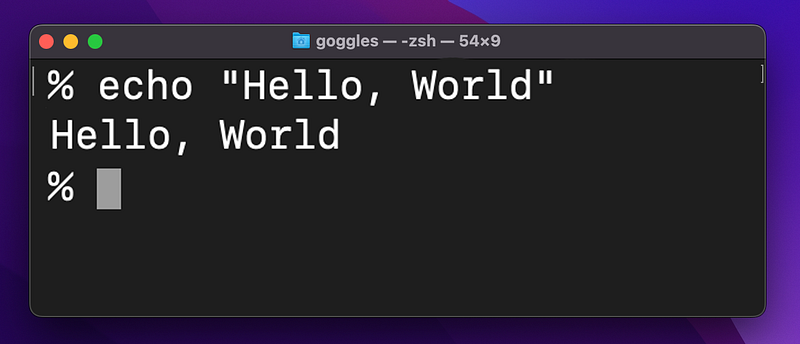
The Mac OS command line, AKA the “Terminal.” The Windows command line looks similar.

Have you wondered how programmers and engineers do their work day to day? Supposedly, they run code and analyze data and search databases, but where? Is there some “Run” button to click once their code is finished? Not really.

Programmers use the “command line,” the app where all the engineering and hacky computer stuff happens in the real world.
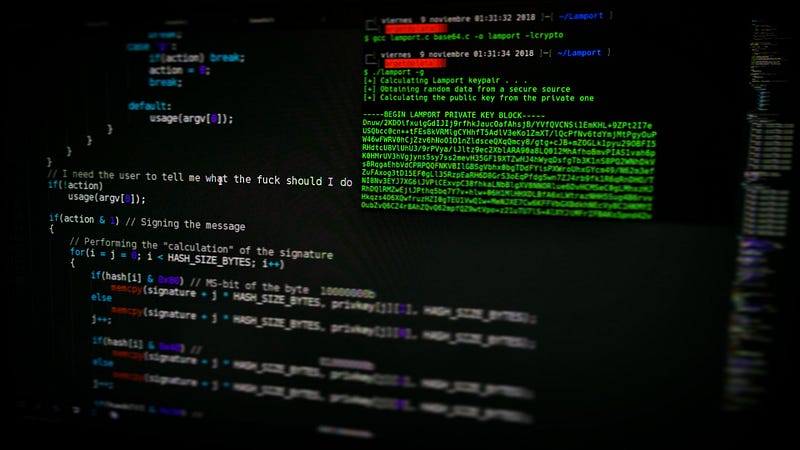
Hacker movies typically show the hacker coding on one side of the screen and using the command line on the other. Photo by Arget on Unsplash.

The command line is not only where you can write code; it is where you do everything else that a computer can do.

On the command line, you can:

  • run scripts
  • browse all your files and folders
  • create, rename, and delete anything
  • start an app, like Chrome
  • start a database or server
  • use Git and other programming tools
  • and more

To use most popular bioinformatics tools and to run scripts in Python, C++, and the like, you will need the command line.

How do I use the command line?

The command line is really just an app on your computer (and an ugly one at that).

On Windows, it is called Command Prompt (or “the Command Prompt”).

On Mac and Linux, it is called Terminal.
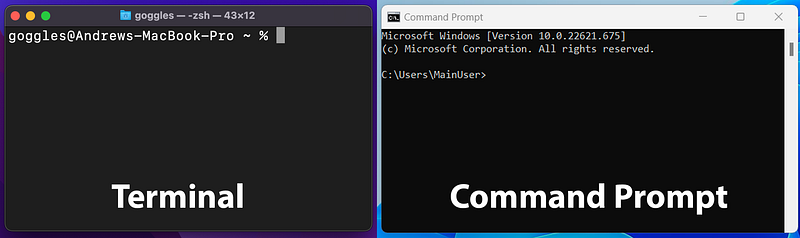
Once you open it, every script and file on your computer is at your fingertips.

To do stuff on the command line, all you do is type a command and press Enter. We’ll discuss some common commands below.

When you first open the command line, you’re dropped into your Home folder, then you type short commands to move around to different folders and interact with files, and run or edit your Python/R/MatLab scripts.

This button-less, behind-the-scenes way of using your computer is the basis for automating your day-to-day work.

Photo by Christopher Gower on Unsplash

How Do We Know Which Commands to Type?

There are 100s of commands available to use, but we only use about 6 of them to do 80% of our work at Proto.

Here’s a preview of them. We’ll cover them in the next few sections.

  • cd — changes the folder you’re in
  • ls — list all the files in a folder
  • mkdir — make a new folder
  • touch — create a file
  • rm — delete a file
  • mv — rename or move a file

We’ll also cover how to run code from the command line.

Before that, check out the next two sections on how to open your computer’s command line app (Terminal or Command Prompt).

How to Open the Command Prompt on Windows

To open Command Prompt, go to Search and type in “Command Prompt.”
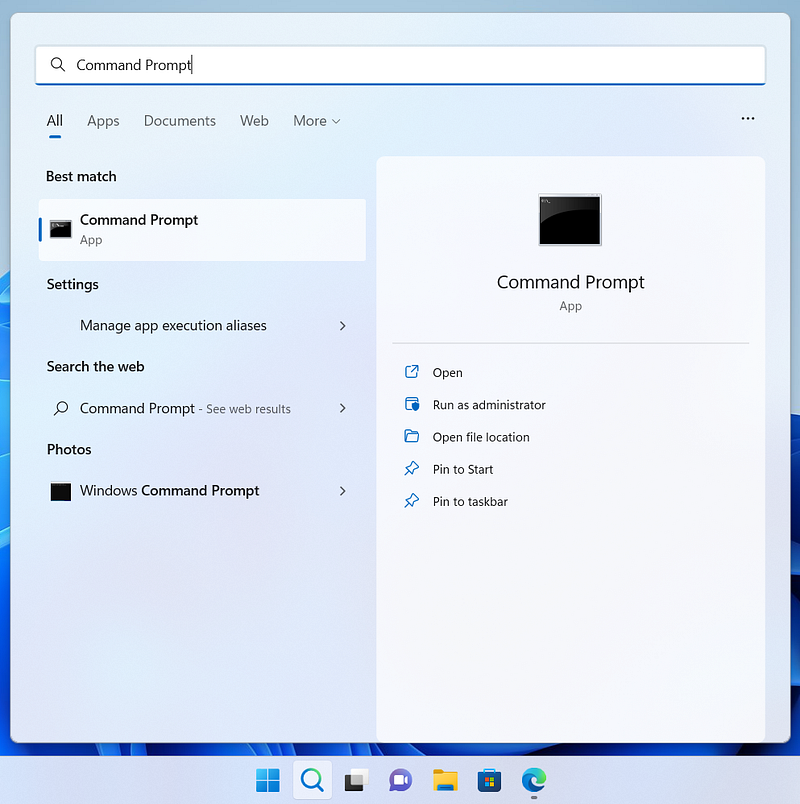
Click the app in the search results, and a blank, black window will pop up on your screen.
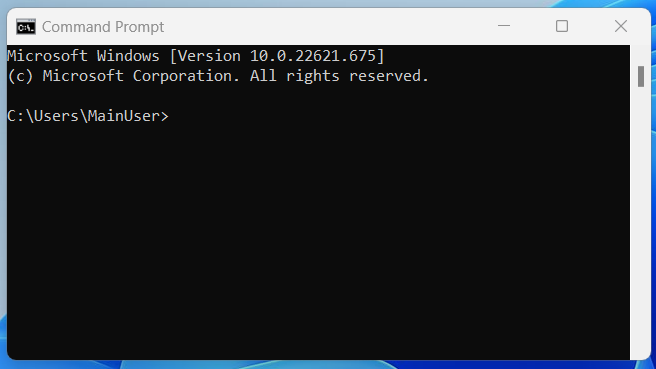
This is where you’ll type the example commands that we discuss below.

How to Open Terminal on Mac

To open Terminal on a Mac, press the Command (⌘) key and Spacebar to open Spotlight Search. Type in “Terminal.”

Click the first option, Terminal, and a blank, black screen will pop up.
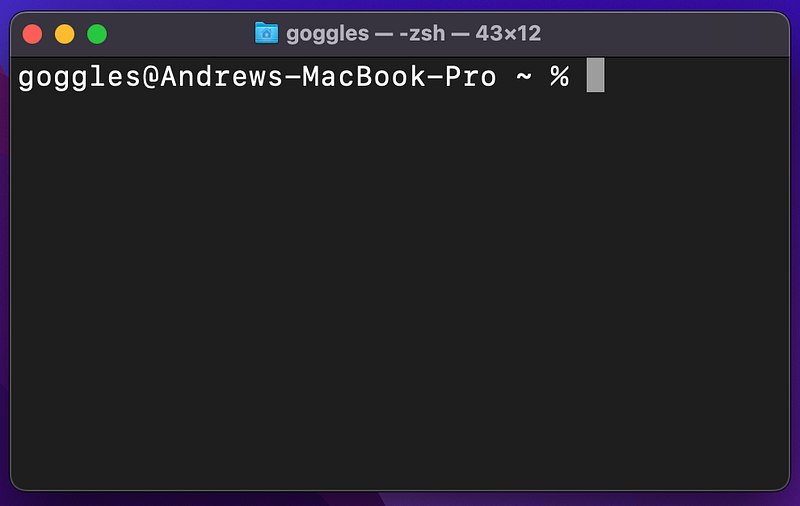
This is where you’ll type the example commands that we discuss below.

Command Line Example #0: Echo

Before we get to the 6 easy commands listed above, let’s do a “Hello World” using the echo command.

Open the command line, and type the following:

echo "Hello, World"
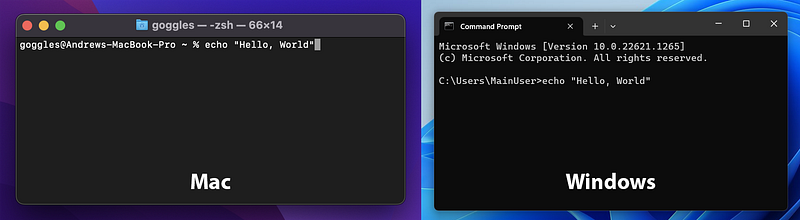
Press Enter.
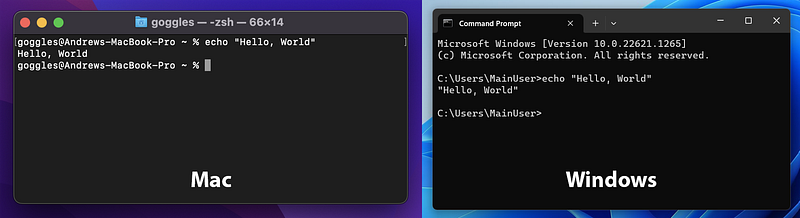
Your computer will “echo” whatever you wrote back to you! It’s kind of like the print statement in Python or R. It just writes stuff to the screen.

You won’t use echo much day-to-day, but it illustrates the simplicity of typing in commands.

Command Line Example #1: CD

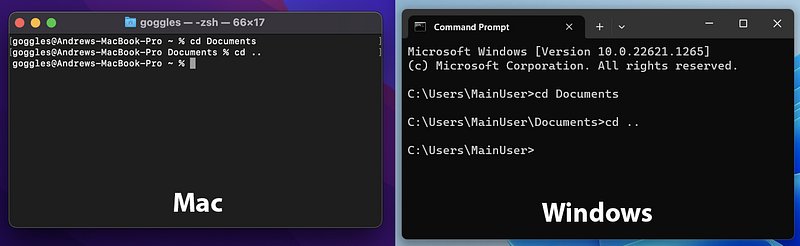
The cd command is used to switch folders.

CD stands for “change directory.” (A directory is another name for a folder.)

Since we can’t click any apps or buttons on the command line, we use cd to move around instead.

On the command line, type cd Documents. This will move you into your Documents folder.
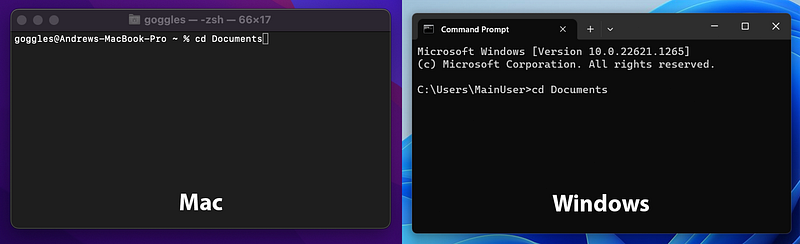
Now, you’re in your Documents folder. We’ll explore what is in your Documents folder with the next command.

To go back to the previous folder, you can type cd .., where the .. means “the parent folder.”
Command Line Example #2: LS

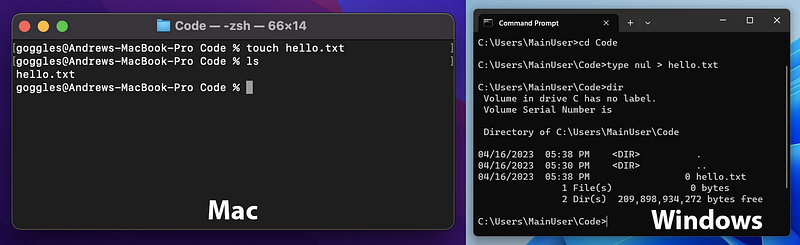
The ls command lists all the files in your current folder. If you’re in your home folder, it will list all the contents of the home folder.

On Windows, the ls command is actually dir, but it does the same thing.

To try it out, type ls on Mac or dir on Windows:
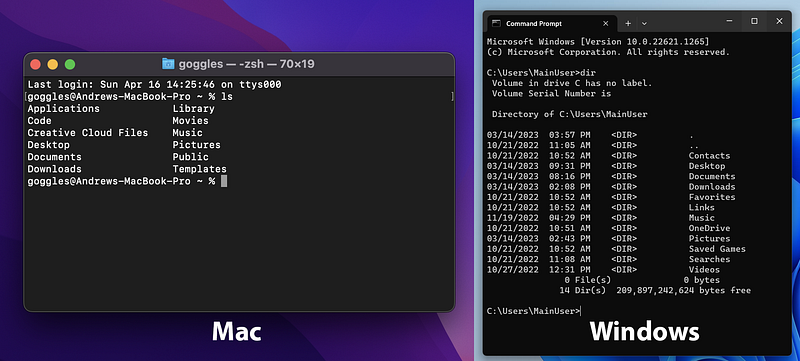
You’ll see everything in the home folder (usually named after your username), including other folders and files.

Command Line Example #3: MKDIR

The mkdir command makes a new folder (AKA a “directory”) in the current folder.

If we’re in the home folder and want to make a new folder called “Code,” we would type:

mkdir Code
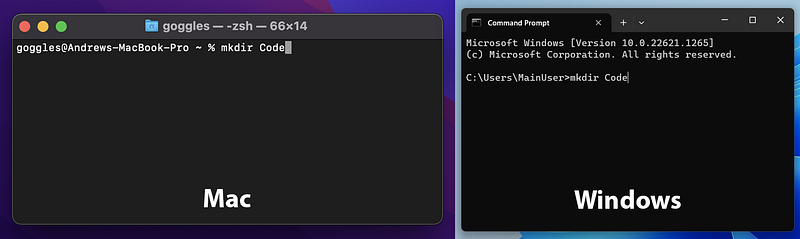
Now, we have a folder in the home folder called Code, which we can also cd into with cd Code.

Command Line Example #4: touch

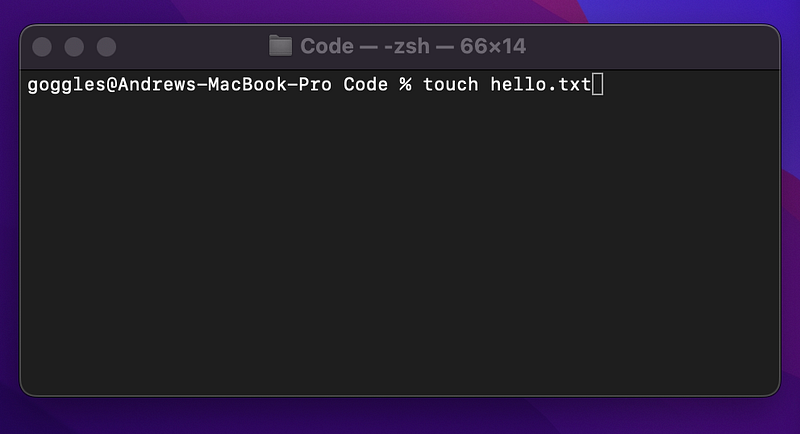
The touch command is used to create a file.

What we’re really doing is telling the computer to nudge a file to change its “last modified” date. But if that file doesn’t exist, it creates one.

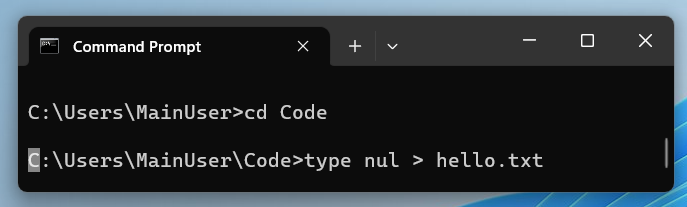
On Windows, the equivalent is type nul. (If you’re annoyed at the differences between coding on Windows and Mac/Linux, consider installing the Windows Subsystem for Linux.)

To create a file called hello.txt on Mac OS, type:

touch hello.txt
To create a file called hello.txt on Windows, type:

type nul > hello.txt
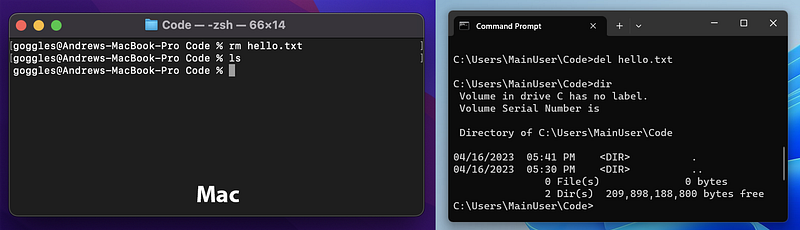
Now, we have an empty file called hello.txt in the Code folder. Type ls to see it.
Command Line Example #5: RM

The rm command will delete (“remove”) files. Again, on Windows, it is different. We type del instead.

Let’s test this using the hello.txt file we just made.

Note that the rm and del commands permanently delete things, so be careful.

To delete hello.txt on Mac, type;

rm hello.txt

On Windows, type:

del hello.txt

And if we type ls or dir after that, we’ll see that hello.txt is gone.

Command Line Example #6: MV

The mv command moves or renames files.

On Windows, the command is move.

To rename a file, we write:

mv OLD_filename.txt NEW_filename.txt

OR

move OLD_filename.txt NEW_filename.txt

To test this out, make another hello.txt file (with either touch hello.txt or type nul > hello.txt).

Then, run the following:

mv hello.txt hello2.txt

Or on Windows:

move hello.txt hello2.txt
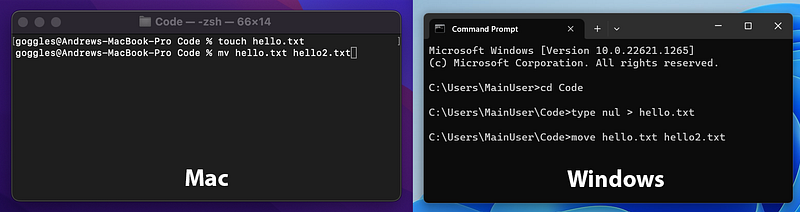
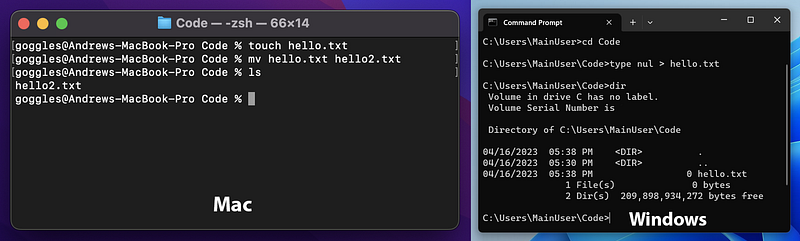
Now, hello.txt has been renamed to hello2.txt:
What about running code and other tools?

We can run code, apps, and other tools with similar, one-word commands.

For example, to run a Python script, we type:

python file.py

To run an R script, we type:

Rscript file.R

There’s also a command to download virtually anything from the Internet called curl. We have a tutorial on getting the current location of the International Space Station, in which we run the following:

curl http://api.open-notify.org/iss-now.json

Running the above command will get us the latitude and longitude of the ISS right this second from the Open Notify API.
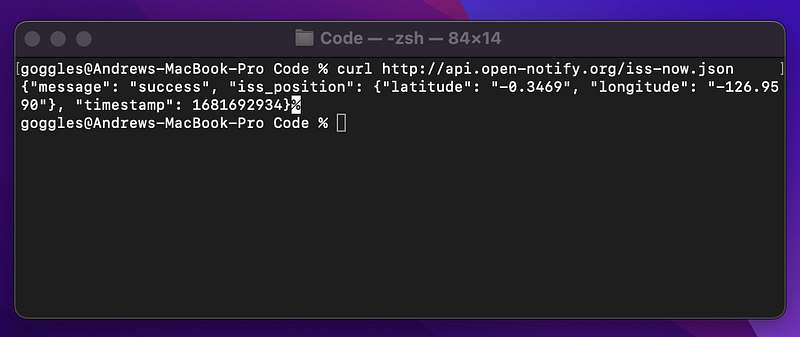
Generally, this is what it looks like to use the command line: moving around from folder to folder and running commands and programs with a few keywords.

For more detail on running Python scripts, check out our How to Create and Run a Standalone Python Script tutorial.

Bonus Tip: Getting Help

Typing command -h on virtually any command gives you a help menu about that command.
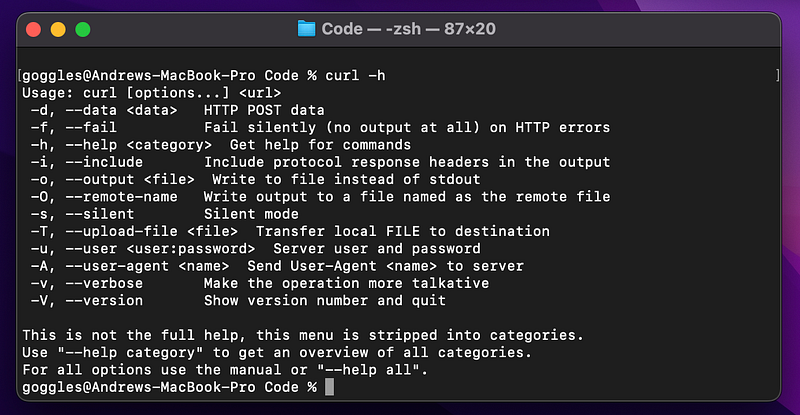
Typing “curl -h” prints out the curl command’s help menu.

What else can the command line do?

To learn intermediate skills for the command line, check out this free command line course from Dataquest.io. It will teach you how to use the command line to link commands line together, clean your data, and more.

Questions and Feedback

If you have any questions or feedback, email us at [email protected] or message us on Instagram (@protobioengineering). Thanks for reading.

If you liked this article, consider supporting us by donating a coffee.

Bash
Science
Biology
Bioengineering
Bioinformatics
Recommended from ReadMedium