The best Mac apps for researchers and academics
Macs are fantastic for research. I have been using a Mac ever since I started university back in 2007 and stuck with it through thick and thin (little Mac pun here). Of course, the computer is only as good as the apps that you can use with it. So, here are my current top picks of the most useful apps for academics and researchers.

Communicating with others
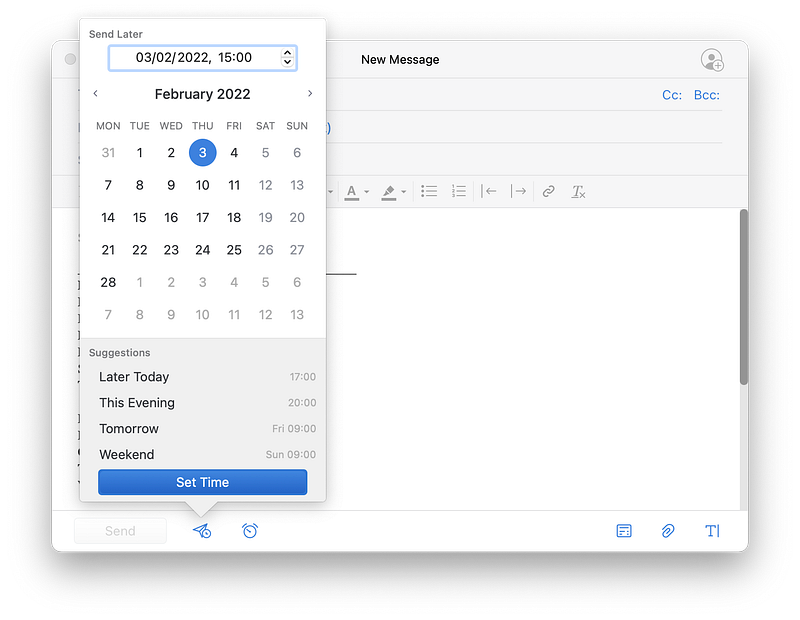
My email client of choice is Spark. It works flawlessly across Mac OS and iOS, has a pleasingly clean interface, and offers a lot of features that are missing from the native Mail app. The most intriguing feature is the automatic sorting of incoming e-mails. Messages from people and notifications are automatically grouped. That makes it much easier to stay on top of emails and spot potentially important messages. Spark also has the option to create email templates and populate them with the name of the recipient and the date. I often have to write similar messages, e.g. to ask students to attend my office hours. The templates prevent me from typing out or copying over the same message again and again. Another useful feature is that Spark can schedule messages. For instance, when I compose an email at 5 am on Sunday, I do not necessarily want it to go out at that time. With the scheduling feature, I can get the message sent during regular office hours.
Taming a busy schedule
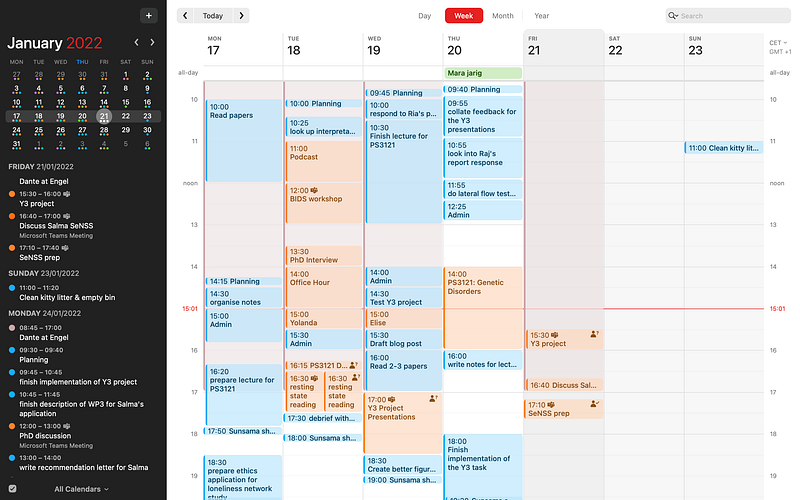
I thought I would never need a dedicated calendar app, but ever since I tried Fantastical, I cannot live without it. I use the calendar to keep track of my scheduled appointments. Fantastical supports different time zones, which makes it much easier to be on time when travelling or meeting with people in a different area. It also integrates directly with many video conferencing platforms like Zoom and MS Teams. Thanks to that integration, I can just click on the meeting in my calendar without having to look through my emails to find the link. It also features natural language processing for quick entry. For example, typing “project meeting on Monday at 11” will automagically add a meeting with the title ‘project meeting’ for the next Monday at 11 am to my calendar — no clicking and selecting required. Different viewing features can be toggled on and off different calendars together. For instance, I switch between private calendars (appointments, birthdays, shared calendars) and work-related calendars (meetings, deadlines etc.) to get the most important information for the relevant context.
Keeping track of everything
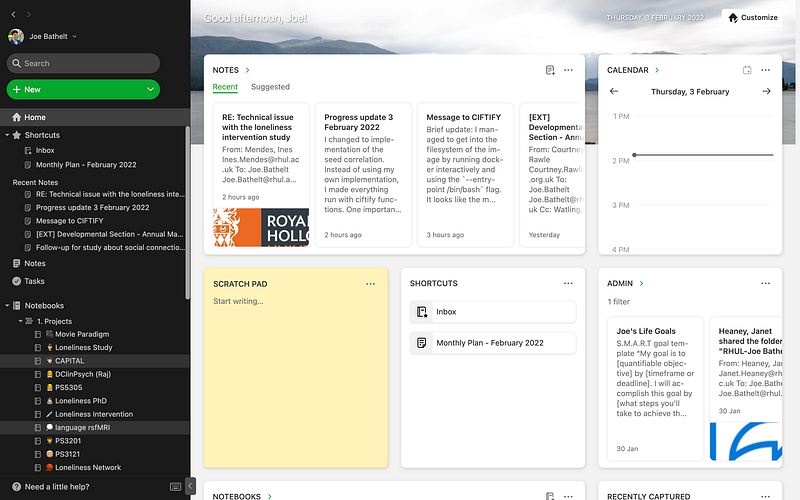
There are some quite strong opinions about the best note-taking app out there. Some apps have a sleek interface, others have intricate features for organisation. I could not find an app that serves all of my purposes. So, I use two different ones for different purposes. One app serves as my digital inbox. All the information that I will need for more than a few seconds goes into the inbox. Another app serves as my digital brain and only receives information that I will want to retain for the long term. I use Evernote as my digital inbox. It has a nice interface that makes it easy to stay organised. It also has many extensions for capturing information, including emails and websites. For instance, when I come across a website with important information for a project, I will save the page to Evernote and sort it into the corresponding notebook. I also save emails that I might need later in Evernote. For example, if I receive an email with all the exam dates for that term, I will forward it to Evernote and sort it into the notebook for teaching-related info.
Building a second brain
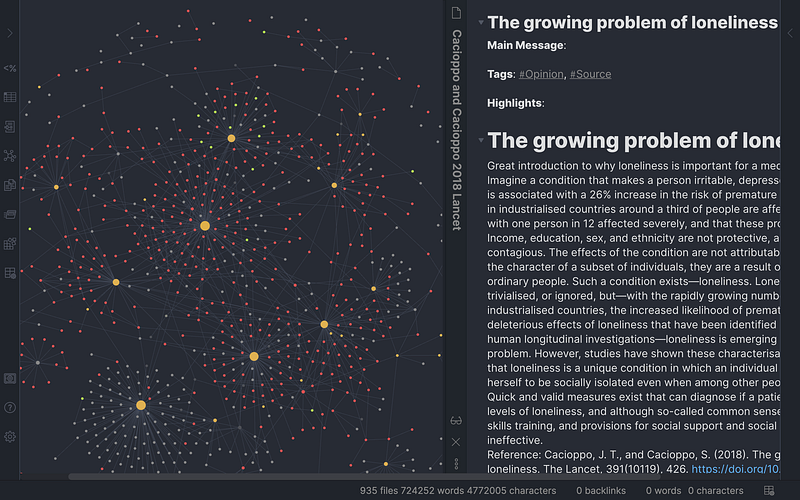
For long-term notes, I use Obsidian. Obsidian is immensely powerful and does require dedicated time to learn. The most useful feature of Obsidian is that it works with links between notes. The resulting network can be visualised and interactively explored to create meaningful connections between the notes. I use Obsidian to keep track of all the information from scientific papers and books I read and also the main messages from workshops and seminars that I attend. Once written, I link each note to other notes, e.g. overview notes with everything about productivity. Compared to my previous workflow, this has been a game-changer. I always used to write copious notes. However, the notes used to just drop down and be forgotten after a while. The linking and graphical exploration help me to get much more lasting value out of the notes.
Managing the unmanageable
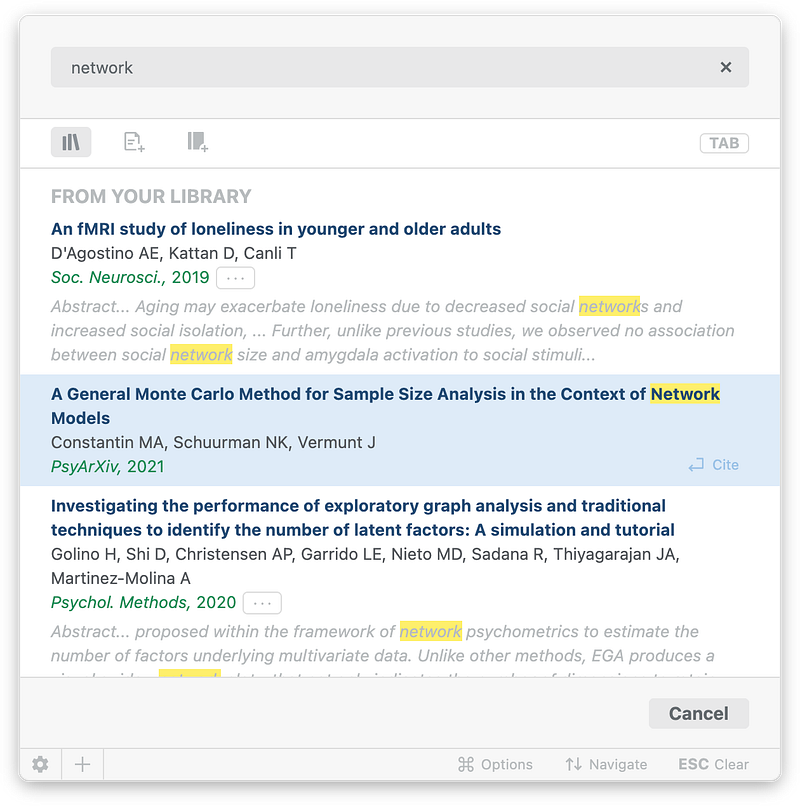
Just hearing the term ‘reference management’ sends shivers down my spine. A big part of the workflow for any academic is keeping track of reference materials like books and scientific journal articles. Unfortunately, most apps designed to help with that are completely useless. For some reason, the reference managers pushed by universities are the worst (I’m looking at you, Endnote). A rare exception used to be the Papers app for Mac. It used to be the absolute king of reference management on the Mac. Unfortunately, the company was acquired a few years ago and their more recent version is a bitter disappointment. I stuck with it for a while, but eventually admitted defeat and tried a few other options. My favourite reference solution now is a web app called Paperpile. It has a very easy interface, great browser integration, and excellent reference options for Word and Google Docs. The biggest advantage of Paperpile for me is that the ‘cite-as-you-write’ functionality is flawless. I can write my article, look up the right reference, and update the reference style when the need arises. It simply does the job without any headaches. It also has a great companion app for the iPad for download and reading papers on the go.
Geeking out
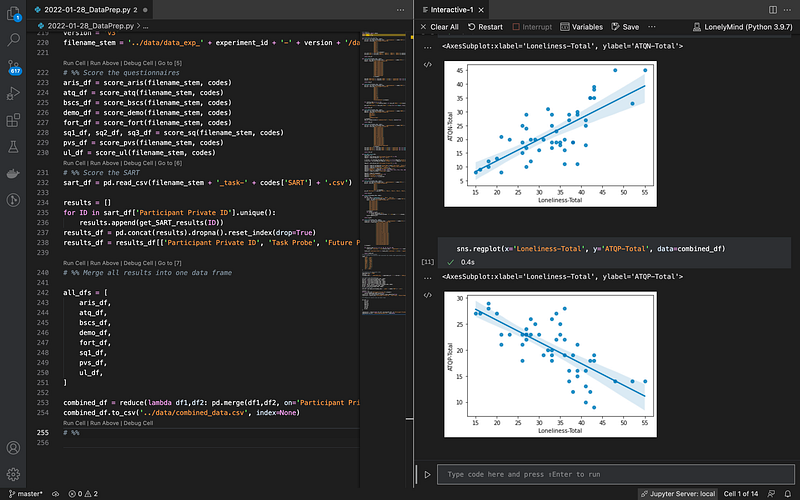
A lot of my research work requires coding. For instance, I conduct neuroimaging analyses with Python, run statistical models with R, and use command-line tools in bash. My favourite programming environment is Visual Studio Code. The main advantage for me is that I can use VS Code for all programming tasks across all languages that are relevant for me. It also has a lot of bells and whistles that are useful. For instance, it integrates nicely with git for version control, has a dedicated terminal for quick testing and execution, and is very customisable for particular languages.
If you are also interested in iPad apps, check out my other article: Best iPad apps for researchers and academics
Please comment and sign-up for my newsletter if you found this article interesting.
Consider to become a member for full access to all of my articles and the entire Medium library. I will earn a small commission, if you sign-up through my personalised link.


