
The 11 craziest and most advanced Apple shortcuts I’ve ever seen
Treat these like mini-apps, not shortcuts
This isn’t exaggeration, but Shortcuts is the most underrated app on the iPhone. It lets users create mini-apps that help automate their life and keep themselves more productive.
Best part, it even has the power to tweak and manipulate iOS system settings — which third-party apps cannot imagine doing.
It’s that powerful, sadly getting underused.
So here I explain you about 11 such complex & advanced shortcuts — most of which I regularly use.
#1. Auto Message
This shortcut helps schedule sending messages to your Contacts — something that the native Messages app doesn’t offer (Mail does).
How? Using Reminders. Let me explain.
To start using the shortcut, you need to do this — Create a new list in your Reminders app. And register it in Auto Message so it’ll use it for its operations.
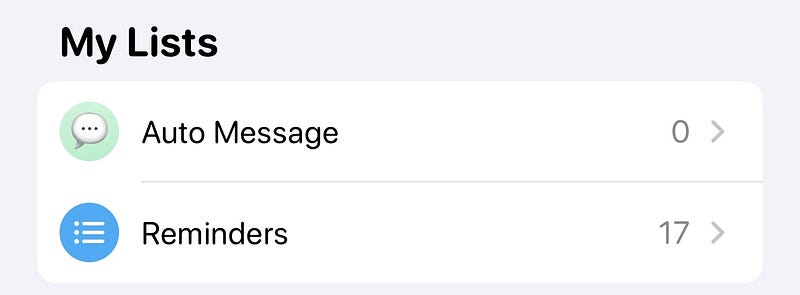
Now trigger the shortcut to find this: (works on iOS & macOS)
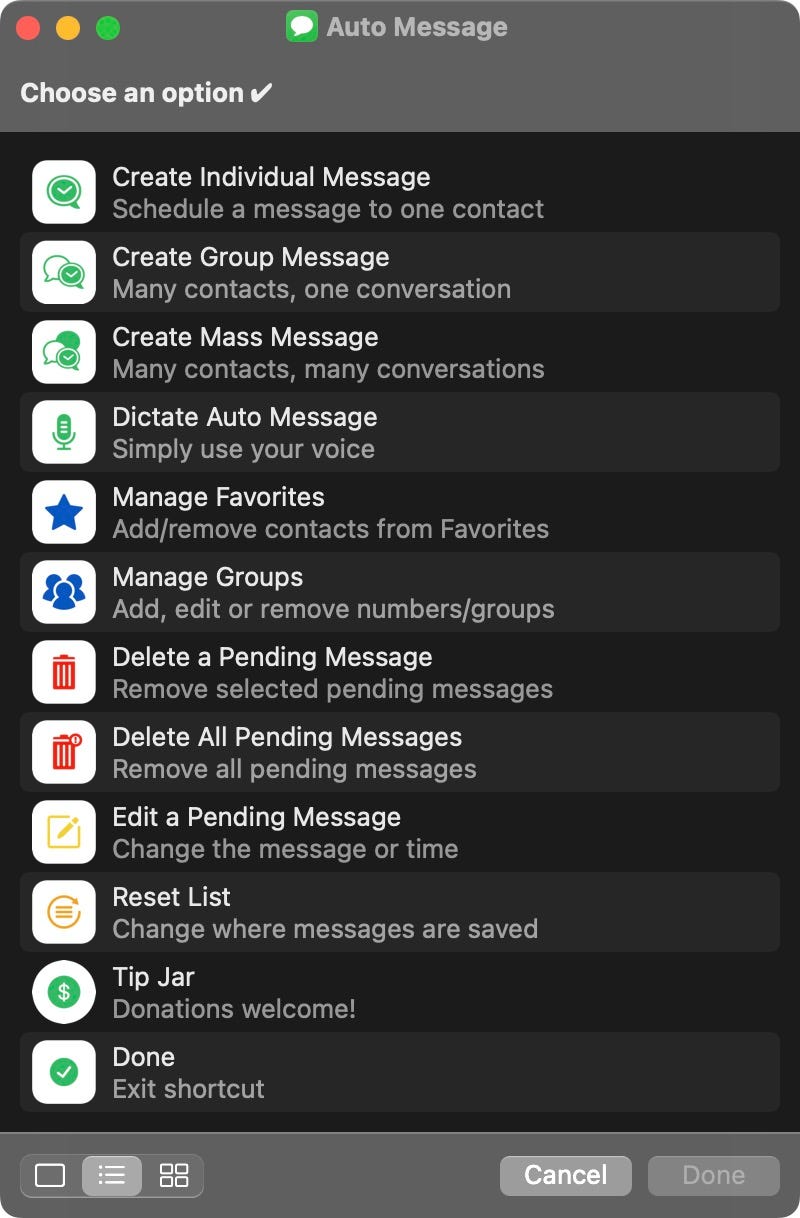
Let’s try the first option — Scheduling sending a message to an individual contact.
As you click it, it prompts you to
- choose a contact,
- type a message (default: clipboard),
- attach an image (Wow!),
- select a date and time.
It creates a reminder for the selected time with all the details filled in:
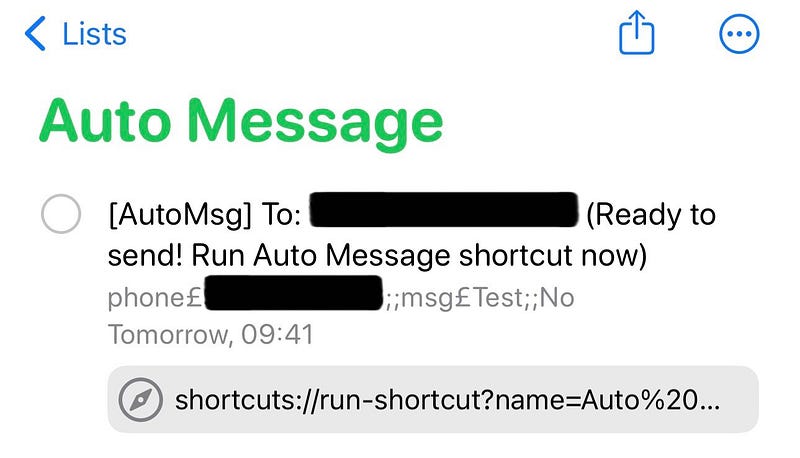
As you receive that reminder at the set time, simply tap the URL.
Then the shortcut will auto-retrieve the image, message, and will send it to the contact via Messages or WhatsApp, whichever you choose:
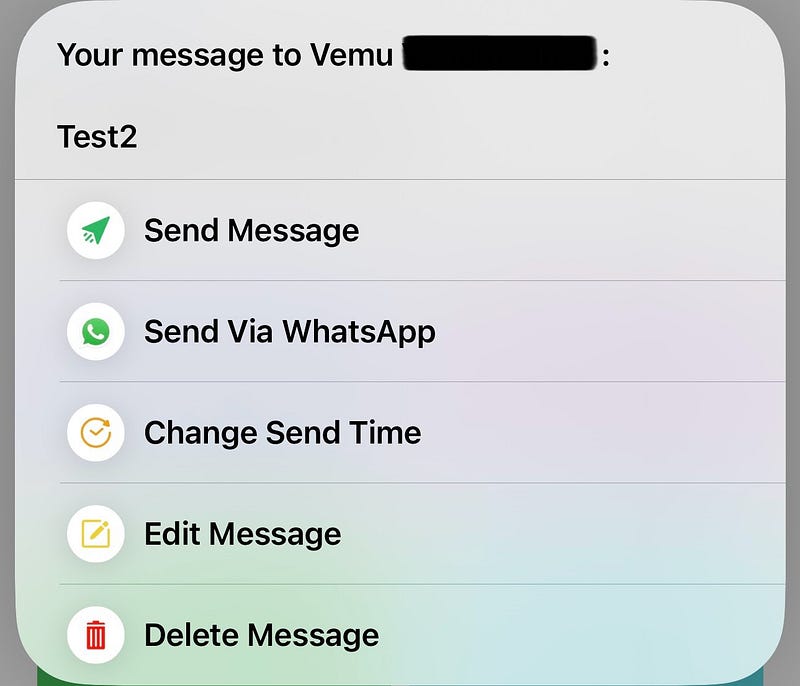
How cool is that!
Though this isn’t automatic, it’s still a very useful shortcut that helps not forget to send messages to people at specific times.
Best part, you can also
- create Favourites and groups within the shortcut.
- send messages to an individual, group, or multiple groups.
- reschedule or cancel sending a message. (Quick tip: You can do that by tweaking the reminder directly)
Or download it directly here.
#2. iFrames
Plain screenshots look boring, but when framed with their device’s image, they look fantastic.
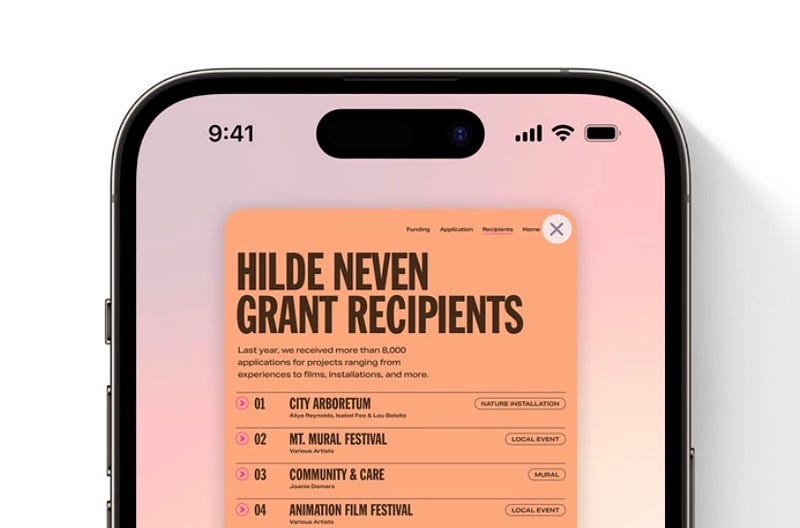
And as an Apple blogger, doing that is a non-negotiable. You see, most of the screenshots in my articles are framed.
So how do I do that?
- When I’m on Mac, I use Mockuuups Studio (not an affiliate link).
- When I don’t have my Mac nearby, I use a shortcut called iFrames on my iPhone — that’s as powerful as the app.
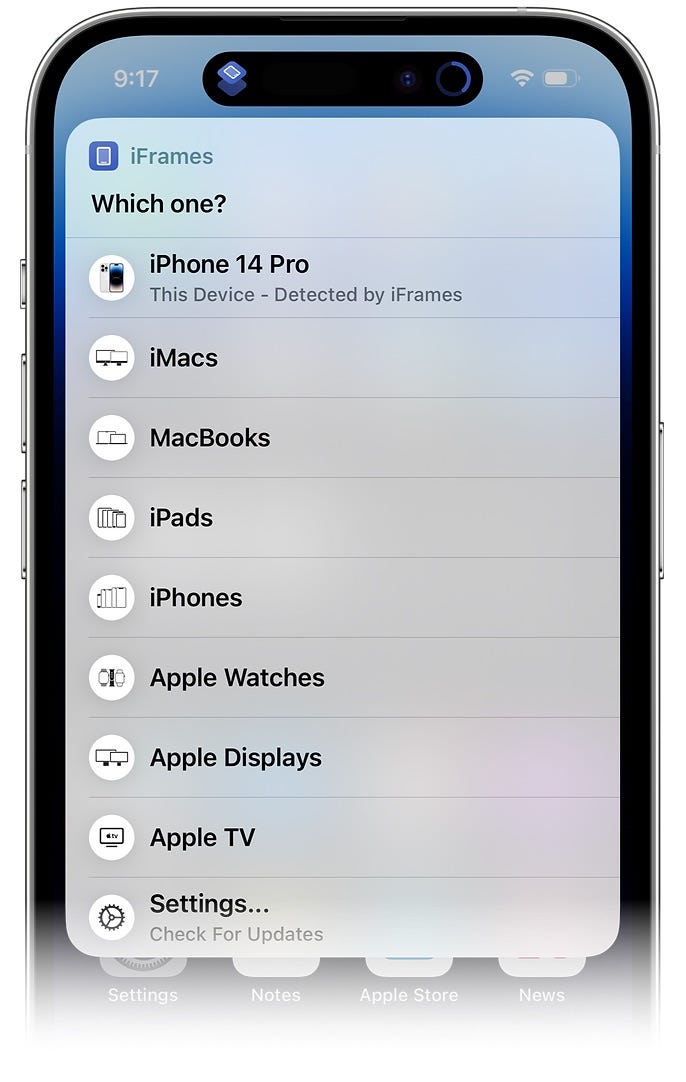
Here’s how iFrames works: As you run it, it asks for screenshot(s) you snapped from your iPhone, iPad, Mac, Apple Watch, or Apple TV, and the device you want as its frame.
That’s it, within a few seconds you can save the final mockup locally.
That’s not all, here’s the best part:
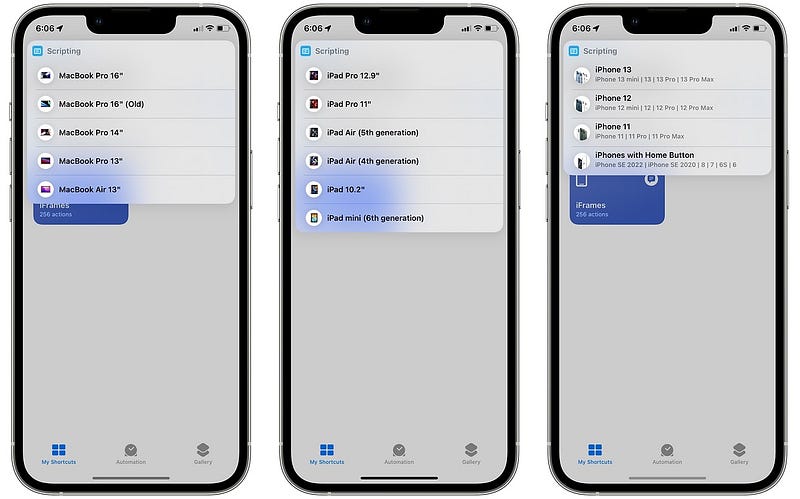
- Almost every Apple device is available in iFrames.
- It often takes less than 10 secs to generate a mockup (with a stable internet connection).
- If there’s a frame you use often, you can pin it to the top or even use it offline!
- iFrames automatically detects the device you’re using and suggests it at the top.
- If the screenshot appears to be horizontal, it asks which side you want to place it. (Wow!)
- If you choose multiple screenshots, you can combine the outputs the way you like — vertically, horizontally, or as a grid. Example:
Or download it directly here.
#3. Song.Link
I’m a fan of Apple Music, but most of my friends use Spotify, especially the guys with Androids.
So let’s say I loved a song on Apple Music and I wanted to share it with a guy. It doesn’t make sense sharing with him the direct link as he doesn’t use Apple Music, right?
Also, I’m not too generous to search for it on Spotify myself and then send him the link.
So here’s what I do — I just share the song to Song.Link (shortcut):
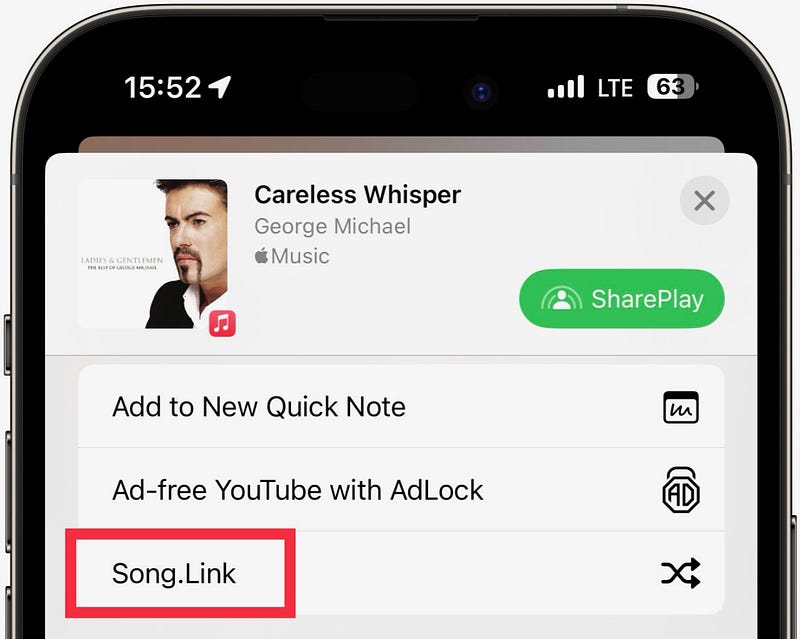
It does the mundane job of retrieving the song’s links from all popular music platforms like Spotify, YouTube, Pandora, Amazon, & SoundCloud.
Then I click Spotify and directly share its link to him, simple!
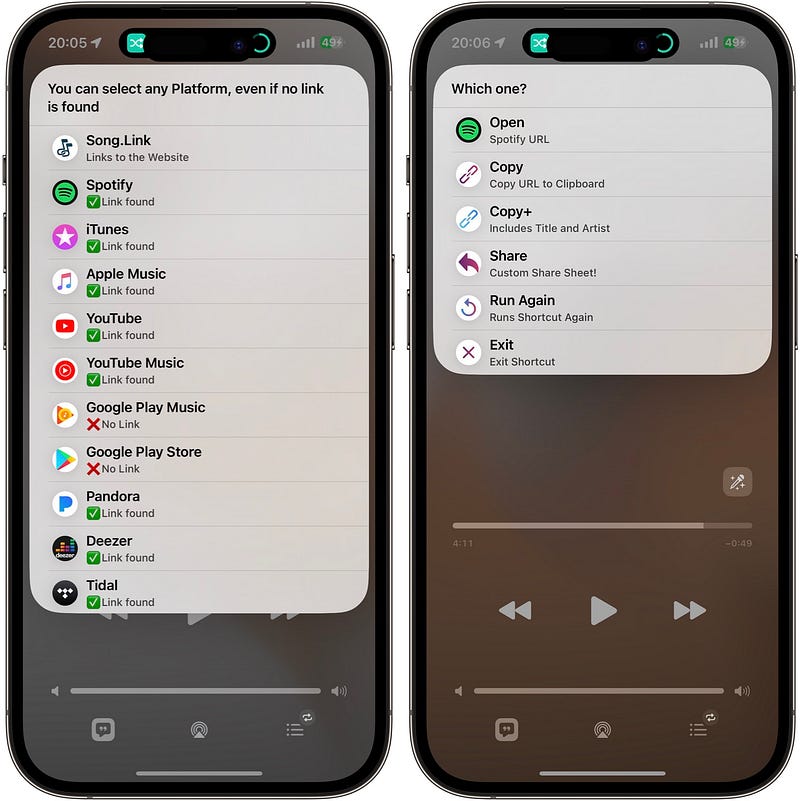
Best part, you can feed a song to Song.Link in 5 ways:
- from its link in clipboard,
- by “Now Playing” it on Apple Music,
- by Shazam-ing it,
- by searching it on iTunes store,
- or by typing its URL by keyboard.
Or download it directly here.
Shortcuts for YouTube
#4. SW-DLT
Let me tell you how I download YouTube videos on my iPhone — that’s the easiest way.
To start, you need to install the shortcut SW-DLT*, and any of the two apps — a-Shell or a-Shell mini. Prefer the latter to save space.
Now, the process:
- Open a video on Safari or YouTube app
- Share it to SW-DLT
- Select ‘Download Video’
- Choose your preferred quality and framerate.
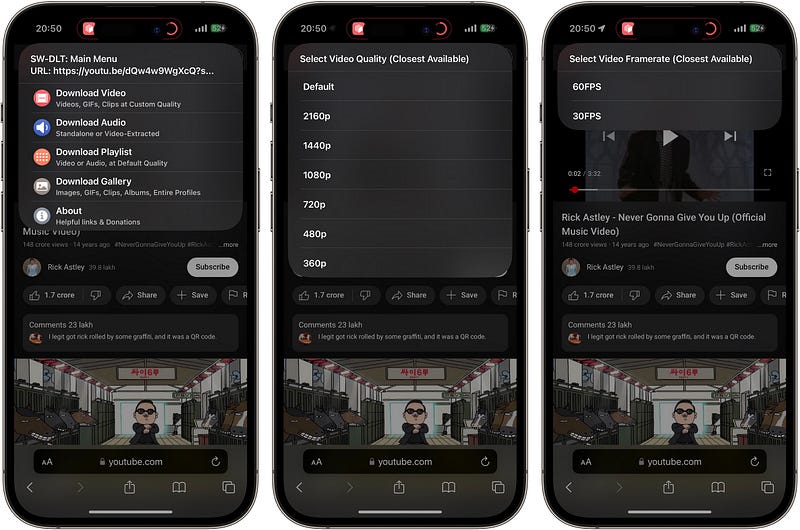
And the video starts downloading… Once it’s done, you can watch it right away. If you wanna save it, click Share < Save Video.
Best part, SW-DLT supports downloading media from an awful lot of websites, not only YouTube. You can also download
- only audio from videos,
- complete playlists of video or audio,
- full media (GIFs, clips, images) from entire webpages.
Or download it directly here.
*SW-DLT – Shortcuts Wrapper for -DL Tools
#5. YouTube PiP
YouTube has limited PiP (Picture-in-Picture) feature to its Premium subscribers.
It’s a very handy feature if you prefer watching videos while doing something else (hopefully productive) on your iPhone.
Here’s a hack to achieve it without paying a penny — using YouTube PiP, a shortcut.
- Open the video on Safari or YouTube app
- Share it to ‘YouTube PiP’
- Wait for a few seconds till the video loads
- Minimise the screen.
And the video keeps playing in PiP, while you do your work.
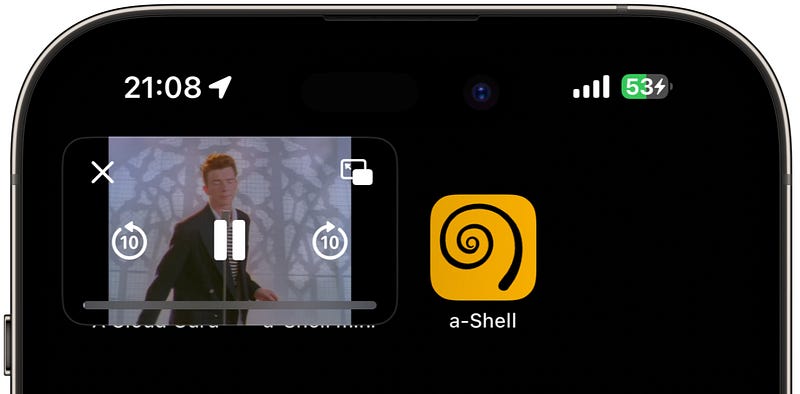
Or download it directly here.
PS: Here’s another way you can do it (using an app) ↓
#6. Set Some Alarms
We humans are lazy by nature. And that’s for a reason — it’s a trait left over from our ancestors’ days of conserving energy for the next hunt.
Bad luck for us in the 21st century… I often find myself turning off a ringing alarm on my iPhone, only to lie back again — and feel bad when I wake up late.
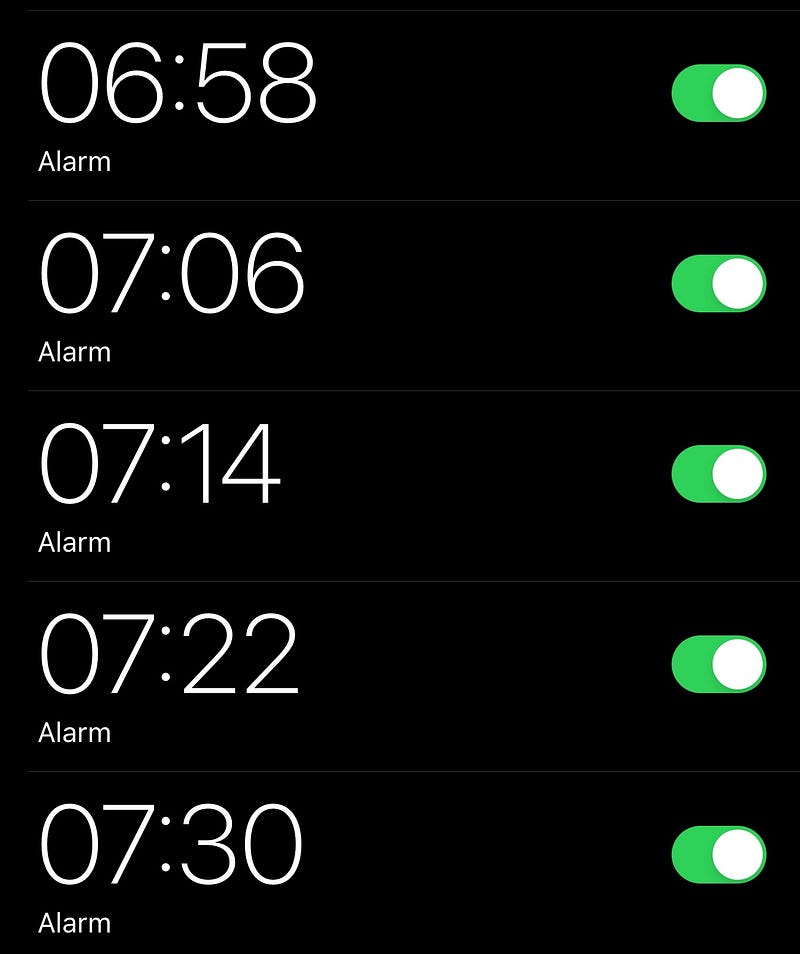
That’s why I set multiple alarms in five-minute intervals that (should) annoy me and get my but off my bed — and I’m sure a lot of you people do the same.
So instead of setting them all by myself, I use this shortcut: Set Some Alarms.
It lets me choose
- a particular time,
- how many total alarms to set,
- intervals between them,
- whether the alarms should start or end at the specified time.
And instantly creates alarms for waking me up from my next nap.
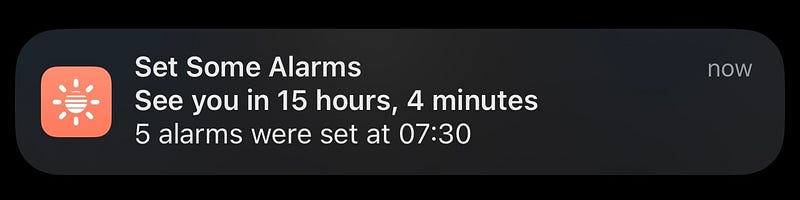
Best part, it even shows how much time I have till the first alarm — A feature that I liked back in the days I was using MIUI.
#7. DND Menu
Natively on iOS & macOS, Do Not Disturb (or any other focus) can only be toggled on indefinitely, or according to these three options:
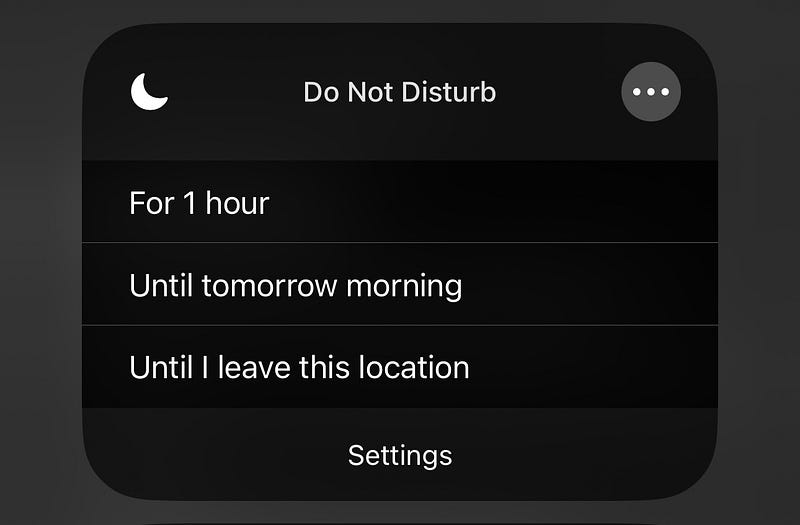
Sadly, Apple doesn’t allow turning it automatically off after an event ends, or after a set time natively.
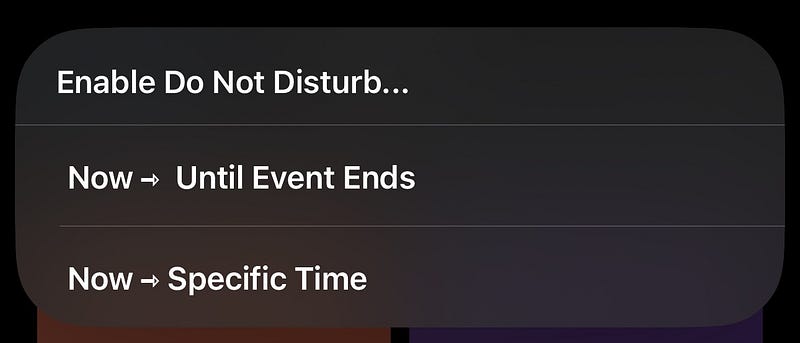
But these are made possible by a shortcut — DND Menu. As you trigger it, you’ll see these two options:
If you choose
- first option, DND focus will turn on until the next calendar event ends.
- second option, you can set a time until DND will stay on.
How cool! This greatly helps if you wanna stay focused for the next 20 minutes or so, or keep attention to that 30-min Zoom group meet.
Or download the modified version (by me) here.
#8. QR Anything
QR Anything — you’ve guessed it right — converts almost anything you throw at it into a QR code. Supported formats:
- Wi-Fi network,
- Image (uploaded anonymously to Imgur and its link is converted to a QR code)
- URL
- Text
- Clipboard content
As you trigger it, this is what you’d see:
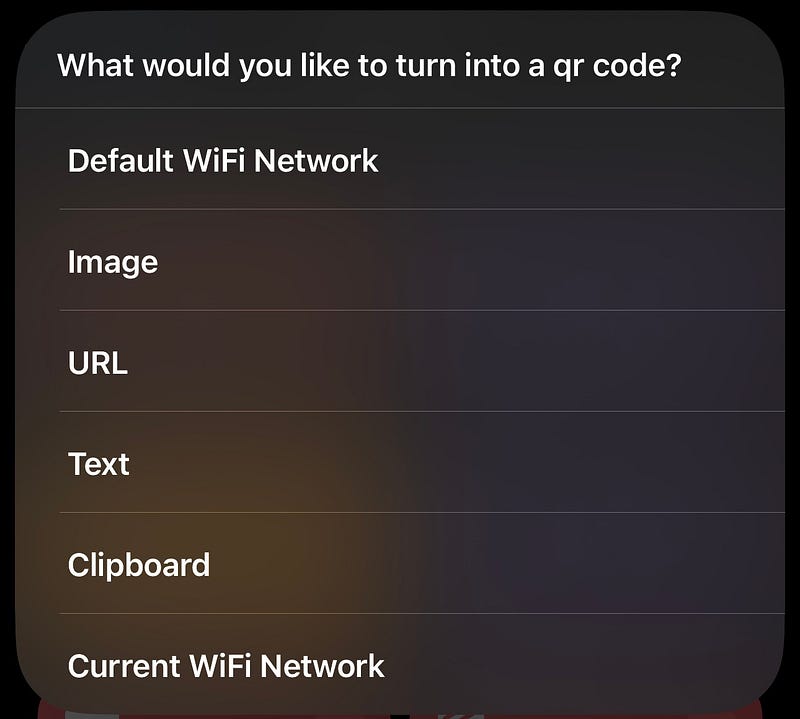
Choose the one you’d like to convert into a QR, and follow the steps given.
Now, if you own a coffee shop, instead of your customers struggling to type your Wi-Fi password, create a QR code for your network and let them scan it.
Or maybe you could convert this link into a QR code and rickroll your friends lol.
Best part, if you wanna convert something before you into a QR code, you can directly share it to ‘QR Anything’ via Share Sheet, instead of triggering the shortcut by yourself.
Or download it directly here.
#9. Google Translate
It’s a shortcut that makes Google Translate available without its app or website — by using its free API (so it’s faster).
As you trigger it, you’re prompted to type in the languages you’d translate to frequently (which you can change later by modifying the shortcut):
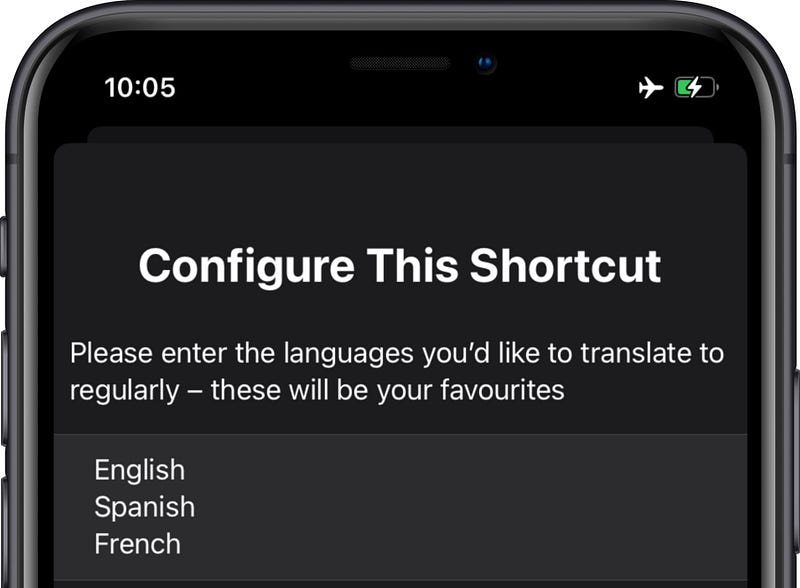
Now, to start translating, simply trigger the shortcut and
- type something in English,
- choose the language you want to translate to.
And within 1–2 seconds, you’ll receive the translated text — which you can copy to clipboard or share.
But what if you wanna translate it not from English but from Dutch (or any other language)? Try this:
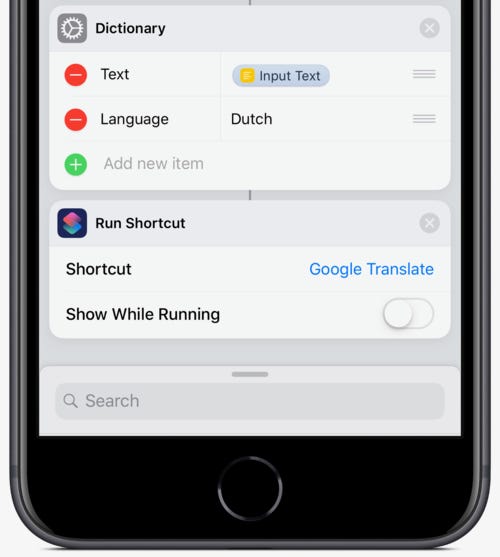
Create a dictionary with the entries as
- Text: input_text
- Language: input_text_language
And feed it to ‘Google Translate’. Now you can translate the input_text to any language just like you did before.
Amazing, right?
Or download it directly here.
#10. PowerUtil
Know it or not — your iPhone’s battery is 80% as capable as when it’s new… when it reaches 500 charge cycles.
(A charge cycle is when a battery discharges level equivalent to 100%.)
Charge cycles count is such an important metric one should track if they’re concerned about their battery’s longevity.
But frustratingly, Apple neglects to provide users access to it. Oh, sorry. It does show, but only for iPhone 15 series users.
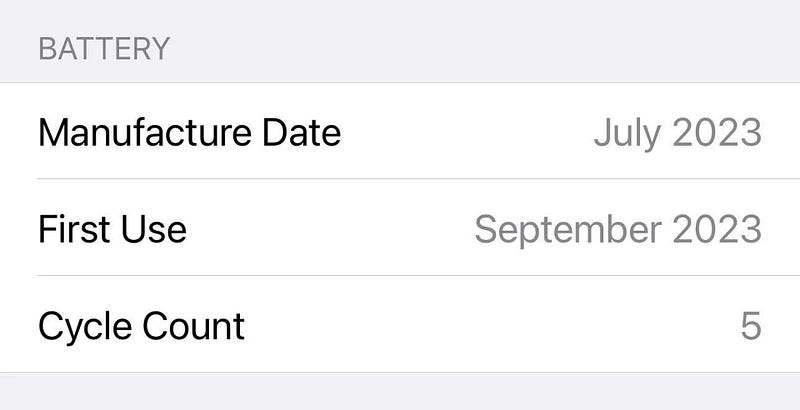
Boy… I use an iPhone 14 Pro Max (And found no convincing reason to upgrade).
Now, iPhones <15 series not showing this doesn’t just mean they don’t track Battery Cycles. They do, it’s just that Apple programmed them to not show.
Bite you, Apple .
Here’s how to reveal your Battery Cycle count if you use an iPhone <15 series:
- Install the shortcut — PowerUtil.
- Go to Settings ⚙️ < Privacy & Security ✋ < Analytics & Improvements.
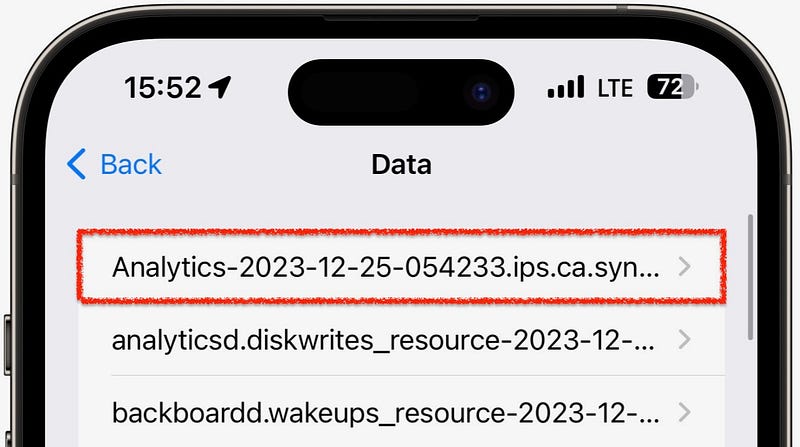
- Click ‘Analytics Data’ below ‘Share iPhone Analytics’,
- Find and tap on the (most recent) file whose name starts with Analytics-20XX.
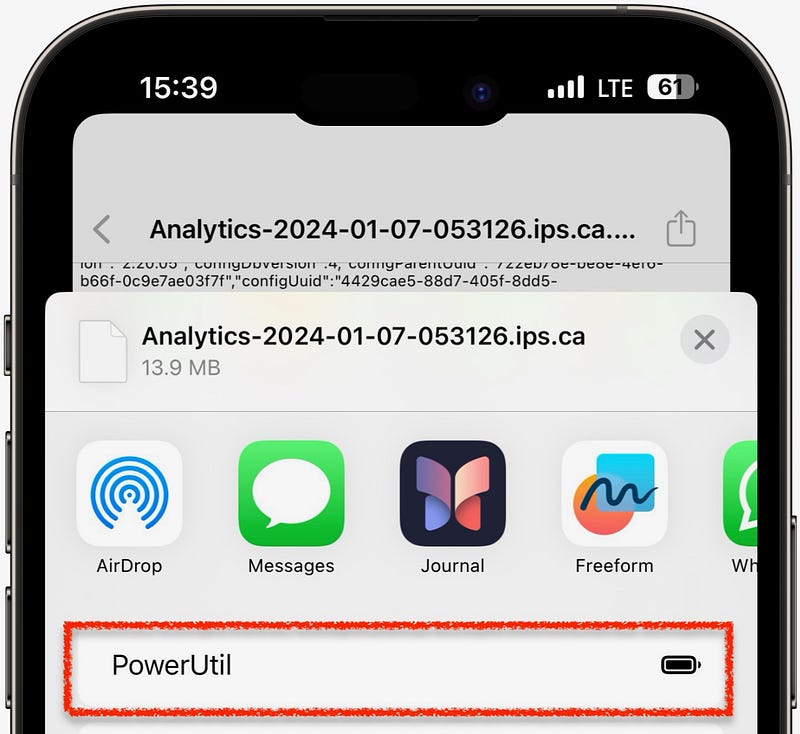
- Share it to PowerUtil (by clicking Share icon at the top-right corner)
- Now wait a sec, and look what appears. Here’s mine:
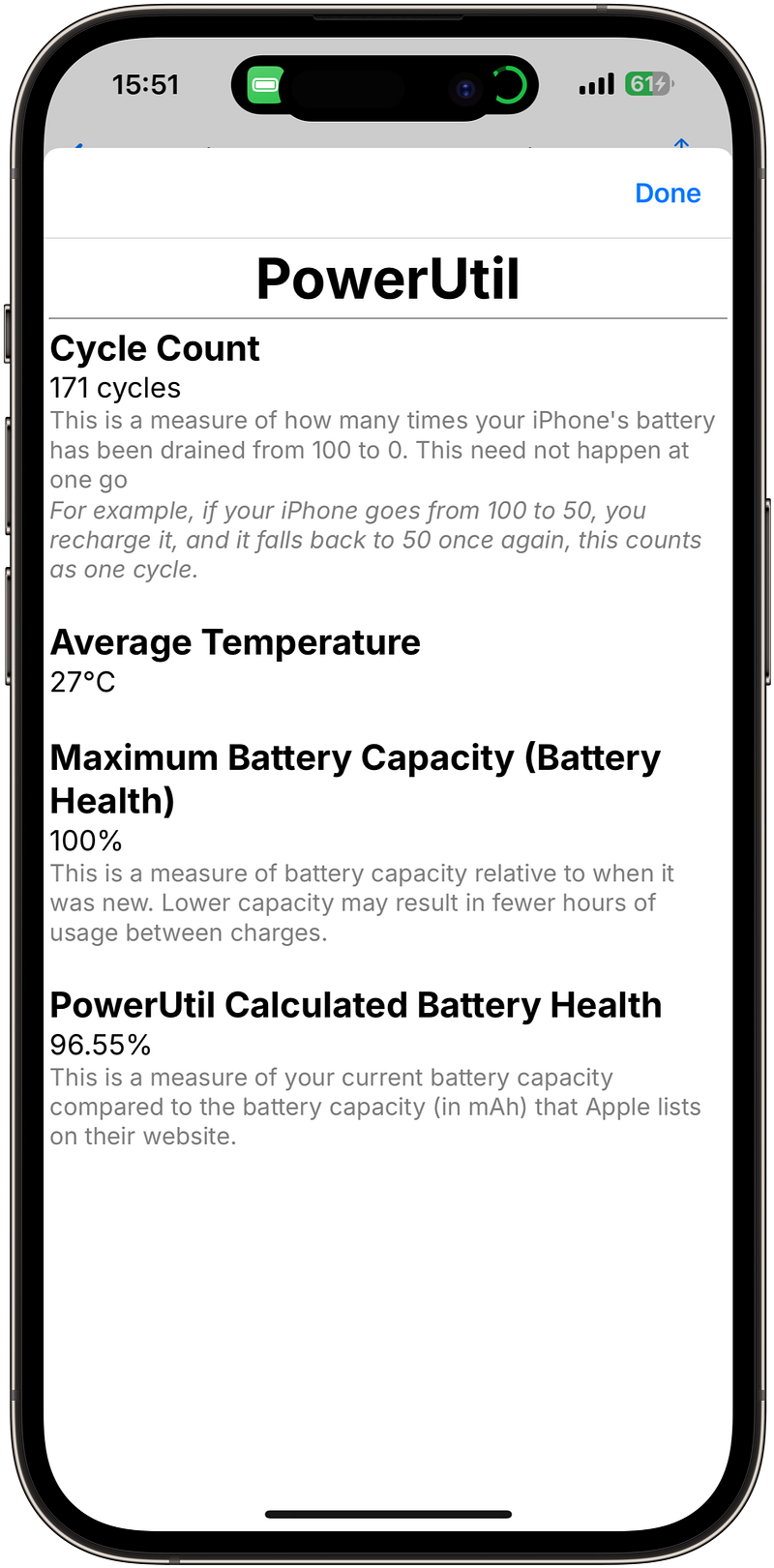
How cool! It’s showing my battery’s
- Consumed battery cycles count,
- Average temperature,
- Battery Health, (As shown in Settings ⚙️ < Battery 🔋 < Battery Health & Charging)
- More accurate Battery Health. (Calculated by PowerUtil’s own algorithm)
Note: iPad users find this more helpful - for whom Apple doesn't reveal their Battery Health by default.(The Analytics-20XX file has your Cycle Count, Avg. Temp, and Battery Health written somewhere in deep. The shortcut just finds it out using regex and displays it.)
But is this level of effort really required to check your mere Battery Cycles? I don’t understand what’s stopping Apple from showing this out for iPhone <15 users?
Note: This requires 'Share iPhone Analytics' to be turned on.Or download it directly here.
#11. Snap (works only on Mac)
I’ve always used apps for window management — Apps like Magnet, Moom, Mozaic, One Menu, Spectacle, Swish. But I never thought that’s possible by a Shortcut.
Say hi to Snap.
It’s a light-weight Shortcut version of window manager that looks simple, but actually got complex code built-in.
Here’s how to use it: (First, right-click Snap in Shortcuts and click ‘Add to Dock’)
- Keep an active window on your Desktop (Not full-screen; Check if its name shows up beside Apple logo at the top left corner).
- Trigger Snap from the Dock.
- Select your preferred snapping position for the window out of the 14 shown options:

- Click it and click Done.
That’s it, and the window is snapped to your preferred layout. Here’s something I did with it:
Best part,
- You can rearrange the snapping positions or remove the ones you’d least prefer.
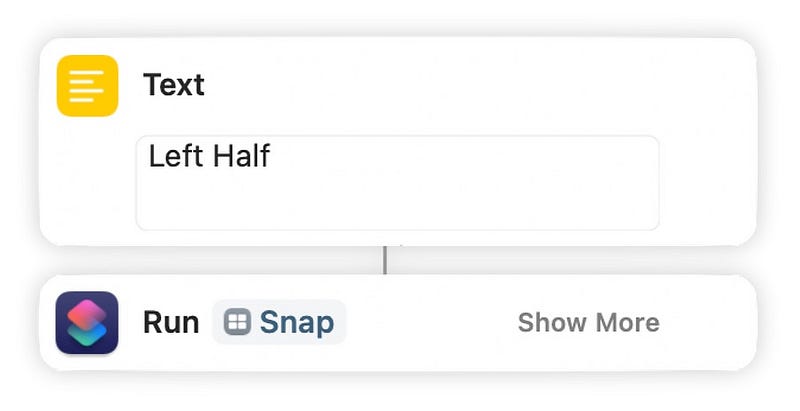
- Snap supports input from other shortcuts:
Fun Fact:
Snap has won the “Best Mac Shortcut” award in the Automation April contest held by MacStories.Or download it directly here.
Loved it? For more useful Apple shortcuts,
Finally,
If you love exploring new iOS & Mac apps (like me), consider subscribing to Setapp. You’ll get access to a curated collection of 240+ amazing apps for just $9.99 a month, which rather cost hundreds of dollars if purchased individually.
- Use my affiliate link to start your Setapp journey! (It’s free for 30 days)
- Get my free list of 100+ Ultimate macOS Apps on Setapp here.
If you enjoyed this story, join 430+ others to get notified whenever I publish a new story.


