
Test-driving Copilot for Obsidian commands using a local LLM

In a previous post, I described my first experiments with installing and configuring the Copilot for Obsidian plugin for use with a local LLM and local vector store (an indexed version of my vault).
For this article, I will test-drive Copilot for Obsidian commands to see what they do and how they work. As before, I will be using the OLLAMA (LOCAL) environment with the Ollama Mistral as my default model in Chat mode.
Here is a complete list of all Copilot for Obsidian commands that are available through the Obsidian command palette. For my own convenience, I have divided them into three separate categories.
1. Copilot commands that work on selected text in a note
These commands perform fairly standard text processing tasks that can be found in many LLM interfaces. The output is shown in the Copilot Chat window.
- Emojify selection: 🤓 This command adds 💬 emojis to the selected 🔝 text to make it more 😍 expressive. 😊 (As shown here.)
- Simplify selection: If you want to rewrite the selected text using simpler words, this is the command to use. Here is a rewrite of the first two paragraphs of this article:

- Summarize selection: This command summarizes the selected text in a numbered list.
- Translate selection: This command will translate the selected text into a selected language of your choice. The translation is displayed in the Chat window and, interestingly, a back translation to the source language is also provided, which may give you some indication of the quality of the translation if you don’t know the target language. Don’t expect to get a good translation quality from a small local LLM. This feature will give much better results when you are prepared to use an external LLM from a commercial provider.
- Make selection longer and Make selection shorter: These commands expand or condense the selected text by using more words or less words than the original. If you make the selection shorter, non-essential parts will be left out.
- Change tone of selection: This command will change the tone of the selected text to one of the following registers: Professional, Casual, Straightforward, Confident, or Friendly. Here is the Casual version of this paragraph:

- Remove URLs from selection: This command will remove any URLs from the selected text. It will not rephrase the text in any way.
- Rewrite selection to a tweet and Rewrite selection to a tweet thread: These commands will attempt to write the key concept or message of the selected text into a tweet or tweet thread, accompanied by a relevant icon and one or more hash tags.
- Rewrite selection to a press release: This command will attempt to turn the selected text into a press release. Expect to see an enthusiastic, rallying style and extra emojis sprinkled in for good measure.
- Fix grammar and spelling of selection: This useful command wil correct fix gramar and spellin mistakes, as follows:

- Generate table of contents for selection: This creates a table of contents with numbered entries from your selected text.
- Generate glossary for selection: This command creates a glossary of terms from the key words and phrases in the selected text.
2. Copilot commands that customize Copilot behavior
- Add custom prompt: Lets you create a custom user prompt consisting of a Title and a Prompt. The title will be used to select the prompt when you apply your stored custom prompt and the information in the Prompt field will instruct the LLM what to do:
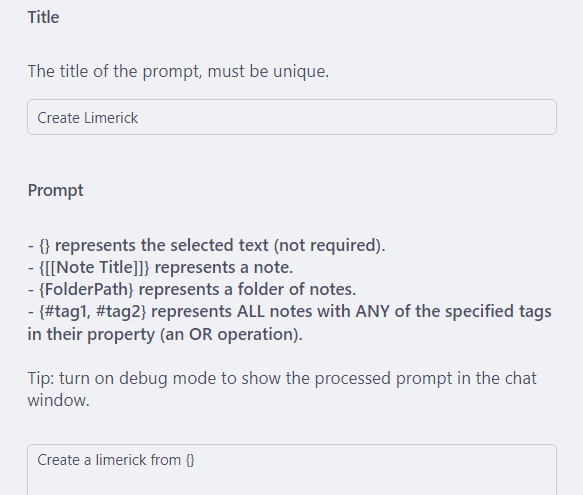
- Apply custom prompt: Command to send a stored custom prompt to the LLM.
- Apply ad-hoc custom prompt: This command is similar to the previous one, except that you don’t select a pre-stored custom prompt, but enter the prompt while executing the command. The ad-hoc prompt is not stored for future use.
- Edit custom prompt and Delete custom prompt: Commands for modifying or deleting a previously created custom prompt.
- Set note context for Chat mode: This will let you set the context to be taken into account when the Send Note(s) to Prompt button is clicked in Chat mode. You can Filter by Folder path, and further Filter by Tags (only tags in the Tags note property are used). This is an interesting command, because it offers the opportunity to send the content of one or more notes to the plugin for use as additional context in Chat mode:
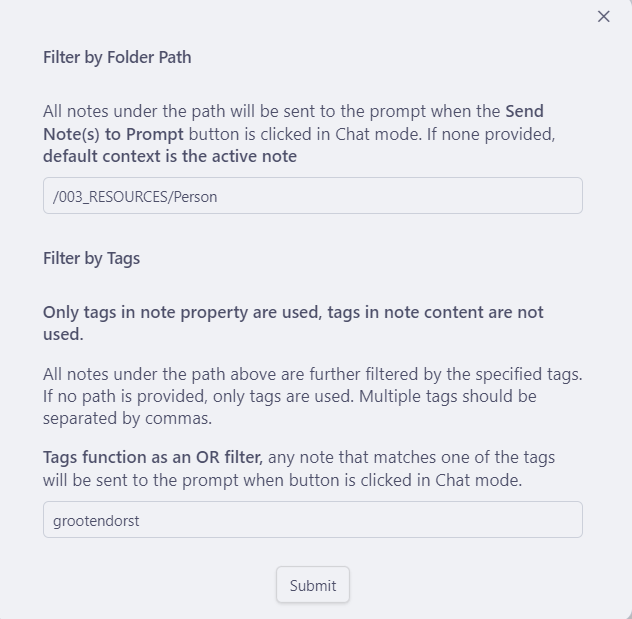
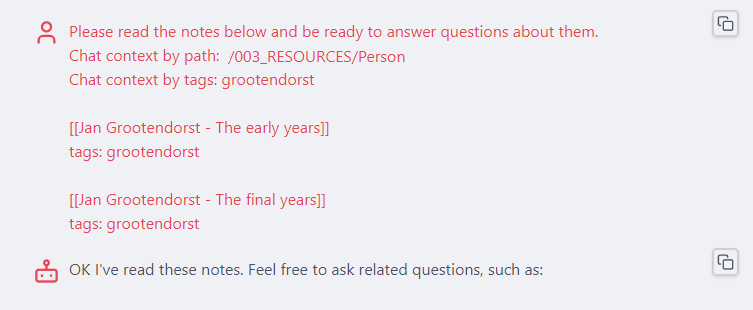
To test this, I created a biography in two parts about a fictitious artist Jan Grootendorst and set those two notes as context for Chat mode. When I pressed the Send Note(s) to Prompt button, the chat window shows which documents have been processed as extra context:
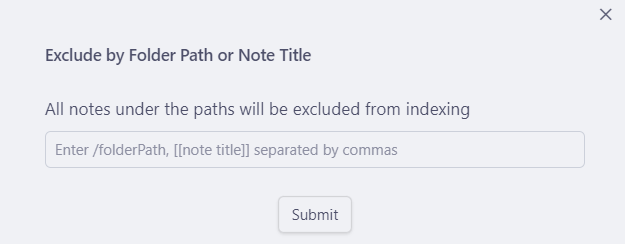
- Set exclusion for Vault QA mode: You can exclude one or more folder paths or note titles in your vault from being indexed for Vault QA mode (useful if you don’t want to include all your notes in your local vector store):
3. Miscellaneous Copilot commands
These commands are for maintaining your local vector store or count the number of tokens in your vault or selected text.
- Clear local vector store: This command clears your local vector store, the indexed model created from the content of your vault. You can use it if you want to index your vault from scratch, or if you simply want to remove the local vector store from your disk.
- Toggle Copilot Chat Window and Toggle Copilot Chat Window in Note Area: These commands display or hide the Copilot Chat window in the sidebar or in the note area of your Obsidian window.
- Force re-index vault for QA: This will force your entire vault to be re-indexed for Vault QA mode. It ensures your index is up-to-date and complete.
- Garbage collect vector store. This command removes files that no longer exist in your vault from the local vector store.
- Count total tokens in your vault: This command counts the total number of tokens in your vault, which is useful information if you want to have your vault indexed by a commercial LLM provider. They usually charge you a fee per million tokens that are being indexed.
- Count words and token in selection: This command displays the number of words and the number of tokens in the selected text.
TAKEAWAYS
This test-drive has given me a good idea of the tasks the built-in Copilot commands can perform. Most of the language processing commands are fairly standard and can be found in many LLM interfaces.
The Set note context for Chat mode command stands out in that it allows you to add extra context information from one or more notes to your Copilot chat. I think it can improve the output of the chats considerably!
Using a local LLM is of course a lot slower than using an online LLM from a commercial LLM provider. I think the response times in my local-only setup were acceptable, but I have to admit that I did not test the Copilot commands on large text selections. If you want to get a feel for how blazing fast Copilot command execution can work when using an external LLM, just check out this short video created by Logan Yang, the developer of the Copilot plugin. Prepare to be blown away!
If you like this content, please support me by reading at least 30 seconds, clapping👏🏽, highlighting 📝, or commenting 💬.


