
Using Copilot for Obsidian with a local LLM and vector store
Will it work on my consumer-grade laptop?
Since I first read about running local LLMs in an offline environment, I have been fascinated by the idea to try this in the context of my Obsidian PKM system. There are now several Obsidian plugins available that allow you to use local LLMs instead of a commercial LLM provider.
So I decided to see if I could get the Copilot for Obsidian plugin, created by Logan Yang, to run on my Intel i5 Windows laptop with 16GB of RAM and NVIDIA GeForce GTX 1650 graphics card in combination with a local LLM environment.
Installing the plugin
The first step is to install and enable the Copilot plugin from the community plugins list in Obsidian Settings. I chose the Copilot plugin because it not only offers the possibility to have a question and answer dialogue with an LLM, but also lets you create an indexed version of your vault so that you can query the content of your vault.
Copilot has three modes of operation:
- Chat — default conversation with the installed LLM
- Long Note QA — to ask questions about the active note in your vault
- Vault QA (beta) — to ask questions about all information in your vault, based on an indexed version of the vault.

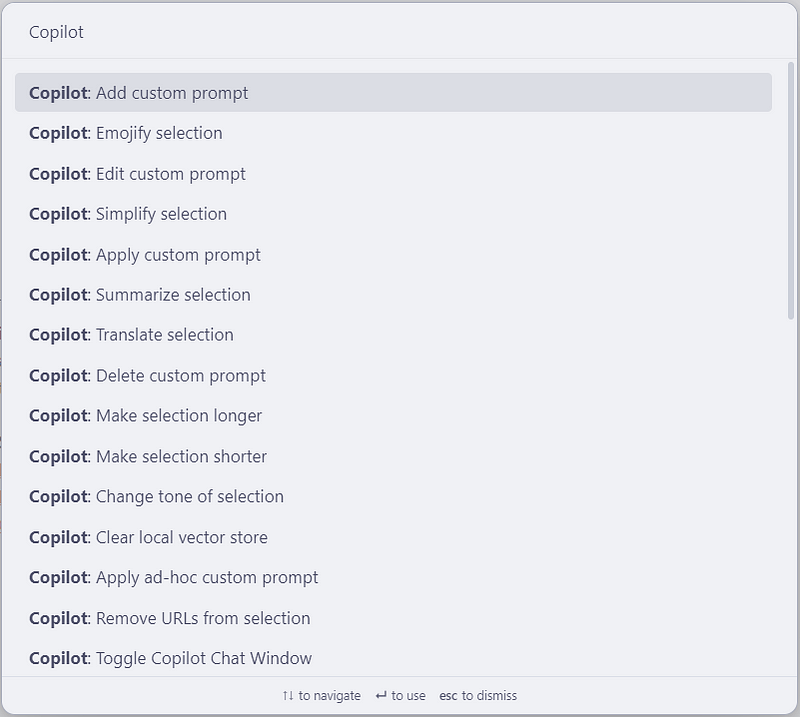
On top of that Copilot provides a number of commands to perform NLP tasks on selected text. These commands are available via the Command Palette in Obsidian.
Configuring the plugin settings
Copilot can work with LLMs from a number of external providers, like OpenAI, Google, Anthropic, OpenRouter.ai, or Azure OpenAI. You can enter API keys for multiple LLMs in the plugin settings and switch to your preferred LLM while running the plugin.
But I wanted it to run local-only with a local LLM and a local vector store created from my Obsidian vault. The plugin documentation contains instructions for configuring the plugin to interface with LLMs from Ollama or LM Studio.
I chose OLLAMA (LOCAL) as my default model and left the options ‘Temperature’, ‘Token limit’, and ‘Conversation turns in context’ unchanged.
In the QA Settings section, you can enter information for the Question/Answer feature of the plugin. The QA mode uses a local vector store that is created by indexing the content of your vault. This is needed for the plugin’s Long Note QA and Vault QA modes. Long Note QA mode uses the Active Note as context. Vault QA uses your entire vault as context.
If you want to be local-only, you can use a local embedding model to index your vault, in my case ollama-nomic-embed-text, which can be downloaded from the Ollama model repository.
Next, you also need to decide on a indexing strategy for the content of your vault, which determines when the vault is indexed or refreshed. You can choose between NEVER (vault is only indexed when manually triggered), ON STARTUP (when you start/restart the plugin), or ON MODE SWITCH (vault index is refreshed whenever you switch to Vault QA mode).
The next option is Max Sources, which determines the maximum number of source notes (references) shown below the answer. The recommended value of 3 seems to work reasonably well.
I did not change any of the Advanced Settings.
The next section is Local Pilot (No Internet Required). Here you can enter the information that is needed when you want to run a local LLM. Because I wanted to use Ollama, I set the Ollama model field to Mistral (my chosen Ollama model) and the Ollama Base URL: http://localhost:11434
This concludes the configuration of the plugin settings. Remember to click the Save and Reload button at the top of the Copilot Settings panel whenever you make changes to the plugin settings.
Setting up the Ollama backend
Before you can use the plugin with your local LLM, you need to ensure that it can actually communicate with the LLM. In my case I had to make the necessary Mistral model and the local embedding model (ollama-nomic-embed-text) available to the plugin.
The steps are described in detail in the Local Copilot Setup Guide. I followed the instructions for Windows:
ollama pull mistral(pulls the Mistral LLM from the Ollama website)
ollama pull nomic-embed-text(pulls the embedding model for creating the local vector store)
/set parameter num_ctx 32768 (sets max context window for Mistral)
/save mistral (saves the model with the correct context window)
Next, you need to quit the Ollama app in the Windows system tray (usually bottom-right of your screen). Select the Ollama app icon and select Quit Ollama). This step is necessary because you need to give Obsidian access to the Ollama server.
Switch back to the Windows Powershell window and enter the following to give the Obsidian app access to the local Ollama server:
OLLAMA_ORIGINS=app://obsidian.md*; ollama serve
Using the Copilot plugin
You load the Copilot plugin by selecting its icon in the Obsidian icon bar. This will open the Copilot panel, where you can select your desired model and Copilot mode (Chat, Long Note QA, or Vault QA).
When I first switched to Vault QA mode, the plugin used the ollama-nomic-embed-text model to index the 1035 files (651281 tokens) in my vault. Because everything happens on the local machine, the indexing is a lot slower than when using a commercial LLM provider. In my case, the initial indexing took about 1 hour and 20 minutes.
I played around with all three modes. Here are some example questions:
In Chat mode, I asked “How old is Joe Biden?” and I got his correct birthday within 20 seconds, plua a way to calculate his age from that date. For another question: “What is a sloth?” Copilot produced a correct but lengthy answer within 15 seconds. (Apparently, my local Mistral LLM knows quite a lot about these mammals😊).
In Long Note QA mode, I asked “Who is Logan Yang?” while my Obsidian note about the Copilot plugin was the active note. This time the answer took considerably longer (several minutes), but it turned out to be correct. The system used my phrase “Copilot by Logan Yang” and the rest of my note to produce this answer: “Logan is a developer and creator of the Copilot plugin for Obsidian, which allows users to query their vault using either a commercial AI provider like OpenAI or a local Language Model (LLM) such as Ollama”. It also included other key information about Copilot from my note in the answer.
In Vault QA mode, I asked “What is a knowledge graph and provide some references?” I have several notes in my vault with information about knowledge graphs. This time Copilot took a very long time (about 9 minutes😢), but in the end it came up with a good definition of knowledge graphs and listed all URLs in my vault related to knowledge graphs. It also gave me links to the three most important notes about knowledge graphs in my vault. The response time was quite disappointing, but the quality of the answer was surprisingly good.
First conclusions
Copilot for Obsidian will run on my mid-range laptop with a local LLM and a local vector index from my vault. In Chat mode the response time for simple questions is acceptable, but querying my own vault takes a lot of time and does not look very usable for the time being. I am not sure how much the response times could be improved by running this setup on a high-spec machine, but even so I found this first experiment encouraging.
If you like this content, please support me by reading at least 30 seconds, clapping👏🏽, highlighting 📝, or commenting 💬.


