
TABLEAU REST API: TABLEAU-API-LIB TUTORIALS
Tableau Server on tap: authenticating with a personal access token
Logging into Tableau Server using Python, a token, and tableau-api-lib
We’re back, and this time we’ll explore how you can use a personal access token for authentication in place of a username and password.
This tutorial walks through using the Python tableau-api-lib package and is part of a series on how to tap Tableau Server like a keg, giving you control over Tableau Server’s REST API.
These tutorials assume you have Python 3 installed already. If you do not have Python 3 yet, this will get you started: guide to install Python.
Setting the stage
In a previous tutorial, we walked through how you would use your Tableau username and password to establish a connection to Tableau Server, and at the time that was the only available method of authentication. Well, times change, and apparently so do our authentication options. Welcome to the future (present?), where we have the luxury of personal access tokens.
Before reading any further, we should note that you will need Tableau Server 2019.4 (or newer) in order to use personal access tokens. If you are on Tableau Online, don’t worry about it — you’re good to go.
Why might you want to use a personal access token? For starters, you’re protecting your permanent username and password. If you want all the juicy details about personal access tokens, Tableau has you covered here.
Step 1: make sure you have the latest version of tableau-api-lib
Run the following command on your command line:
pip install --upgrade tableau-api-libStep 2: generate a personal access token
First things first, log into your Tableau Server on the web browser like you normally would to interact with your content. At the top-right of the screen, you can click on a circle that will give you the option to view ‘My Account Settings’.
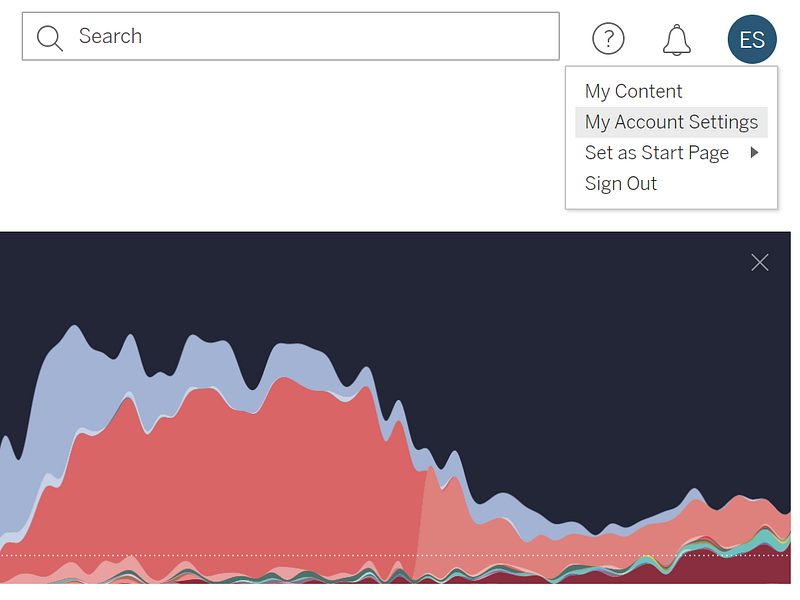
Once you’ve entered the ‘My Account Settings’ section of Tableau Server, you can scroll down to a sub-section for ‘Personal Access Tokens’.

Enter a name for your personal access token, and then click on the ‘Create new token’ button on the right-hand side of the screen.
Once you click on the button to create your token, you will see a pop-up window that will provide you the personal access token name and the personal access token secret. Don’t close the window without securely storing that secret. You’ll only see this secret once.
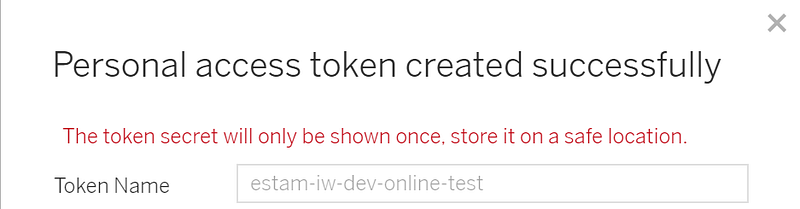
Once you close the window with your token secret, you’ll be able to view your active personal access tokens in the ‘My Account Settings’ section of Tableau Server.

That’s all it takes to create your personal access token!
Step 3: test out your shiny new personal access token
from tableau_api_lib import TableauServerConnectiontableau_server_config = {
'tableau_prod': {
'server': 'https://YourTableauServer.com',
'api_version': 'your api version',
'personal_access_token_name': 'your token name',
'personal_access_token_secret': 'your token secret',
'site_name': 'Your Site Name',
'site_url': 'YourSiteContentUrl'
}
}conn = TableauServerConnection(tableau_server_config)
conn.sign_in()
print(conn.server_info().json())
conn.sign_out()A successful attempt will output your server info as JSON.
That’s it! Welcome to the personal access token club.


