
Tableau REST API: tableau-api-lib tutorials
Tableau Server on tap: getting started
How to use Python and the Tableau Server REST API to interact with Tableau Server

This is also covered in our YouTube channel (Devyx): check it out.
Let’s get right into it. This tutorial walks through establishing a connection to Tableau Server, and provides a starting point to control Tableau Server via REST API calls. This is part of a series on how to tap Tableau Server like a keg, and solve various needs using Tableau Server’s REST API.
These tutorials assume you have Python 3 installed already. If you do not have Python 3 yet, this will get you started: guide to install Python.
Need help automating your Tableau Server environment? Learn more.
Step 1: Install the open source library tableau-api-lib
Run the following on your command line:
pip install --upgrade tableau-api-lib
Step 2: Open a Jupyter notebook (or your Python IDE of choice)
In this tutorial, we will use Jupyter Lab. It’s free and it’s awesome. If you don’t have it, you can easily install it by running the following in your command line:
pip install jupyterlab
To open a Jupyter notebook, run this next line:
jupyter lab
This will land you in the Jupyter Lab environment, where you can open a notebook and run Python code.
Step 3: copy this format to enter your Tableau Server credentials
Copy the code below into a cell in your Jupyter notebook.
tableau_server_config = {
        'tableau_prod': {
                'server': 'https://YourTableauServer.com',
                'api_version': '3.4',
                'username': 'username',
                'password': 'password',
                'site_name': 'Your Site Name',
                'site_url': 'YourSiteContentUrl'
        }
}
Edit the values to match the configuration for your Tableau Server environment. If you don’t know what API version your server is on, you can look it up here: Tableau Server REST API versions.
Run the code within a cell of your Jupyter notebook.
Note that the ‘site_url’ is not the full URL of the Tableau Server, but is instead the portion of the URL that indicates the specific site you are logging into. For example, if I am logging into a site named ‘My Tableau Site’, the ‘site_url’ (also known as the content URL) would be ‘MyTableauSite’, or something similar. You can verify what your ‘site_url’ is by visiting your site in your browser, and identifying how your site appears in the resulting URL path.
If you want to list more Tableau Server connections and connect to them as well, imitate the pattern provided for ‘tableau_prod’. For example, you could make ‘tableau_dev’ and define an environment for a different Tableau Server.
tableau_server_config = {
        'tableau_prod': {
                'server': 'https://YourTableauServer.com',
                'api_version': '3.4',
                'username': 'username',
                'password': 'password',
                'site_name': 'Your Site Name',
                'site_url': 'YourSiteContentUrl'
        },
        'tableau_dev': {
                'server': 'https://YourDevServer.com',
                'api_version': '3.4',
                'username': 'username',
                'password': 'password',
                'site_name': 'Your Dev Site Name',
                'site_url': 'YourDevSiteContentUrl'
        }}
Step 4: import the tableau-api-lib
Run this code in a new cell in your Jupyter notebook:
from tableau_api_lib import TableauServerConnectionStep 5: establish a connection with Tableau Server
Run the code below to sign in to Tableau Server.
conn = TableauServerConnection(tableau_server_config)By default, TableauServerConnection uses the ‘tableau_prod’ environment. If you want to connect to a different environment, simply specify that as an argument:
conn = TableauServerConnection(tableau_server_config, env='tableau_dev')Step 6: sign into the server and verify that you are connected
To sign into the server, run the code below:
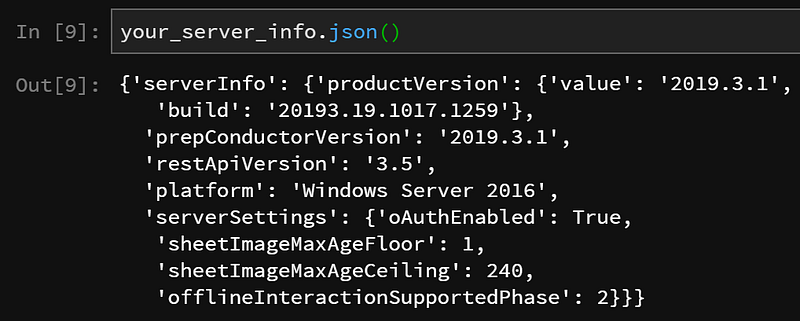
conn.sign_in()Now, to verify that you are signed in, let’s try grabbing information from Tableau Server.
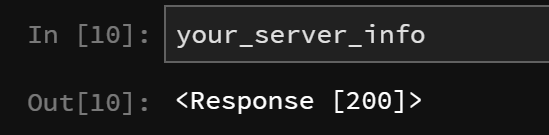
your_server_info = conn.server_info()The tableau-api-lib Python library returns the HTTP responses from Tableau Server, and the meat of what you actually want is passed as a JSON object. To read that data, we can access the json() portion of the response.
your_server_info.json()
You should see something similar to my results below:
Here’s what you can expect to see if you don’t access the JSON portion of the response:
Step 7: use the Tableau Server REST API reference to view available methods
The tableau-api-lib strives to mirror the Tableau Server REST API reference such that if you find an endpoint documented in Tableau’s reference, you will find a matching method in this library.
For example, we have used the sign_in() and server_info() methods. How would you know these exist? Because they are documented here.
Explore the methods you now have at your fingertips!
Step 8: sign out to close your connection
It’s never a bad idea to sign out after you’re done. The auth token your connection is using will remain valid for some time unless you explicitly sign out from your active session.
conn.sign_out()
And that does it, you’re now using tableau-api-lib to tap into your Tableau Server!
Here’s one block of code you can copy and paste to get started more quickly:
from tableau_api_lib import TableauServerConnection
tableau_server_config = {
        'tableau_prod': {
                'server': 'https://YourTableauServer.com',
                'api_version': '3.4',
                'username': 'username',
                'password': 'password',
                'site_name': 'Your Site Name',
                'site_url': 'YourSiteContentUrl'
        }
}
conn = TableauServerConnection(tableau_server_config)
conn.sign_in()
print(conn.server_info().json())
conn.sign_out()Future posts will reference this as a starting point, so that we can dive straight into actually doing things with the REST API and avoid repeating the details of getting up and running.
I hope you found this tutorial helpful!


