
Advice
So You’re Starting a Medium Publication
Bwahahaaaaaaaaaaaaaaaaaaaaa!

You are so funny!
Look at you, dreaming about fame and fortune!
Okay, well, once you are over that, there will be some things you might want to think about when organizing the articles that you and your contributing writers post. Forget about all the work, dedication and leadership skills you are going to need — let’s just focus on the technology and how much fun that can be!
I hope this helps you. It wasn’t information that was overly easy to find. I found it just through trial and error, because I have a seriously bad case of programmer brain, having been trained by a bunch of ex-Navy telecom guys in a department I worked for while having that career over at IBM. This article is the first post in a series.
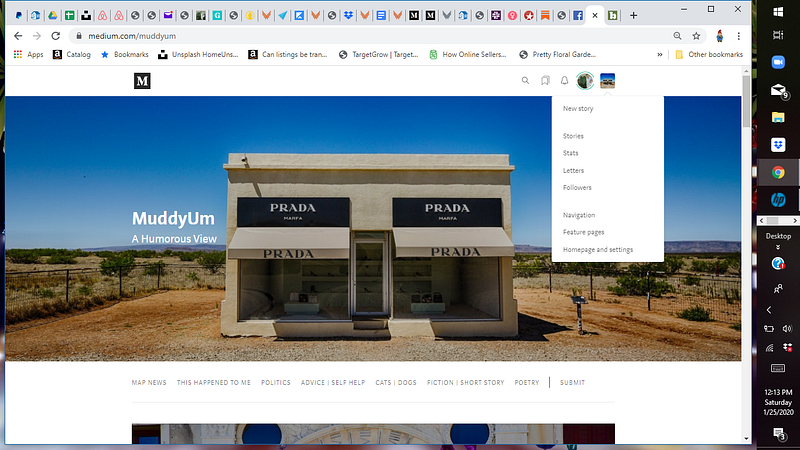
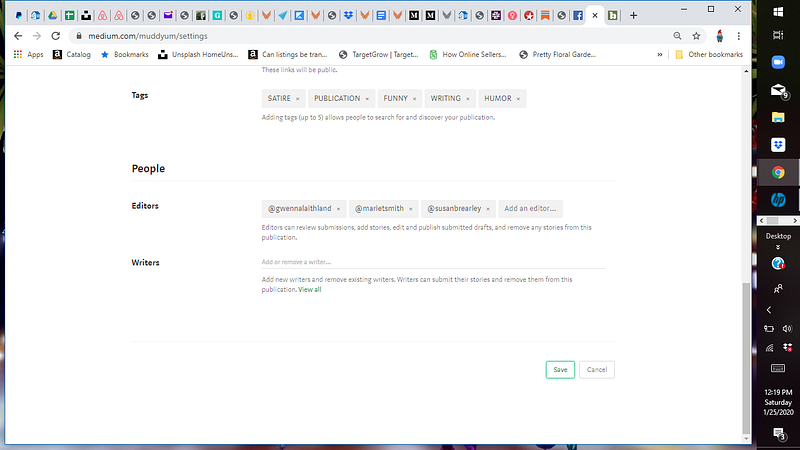
- Decide if you want to invite other writers, or just keep all the fun for yourself. If you do want to invite others to play along with you, you can add them, or delete them, on the page that shows up under Homepage and Settings — the pop down that appears when you click on your publication’s pop down window. For the purposes of this post, I’m using my publication MuddyUm — the fastest growing humor publication on Medium — for demonstration. At the bottom of that first page, you’ll see you can add writers or editors. They need to have an account on Medium first, or you won’t be able to add them. Duh. Remember — once you start a publication — you own it. You did this to yourself. Don’t blame anyone else.
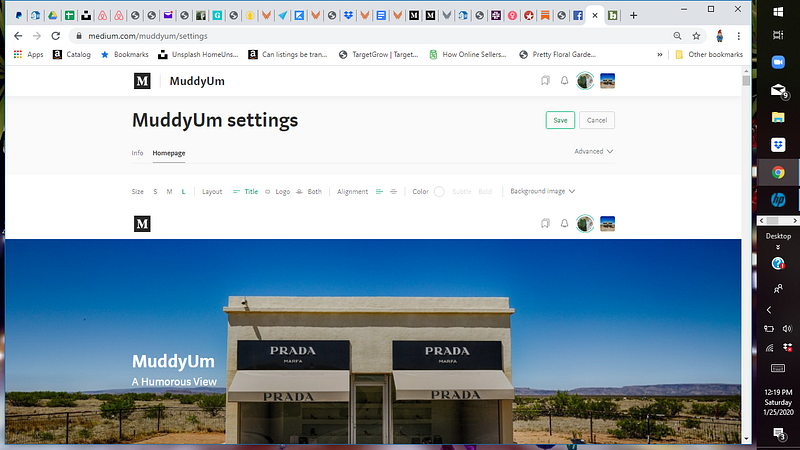
2. Inside Homepage and Settings — you’ll see there are two tabs. This is where you can mess around with the presentation of your shiny new pub. You can add your banner image here. You will also be able to decide how many articles to show. They will either show up as you pick them, which is NOT the subject of this post, or they will show up in chronological order. Which IS the subject of this post.
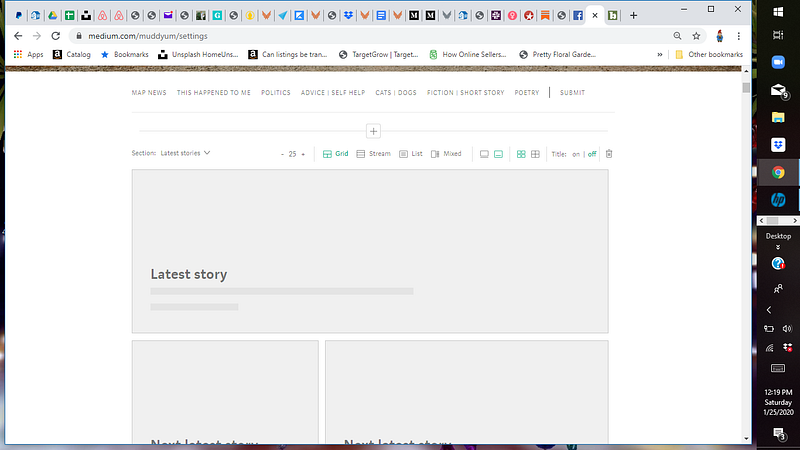
3. Pick your flow. Now you get to play. See the bit that says Section? It is by default “Latest stories.” This is a good option for a main page. But for tagged pages, You might want to click on that, and picked “Stories in a tag”. That way, you can feature specific stories that people tagged, or that you specifically TELL them to tag. Like Poetry. Or Fiction. Or Short Stories. If you pick stories in a tag — you need to then type the tag exactly as you want it. If you have a typo, or if your writers have a typo, the stories won’t populate or appear on that page. But I’ll talk more about that later, in another post.
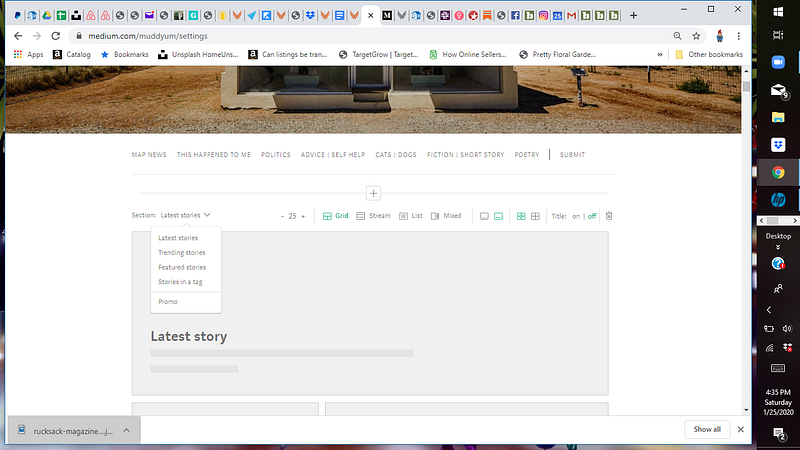
4. Decide how many stories you want to show. Just to the right of the section is the bit where you can decide how many stories to show in this section. You get up to 25. But at the end of the first section is a plus sign. You can add section after section. You can change the format. So far, I have not found a limit to the number of stories you can show, up to 25 in each section.
5. Play with the formatting. That’s in the middle. It will change as you select it, so go ahead and play with that to figure out what you like. You can change this as many times as you like.
6. REMEMBER TO SAVE. If you don’t save your settings, all the work will not get saved. Well that just makes sense, doesn’t it? I forgot to save a lot of times before I started to remember. One of the hazards of being a granny.
Okay, that’s it for the moment. I’ll write another post a little later, and talk about the tags. And some more stuff on formatting. And multiple pages.
MEANTIME, go ahead and comment with any questions you have for me, and I’ll be happy to help you out.
I hope this helps a bit.
This article was inspired by Laurie Livingston Nave
And here is episode 2 of this epic journey in publication navigation.
Susan Brearley is a brilliant strategist and writer/editor. She’s the owner/operator of the MuddyUm Writer’s Self Help Clinic. And the Captain and Editor in Chief of the Good Ship MuddyUm.
She’s been writing comedy for about 2 weeks.