
Shapes with Paths using SwiftUI Part1
A compendium of shapes using paths
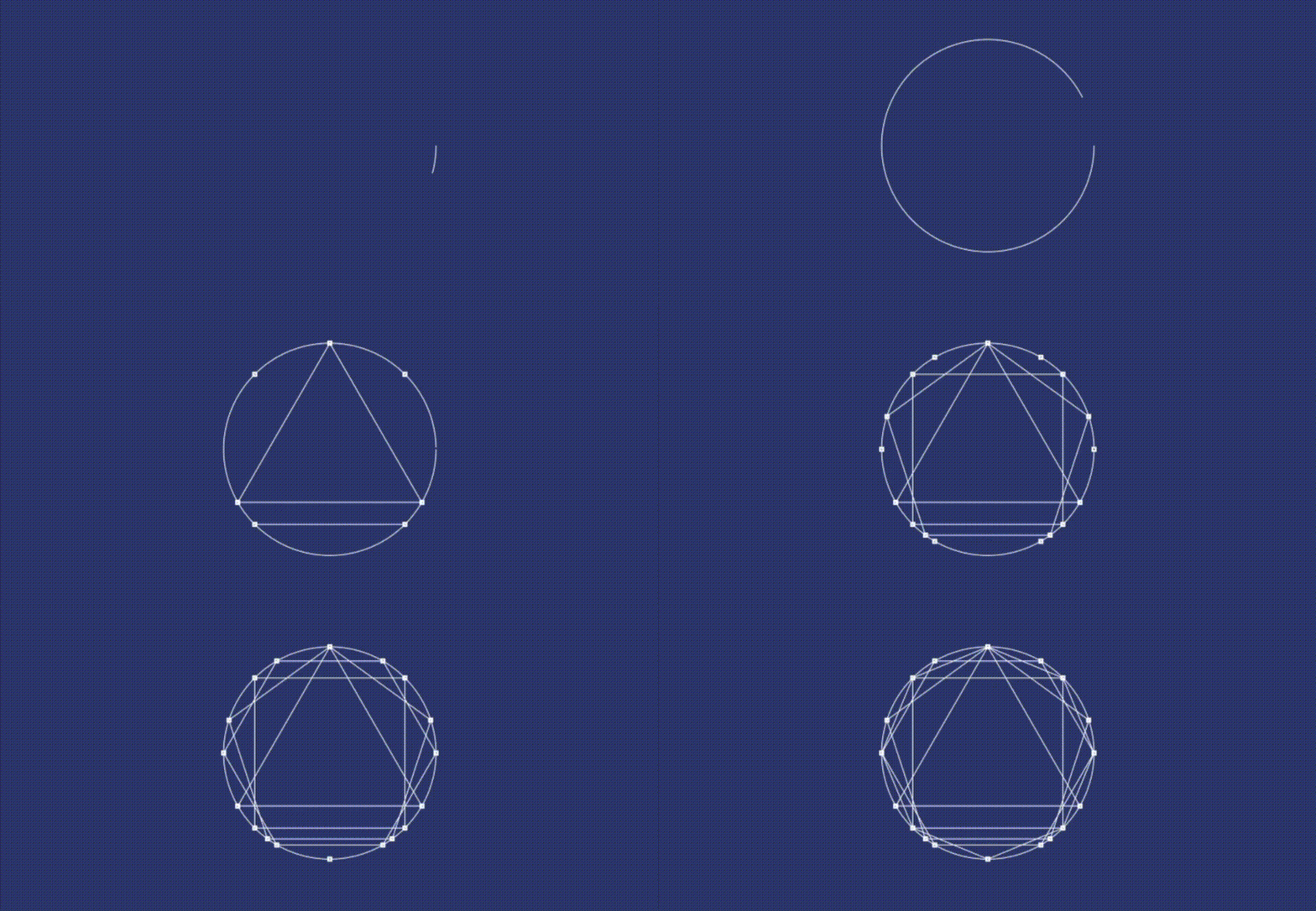
At school we all learn geometry and trigonometry on a grid, which makes perfect sense— which from from a SwiftUI programming point of view is perhaps where it all starts to go wrong. You see the challenge you face in coding for iDevices is that not only do they come in all shapes and sizes, worse they’re constantly shape shifting, going from portrait to landscape and back again.
To address this challenge, Apple have decided in their SwiftUI language to try as hard as they can to distance us from co-ordinates, so no more grid references. To a great extend they made a warp jump to do so with the SwiftUI declarative language, with only one small hitch. Shapes.
The problem with shapes, being — well — is that they are intrinsically linked to co-ordinates and grids, at least the more complex ones. As such Apple decided to port the previous solution with UIPath over to SwiftUI, and there within lies the danger.
Now the client brief calls for a triangle. And I am going to present three options to draw one in this paper, the first the wrong way, the second the Apple text book way, the third well —in my view a better way — you need to read on to find out how. Let’s begin. Let’s start with the wrong way. This is the driver.
struct ContentView: View {
  @State var sides = 4
  var body: some View {
  Triangle()
    .stroke(Color.gray)
    .frame(width: 256, height: 256)
    .padding()
  }
}
With this the code the view behind it.
struct Triangle: Shape {
  let midX = 64
  let minX = 0
  let maxX = 128
  let minY = 0
  let maxY = 128
  func path(in rect: CGRect) -> Path {
    var path = Path()
    path.move(to: CGPoint(x: midX, y: minY))
    path.addLine(to: CGPoint(x: minX, y: maxY))
    path.addLine(to: CGPoint(x: maxX, y: maxY))
    path.addLine(to: CGPoint(x: midX, y: minY))
  return path
  }
}
Now, no kidding this is going to draw a triangle, you hit it on the mark — with the only snag that it will be placed on the screen at specific co-ordinates. Which means it will be in a different place on different iPhones and indeed even on the same device as it shape shifts between portrait and landscape modes. Don’t do it like this.
Now the text book solution looks like this.
struct Triangle: Shape {
  func path(in rect: CGRect) -> Path {
    var path = Path()
    path.move(to: CGPoint(x: rect.midX, y: rect.minY))
    path.addLine(to: CGPoint(x: rect.minX, y: rect.maxY))
    path.addLine(to: CGPoint(x: rect.maxX, y: rect.maxY))
    path.addLine(to: CGPoint(x: rect.midX, y: rect.minY))
    return path
  }
}
Now this is far better. A nice equilateral triangle. One which will be centered on every screen even when it shape shifts. Should you want to change the direction of the pointy bit [not to be too technical] you can simply rotate it using rotateEffect() primitive, its easy. You’re done, or are you.
Because wait— you know how it works. No sooner you show the client, than they’ll change their mind and want a different polygon. No — triangles are out and the rhombus is in, Jeez. Now you got two options here. You can either do a rhombus or you can put the code in place to do a polygon. Let’s do a polygon. A polygon because it is a better way to do a triangle too. This is our base code.
Now this shape will also be placed in the center of any device and should you’re client change his mind again, but more interestingly you can make it draw a different polygon with any number of sides, as long as that number is divisible by 360 [the number of degrees in a circle]. A new shapes at the shake of stick.

With this code the driving force behind the animation.
All is well — only — we had to switch back to triangles because it wasn’t a rhombus the client wanted after all. They did want a triangle, but not an equilateral one, they wanted a different one.
In theory we can create a few more within our existing polygon code. We can fix the code given by making two small changes shown here. This will give us the ability to have different shape equilateral triangles, but ok… its not the final solution, they don’t want an equilateral triangle.
struct Polygon: Shape {
...
let radiusWidth:Double
let radiusHeight:Double
...
let x = Double(center.x) + radiusWidth * cos(radians)
let y = Double(center.y) + radiusHeight * sin(radians)
The client wants a right or left-angled triangle. And you guessed it, it was in fact that sort of triangle the client’s brief explicitly called for.
Now tempting as it is to do the with text book Apple answer, we can refactor our Polygon code to create a more generic solution.
struct Triangle: Shape {
  func path(in rect: CGRect) -> Path {
    var path = Path()
    path.move(to: CGPoint(x: rect.minX, y: rect.minY))
    path.addLine(to: CGPoint(x: rect.minX, y: rect.maxY))
    path.addLine(to: CGPoint(x: rect.maxX, y: rect.maxY))
    path.addLine(to: CGPoint(x: rect.minX, y: rect.minY))
  return path
  }
}
Which after we done job should give us this. A right/left shape shifting angled triangle.

A shape shifting image we can generate with this code.
And this driver.
PolygonV(angle: angle, radius: 128)
  .fill(doColor(shade: color))
  .frame(width: 256, height: 256)
  .padding()
  .rotationEffect(.degrees(-(angle/2)), anchor: .center)
  .transition(.opacity)
  .animation(.default)
  .onReceive(tick) { (_) in
    angle += 1
    color += 1
  }
}
Now if the truth be told we left a lot of triangles out, a challenge I will come back too later. But I want to do some different shapes too.
Join me for part 2 to investigate some more. In the meantime I hope you enjoyed reading this as much as I did writing it, follow me to keep tags on articles published.
Keep calm, keep coding.


