
Searching on Medium: How to Search on Medium in 2023

There are several main ways to find things on Medium.
Use the Search bar at the top of the Medium website.
At the time of writing this, the search bar or search field is at the top left of the homepage and other pages.

What exactly do you type into this field? Well, that depends upon what you are searching for. Over time your searching practice will help you hone or improve your searching skills.
You can type in free text in natural language or type in a single word.
Examples follow.
Typing in a person’s name or a publication’s name
Start typing in the name into the Search field and a drop-down list of 3 results categorized under each of People or Publications or Tags will appear, if there are any existing results.
You can type in one letter to get surnames or first names starting with that letter.
If the person you are searching for doesn’t appear under one of the above, type in their first name or surname into the Search field and press Return.
Then click on “People” and a list of people who have a log-in with Medium with that name will appear.
To find a Publication, type a search word into the Search field then press Enter. Then click on “Publications”.
Typing in a phrase or a keyword sentence
As an example, type the phrase “engagement on Medium” into the Search field.
Pretend this is because you want to research HOW to increase “engagement” with your Medium stories.
“Engagement” which has previously been defined somewhere by Medium as claps (or likes), responses (or comments) and highlights (i.e. one or a mix of these) is touted by Medium as being the most important metric for their computer programme (or “algorithm”) when distributing articles.
I have been reading and writing on Medium since November 2018 and have witnessed many changes on the Medium platform. In 2019 there was curation in terms of distributing or showing stories on dedicated Topic pages.
Since then, stories, apart from those breaching the terms of service, are automatically “distributed” under Related stories (see the thumbnails in the right-hand side-bar of any Medium story), or under the “For you” tab (or page) on the Medium homepage, or under the “Following” tab (or page) on the Medium homepage, by computer programmes (or “algorithms”).
As you start typing in your phrase, watch and see what suggestions automatically drop down. For example, after I typed in the first word “engagement” I saw the following. These search results can sometimes come in handy as they show a few entries or results from People, Publications, and Tags.
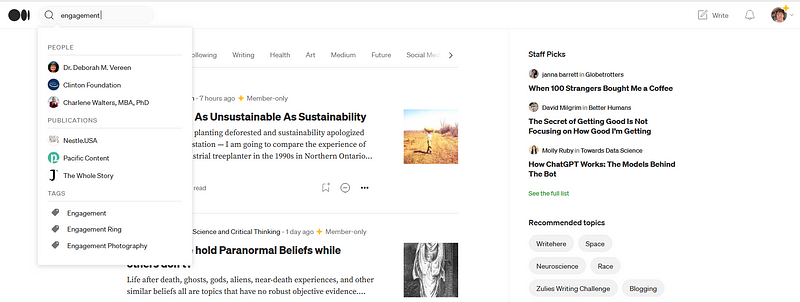
Note that “Tags” are Topic names. For now, keep on typing in the test phrase, “engagement on Medium” and you will get different options. The options that I see at the time of writing this article are shown below.
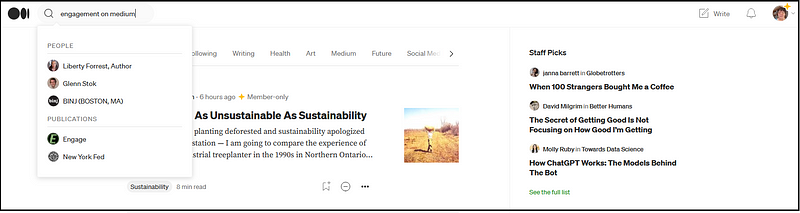
You may wonder what the heck Liberty Forest, Author has got to do with your search phrase. I am a Records Officer and have 4 planets in Virgo (which means that I pay attention to detail and I love information). The answer, believe it or not, is that two of the words from the search phrase “engagement on Medium” appear on the profile page of Liberty Forest.
And those two words are “on Medium” for example, there’s the tag or topic name “Writers on Medium” that the author has used for one of her stories.
Well, of course, the articles of Liberty are not what you’re looking for, so you have to continue looking. What happens is that the computer programme “dutifully looks” for the best matches in the categories of People (or writers), Publications, and Tags (or Topics).
And it tries to match one or more words in your search phrase!
With your cursor key at the end of your search phrase, in this example, “engagement on Medium”, PRESS the Return key on your keyboard to go to the default search results on Medium.
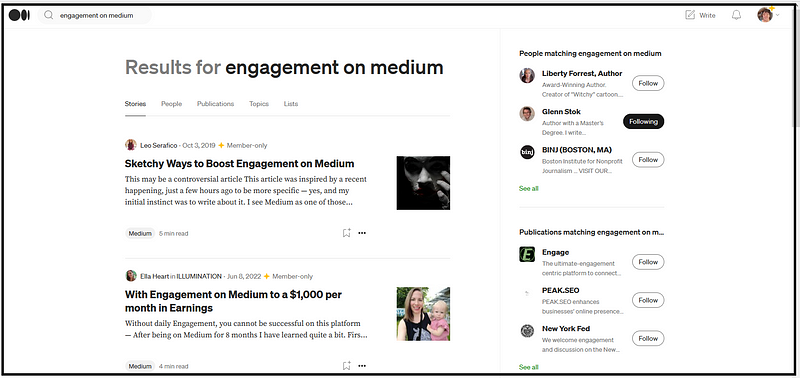
The resultant page lists story titles, but nobody knows how or why these particular stories appear on the default “Stories” page after a keyword search.
My educated guess and powers of observation tell me that the stories that have the most views or reads or claps and or that are most recently viewed appear in this list.
“Liberty Forrest, Author” appears under “People matching engagement on Medium.”
Under “Publications” there are “Engage”, “Peak.SEO” and “New York Fed” on my search results page. I can see one word in our search phrase, being “engagement” in the descriptions of “Engage” and “New York Fed”.
The other Publication, Peak.SEO, is blank or empty at the time of writing this, i.e. has no stories in it.
BUT you can go to its “About” page where you will find the word “Engagement” in it.
To go to a Publication’s “About” page you just go to the URL in the address browser of your computer and type forward slash followed by the word about, as shown below, then press Return on your keyboard!
https: //medium.com/peak-seo/about ←- I put a space after the https: so that the page wouldn’t be embedded here so if you copy this URL please remove the space between : and //
The search categories at the top in addition to “Stories”, are:
People, Publications, Topics, and Lists
Click on one of these to go to the results for that category.
With a bit of search practice, you get to know which category for what topic or thing that you’re searching for will best help you.
The way that search results appear under People and Publications has been covered above.
TOPICS
If you go to the Topics category for your search of “engagement on Medium”, you may find it blank or empty, as I have at the time of writing this.
The Topic names are generated by the Medium company and by the Medium writers. None of these people have created a Topic name “engagement on Medium” at the time of my writing this article.
LISTS
If you go to Lists, its likely it will be empty as well. This would be because writers and readers on Medium and Medium Staff can create their own Lists. But nobody has created a List with “engagement on Medium” in the list title or description, at the time of my writing this article.
Searching people’s public Lists is a new function that Medium has just brought in. It may bring useful results or not. That depends upon the helpfulness or usefulness of the lists that writers have created.
Typing in a single word
Update: 14 July 2023 Medium has changed the way searches work again!
You now go to the revamped “Topics Page” with tiles of images for Recommended Stories, and under that a single list of “Latest Published” stories. Apparently they began rolling this out so all readers on Medium will eventually use this new way of searching.
Have a look at what happens when you type in the word “engagement” into the Search field and press the Return key to go to the Search results.
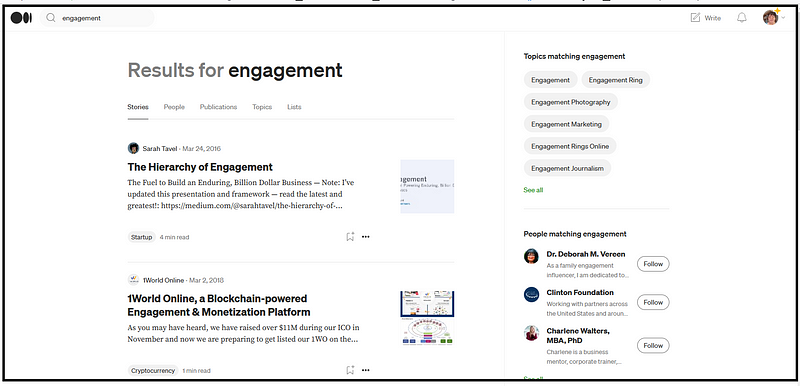
You will get a very broad or wide range of articles with the word “engagement” in the story title or in the title of the writer.
You can click on the word “Engagement” under “Topics matching engagement” to find story titles of stories which have been tagged with the Topic word “engagement.”
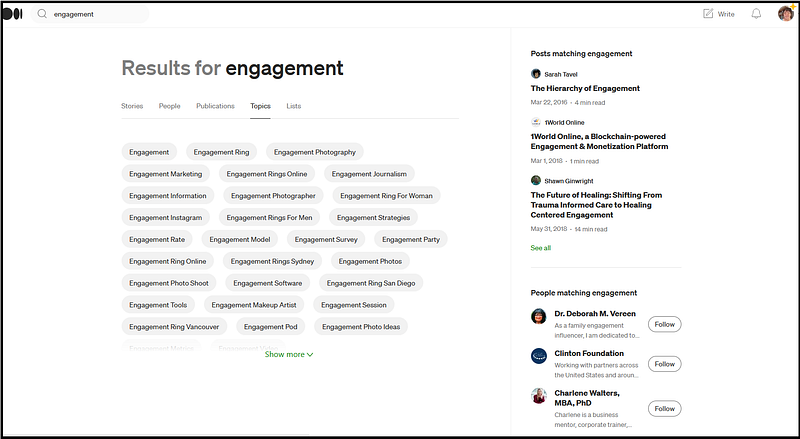
On the main Story page, if instead of clicking on a specific Topic Name on the right, such as “Engagement,” you just click on the word “Topics” at the top between “Publications” and “Lists” you may see a page similiar to the one below.
Keep in mind that not all words result in Topic names that are related, and some Topic names may appear which don’t even seem to relate to the Topic!
Now here’s a critical thing to know about searching on Medium.
The Topic names allocated to the stories on the “Stories” page by the writers may not match the word (or phrase) that you are searching upon.
Remember that the stories on the “Stories” page, resulting from your search, have either story titles or the writer’s name or a Topic (tag) name allocated to the story with or containing your search word or one of the words in your search phrase (or even part of a word, e.g. searching “haven” returns a story title with “haven’t” in it, amazingly).
So, “engagement” may appear in a story title or a writer’s name, but NOT appear as a Topic name assigned to the story.
Medium writers add up to 5 Topic names (or Tags) to each story that they publish. Some Topic names already exist and are “picked” by the writer OR the writer can type in a NEW topic name when setting Topic names for a Medium story.
The screenshot below is the bottom part of a story titled 8 Ways Brands Can Use Web3 to Boost Engagement, showing the 5 Topic names that the writer chose to allocate or tag his story with.

Note that Medium only shows ONE Topic name for each story on the writers’ profile pages and in the “feeds” on the Medium home page.
But when you click on a story title and go to the actual story, you will find all the Topic names that the writer used at the bottom of the story.
It’s important for writers to note that the FIRST topic name that you assign or select to tag a story with is the one that appears as “the one” on profile pages and under “For you” and “Following” on the Medium home page!
There is a distinction between words and Topic names. When you type in one or more search words into the Search field at the top of a page, it takes you to story titles with one or more of the words (or even part of a word that you are searching upon) that you typed in - appearing in a story title or in a writer’s name.
If a writer’s story title and the writer’s name and the written content do not contain the word that you searched upon, their story will not come up in the list on the Stories page (the page that comes up after you type a word or words into the Search field at top left then press return).
You have to get savvy working with TOPIC NAMES because the Stories page may NOT include story titles of stories that you’re looking for!
Words that you’re searching upon may not appear in the story titles of some stories even if their story content relates to the words you’re searching upon.
You may find a story that you’re looking for under a relevant Topic name, and NOT on the “Stories” results page after typing in your search criteria.
So, under the Topics category (“Topics matching [ name [“) after you’ve typed in “engagement” (or another word) into the Search field at the top of a Medium page, click on the Topic name that matches the WORD that you searched upon initially, in this case, “engagement”, if it exists. You will be taken to the Topics page listing stories which have been tagged with the Topic name.
If you can’t find what you are looking for under that Topic name, try searching under other Topic names.
It is logical that if you want to find a story about “engagement”, that if a writer has allocated the Topic name “engagement” to her or his story, that you will find their story by searching the Topic name “engagement”.
And their story may be the one that you are looking for.
UPDATE: SEPTEMBER 2023
The search no longer goes to the functions shown in the screenshot below. Instead clicking on a Topic name takes you to a screen with Recommended Stories / Who to follow / Latest stories
Please note the info below is now out-of-date
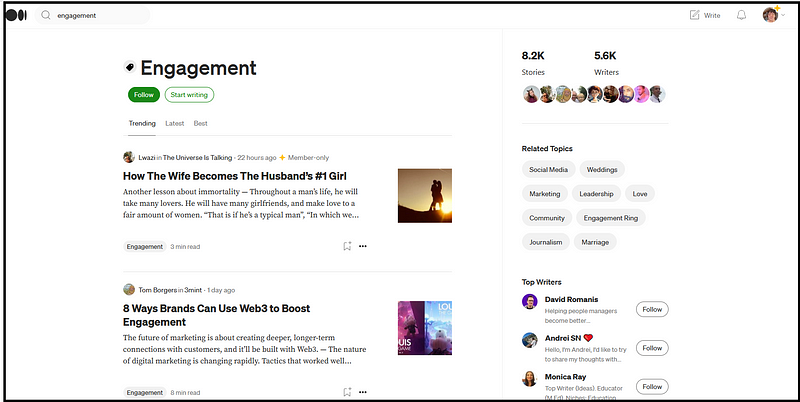
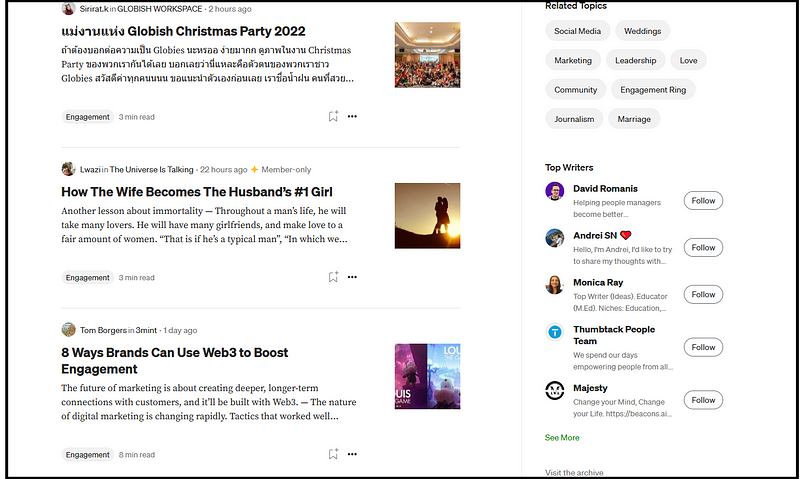
The screenshot below shows the top part of a search results page under the Topic name “engagement.” It shows 8.3 thousand (8.3K) stories and 5.6 thousand (5.6K) writers at the time the screenshot was taken, using the Topic name “engagement.”
Related Topics are just that — more topic names that you may be interested in. Top Writers are mysteries, meaning nobody, except Medium, knows how they became top writers. I may have read somewhere that if a person publishes x number of stories with a Topic name over y amount of time, that she or he then becomes a “top writer”. But that status can change for an individual writer, depending of course upon the criteria.
IMPORTANT UPDATE: JULY 2023
The above layout and the options of trending / latest / best have now been removed. Instead the search page shows Recommended stories and under that “Who to Follow” and Latest Published stories. And when you click on “See more stories” you go to the “Archives.”
Take note that the archives search returns “most read” stories by default.
You can search year by year, month by month, day by day, and select Oldest to Latest published or Latest to Oldest published to see ALL stories, not JUST the popular or most read stories!
In September 2023 access to the Archives was removed. But stay tuned for an update to this update when Medium restores searching by months or days!
Trending | Latest | Best ←- no longer available July
Nobody, except Medium, knows how the story titles under “Trending” are selected. The Trending results seem to mostly show the latest published stories with the Topic name in question, but they are the ones which have been recently viewed or read, in my opinion.
Even if a story was recently published, if not a soul has viewed or read it, then I guess that it wouldn’t appear in the “Trending” results.
You can compare the “Trending” story list with the “Latest” story list, if you like, to see for yourself that they are not exactly the same.
Clicking on “Latest” will bring up the most recently published stories with the Topic name that you selected allocated or assigned to them.
When you click on the “Best” category, it will make “This year” appear next to it on the right. And you can click on the little downward pointing arrow next to “This year” to change it to “This week” or “This month” or “All Time.”
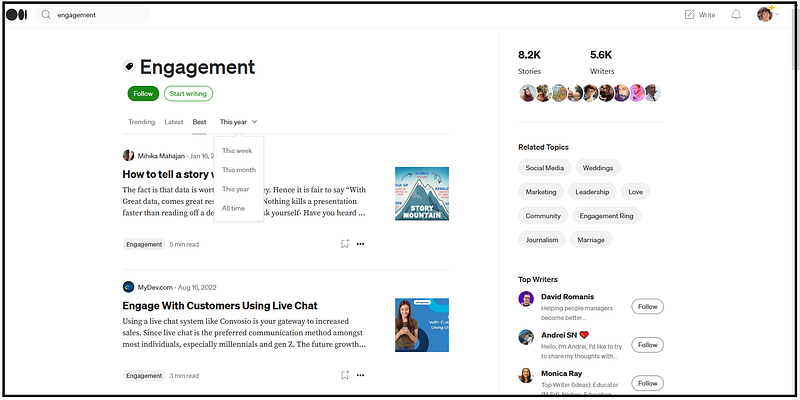
If all that is not enough, you’ve got “Related Topics” on the right, to explore further if you want to!
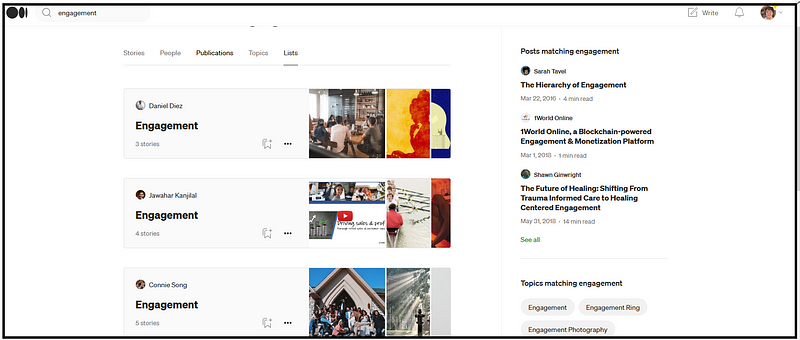
You can try clicking on People or Publications or Lists to find a story related to your search term, in this example, “engagement.”
You may find List Titles with your search word(s) in the title, OR Lists containing stories with your search word, created by writers or by Medium Staff, which may be useful to you. This depends upon two things.
One is the ease of using the word that you are searching upon as a List Title or in a List Title. In other words if you are looking for a little known word to humankind, then there’s the good chance that you won’t find it in anyone’s List Title.
The other condition is the accuracy or matching or the usefulness of the lists created. It’s not helpful if a writer creates a list with the word “engagement” in it and the stories in the list have not a thing to do with “engagement”. That is, the list may not have anything remotely connected to “engagement” (or your search word) in any context.
In my experience, looking at TOPICS is probably the best way to go.
To sum up:
- Type a word or a naturally written sentence or phrase into the Search field at the top of a Medium page. This will take you to the “Stories” results page with story titles or writers names or topic names used by the writers containing at least one of the words that you searched upon.
- You can try clicking on “Topics” to see if there are any existing Topic names on a “Topics” results page to click on to explore. It is advisable if there are a number of Topics to choose from, to right-click on a Topic name and open the page in a new tab. Then you can easily return or navigate back to the Topics results page to choose another Topic to explore.
- You can try clicking on People or Publications or Lists to expand your search. A word that you are searching upon appears in the name or somewhere in the content associated with the person or publication or list.
- You can click on “See all” under “Topics matching [name]” BUT keep in mind that this will take you to the Directory or lists of all Topics across Medium (that Medium has added to the directory). I advise to follow point 2 above before clicking on “See all” which takes you away from the related Topic names specifically for your search term.
- You can go to the Archives on a Topic page by scrolling down until you see “Visit the archive” in black text under the green “See More” beneath “Top Writers” in the right-hand side-bar. Click on “Visit the archive.” See screenshot 8 below.
The Archive will take you back to the first story published on Medium with the Topic name that you are searching upon! This is handy if you know a story you are interested in was published last year or earlier, or you want to browse stories with a certain Topic that were published last year or earlier.
Historical or previously published “archival” stories are only available for stories under Topic names (so you won’t find a link to the Archive on the stories results page). And if a link to the Archives can’t be found or seen on the results page of a particular Topic name (which can consist of one word or more) that means that there aren’t enough stories to warrant showing an “archive” or record of past stories!
Search a Publication or a Writer’s Profile page
You can go to your own Profile page or someone else’s Profile page on Medium, or to a Publication’s home page and SEARCH for content.
Try typing in a single letter or a few letters or a single word into the Search bar at the top of your own Medium Profile page. 7 or 8 story titles will drop down for you to select one to click on and go to.
Experiment with what to type in in order to get what you want. In my experience, you can type in common words like “why” or “how” or “what” if you have used any of these in any of your stories, of course, to produce a wide search. This is handy if you can’t exactly remember the words in one of your story titles. For example, did you write “how I became a great teacher” or was it “how someone said my teaching was great.”
You know the word HOW was in your story title, so search upon that word!
Note, the results that appear may not be exclusive, meaning there may be more stories with your search word in the title, but this search method only yields 7 or 8 story titles apparently. So if you think there are more titles then you will have to use another search method to try to find them.
You can go to someone else’s Profile page and type a search word into the Search field at the top of the page.
If that writer has published a story with the title containing your search word, the resultant list will be captioned “FROM THIS PROFILE”. You can then select a story title to read the story.
You can go to a Publication’s home page and type a search word into the Search field at the top of the page.
If the Publication has a story with a title containing your search word, the resultant list will be captioned FROM THIS PUBLICATION. If there is only one or a few stories, you will see a green link “Search all of Medium”. Click on it to do a keyword search which will take you to the “Stories” results page.
You can even type your name or someone else’s name into the Search field of a Publication home page to see if any stories written by yourself or another writer appear in the Search results!
Quick tip: when you read a story on Medium, if you scroll to the bottom of the story, you can see all the Topic names the writer used and can click on any one of them to find more stories (related to that topic that you’ve clicked on).
Quick tip: you can click on any Topic name on the Medium home page under any story to quickly go to the results page for that TOPIC.
Quick tip: when you click on a Topic name that you are following, in the “bar” or “strip” at the top of your Medium home page, you can then click on any of the labels or topic names under any story title, to go to the dedicated TOPIC PAGE which shows the number of stories and writers, the top writers, etc.
Yes, the Topic names will be the same for all the stories on the resultant page after you click on a Topic name that you are following.
But the point is that the search result in this case is a “frame” within the home page. This search result page (within a frame, i.e. you can still see parts of the Medium home page on the right hand side) does not show Related Topics and the number of stories and writers.
To see them, click on any Topic name under any story!
If you found this guide useful, your appreciation by clapping (with a maximum of 50 claps available) would make my day — and help motivate me to keep sharing my knowledge!
And if you are looking for more tips on working with Medium, please SAVE my LIST linked BELOW to your Medium Library, for easy access. After clicking on the title below, click on the little “ribbon icon” to save the list, and you will be notified when more articles are added.
Thank you and may your Medium journey be satisfying and rewarding.
If you have any questions about searching on Medium that aren’t covered in this article, please write a Response and I will try to answer it.


