
Now You Can List Your Stories in Categories on Medium
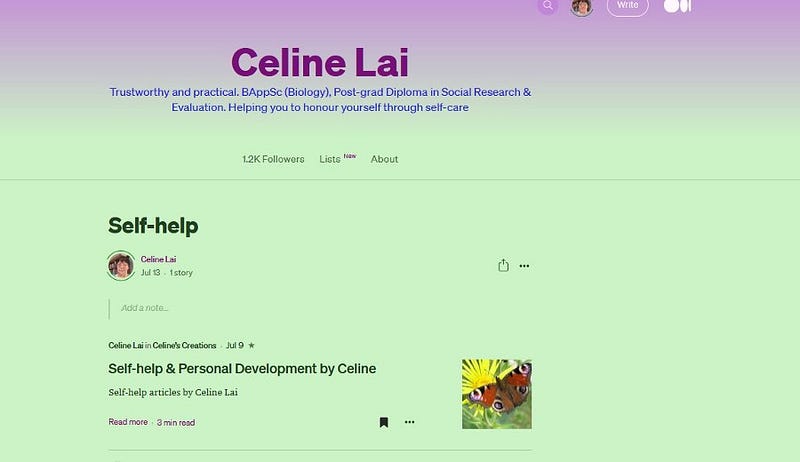
The discerning Medium writer may see a function on each of her/his stories, to add the story to a list. At the top of each of your stories, you may see the icon shown below, to list your story. Click on the image below, to view it closely.
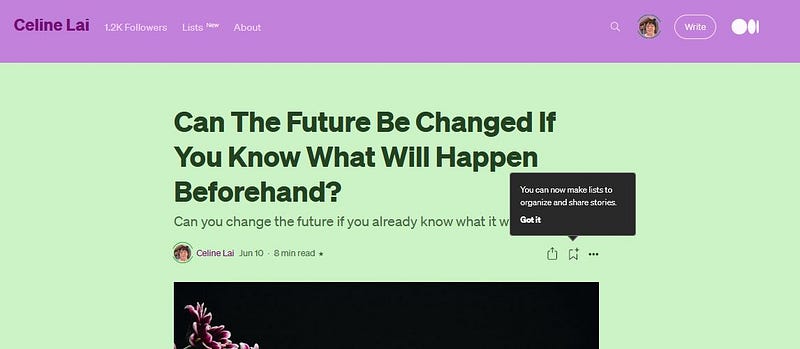
This means you create a category title for a list that you then add particular stories to. After creating at least one List, you should see “Lists” at the top of your profile page.
When you click on “Lists” at the top of your profile page, you will see a page with “Reading list”, the name of your List or the names of your Lists, and “Archive”, as shown partly below. I created a test list called “Self help” (to include my articles on self-help issues).
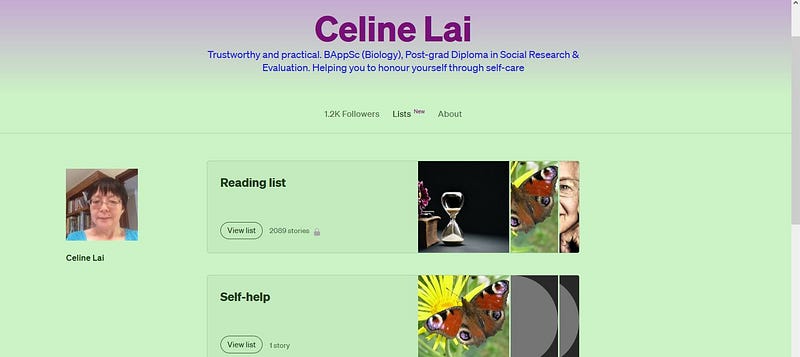
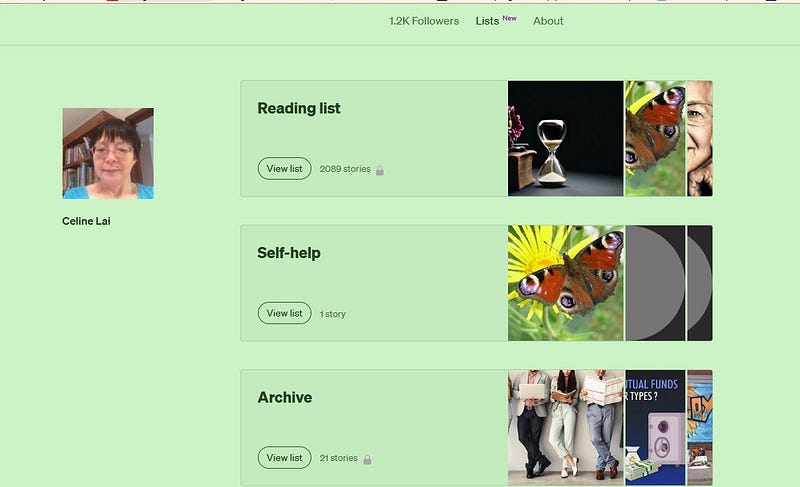
“Reading list” contains a list of your bookmarked stories, and “Archive” contains any bookmarks that you archived. Mind you, I don’t know what the difference between these 2 are, in terms of Medium functions.
Maybe your “archived” stories are permanently stored by Medium, but those just bookmarked and not actually archived may be “lost” if something glitchy happens that deletes them (because they are “stored” in a different location on Medium’s servers than are “archived” stories, which are saved, by way of being “locked up” more securely than non-archived stories). Who knows?
I love saving / bookmarking stories to read again or read later, as you can see from the screenshot. I have over 2,000 stories bookmarked (in my Reading List). 😆
You can share your List by clicking on “View list” for the List you want to share, then clicking on the little icon that looks like a square with an arrow coming out of it — as shown below.
UPDATE: February 2022. You don’t need to click on the little icon shown below, because since writing this article, things changed. The sharing icons appear at the top right of your List!
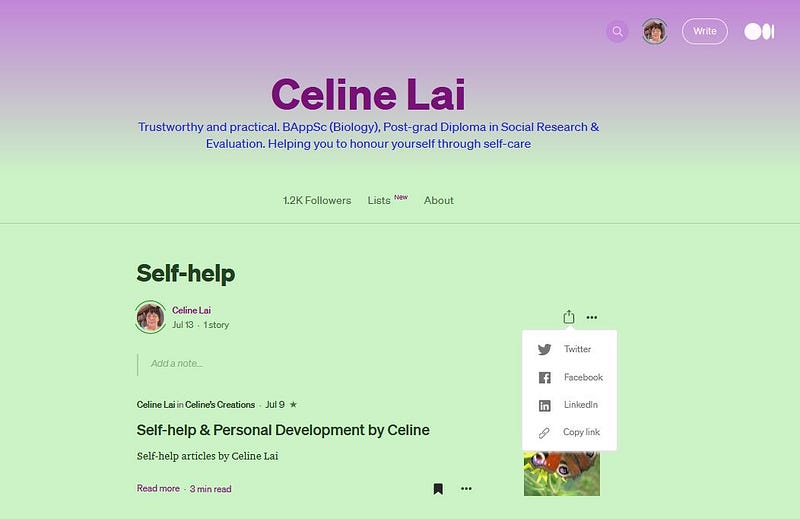
I tried this out and hope that it works with readers other than myself. The thing is that I used “Copy link” and pasted the link into the Edge browser, but it doesn’t work!
Using Mozilla Firefox, it does work !!
Please can someone reading this, try clicking on the link below, to see if it goes to my test List?
https://medium.com/@CelineL/list/selfhelp-38e9484c58c5 .
Please let me know if you get to my List or not, and what browser you are using.
Lists are a great way for sharing categories of your own stories by creating your Lists.
Let’s just hope this new function has been tested out enough, though, to work in all browsers, and as it should (however that is supposed to be, seeing as Medium hasn’t told us about it yet, or posted about it yet in their 3 Minute Blog).
To further confuse things, when you click on the “ribbon icon” at the left of your Medium homepage, to go to what used to have your bookmarked stories (titled “Reading List”), plus had a page to Recently viewed stories and a page to your Highlights (i.e. to story titles of stories whose phrases/words you highlighted), you now see the following.
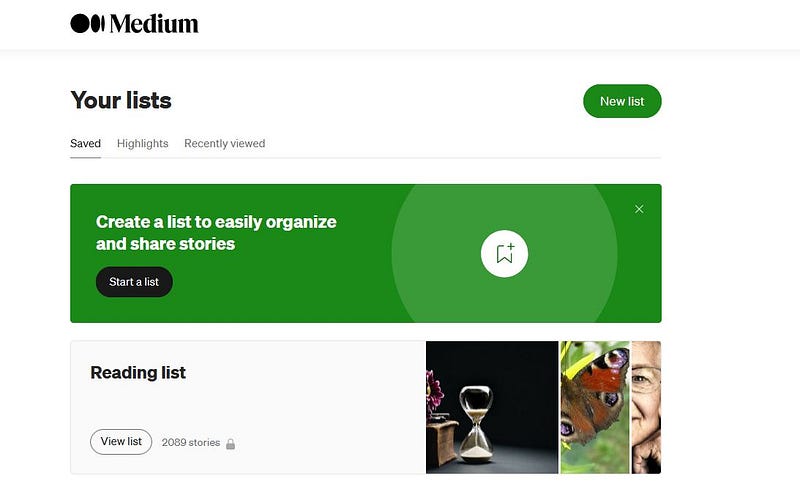
“Saved” used to be called “Reading List” but now serves a similiar function, i.e. it still shows your list of bookmarked stories and your archived stories, BUT it now also shows your List or Lists, if you have any. In other words, the title “Reading list” has now been replaced by the title “Saved.”
You can even try to share your Reading list !!! Clicking on the 3 little dots will drop down options, including “Make list public.” Go on, I dare you to do it.
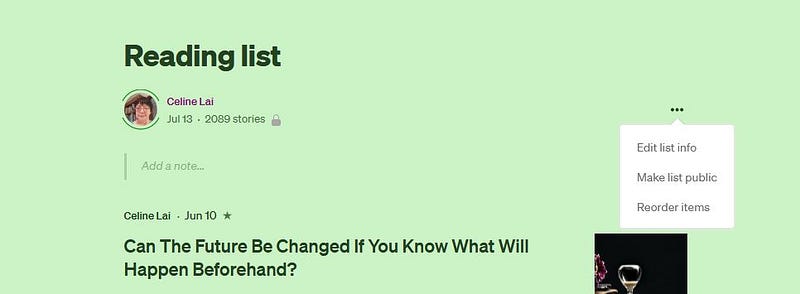
I did (make my Reading list public)~~though I don’t know who would want to see my reading list, and why.
What that has done for me is to turn on (or toggle) the share function for my Reading list, meaning now I can go to my Reading list and see the option to share on social media and to share via a link (whereas before I made my reading list public I couldn’t see that option).
So without further ado, here’s the link to my Reading list, which I am sharing at the time of publishing this article, to try it out, i.e. to test if anyone reading this who dares click on it, will indeed navigate to my esteemed (or wishful) Reading list !
https://medium.com/@CelineL/list/reading-list ← anyone interested ?
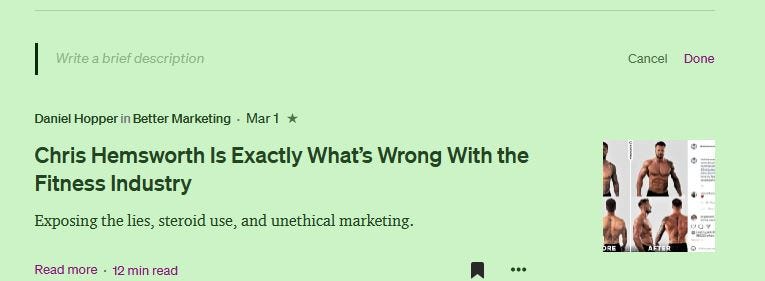
You can even double-click in the area above a story title where it says Notes and type something in. This could come in handy to remind yourself about something related to the story (in this example, I must watch Thor again soon).
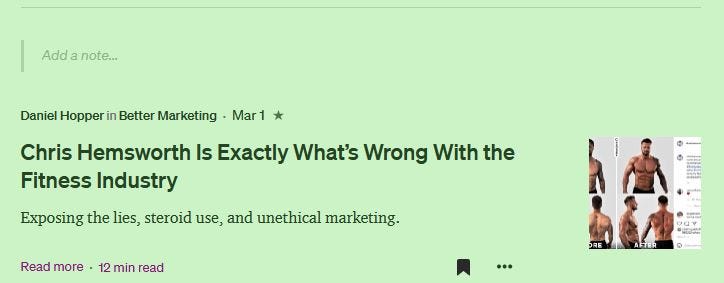
Then click on “Done” which appears on the right, to save your note!
UPDATE: 20th July, I can confirm that Notes on public lists can be read also by the public, so be mindful of what Notes you write! (See my note on my List titled “Self-help” if you like)
When you click on the Bookmark icon at the left of your Medium homepage (the ribbon icon), you will see “New List” also at the top. You can create a new (empty) list by clicking on “New List” and giving it a title like “Great articles by Sandra.”
Then when you see someone else’s story that you like, you can click on the “ribbon type” icon and add it to this List, as I have done for great stories written by Sandra Di Francesco that I enjoy reading!
If you want to add someone else’s story to your Reading list a.k.a. your Bookmarks, click on the “ribbon type” icon at the bottom or at the left of their story. By default, “Reading list” is ticked. Just click out of it, after you’ve clicked on the icon and the story will be set to appear in your Reading list.
Your Reading list and your Achives are private by default (with a padlock showing that they are private), but as explained above, you can make them public. 😲
Your customised Lists are public by default, but you can click on the 3 little dots at the top right of your list title and click on “Make list private” if you don’t want your list to be public.
Once you have created a List you can order the items (stories) within the list. Open up the List. Click on the 3 little dots at top right, then on Re-order then drag the stories around.
But you can’t re-order the list titles in the right-hand side bar or on your main Lists page, for all of your actual Lists. You can only re-arrange the order within a List not across all the Lists!
Pheww!! That’s all folks, for this week’s iteration of Medium changes.
Thank you for trying out the link to my customised Stories list and the link to my Reading list, and letting me know if they work.
May the good List be with you 😄 and also with me.
Amen.
P.S. I just checked Medium’s “3 Min Read Blog” on 20th July 2021, and they have just officially posted about Lists. You can get to their blog by scrolling down your Medium homepage and looking for “Blog” at the bottom right, between Writers and Careers.
Click on the links below, if you like.


