
Saving Time with Python and Tableau
One of my least favorite aspects of Tableau is how it can be very time consuming to develop dashboards at scale. Often Tableau deployments can start small and manageable and quickly grow where maintenance of existing content can become a full-time job. I ran into this problem in my work when I was responsible for a 100+ dashboard deployment using embedded Tableau as the analytic engine. Even making small changes to dashboards with that number of files can be time consuming, repetitive and prone to errors. Think about the time it takes to open a dashboard, letting it load and then navigating the UI to make changes. I figured there had to be a better way to do this and I was willing to invest the time to figure it out to save myself these countless hours of drudgery.
I started looking into the XML underneath a Tableau file that we open in desktop to being to understand how it functions. Tableau stores all of the information about the data sources, worksheets, dashboards etc. in this file. It lets Tableau know what it is you are loading and how to display it. If we know how the XML works underneath, we can manipulate it directly and save ourselves some time.
The good thing is that there are several existing libraries in python that deal with traversing, updating and creating XML structured files. By importing these libraries, we can benefit from the good old programming adage of not rewriting what already exists. One that I use quite often for Tableau workbook modification is xml.etree.ElementTree.
Let’s use an example of a change we want to make to a dashboard to illustrate how we would use python to help. Say our marketing department comes to us and lets us know that the company colors are changing. The pink we use is coming off just a shade too dull, so it needs to be changed everywhere. Great we think, I have that custom color palette referenced in nearly every dashboard I built. To do this normally through the Tableau desktop application, I would first need to update my custom color palette in my preferences.tps file and then open every workbook where the color is used, open the marks using the color card, pull up my new custom color palette and reselect the new color to replace the old. Sounds fun right? Maybe not a big deal for one dashboard but what about 100, you are looking at quite a chunk of time.
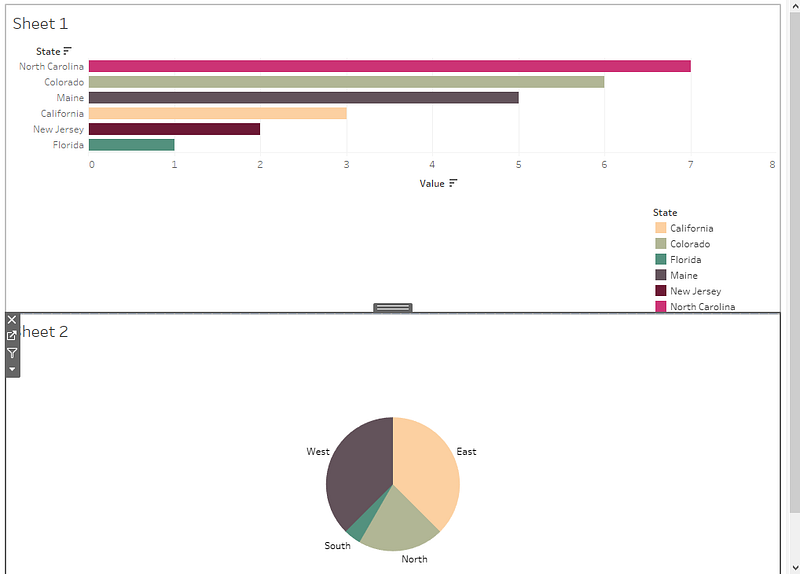
Say our dashboard has two sheets that use custom color palettes we have defined.
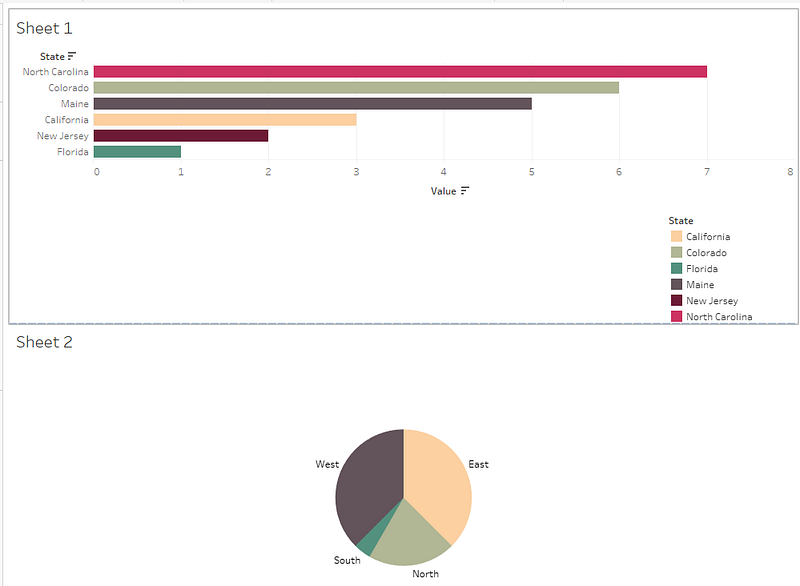
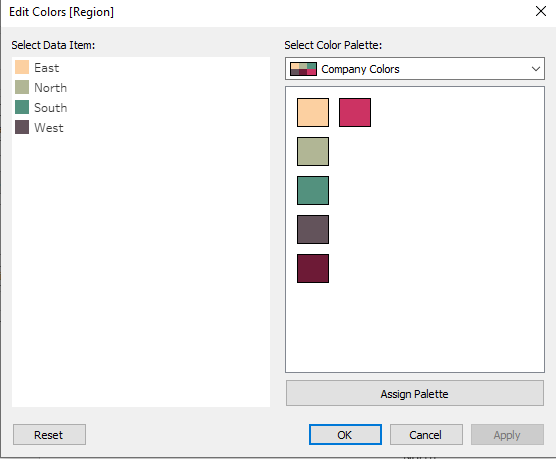
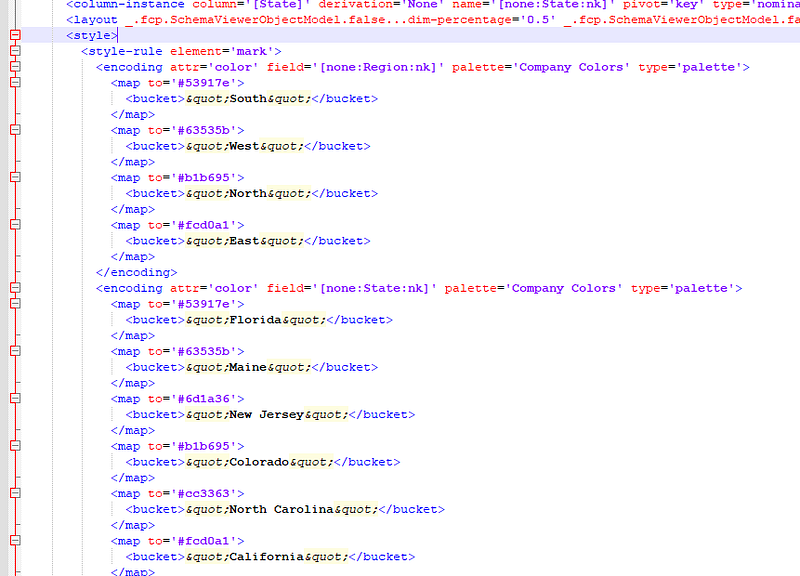
Let’s take a peek at what is actually happening underneath in the XML for these color palettes and how they work. When you open the file and search for palette you will notice two things. There is a section near the top that defines the custom color palette being used and down below there is a reference to the color palette being used in the marks when applied to our worksheets. These two sections of the XML are letting Tableau know what our palette consists of and where to apply it.
First, we want to change the custom color palette definition up top and swap the old color for the new color. Looking at the XML we can see the path that defines it in the XML follows Preferences → color-palette → color path. Here we can see our custom palette definition. When we use custom palettes, Tableau stores a copy in the workbook for reference.
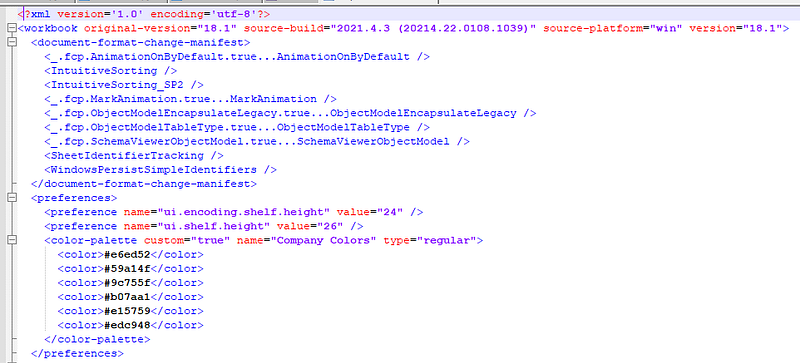
Tableau also stores this information when we apply the color to marks in our dashboard. This is under the XML path datasource → style → style-rule → encoding → map.
Now that we understand what is happening let’s deploy some python scripting to help us do this faster. I am going to assume some level of familiarity with python and XML structure for this next section. If you don’t have any yet there are a ton of great resources for learning python and it is a widely used language in the data world, so learning it is worth your time. In our function we are going to design it to find and replace an existing color with a new color for a specific custom palette.
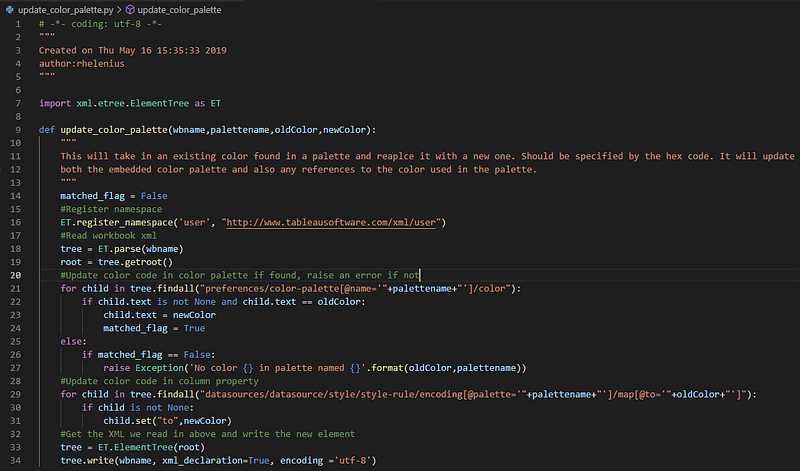
Check out the GitHub link below for the raw code snippet.
update_color_palette.py (github.com)
Here is the function that will help us accomplish this. Let's walk through the pieces. First, we import the xml.etree.ElementTree to help us parse xml files. Importing libraries lets us reuse the existing work and logic, hugely helpful here. Next, we define our function and the arguments we are passing so we will take in four arguments in our function, the name of the workbook we want to change, the name of the palette, the existing color we want to replace and the new color we are replacing it with.
Next, we register the namespace we will use when writing the file out (don’t worry much about this part, just preserving what existed before). We then read in our XML file passed with the ET.parse function and assign it to tree then get the root of the XML with tree.getroot(). Now that we have the XML available, we can start looking for the nodes we defined above. Looking for specific nodes and values in the XML can be done using the findall function. Here we can feed it the paths and inject our arguments to find the specific combinations we are looking for. If we don’t find any matches, we want to stop what we are doing and raise an exception and let the user know. If we do, we can swap the values and continue on to the places the marks use this palette as well. After all of our swaps are made, we write back out our updated XML as our new Tableau workbook.
We now have a function we can call to update colors for us. So, let’s say marketing tells us the pink in our color palette was market tested and wasn’t pink enough and they are updating the color and they want to go from #cc3363 and it should now be #cc3375. Great, let’s spin up a new python file, import our function and feed it those arguments.

The function will find palettes named Company Colors and replace #cc3363 with #cc3375. Now when I open my workbook, I see that wonderful new pink.
Underneath when looking at the XML I can also see the references updated.
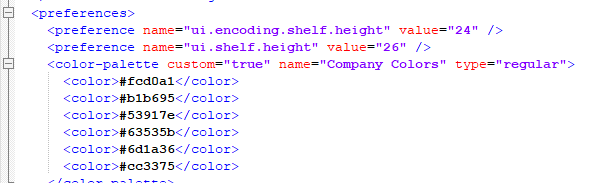
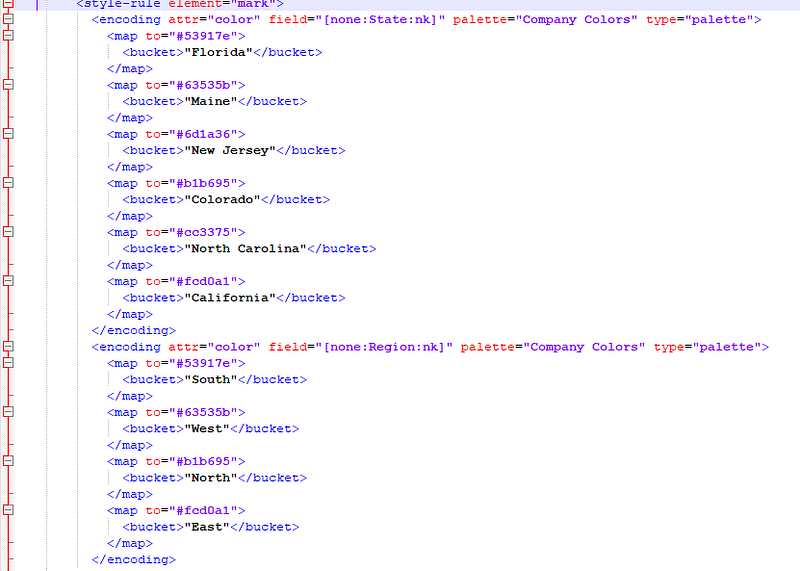
Notice nothing changed in our Region dimension since we didn’t actually use that color, only State changed the value.
Awesome! We didn’t have to open our custom palette, change the colors, and then go in and update our workbook by hand. Did we save some time? Well writing the code from scratch probably not for one instance, but if we had to do this across 100 workbooks we certainly did, especially if this happens more than once. Also, if we had all of these available in a repository locally, we could add the ability to look through a file structure to find all instances where this occurs and update them in batch. Now we are saving some serious time.
Let’s reflect on some considerations on when this wouldn’t make sense to go through this. It all comes back to the age-old question, is the juice worth the squeeze? I am a big fan of focus on the work that provides you and your stakeholders the most value. Automating repeatable tasks allow you to focus on higher value work. If you have a small inventory of dashboards and updates by hand would take less or equivalent time, then writing custom functions or using them may not be worth your time. Another scenario might be where most of your content is distributed by different authors and only lives on server. You would then need to download each workbook, change and republish to make these modifications. (PS you can absolutely do this using the APIs, but that’s more juice and squeezing). I am an advocate of having some form of source control in place that you can use to help with problems like these. You can also rollback changes quickly and before they hit production by undoing a commit in case something goes wrong. If you are curious how source control can work with Tableau read my other article exactly on this topic https://readmedium.com/using-source-control-with-tableau-90a939d4fc9f.
We have just begun to scratch the surface on what is possible by repeating this concept in different areas. In my past work I have built up a library of functions that automate several tasks such as adding filters to dashboards, renaming columns, formatting updates, text replacement, and publishing/promoting workbooks across environments while changing datasource connections etc. It really boils down to where your pain points are and how you spend your time. There are also a couple of really good existing resources to get you started. Tableau has its own document api tableau/document-api-python: Create and modify Tableau workbook and datasource files (github.com) which offers some limited functionality for workbook modification. There is also a great library from Bryant Howell bryanthowell-tableau/tableau_tools: Package containing Tableau REST API, XML modification, tabcmd and repository tools (github.com) that goes much further than the Tableau api. Ultimately, I would love to see Tableau more fully open the document api natively built into Tableau to developers to be able to make more programmatic changes. Until then, feel free to leave comments about your pain points or ideas for ways to use this concept to save time and effort.


