avatarNagaraj

Free AI web copilot to create summaries, insights and extended knowledge, download it at here

2218

Abstract

b>.</li></ol><figure id="a450"><img src="https://cdn-images-1.readmedium.com/v2/resize:fit:800/1*ey9KYICuuLsx4_6soiq8qQ.gif"><figcaption></figcaption></figure><h2 id="c611">🚀 Second Step: Make a Batch File (Optional but Necessary)</h2><p id="de16">Create a .bat file to run your C# app to ease out your program scheduling. Here’s how:</p><p id="7ec6">1. Open Notepad and add these lines ( show in gif screen shot)</p><p id="c817">2. Save the file with a <code>.bat</code> extension, e.g., <code>RunMyApp.bat</code>.</p><p id="39ce">3. Then, double-click the batch file to test it.</p><p id="8cab">This batch file makes sure that your application runs in a controlled way, with console feedback.</p><figure id="2144"><img src="https://cdn-images-1.readmedium.com/v2/resize:fit:800/1*NdKsqhIe6-aRAo8qKIFkEg.gif"><figcaption></figcaption></figure><h2 id="07c8">🕒 Step 3: Schedule Windows Task Scheduler</h2><p id="d6c1">Now schedule the C# application using the Windows Task Scheduler:</p><p id="1392">👉Open the <b>Task Scheduler: </b>Win + S, “Task Scheduler”, open it.</p><p id="37db">👉<b>Create a Basic Task :</b></p><ul><li>On the right-hand panel, click Create Basic Task.</li><li>Give your task a useful name (for example, Run My C# App) and a description.</li></ul><p id="ca59">👉<b>Set the Trigger:</b></p><ul><li>Select how often you want the task to run, including daily, weekly, or when starting up.</li><li>Set the time or interval.</li></ul><p id="2c6c">👉<b> Define the Action:</b></p><ul><li>Select Start a program.</li><li>Browse and select your .exe or .bat file.</li></ul><p id="01ab">👉<b>Additional Settings:</b></p><ul><li>Check Run with highest privileges if your application needs admin rights.</li><li>Run task when user is logged on or not.</li></ul><figure id="ce89"><img src="https://cdn-images-1.readmedium.com/v2/resize:fit:800/1*utvLigEv1Mq_24SfUrtHrg.gif"><figcaption></figcaption></figure><h2 id="ca50">💡 Practical Situations: Scheduling A Data Backup Application</h2><p id="b9e1">Suppose you have a C# application that backs up data onto some remote server, and this is how it should be scheduled:</p><p id="6be6">1. <b>Application:</b> <code>BackupApp.exe</code> (located at C:\Apps

Options

\BackupApp.exe).</p><p id="264d">2. <b>The batch file:</b></p><div id="054f"><pre>@<span class="hljs-built_in">echo</span> off <span class="hljs-built_in">echo</span> Starting Backup Process... <span class="hljs-string">"C:\Apps\BackupApp.exe"</span> <span class="hljs-built_in">echo</span> Backup completed.</pre></div><p id="37d3">3. <b>Task Scheduler Settings:</b></p><ul><li>Trigger: Daily at 2:00 A.M.</li><li>Action: Start <code>BackupApp.bat</code>.</li><li>Settings: Run whether user is logged on or not.</li></ul><p id="27f7">Henceforth, your backup processing shall run automatically every night without a dime of manual effort.</p><h2 id="2424">📊 Visualizing the Workflow</h2><p id="b268">To better understand the process, here’s a flow diagram of how everything fits together:</p><ol><li><b>C# Application:</b> Your compiled .exe file.</li><li><b>Batch File:</b> Optional but recommended for better control.</li><li><b>Task Scheduler:</b> Automates the execution based on triggers.</li></ol><figure id="d5c5"><img src="https://cdn-images-1.readmedium.com/v2/resize:fit:800/1*3z3J4aerxEkn_OpgqnWiog.png"><figcaption></figcaption></figure><h2 id="4571">🧠 Smoother Automation::</h2><ol><li><b>Logging:</b> Every single output of your application needs to go to a file for debugging and monitoring purposes.</li><li><b>Error:</b> Handle Exceptions Gracefully: Handle the exceptions in your application and log them.</li><li><b>Test Very Well:</b> Schedule your task to run manually a few times to find out it runs smoothly.</li><li><b>Performance Tracking:</b> Track each execution of a task using Task Scheduler history.</li></ol><h2 id="71a7">🔑 Destinations</h2><ul><li>Windows Task Scheduler is a fine tool for doing stuff like automating your C# applications.</li><li>Prepare your app by compiling it into an .exe file and adding logging.</li><li>Use batch files for great control and more feedback.</li><li>Schedule a task with a trigger and an action and voila! Your task will run automatically.</li></ul><p id="8f44">Thank you for reading! 👏👏👏 Hit the applause button and show your love❤️, and please follow➡️ for a lot more similar content! Let’s keep the good vibes flowing!</p></article></body>

Simplify Your Workflow

Running C# Jobs with Windows Task Scheduler: Automate Your Workflow Like a Pro

Easily Schedule and Run C# Applications Like a Pro

Want to read the full article? Non-members can click here.

🧠 Why Automate C# Jobs?

Imagine you’ve built an application in C# that has some heavyweight capabilities: processing data, generating reports, or doing some routine maintenance jobs. Who would like to continuously run it! Windows Task Scheduler- a built-in scheduling system in Windows that automates the execution of all C# applications on a schedule or interval of time.

Whether you are a developer, system administrator, or data analyst, automating C# jobs is about saving time, reducing errors, and ensuring that even when you are not around, some crucial tasks are still running in. This article will detail how you can set up and schedule for any C# jobs by means of the Windows Task Scheduler, including step-by-step instructions, practical example programs, and screen illustrations. Let’s go!

🛠️ Step 1: Preparing Your C# Application

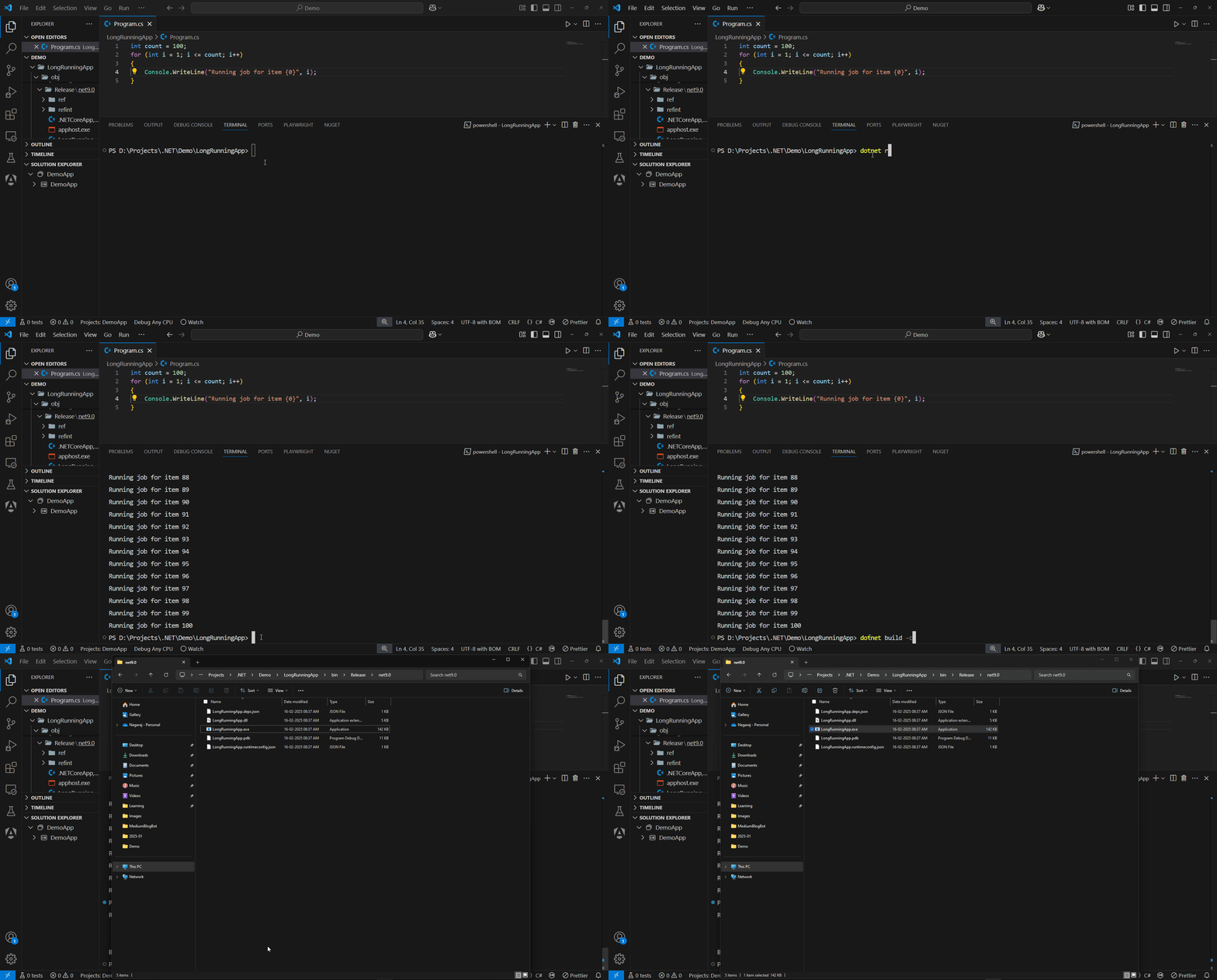
Before your C# application can be scheduled for automation, it will require some preparation. Here is what you should do:

  1. Build Your Application: Compile your C# code into an executable file (.exe). This is simply done in Visual Studio by clicking Build > Build Solution.
  2. Test Your Application: Manually run the executable file to confirm it works as intended.
  3. Log: Instrumenting the application with logging to know what it did and when will go a long way: Console.WriteLine() is one option, or you could use an actual logging library, like NLog or Serilog.
🚀 Second Step: Make a Batch File (Optional but Necessary)

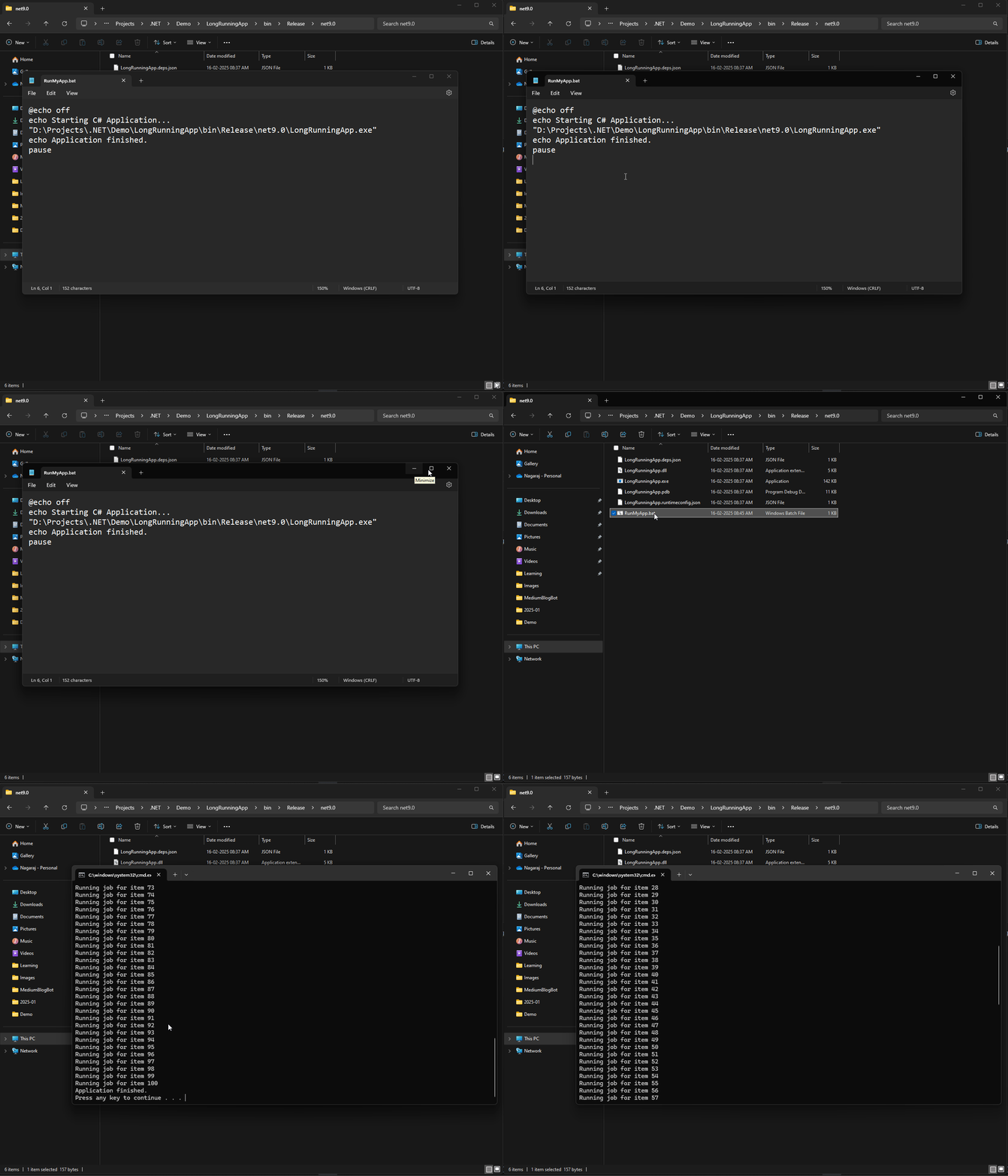
Create a .bat file to run your C# app to ease out your program scheduling. Here’s how:

1. Open Notepad and add these lines ( show in gif screen shot)

2. Save the file with a .bat extension, e.g., RunMyApp.bat.

3. Then, double-click the batch file to test it.

This batch file makes sure that your application runs in a controlled way, with console feedback.
🕒 Step 3: Schedule Windows Task Scheduler

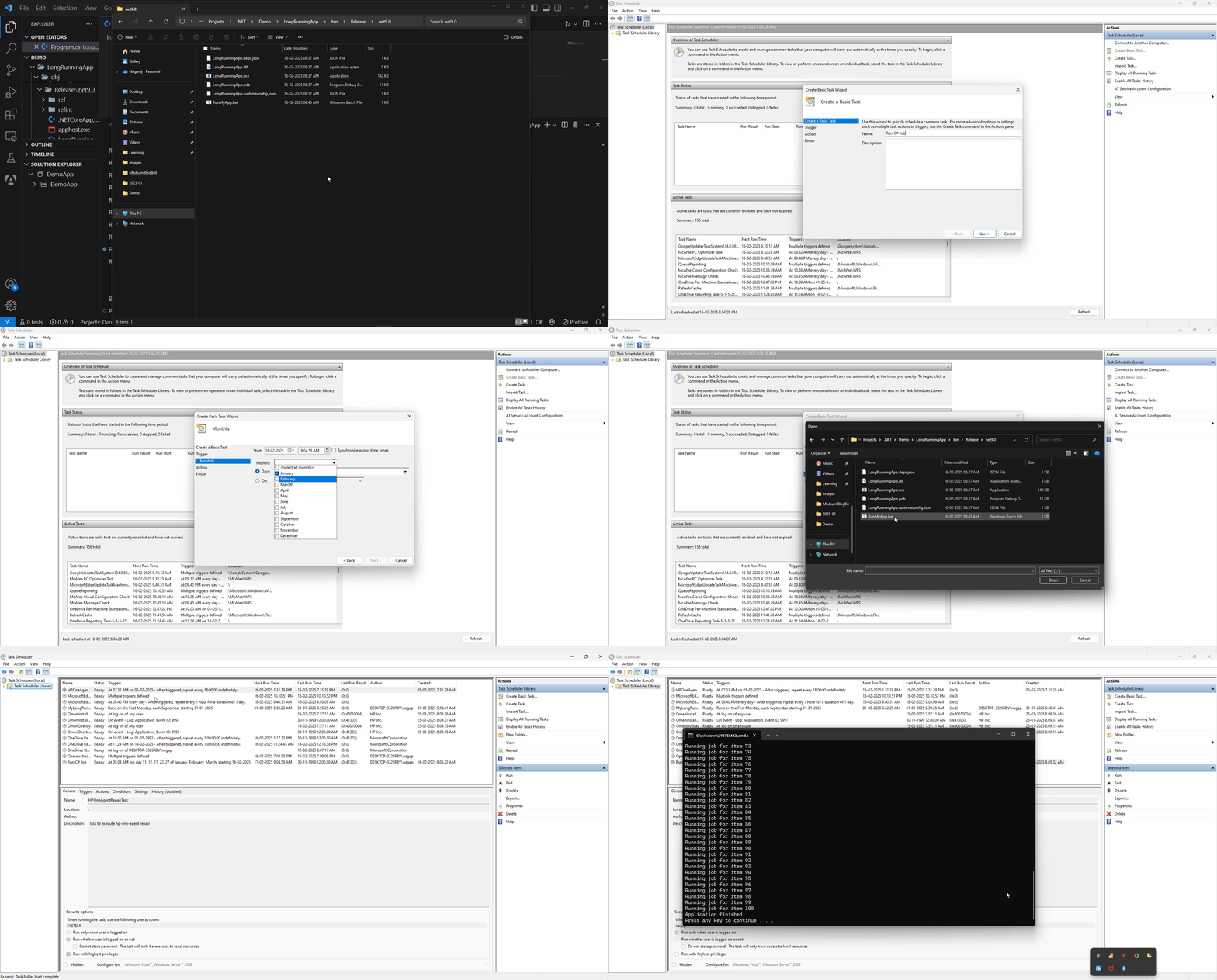
Now schedule the C# application using the Windows Task Scheduler:

👉Open the Task Scheduler: Win + S, “Task Scheduler”, open it.

👉Create a Basic Task :

  • On the right-hand panel, click Create Basic Task.
  • Give your task a useful name (for example, Run My C# App) and a description.

👉Set the Trigger:

  • Select how often you want the task to run, including daily, weekly, or when starting up.
  • Set the time or interval.

👉 Define the Action:

  • Select Start a program.
  • Browse and select your .exe or .bat file.

👉Additional Settings:

  • Check Run with highest privileges if your application needs admin rights.
  • Run task when user is logged on or not.
💡 Practical Situations: Scheduling A Data Backup Application

Suppose you have a C# application that backs up data onto some remote server, and this is how it should be scheduled:

1. Application: BackupApp.exe (located at C:\Apps\BackupApp.exe).

2. The batch file:

@echo off
echo Starting Backup Process...
"C:\Apps\BackupApp.exe"
echo Backup completed.

3. Task Scheduler Settings:

  • Trigger: Daily at 2:00 A.M.
  • Action: Start BackupApp.bat.
  • Settings: Run whether user is logged on or not.

Henceforth, your backup processing shall run automatically every night without a dime of manual effort.

📊 Visualizing the Workflow

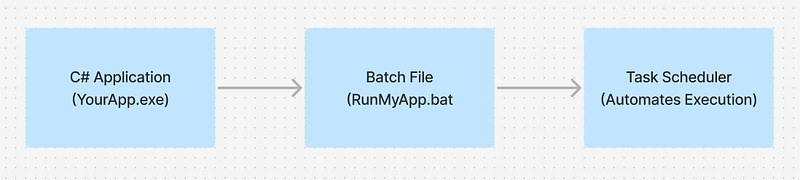
To better understand the process, here’s a flow diagram of how everything fits together:

  1. C# Application: Your compiled .exe file.
  2. Batch File: Optional but recommended for better control.
  3. Task Scheduler: Automates the execution based on triggers.
🧠 Smoother Automation::

  1. Logging: Every single output of your application needs to go to a file for debugging and monitoring purposes.
  2. Error: Handle Exceptions Gracefully: Handle the exceptions in your application and log them.
  3. Test Very Well: Schedule your task to run manually a few times to find out it runs smoothly.
  4. Performance Tracking: Track each execution of a task using Task Scheduler history.

🔑 Destinations

  • Windows Task Scheduler is a fine tool for doing stuff like automating your C# applications.
  • Prepare your app by compiling it into an .exe file and adding logging.
  • Use batch files for great control and more feedback.
  • Schedule a task with a trigger and an action and voila! Your task will run automatically.

Thank you for reading! 👏👏👏 Hit the applause button and show your love❤️, and please follow➡️ for a lot more similar content! Let’s keep the good vibes flowing!

Windows Task Scheduler
Csharp
Csharp Programming
Dotnet
Scheduling
Recommended from ReadMedium