
Responsive Auto Resizing Text With Jetpack Compose
Handle accessibility needs while remaining content visibility

When it comes to professional mobile app development, you will most likely face the requirements for supporting accessibility needs.
In the context of developing Android apps, this term can mean that, besides laying out the overall UX to be easily usable for everyone, you should have an eye for the official accessibility best practices and principles. Besides for example helpful content descriptions, you should also consider zoom factors that can automatically be applied to your in-app texts by accessibility features from the system.
In this short article, we will have a look at single-line texts that overflow when this zoom factor gets applied and how we can automatically scale down just as much as the overflow can be avoided.
This article is also available as video tutorial
1. The problem
Let’s consider the following example which shows not more than a TopAppbar and a simple Button aligned in a Column layout.
Both of the composables use the ExampleText composable which constrains the Text composable to have a maximum of 1 line.
If the supplied text exceeds the available space and therefore overflows, it will cut off the text with an ellipse effect.
The outcome of this code snippet can be seen in the following screenshot:

Both of the texts fit their parent containers very well and are readable.
If we now go into the system settings and set the accessibility zoom factor for display and text to the maximum, the same app will look like the following:

As you can see, the zoom factor enlarged both of the texts so drastically, that both of the texts got cut off. Therefore the accessibility feature didn’t help because now there is no chance to read the full text.
2. The solution
So how can we avoid that while still allowing text enlargements just as much as the text doesn’t overflow?
Luckily the Text composable provides a callback for intercepting the calculation of the Text layout called onTextLayout.
Take a look at the following code of my ResponsiveText composable which automatically reduces the fontSize until it doesn't overflow anymore.
As you can see it makes use of the mentioned onTextLayout callback. Because we use the TextOverflow.Ellipsis setting at the Text we can use the TextLayoutResult’s isLineEllipsized for checking if the text currently overflows.
The function requires a line index. Therefore we check for the current line number and subtract it by one to get the index of it.
We then reduce it by an arbitrary interval, in my case I have chosen 0.9f. The Text will now get recomposed until it doesn’t overflow anymore.
Of course, you can use any maxLines parameter. The composable will always try to avoid the overflow in the last line. If there are fewer lines than the maxLines determines, the composable will have nothing to do because no overflow can happen.
In that case, the targetTextSizeHeight just will be applied.
To be mentioned, I built the composable to be used with a TextStyle. Nevertheless, you could also use parameters like fontSize etc. directly as arguments and pass them to the Text composable.
The following code snippet shows the previous example with the ResponsiveText in use:
The following screenshot now shows the result while the text focus is still enabled:
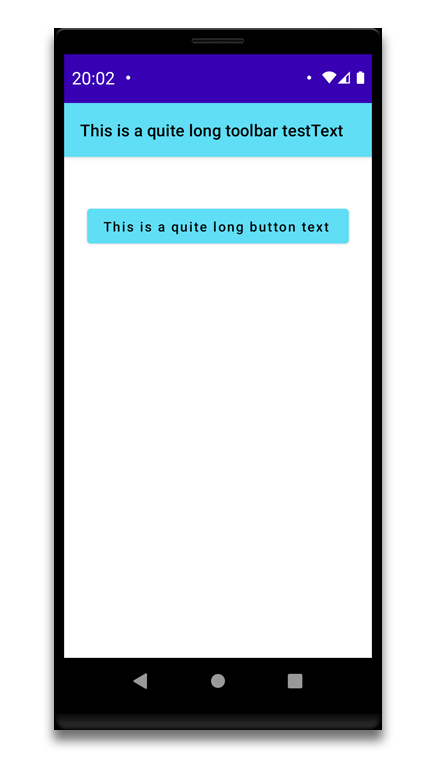
As you can see, the overflow is gone. Besides that, if you compare this screenshot with the first one that had no zoom factor applied, the text is still enlarged but just as much as possible to avoid the overflow.
3. Conclusion
In this article, we took a look at the influence of zoom factor accessibility features provided by the system. It is very nice that accessibility features nowadays directly get shipped with the respective OS.
On the other hand, no one is helped if these features make the installed mobile apps unusable. With the approach shown in this article, we can still apply the zoom effect to our texts while maintaining usability.
Of course, even with the help of such little helpers, you should still always be aware of accessibility concerns and design your app so that everyone can use it.
Additionally, I would like to warn you not to overuse this composable because every reduction iteration will trigger a recomposition. You can see it by yourself if you just add a log statement to the onTextLayoutcallback function.
It should only be used in cases where no other workaround can be used to avoid overflows that may harm the app's usability or experience.
I hope you had some takeaways, clap if you liked my article, make sure to subscribe to get notified via e-mail, and follow for more!


