avatarCharles E.

Free AI web copilot to create summaries, insights and extended knowledge, download it at here

13156

Abstract

pe">UIStackView</span>() stackView.translatesAutoresizingMaskIntoConstraints <span class="hljs-operator">=</span> <span class="hljs-literal">false</span> stackView.distribution <span class="hljs-operator">=</span> .equalSpacing stackView.axis <span class="hljs-operator">=</span> .horizontal <span class="hljs-keyword">return</span> stackView }()

<span class="hljs-comment">// This function adds the topView and its subviews </span>
<span class="hljs-comment">// (searchIcon and notificationButton) to the main view.</span>
<span class="hljs-keyword">func</span> <span class="hljs-title function_">configViews</span>(){
    view.addSubview(topView)
    topView.addSubview(searchIcon)
    topView.addSubview(notificationButton)
}

<span class="hljs-comment">// this function adds the bottom navigation buttons </span>
<span class="hljs-comment">// to the buttonStackView.</span>
<span class="hljs-keyword">func</span> <span class="hljs-title function_">configTabBar</span>(){
<span class="hljs-comment">// The viewControllers array is currently empty, but not for long</span>
    viewControllers <span class="hljs-operator">=</span> []
    tabBar.barTintColor <span class="hljs-operator">=</span> .white
    tabBar.addSubview(buttonStackView)
    [homeBtn, notesBtn, messageBtn, userBtn].forEach {
        buttonStackView.addArrangedSubview(<span class="hljs-variable">$0</span>)
    }
}


<span class="hljs-keyword">func</span> <span class="hljs-title function_">configConstraints</span>(){
    
    <span class="hljs-type">NSLayoutConstraint</span>.activate([

        <span class="hljs-comment">// Constrains the topView to the top of the screen</span>
        topView.topAnchor.constraint(equalToSystemSpacingBelow: view.safeAreaLayoutGuide.topAnchor, multiplier: <span class="hljs-number">0</span>),
        topView.leadingAnchor.constraint(equalToSystemSpacingAfter: view.safeAreaLayoutGuide.leadingAnchor, multiplier: <span class="hljs-number">0</span>),
        view.trailingAnchor.constraint(equalToSystemSpacingAfter: topView.trailingAnchor, multiplier: <span class="hljs-number">0</span>),
   
        <span class="hljs-comment">// constrains the notification and search icons to</span>
        <span class="hljs-comment">// the top right of topView</span>
        notificationButton.topAnchor.constraint(equalToSystemSpacingBelow: topView.topAnchor, multiplier: <span class="hljs-number">0</span>),
        notificationButton.leadingAnchor.constraint(equalToSystemSpacingAfter: searchIcon.trailingAnchor, multiplier: <span class="hljs-number">2</span>),
        searchIcon.centerYAnchor.constraint(equalTo: notificationButton.centerYAnchor),
        topView.trailingAnchor.constraint(equalToSystemSpacingAfter: notificationButton.trailingAnchor, multiplier: <span class="hljs-number">3</span>),
        topView.bottomAnchor.constraint(equalToSystemSpacingBelow: notificationButton.bottomAnchor, multiplier: <span class="hljs-number">1</span>),
        
    
        buttonStackView.leadingAnchor.constraint(equalToSystemSpacingAfter: view.leadingAnchor, multiplier: <span class="hljs-number">6</span>),


        <span class="hljs-comment">// sets the height and width </span>
        <span class="hljs-comment">// of the bottom nav bar buttons</span>
        <span class="hljs-comment">// to 40</span>

        homeBtn.widthAnchor.constraint(equalToConstant: <span class="hljs-number">40</span>),
        homeBtn.heightAnchor.constraint(equalToConstant: <span class="hljs-number">40</span>),
        
        notesBtn.widthAnchor.constraint(equalToConstant: <span class="hljs-number">40</span>),
        notesBtn.heightAnchor.constraint(equalToConstant: <span class="hljs-number">40</span>),
        
        messageBtn.widthAnchor.constraint(equalToConstant: <span class="hljs-number">40</span>),
        messageBtn.heightAnchor.constraint(equalToConstant: <span class="hljs-number">40</span>),
       
        userBtn.widthAnchor.constraint(equalToConstant: <span class="hljs-number">40</span>),
        userBtn.heightAnchor.constraint(equalToConstant: <span class="hljs-number">40</span>),
        
        view.trailingAnchor.constraint(equalToSystemSpacingAfter: buttonStackView.trailingAnchor, multiplier: <span class="hljs-number">6</span>)
        
    ])


}</pre></div><p id="a0b5">This will serve as our entry point into the app. We ensure this by adding the following code into the <i>didFinishLaunchingWithOptions</i> function within <b>AppDelegate.swift</b>.</p><div id="7e9c"><pre><span class="hljs-keyword">let</span> navigationBarAppearance <span class="hljs-operator">=</span> <span class="hljs-type">UINavigationBarAppearance</span>()
        navigationBarAppearance.configureWithTransparentBackground()
        navigationBarAppearance.backgroundColor <span class="hljs-operator">=</span> <span class="hljs-type">UIColor</span>.white
        <span class="hljs-type">UINavigationBar</span>.appearance().standardAppearance <span class="hljs-operator">=</span> navigationBarAppearance
        
    window <span class="hljs-operator">=</span> <span class="hljs-type">UIWindow</span>(frame: <span class="hljs-type">UIScreen</span>.main.bounds)
    window<span class="hljs-operator">?</span>.rootViewController <span class="hljs-operator">=</span> <span class="hljs-type">UINavigationController</span>(rootViewController: <span class="hljs-type">MainTabController</span>())
    window<span class="hljs-operator">?</span>.makeKeyAndVisible()
    <span class="hljs-keyword">return</span> <span class="hljs-literal">true</span></pre></div><figure id="9be9"><img src="https://cdn-images-1.readmedium.com/v2/resize:fit:800/1*JxQg26HUOquCL88wV5rZ-A.jpeg"><figcaption>MainTabController</figcaption></figure><p id="abf6"><b>MainTabController</b> is a pretty common user interface with a top section (the ‘header’) containing search and notification icons, and a bottom navigation bar(the ‘footer’) with buttons for home, notes, messages, and user profile.</p><h1 id="2e37">HomeController</h1><p id="1a2d">Now, create a file named <b>HomeController.swift</b> — it will subclass the <a href="https://developer.apple.com/documentation/uikit/uicollectionviewcontroller">UICollectionViewController</a>,<b> </b>utilizing the<b> <a href="https://developer.apple.com/documentation/uikit/uicollectionviewcompositionallayout/"></a></b><a href="https://developer.apple.com/documentation/uikit/uicollectionviewcompositionallayout/">UICollectionViewCompositionalLayout<b></b></a><b> </b>to be able to create unique UI layouts, (we will get to all of this, <i>soon</i>).</p><blockquote id="9a40"><p>A compositional layout is a type of collection view layout. It’s designed to be composable, flexible, and fast, letting you build any kind of visual arrangement for your content by combining — or compositing — each smaller component into a full layout.</p></blockquote><p id="dbaf"><b>HomeController</b> serves as the ‘body’ section of the app, it is a CollectionView encompassing the majority of the app’s UI components.</p><p id="a8a1">Let us begin with the ‘<i>September Bundle Special</i>’ section, by creating two files:</p><ul><li><b>IllustrationView.swift</b> — This is a custom <a href="https://developer.apple.com/documentation/uikit/uiview">UIView</a> that contains two UILabels and a UIImageView.</li><li><b>TopCell.swift</b> — This subclasses <a href="https://developer.apple.com/documentation/uikit/uicollectionviewcell">UICollectionViewCell</a> and will simply display IllustrationView.</li></ul><p id="e3bb">We’ll create <b>IllustrationView.swift </b>first. Full source code can be found <a href="https://github.com/CharlesAE/PleaseAssistMe-Dribbble-UI/blob/main/Please%20Assist%20Me%20Dribbble%20UI/View/IllustrationView.swift">here</a>.</p><div id="df77"><pre>    <span class="hljs-comment">// This label represents the title</span>
<span class="hljs-keyword">var</span> title: <span class="hljs-type">UILabel</span> <span class="hljs-operator">=</span> {
    <span class="hljs-keyword">let</span> label <span class="hljs-operator">=</span> <span class="hljs-type">UILabel</span>()
    label.textColor <span class="hljs-operator">=</span> <span class="hljs-type">UIColor</span>(named: <span class="hljs-string">"mainColor"</span>)
    label.numberOfLines <span class="hljs-operator">=</span> <span class="hljs-number">0</span>
    label.lineBreakMode <span class="hljs-operator">=</span> .byWordWrapping
    label.font <span class="hljs-operator">=</span> .boldSystemFont(ofSize: <span class="hljs-number">22</span>)
    label.translatesAutoresizingMaskIntoConstraints <span class="hljs-operator">=</span> <span class="hljs-literal">false</span>
    <span class="hljs-keyword">return</span> label
}()

<span class="hljs-comment">// This label represents the subtitle</span>
<span class="hljs-keyword">var</span> subtitle: <span class="hljs-type">UILabel</span> <span class="hljs-operator">=</span> {
    <span class="hljs-keyword">let</span> label <span class="hljs-operator">=</span> <span class="hljs-type">UILabel</span>()
    label.textColor <span class="hljs-operator">=</span> <span class="hljs-type">UIColor</span>(named: <span class="hljs-string">"mainColor"</span>)
    label.numberOfLines <span class="hljs-operator">=</span> <span class="hljs-number">0</span>
    label.lineBreakMode <span class="hljs-operator">=</span> .byWordWrapping
    label.font <span class="hljs-operator">=</span> .preferredFont(forTextStyle: .body)
    label.translatesAutoresizingMaskIntoConstraints <span class="hljs-operator">=</span> <span class="hljs-literal">false</span>
    <span class="hljs-keyword">return</span> label
}()

<span class="hljs-comment">// Stackview positions the title above the subtitle</span>
<span class="hljs-keyword">let</span> titleStackView: <span class="hljs-type">UIStackView</span> <span class="hljs-operator">=</span> {
    <span class="hljs-keyword">let</span> stackView <span class="hljs-operator">=</span> <span class="hljs-type">UIStackView</span>()
    stackView.axis <span class="hljs-operator">=</span> .vertical
    stackView.spacing <span class="hljs-operator">=</span> <span class="hljs-number">3</span>
    stackView.translatesAutoresizingMaskIntoConstraints <span class="hljs-operator">=</span> <span class="hljs-literal">false</span>
    <span class="hljs-keyword">return</span> stackView
}()

<span class="hljs-comment">// The background image</span>
<span class="hljs-keyword">var</span> illustration: <span class="hljs-type">UIImageView</span> <span class="hljs-operator">=</span> {
    <span class="hljs-keyword">var</span> img <span class="hljs-operator">=</span> <span class="hljs-type">UIImageView</span>()
    img.contentMode <span class="hljs-operator">=</span> .scaleAspectFit
    img.clipsToBounds <span class="hljs-operator">=</span> <span class="hljs-literal">true</span>
    img.translatesAutoresizingMaskIntoConstraints <span class="hljs-operator">=</span> <span class="hljs-literal">false</span>
    <span class="hljs-keyword">return</span> img
}()

<span class="hljs-comment">// Function to add the components to the view</span>
<span class="hljs-keyword">func</span> <span class="hljs-title function_">configViews</span>(){
    layer.cornerRadius <span class="hljs-operator">=</span> <span class="hljs-number">20</span>
    addSubview(titleStackView)
    titleStackView.addArrangedSubview(title)
    titleStackView.addArrangedSubview(subtitle)
    addSubview(illustration)
}
    
<span class="hljs-comment">// Function to position the components within the view</span>
<span class="hljs-keyword">func</span> <span class="hljs-title function_">configConstraints</span>(){
    <span class="hljs-type">NSLayoutConstraint</span>.activate([
        titleStackView.leadingAnchor.constraint(equalToSystemSpacingAfter: leadingAnchor, multiplier: <span class="hljs-number">4</span>),
        titleStackView.topAnchor.constraint(equalToSystemSpacingBelow: topAnchor, multiplier: <span class="hljs-number">3</span>),
        illustration.centerYAnchor.constraint(equalTo: titleStackView.centerYAnchor),
        bottomAnchor.constraint(equalToSystemSpacingBelow: illustration.bottomAnchor, multiplier: <span class="hljs-number">0</span>),
        trailingAnchor.constraint(equalToSystemSpacingAfter: illustration.trailingAnchor, multiplier: <span class="hljs-number">0</span>)
    ])
}</pre></div><p id="ab62">Now, let us create <b>TopCell.swift </b>and place <b>IllustrationView</b> inside of it. Full source code <a href="https://github.com/CharlesAE/PleaseAssistMe-Dribbble-UI/blob/main/Please%20Assist%20Me%20Dribbble%20UI/View/Home/TopCell.swift">here</a>.</p><div id="cc3b"><p

Options

re> <span class="hljs-comment">// The IllustrationView</span> <span class="hljs-keyword">var</span> topIllustration: <span class="hljs-type">IllustrationView</span> <span class="hljs-operator">=</span> { <span class="hljs-keyword">let</span> top <span class="hljs-operator">=</span> <span class="hljs-type">IllustrationView</span>() top.translatesAutoresizingMaskIntoConstraints <span class="hljs-operator">=</span> <span class="hljs-literal">false</span> <span class="hljs-keyword">return</span> top }() <span class="hljs-comment">// Function to add IllustrationView to TopCell</span> <span class="hljs-keyword">func</span> <span class="hljs-title function_">configViews</span>(){ addSubview(topIllustration) } <span class="hljs-comment">// Function to align IllustrationView within TopCell</span> <span class="hljs-keyword">func</span> <span class="hljs-title function_">configConstraints</span>(){ <span class="hljs-type">NSLayoutConstraint</span>.activate([ topIllustration.topAnchor.constraint(equalToSystemSpacingBelow: topAnchor, multiplier: <span class="hljs-number">0</span>),

        topIllustration.leadingAnchor.constraint(equalToSystemSpacingAfter: leadingAnchor, multiplier: <span class="hljs-number">2</span>),
        trailingAnchor.constraint(equalToSystemSpacingAfter: topIllustration.trailingAnchor, multiplier: <span class="hljs-number">2</span>),
    ])
    
}
<span class="hljs-comment">// Function to set the text for the labels, </span>
<span class="hljs-comment">// and the image in IllustrationView</span>
<span class="hljs-keyword">func</span> <span class="hljs-title function_">configData</span>(){
    topIllustration.title.text <span class="hljs-operator">=</span> <span class="hljs-string">"September<span class="hljs-subst">\n</span>Bundle Special"</span>
    topIllustration.subtitle.text <span class="hljs-operator">=</span> <span class="hljs-string">"Get $10 off your<span class="hljs-subst">\n</span>first bundle visit"</span>
    topIllustration.illustration.image <span class="hljs-operator">=</span> <span class="hljs-type">UIImage</span>(named: <span class="hljs-string">"cleaning"</span>)
}</pre></div><p id="5894">We can now finally create <b>HomeController.swift</b>.</p><div id="66f3"><pre><span class="hljs-keyword">import</span> UIKit

<span class="hljs-keyword">class</span> <span class="hljs-title class_">HomeController</span>: <span class="hljs-title class_">UICollectionViewController</span>, <span class="hljs-title class_">UICollectionViewDelegateFlowLayout</span> {

<span class="hljs-keyword">let</span> topCell <span class="hljs-operator">=</span> <span class="hljs-string">"TopCell"</span>

<span class="hljs-keyword">override</span> <span class="hljs-keyword">func</span> <span class="hljs-title function_">viewDidLoad</span>() {
    <span class="hljs-keyword">super</span>.viewDidLoad()
    collectionView.backgroundColor <span class="hljs-operator">=</span> .white
    collectionView.register(<span class="hljs-type">TopCell</span>.<span class="hljs-keyword">self</span>, forCellWithReuseIdentifier: topCell)
    
}

<span class="hljs-keyword">init</span>() {
    <span class="hljs-comment">//using CollectionView FlowLayout, for now</span>
    <span class="hljs-keyword">let</span> layout <span class="hljs-operator">=</span> <span class="hljs-type">UICollectionViewFlowLayout</span>()
    <span class="hljs-keyword">super</span>.<span class="hljs-keyword">init</span>(collectionViewLayout: layout)
    }
    
    <span class="hljs-keyword">required</span> <span class="hljs-keyword">init?</span>(<span class="hljs-params">coder</span>: <span class="hljs-type">NSCoder</span>) {
        <span class="hljs-built_in">fatalError</span>(<span class="hljs-string">"init(coder:) has not been implemented"</span>)
    }

    
    <span class="hljs-keyword">func</span> <span class="hljs-title function_">collectionView</span>(<span class="hljs-keyword">_</span> <span class="hljs-params">collectionView</span>: <span class="hljs-type">UICollectionView</span>, <span class="hljs-params">layout</span> <span class="hljs-params">collectionViewLayout</span>: <span class="hljs-type">UICollectionViewLayout</span>, <span class="hljs-params">sizeForItemAt</span> <span class="hljs-params">indexPath</span>: <span class="hljs-type">IndexPath</span>) -&gt; <span class="hljs-type">CGSize</span> {
        
        <span class="hljs-keyword">return</span> .<span class="hljs-keyword">init</span>(width: view.frame.width, height: <span class="hljs-number">350</span>)
    }


    <span class="hljs-keyword">func</span> <span class="hljs-title function_">collectionView</span>(<span class="hljs-keyword">_</span> <span class="hljs-params">collectionView</span>: <span class="hljs-type">UICollectionView</span>, <span class="hljs-params">layout</span> <span class="hljs-params">collectionViewLayout</span>: <span class="hljs-type">UICollectionViewLayout</span>, <span class="hljs-params">insetForSectionAt</span> <span class="hljs-params">section</span>: <span class="hljs-type">Int</span>) -&gt; <span class="hljs-type">UIEdgeInsets</span> {
        <span class="hljs-keyword">return</span> .<span class="hljs-keyword">init</span>(top: <span class="hljs-number">48</span>, left: <span class="hljs-number">0</span>, bottom: <span class="hljs-number">0</span>, right: <span class="hljs-number">0</span>)
    }


<span class="hljs-keyword">override</span> <span class="hljs-keyword">func</span> <span class="hljs-title function_">numberOfSections</span>(<span class="hljs-params">in</span> <span class="hljs-params">collectionView</span>: <span class="hljs-type">UICollectionView</span>) -&gt; <span class="hljs-type">Int</span> {
    <span class="hljs-number">1</span>
}

<span class="hljs-keyword">override</span> <span class="hljs-keyword">func</span> <span class="hljs-title function_">collectionView</span>(<span class="hljs-keyword">_</span> <span class="hljs-params">collectionView</span>: <span class="hljs-type">UICollectionView</span>, <span class="hljs-params">numberOfItemsInSection</span> <span class="hljs-params">section</span>: <span class="hljs-type">Int</span>) -&gt; <span class="hljs-type">Int</span> {
    <span class="hljs-keyword">return</span> <span class="hljs-number">1</span>
}
    
<span class="hljs-keyword">override</span> <span class="hljs-keyword">func</span> <span class="hljs-title function_">collectionView</span>(<span class="hljs-keyword">_</span> <span class="hljs-params">collectionView</span>: <span class="hljs-type">UICollectionView</span>, <span class="hljs-params">cellForItemAt</span> <span class="hljs-params">indexPath</span>: <span class="hljs-type">IndexPath</span>) -&gt; <span class="hljs-type">UICollectionViewCell</span> {
    
    <span class="hljs-keyword">let</span> cell <span class="hljs-operator">=</span> collectionView.dequeueReusableCell(withReuseIdentifier: topCell, for: indexPath) <span class="hljs-keyword">as!</span> <span class="hljs-type">TopCell</span>
    <span class="hljs-keyword">return</span> cell
}

} </pre></div><p id="c027">After creating <b>HomeController</b>, we now need to add it to <b>MainTabController. </b>Look for the <i>configTabBar()</i> function, remember it had an empty array named <i>viewControllers</i>? We’ll be adding <b>HomeController()</b> to that array.</p><div id="2822"><pre><span class="hljs-keyword">func</span> <span class="hljs-title function_">configTabBar</span>(){ <span class="hljs-comment">//HomeController added to the viewControllers array</span> viewControllers <span class="hljs-operator">=</span> [<span class="hljs-type">HomeController</span>()]

    tabBar.barTintColor <span class="hljs-operator">=</span> .white
    tabBar.addSubview(buttonStackView)
    [homeBtn, bagBtn,heartBtn,userBtn].forEach {
        buttonStackView.addArrangedSubview(<span class="hljs-variable">$0</span>)
    }
    
}</pre></div><p id="0bb5">Here’s the outcome of all the coding we’ve done thus far. The app is slowly starting to resemble the redesign, isn’t it?</p><figure id="784b"><img src="https://cdn-images-1.readmedium.com/v2/resize:fit:800/1*KPvCXIrFXf5OvknomGJ7Tg.jpeg"><figcaption>HomeController added</figcaption></figure><p id="b604">So, remember when we talked about Compositional Layouts? It’s like Apple’s preferred approach for implementing CollectionView layouts in UIKit. Let’s dive a bit deeper into this approach!</p><blockquote id="a3d7"><p>A compositional layout is composed of one or more sections that break up the layout into distinct visual groupings. Each section is composed of groups of individual items, the smallest unit of data you want to present. A group might lay out its items in a horizontal row, a vertical column, or a custom arrangement.</p></blockquote><figure id="e125"><img src="https://cdn-images-1.readmedium.com/v2/resize:fit:800/1*G8rnRW31XPjjQHu5MkwNMw.png"><figcaption>Diagram of a compositional layout with items nested in groups within a section, image courtesy <a href="https://developer.apple.com/documentation/uikit/uicollectionviewcompositionallayout">Apple Inc</a>.</figcaption></figure><p id="92f7">As shown in the diagram, CompositionalLayout lets you mix and match different cells with varying components, within a single CollectionView (It’s like having a party where each guest brings something special, unlike the old Flow Layout, which is more like a strict solo performance).</p><p id="ad3c">Let us refactor the <i>init()</i> function to use the <b><i>CompositionalLayout</i></b> .</p><div id="4dc7"><pre>        <span class="hljs-comment">// An item represents a single element </span>
    <span class="hljs-comment">// that can be displayed in the collection view</span>
    <span class="hljs-comment">// Item width will span its container</span>
    <span class="hljs-keyword">let</span> item <span class="hljs-operator">=</span> <span class="hljs-type">NSCollectionLayoutItem</span>(layoutSize: .<span class="hljs-keyword">init</span>(widthDimension: .fractionalWidth(<span class="hljs-number">1.0</span>), heightDimension: .fractionalHeight(<span class="hljs-number">1.0</span>)))

    <span class="hljs-comment">// A group organizes items within the collection view</span>
    <span class="hljs-comment">// this group is arranged vertically </span>
    <span class="hljs-comment">// and has a fixed height of 150</span>
    <span class="hljs-keyword">let</span> group <span class="hljs-operator">=</span> <span class="hljs-type">NSCollectionLayoutGroup</span>.vertical(layoutSize: .<span class="hljs-keyword">init</span>(widthDimension: .fractionalWidth(<span class="hljs-number">1</span>), heightDimension: .absolute(<span class="hljs-number">150</span>)), subitems: [item])
    
    <span class="hljs-comment">// A section represents a distinct part </span>
    <span class="hljs-comment">// or segment of the collection view.</span>
    <span class="hljs-comment">// it contains the group, </span>
    <span class="hljs-keyword">let</span> section <span class="hljs-operator">=</span> <span class="hljs-type">NSCollectionLayoutSection</span>.<span class="hljs-keyword">init</span>(group: group)
    <span class="hljs-keyword">let</span> layout <span class="hljs-operator">=</span> <span class="hljs-type">UICollectionViewCompositionalLayout</span>(section: section)
    <span class="hljs-keyword">super</span>.<span class="hljs-keyword">init</span>(collectionViewLayout: layout)</pre></div><p id="3ce0">The outcome will appear identical; the only differance is that we’re now utilizing the Compositional Layout.</p><p id="4ab2">Alrighty, folks! We’re putting a bow on Part 1 of this episode, but stay tuned! In the next segment, we’re going to:</p><ul><li>Take a deeper dive into the world of compositional layout.</li><li>Create unique cells for the remaining sections.</li><li>Add titles!</li></ul><p id="62f4">See you soon! And before I forget, the completed source code can be found in the GitHub repo below(please leave a star if you find it useful).</p><div id="dba4" class="link-block">
      <a href="https://github.com/CharlesAE/PleaseAssistMe-Dribbble-UI">
        <div>
          <div>
            <h2>GitHub - CharlesAE/PleaseAssistMe-Dribbble-UI: Recreating a PleaseAssistMe app redesign from…</h2>
            <div><h3>Recreating a PleaseAssistMe app redesign from Dribbble https://dribbble.com/shots/17109073-PleaseAssistMe-App-Redesign…</h3></div>
            <div><p>github.com</p></div>
          </div>
          <div>
            <div style="background-image: url(https://miro.readmedium.com/v2/resize:fit:320/)"></div>
          </div>
        </div>
      </a>
    </div><p id="0039">Thanks for reading!</p></article></body>

Recreate a Dribbble App Design with UIKit : PleaseAssistMe App — Part 1

Join me as I embark on this creative journey of transforming a digital design into a functional application.
Image By Charles E

Hello, welcome to the latest installment of Recreating Dribbble Designs, not sure what that is? Well, have you ever been on Dribbble, scrolling, looking at beautiful UI designs (as I tend to do), each one more captivating than the last? (If you’ve gotten this far and this scenario sounds eerily similar...keep going). As you admire these creations, a thought crosses your mind: “How would I even begin turning a design like this into a real app?” So, does all of that sound familiar? Because that’s sort of how this series started (if you’re new, check out Episode 1 below).

In this episode, I will walk you through the thought process behind my approach to bringing this intriguing redesign for an app named PleaseAssistMe, to life.
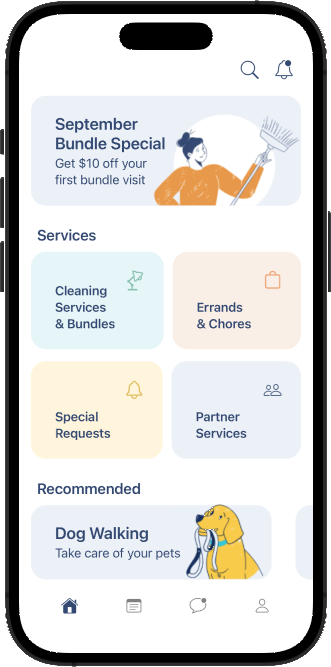
PleaseAssistMe — the finished project we’ll be creating

First, and this is probably my favorite thing to do, let us break this entire design down into smaller sections.

The ‘header’

The header — this includes the search and notification icons located at the top right of the app.

The ‘body’

The body — This includes the various sections starting with:

  • The ‘September bundle special’ section at the top.
  • The ‘services’ section — where each service is depicted by one of four colored rectangular subsections, with a title and icon.
  • The ‘recommended’ section — featuring a horizontal scrollable list.
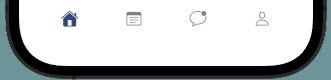
The ‘footer’

The footer — The bottom navigation bar.

MainTabController

Create a file called MainTabController.swift file, it will subclass UITabBarController — this is a container view controller that holds an array of child view controllers, and manages navigation between them.

When a user taps on a tab in the bottom navigation bar, the UITabBarController switches the currently displayed view controller, to the corresponding child view controller associated with that tab.

    // calls the configViews(), configTabBar() 
    // and configConstraints() functions
    // these handle the setup of the app ui

    override func viewDidLoad() {
        super.viewDidLoad()
        view.backgroundColor = .white
        configViews()
        configTabBar()
        configConstraints()
        
    }

    // topView: This UIView represents 
    // the top section of the screen.
    // searchIcon and notificationButton: 
    // Buttons for search and notification icons, respectively.

    let topView: UIView = {
        let view = UIView()
        view.backgroundColor = .white
        view.translatesAutoresizingMaskIntoConstraints = false
        return view
    }()

    // Search Icon

    let searchIcon: UIButton = {
        var button = UIButton()
        let config = UIImage.SymbolConfiguration(pointSize: 20, weight: .light, scale: .large)
        let image = UIImage(systemName: "magnifyingglass", withConfiguration: config)
        button.setImage(image, for: .normal)
        button.tintColor = UIColor(named: "mainColor")
        button.translatesAutoresizingMaskIntoConstraints = false
        return button
    }()

    // Notification Icon

    let notificationButton: UIButton = {
        var button = UIButton()
        let config = UIImage.SymbolConfiguration(pointSize: 20, weight: .light, scale: .large)
        let image = UIImage(systemName: "bell.badge", withConfiguration: config)
        button.setImage(image, for: .normal)
        button.tintColor = UIColor(named: "mainColor")
        button.translatesAutoresizingMaskIntoConstraints = false
        return button
    }()
   
    // The following 4 buttons represent "The Footer"

    // 1 - The home button
    let homeBtn: UIButton = {
        var btn = UIButton()
        let config = UIImage.SymbolConfiguration(pointSize: 16, weight: .light, scale: .large)
        let image = UIImage(systemName: "house.fill", withConfiguration: config)
        btn.setImage(image, for: .normal)
        btn.tintColor = UIColor(named: "mainColor")
        btn.layer.cornerRadius = 20
        btn.translatesAutoresizingMaskIntoConstraints = false
        return btn
    }()

    // 2 - The notes button
    let notesBtn : UIButton = {
        var btn = UIButton()
        let config = UIImage.SymbolConfiguration(pointSize: 16, weight: .light, scale: .large)
        let image = UIImage(systemName: "note.text", withConfiguration: config)
        btn.setImage(image, for: .normal)
        btn.backgroundColor = .clear
        btn.tintColor = .gray
        btn.translatesAutoresizingMaskIntoConstraints = false
        return btn
    }()
    
    // 3 - The messages button
    let messageBtn : UIButton = {
        let btn = UIButton()
        let config = UIImage.SymbolConfiguration(pointSize: 16, weight: .light, scale: .large)
        let image = UIImage(systemName: "message.badge", withConfiguration: config)
        btn.setImage(image, for: .normal)
        btn.backgroundColor = .clear
        btn.tintColor = .gray
        btn.translatesAutoresizingMaskIntoConstraints = false
            return btn
        }()
    
    // 4 - The user profile button
    let userBtn : UIButton = {
        let btn = UIButton()
        let config = UIImage.SymbolConfiguration(pointSize: 16, weight: .light, scale: .large)
        let image = UIImage(systemName: "person", withConfiguration: config)
        btn.setImage(image, for: .normal)
        btn.backgroundColor = .clear
        btn.tintColor = .gray
        btn.translatesAutoresizingMaskIntoConstraints = false
        return btn
        }()
    

    // This stackview will arrange the bottom navigation buttons.
    let buttonStackView : UIStackView = {
        let stackView = UIStackView()
        stackView.translatesAutoresizingMaskIntoConstraints = false
        stackView.distribution = .equalSpacing
        stackView.axis = .horizontal
        return stackView
    }()

    // This function adds the topView and its subviews 
    // (searchIcon and notificationButton) to the main view.
    func configViews(){
        view.addSubview(topView)
        topView.addSubview(searchIcon)
        topView.addSubview(notificationButton)
    }

    // this function adds the bottom navigation buttons 
    // to the buttonStackView.
    func configTabBar(){
    // The viewControllers array is currently empty, but not for long
        viewControllers = []
        tabBar.barTintColor = .white
        tabBar.addSubview(buttonStackView)
        [homeBtn, notesBtn, messageBtn, userBtn].forEach {
            buttonStackView.addArrangedSubview($0)
        }
    }


    func configConstraints(){
        
        NSLayoutConstraint.activate([

            // Constrains the topView to the top of the screen
            topView.topAnchor.constraint(equalToSystemSpacingBelow: view.safeAreaLayoutGuide.topAnchor, multiplier: 0),
            topView.leadingAnchor.constraint(equalToSystemSpacingAfter: view.safeAreaLayoutGuide.leadingAnchor, multiplier: 0),
            view.trailingAnchor.constraint(equalToSystemSpacingAfter: topView.trailingAnchor, multiplier: 0),
       
            // constrains the notification and search icons to
            // the top right of topView
            notificationButton.topAnchor.constraint(equalToSystemSpacingBelow: topView.topAnchor, multiplier: 0),
            notificationButton.leadingAnchor.constraint(equalToSystemSpacingAfter: searchIcon.trailingAnchor, multiplier: 2),
            searchIcon.centerYAnchor.constraint(equalTo: notificationButton.centerYAnchor),
            topView.trailingAnchor.constraint(equalToSystemSpacingAfter: notificationButton.trailingAnchor, multiplier: 3),
            topView.bottomAnchor.constraint(equalToSystemSpacingBelow: notificationButton.bottomAnchor, multiplier: 1),
            
        
            buttonStackView.leadingAnchor.constraint(equalToSystemSpacingAfter: view.leadingAnchor, multiplier: 6),


            // sets the height and width 
            // of the bottom nav bar buttons
            // to 40

            homeBtn.widthAnchor.constraint(equalToConstant: 40),
            homeBtn.heightAnchor.constraint(equalToConstant: 40),
            
            notesBtn.widthAnchor.constraint(equalToConstant: 40),
            notesBtn.heightAnchor.constraint(equalToConstant: 40),
            
            messageBtn.widthAnchor.constraint(equalToConstant: 40),
            messageBtn.heightAnchor.constraint(equalToConstant: 40),
           
            userBtn.widthAnchor.constraint(equalToConstant: 40),
            userBtn.heightAnchor.constraint(equalToConstant: 40),
            
            view.trailingAnchor.constraint(equalToSystemSpacingAfter: buttonStackView.trailingAnchor, multiplier: 6)
            
        ])


    }

This will serve as our entry point into the app. We ensure this by adding the following code into the didFinishLaunchingWithOptions function within AppDelegate.swift.

let navigationBarAppearance = UINavigationBarAppearance()
            navigationBarAppearance.configureWithTransparentBackground()
            navigationBarAppearance.backgroundColor = UIColor.white
            UINavigationBar.appearance().standardAppearance = navigationBarAppearance
            
        window = UIWindow(frame: UIScreen.main.bounds)
        window?.rootViewController = UINavigationController(rootViewController: MainTabController())
        window?.makeKeyAndVisible()
        return true
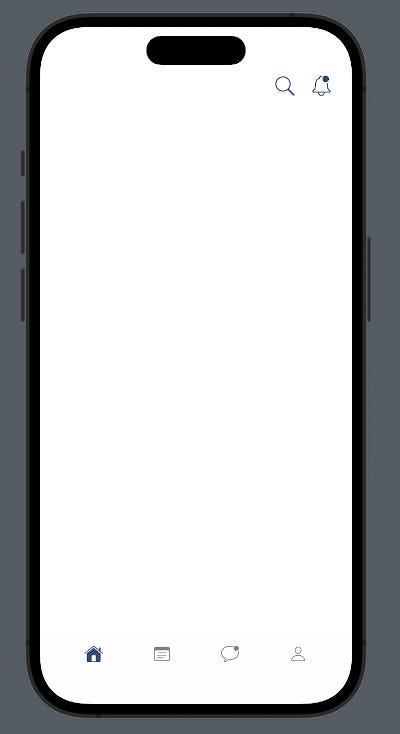
MainTabController

MainTabController is a pretty common user interface with a top section (the ‘header’) containing search and notification icons, and a bottom navigation bar(the ‘footer’) with buttons for home, notes, messages, and user profile.

HomeController

Now, create a file named HomeController.swift — it will subclass the UICollectionViewController, utilizing the UICollectionViewCompositionalLayout to be able to create unique UI layouts, (we will get to all of this, soon).

A compositional layout is a type of collection view layout. It’s designed to be composable, flexible, and fast, letting you build any kind of visual arrangement for your content by combining — or compositing — each smaller component into a full layout.

HomeController serves as the ‘body’ section of the app, it is a CollectionView encompassing the majority of the app’s UI components.

Let us begin with the ‘September Bundle Special’ section, by creating two files:

  • IllustrationView.swift — This is a custom UIView that contains two UILabels and a UIImageView.
  • TopCell.swift — This subclasses UICollectionViewCell and will simply display IllustrationView.

We’ll create IllustrationView.swift first. Full source code can be found here.

    // This label represents the title
    var title: UILabel = {
        let label = UILabel()
        label.textColor = UIColor(named: "mainColor")
        label.numberOfLines = 0
        label.lineBreakMode = .byWordWrapping
        label.font = .boldSystemFont(ofSize: 22)
        label.translatesAutoresizingMaskIntoConstraints = false
        return label
    }()

    // This label represents the subtitle
    var subtitle: UILabel = {
        let label = UILabel()
        label.textColor = UIColor(named: "mainColor")
        label.numberOfLines = 0
        label.lineBreakMode = .byWordWrapping
        label.font = .preferredFont(forTextStyle: .body)
        label.translatesAutoresizingMaskIntoConstraints = false
        return label
    }()

    // Stackview positions the title above the subtitle
    let titleStackView: UIStackView = {
        let stackView = UIStackView()
        stackView.axis = .vertical
        stackView.spacing = 3
        stackView.translatesAutoresizingMaskIntoConstraints = false
        return stackView
    }()

    // The background image
    var illustration: UIImageView = {
        var img = UIImageView()
        img.contentMode = .scaleAspectFit
        img.clipsToBounds = true
        img.translatesAutoresizingMaskIntoConstraints = false
        return img
    }()

    // Function to add the components to the view
    func configViews(){
        layer.cornerRadius = 20
        addSubview(titleStackView)
        titleStackView.addArrangedSubview(title)
        titleStackView.addArrangedSubview(subtitle)
        addSubview(illustration)
    }
        
    // Function to position the components within the view
    func configConstraints(){
        NSLayoutConstraint.activate([
            titleStackView.leadingAnchor.constraint(equalToSystemSpacingAfter: leadingAnchor, multiplier: 4),
            titleStackView.topAnchor.constraint(equalToSystemSpacingBelow: topAnchor, multiplier: 3),
            illustration.centerYAnchor.constraint(equalTo: titleStackView.centerYAnchor),
            bottomAnchor.constraint(equalToSystemSpacingBelow: illustration.bottomAnchor, multiplier: 0),
            trailingAnchor.constraint(equalToSystemSpacingAfter: illustration.trailingAnchor, multiplier: 0)
        ])
    }

Now, let us create TopCell.swift and place IllustrationView inside of it. Full source code here.

    // The IllustrationView
    var topIllustration: IllustrationView = {
        let top = IllustrationView()
        top.translatesAutoresizingMaskIntoConstraints = false
        return top
    }()
    // Function to add IllustrationView to TopCell
    func configViews(){
        addSubview(topIllustration)
    }
    // Function to align IllustrationView within TopCell
    func configConstraints(){
        NSLayoutConstraint.activate([
            topIllustration.topAnchor.constraint(equalToSystemSpacingBelow: topAnchor, multiplier: 0),
            
            topIllustration.leadingAnchor.constraint(equalToSystemSpacingAfter: leadingAnchor, multiplier: 2),
            trailingAnchor.constraint(equalToSystemSpacingAfter: topIllustration.trailingAnchor, multiplier: 2),
        ])
        
    }
    // Function to set the text for the labels, 
    // and the image in IllustrationView
    func configData(){
        topIllustration.title.text = "September\nBundle Special"
        topIllustration.subtitle.text = "Get $10 off your\nfirst bundle visit"
        topIllustration.illustration.image = UIImage(named: "cleaning")
    }

We can now finally create HomeController.swift.

import UIKit

class HomeController: UICollectionViewController, UICollectionViewDelegateFlowLayout {
    
    let topCell = "TopCell"
    
    override func viewDidLoad() {
        super.viewDidLoad()
        collectionView.backgroundColor = .white
        collectionView.register(TopCell.self, forCellWithReuseIdentifier: topCell)
        
    }
    
    init() {
        //using CollectionView FlowLayout, for now
        let layout = UICollectionViewFlowLayout()
        super.init(collectionViewLayout: layout)
        }
        
        required init?(coder: NSCoder) {
            fatalError("init(coder:) has not been implemented")
        }
    
        
        func collectionView(_ collectionView: UICollectionView, layout collectionViewLayout: UICollectionViewLayout, sizeForItemAt indexPath: IndexPath) -> CGSize {
            
            return .init(width: view.frame.width, height: 350)
        }


        func collectionView(_ collectionView: UICollectionView, layout collectionViewLayout: UICollectionViewLayout, insetForSectionAt section: Int) -> UIEdgeInsets {
            return .init(top: 48, left: 0, bottom: 0, right: 0)
        }
    
    
    override func numberOfSections(in collectionView: UICollectionView) -> Int {
        1
    }
    
    override func collectionView(_ collectionView: UICollectionView, numberOfItemsInSection section: Int) -> Int {
        return 1
    }
        
    override func collectionView(_ collectionView: UICollectionView, cellForItemAt indexPath: IndexPath) -> UICollectionViewCell {
        
        let cell = collectionView.dequeueReusableCell(withReuseIdentifier: topCell, for: indexPath) as! TopCell
        return cell
    }
}

After creating HomeController, we now need to add it to MainTabController. Look for the configTabBar() function, remember it had an empty array named viewControllers? We’ll be adding HomeController() to that array.

func configTabBar(){
        //HomeController added to the viewControllers array
        viewControllers = [HomeController()]
        
        tabBar.barTintColor = .white
        tabBar.addSubview(buttonStackView)
        [homeBtn, bagBtn,heartBtn,userBtn].forEach {
            buttonStackView.addArrangedSubview($0)
        }
        
    }

Here’s the outcome of all the coding we’ve done thus far. The app is slowly starting to resemble the redesign, isn’t it?
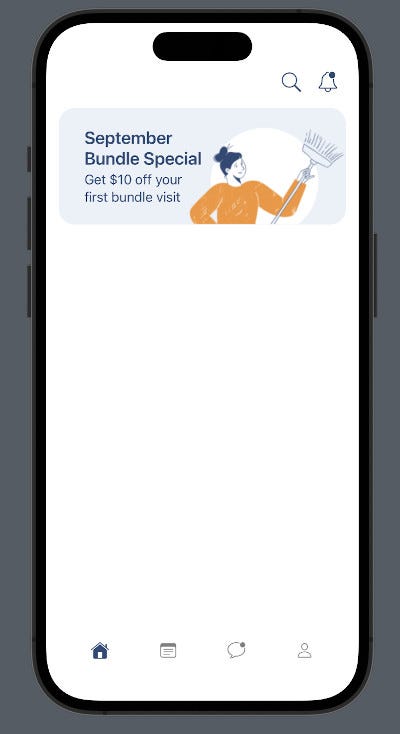
HomeController added

So, remember when we talked about Compositional Layouts? It’s like Apple’s preferred approach for implementing CollectionView layouts in UIKit. Let’s dive a bit deeper into this approach!

A compositional layout is composed of one or more sections that break up the layout into distinct visual groupings. Each section is composed of groups of individual items, the smallest unit of data you want to present. A group might lay out its items in a horizontal row, a vertical column, or a custom arrangement.
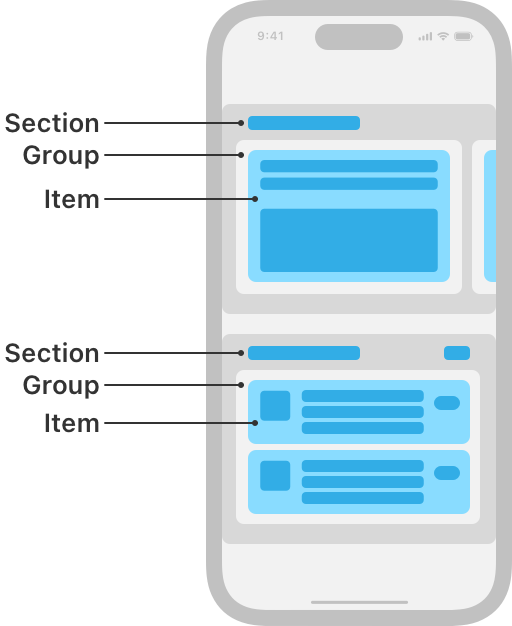
Diagram of a compositional layout with items nested in groups within a section, image courtesy Apple Inc.

As shown in the diagram, CompositionalLayout lets you mix and match different cells with varying components, within a single CollectionView (It’s like having a party where each guest brings something special, unlike the old Flow Layout, which is more like a strict solo performance).

Let us refactor the init() function to use the CompositionalLayout .

        // An item represents a single element 
        // that can be displayed in the collection view
        // Item width will span its container
        let item = NSCollectionLayoutItem(layoutSize: .init(widthDimension: .fractionalWidth(1.0), heightDimension: .fractionalHeight(1.0)))

        // A group organizes items within the collection view
        // this group is arranged vertically 
        // and has a fixed height of 150
        let group = NSCollectionLayoutGroup.vertical(layoutSize: .init(widthDimension: .fractionalWidth(1), heightDimension: .absolute(150)), subitems: [item])
        
        // A section represents a distinct part 
        // or segment of the collection view.
        // it contains the group, 
        let section = NSCollectionLayoutSection.init(group: group)
        let layout = UICollectionViewCompositionalLayout(section: section)
        super.init(collectionViewLayout: layout)

The outcome will appear identical; the only differance is that we’re now utilizing the Compositional Layout.

Alrighty, folks! We’re putting a bow on Part 1 of this episode, but stay tuned! In the next segment, we’re going to:

  • Take a deeper dive into the world of compositional layout.
  • Create unique cells for the remaining sections.
  • Add titles!

See you soon! And before I forget, the completed source code can be found in the GitHub repo below(please leave a star if you find it useful).

Thanks for reading!

Programming
iOS App Development
iOS Development
Swift
Xcode
Recommended from ReadMedium