
Recreate a Dribbble App Design with UIKit Episode 1 — Part 1
This article will guide you through my thought process and approach to programmatically recreating a cool UI design.
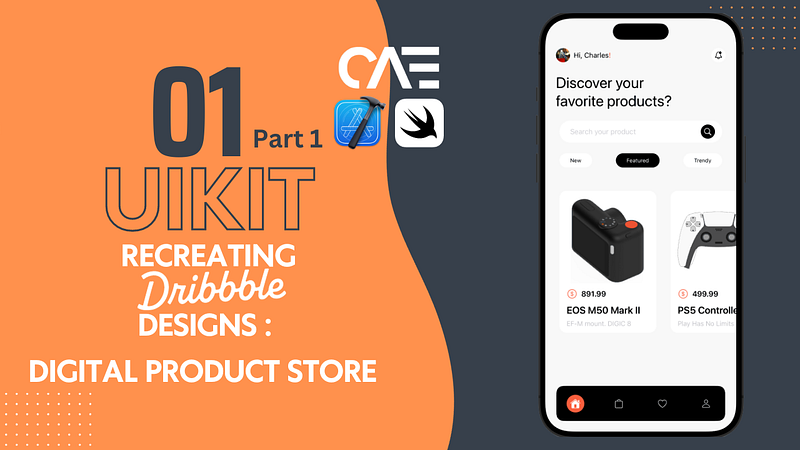
Earlier this week, I stumbled across this youtube video by AJ Picard recreating a design he randomly found on Dribbble using SwiftUI, and it immediately had me thinking:
- That’s kinda interesting, seeing him basically bringing the design to life.
- I should probably try my hand at that, (I think we all should brush up on our UI skills from time to time) but using UIKit.
So, I went and did some scrolling of my own on Dribbble and this Digital Product Store App design caught my eye.
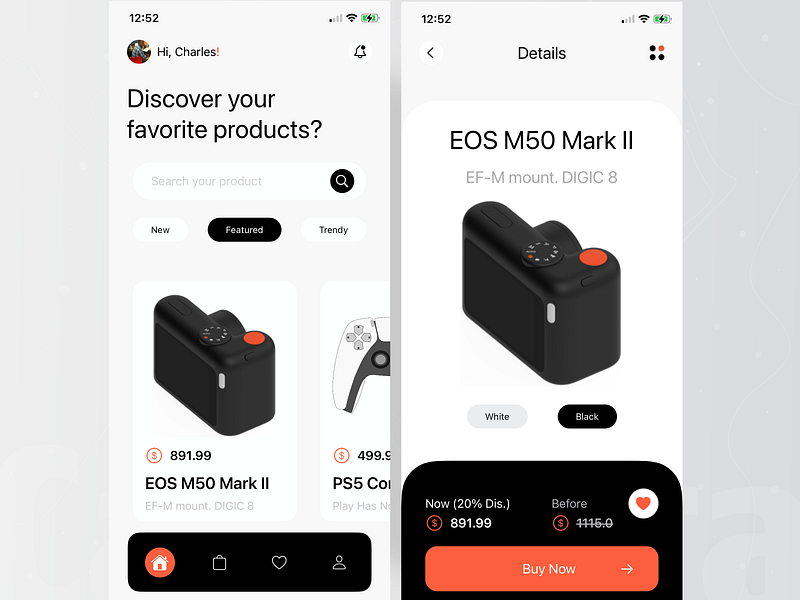
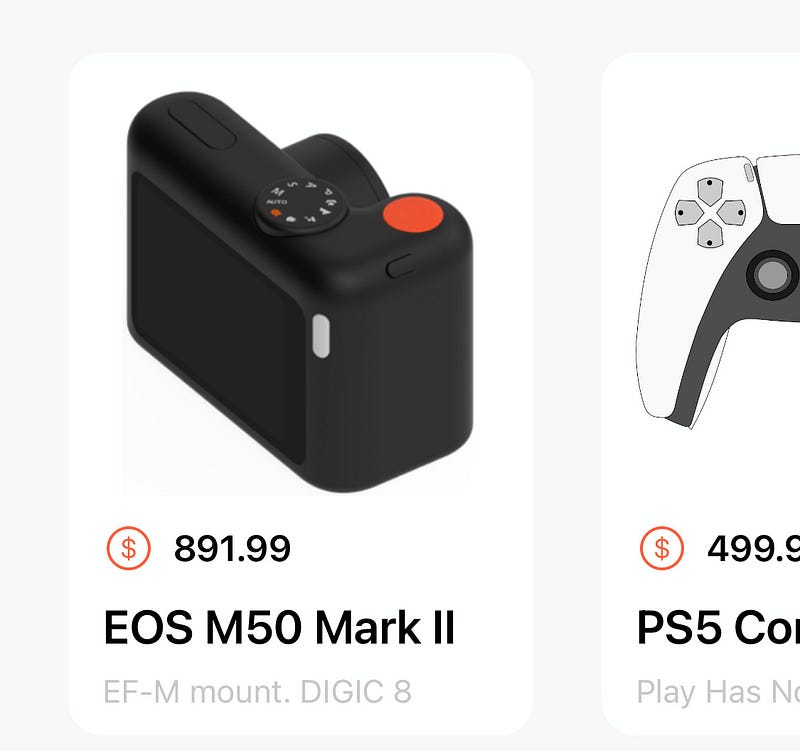
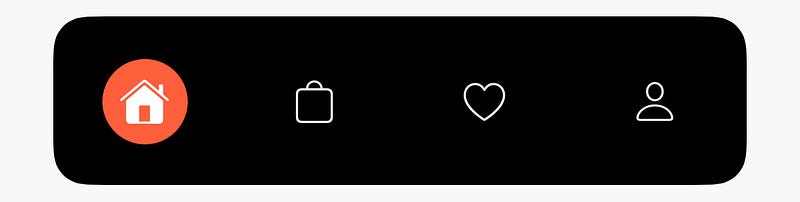
Before jumping into the code, lets quickly take a second to analyze and perhaps break down this design into smaller sections. I found it fitting to name these sections : the header, body & footer (if these sound familiar, it’s because I am also a web developer).
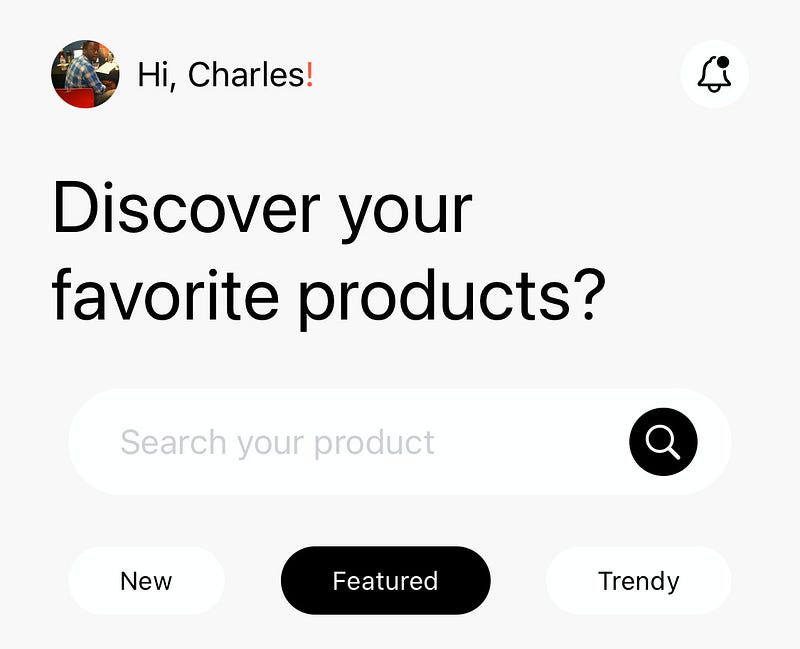
The Header
Right off the bat, there are a few things to note, a custom navigation bar is being used…actually no, the area where the navigation bar would be is replaced with (from left to right) a small circular image(with the user’s profile picture), a greeting, and a notification button. My approach for this was: a UIImageView, a UILabel and a UIButton

override func viewDidLoad() {
        super.viewDidLoad()
        view.backgroundColor = UIColor(named: "bgGray")
        configViews()
        configConstraints()

    }

// Create the views

// UIImageView was assigned an image file named "charles"
// from the assets folder, and given a corner radius of 16
let profileImage: UIImageView = {
  let imageView = UIImageView()
  imageView.image =  UIImage(named: "charles")
  imageView.layer.cornerRadius = 16
  imageView.clipsToBounds = true
  imageView.translatesAutoresizingMaskIntoConstraints = false
  return imageView
}()

// The greeting label
let greetingLabel: UILabel = {
  let label = UILabel()
  label.textColor = .black
  label.text = "Hi, Charles!"
  label.font = .preferredFont(forTextStyle: .callout)
  label.translatesAutoresizingMaskIntoConstraints = false
  return label
}()

// The UIButton has an SF Symbol image attached,
// a tint of black, background color of white, and rounded corners
let notificationButton: UIButton = {
  var button = UIButton()
  let image = UIImage(systemName: "bell.badge")
  button.setImage(image, for: .normal)
  button.backgroundColor = .white
  button.tintColor = .black
  button.layer.cornerRadius = 16
  button.translatesAutoresizingMaskIntoConstraints = false
  return button
}()

// Add the views to the parentview
func configViews(){
  view.addSubview(profileImage)
  view.addSubview(greetingLabel)
  view.addSubview(notificationButton)
}

// Add some contraints, to arrange them out horizontally
func configConstraints() {

NSLayoutConstraint.activate([
  profileImage.topAnchor.constrnnaint(
  equalToSystemSpacingBelow: view.safeAreaLayoutGuide.topAnchor, multiplier: 1),
// this ^^^^^^ line
// constraintconstraint(
// equalToSystemSpacingBelow: safeAreaLayoutGuide.topAnchor,
// multiplier: 1)

// means that the top of the image
// is set to the top of the parent view
// within the safe area (below the iPhone's notch/dynamic island),
// by a multiplier of 1, (which is equivalent to 8 pts)

  profileImage.leadingAnchor.constraint(
            equalToSystemSpacingAfter: view.leadingAnchor, multiplier: 3),

// leadingAnchor.constraint(
// equalToSystemSpacingAfter: leadingAnchor, multiplier: 3)

// this means that the left of the image
// is set to the side of the parent view,
// by 24 pts (multiplier of 3. 3 * 8 = 24)

  profileImage.heightAnchor.constraint(equalToConstant: 32),
  profileImage.widthAnchor.constraint(equalToConstant: 32),
// this sets the height and width to 32
// which along with the corner radius previously set to 16
// gives the image the full circular shape

  greetingLabel.centerYAnchor.constraint(equalTo: profileImage.centerYAnchor),
  greetingLabel.leadingAnchor.constraint(
  equalToSystemSpacingAfter: profileImage.trailingAnchor, multiplier: 1),

// The greeting label's Y anchor is equal to the Y anchor of profile image,
// aligning them horizontally
// the greeting label's left side
// is set to 8pts awy from the profile image's right side

  notificationButton.heightAnchor.constraint(equalToConstant: 32),
  notificationButton.widthAnchor.constraint(equalToConstant: 32),
  notificationButton.centerYAnchor.constraint(equalTo: greetingLabel.centerYAnchor),
  view.trailingAnchor.constraint(
  equalToSystemSpacingAfter: notificationButton.trailingAnchor, multiplier: 3),

// this means that the right side of the parent view
// is set to 24 (3 * 8) pts
// from the notification button's right side
])
}
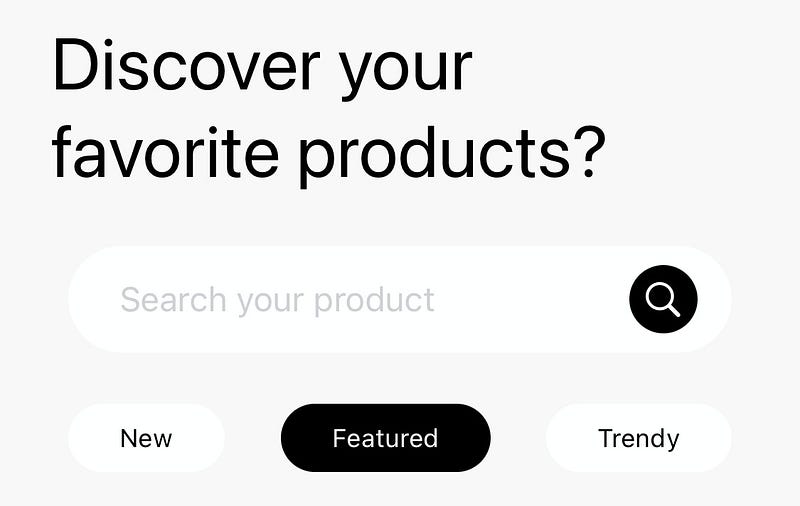
Next, there’s a large title (spanning two lines), below that there’s a search bar (with placeholder text and a custom icon within it) and lastly, some “pills” containing words, matching the width of the search bar above it.
// Create the views
// Title label is assigned a value of 2 for its 'numberOfLines' property
// and 'lineBreakMode' is set to '.byWordWrapping'
// This allows it to span multiple lines
// I then set the size to Apple's 'largeTile' fontsize,
// which you can already guess what this does
let titleLabel: UILabel = {
  let label = UILabel()
  label.numberOfLines = 2
  label.lineBreakMode = .byWordWrapping
  label.text = "Discover your favorite products?"
  label.textColor = .black
  label.font = .preferredFont(forTextStyle: .largeTitle)
  label.translatesAutoresizingMaskIntoConstraints = false
  return label
}()

// An empty uiview with a corner radius of 25,
// I'll revisit this shortly
let searchView: UIView = {
  let searchView = UIView()
  searchView.backgroundColor = .white
  searchView.layer.cornerRadius = 25
  searchView.translatesAutoresizingMaskIntoConstraints = false
  return searchView
}()

// UIButton, with an SF symbol and background color,
// similar to the notification button earlier
let searchIcon : UIButton = {
  var button = UIButton()
  let image = UIImage(systemName: "magnifyingglass")
  button.setImage(image, for: .normal)
  button.backgroundColor = .black
  button.tintColor = .white
  button.layer.cornerRadius = 16
  button.translatesAutoresizingMaskIntoConstraints = false
  return button
}()

// Textfield to input text
let searchTextField: UITextField = {
  var textField = UITextField()
  textField.attributedPlaceholder = NSAttributedString(string: "Search your product", attributes: [.font: UIFont.preferredFont(forTextStyle: .callout),.foregroundColor: UIColor.systemGray4])
  textField.borderStyle = .none
  textField.translatesAutoresizingMaskIntoConstraints = false
  return textField
}()


func configViews(){
  view.addSubview(profileImage)
  view.addSubview(greetingLabel)
  view.addSubview(notificationButton)

// Add the title label and search view to parent view
  view.addSubview(titleLabel)
  view.addSubview(searchView)

// the icon and textfield are ADDED TO the searchview
// the previously empty UIView
searchView.addSubview(searchIcon)
searchView.addSubview(searchTextField)
}


NSLayoutConstraint.activate([
// The large title is anchored 32 pts below the first set of items,
// 24 pts from the left of the parent view,
// 32 pts from the right of the parentview

  titleLabel.topAnchor.constraint(
  equalToSystemSpacingBelow: greetingLabel.bottomAnchor, multiplier: 4),

  titleLabel.leadingAnchor.constraint(
  equalToSystemSpacingAfter: view.leadingAnchor, multiplier: 3),

  view.trailingAnchor.constraint(
  equalToSystemSpacingAfter: titleLabel.trailingAnchor, multiplier: 4),

// SearchView is set to 24 pts below the large title
// and 32 pts from the left of the parent view
  searchView.topAnchor.constraint(
  equalToSystemSpacingBelow: titleLabel.bottomAnchor, multiplier: 3),

  searchView.leadingAnchor.constraint(
  equalToSystemSpacingAfter: view.leadingAnchor, multiplier: 4),

// Height anchor set to 50
// Remember the corner radius was set to 25?
// this will give it the circular look

  searchView.heightAnchor.constraint(equalToConstant: 50),

  view.trailingAnchor.constraint(
  equalToSystemSpacingAfter: searchView.trailingAnchor, multiplier: 4),
// Remember, the search icon is placed WITHIN the searchview
// its Y anchor is then set to the searchview's own, centering it horizontally

  searchIcon.centerYAnchor.constraint(equalTo: searchView.centerYAnchor),
  searchIcon.heightAnchor.constraint(equalToConstant: 32),
  searchIcon.widthAnchor.constraint(equalToConstant: 32),

// since it is to the RIGHTmost side of the searchview...
// set the SEARCHVIEW's trailing anchor to be 16 pts from the icon's trailing
// looking at that piece of code may confuse you, so think of it as...
// the right of the search icon is set to 16 pts FROM the right of the search view

  searchView.trailingAnchor.constraint(
  equalToSystemSpacingAfter: searchIcon.trailingAnchor, multiplier: 2),

// Remember, the textfield is placed WITHIN the searchview
// so it's Y anchor is set to the searchviews, centering it horizontally
        searchTextField.centerYAnchor.constraint(equalTo: searchView.centerYAnchor),
        searchTextField.leadingAnchor.constraint(equalToSystemSpacingAfter: searchView.leadingAnchor, multiplier: 3)
])
Let’s take a look at what we’ve got so far shall we?
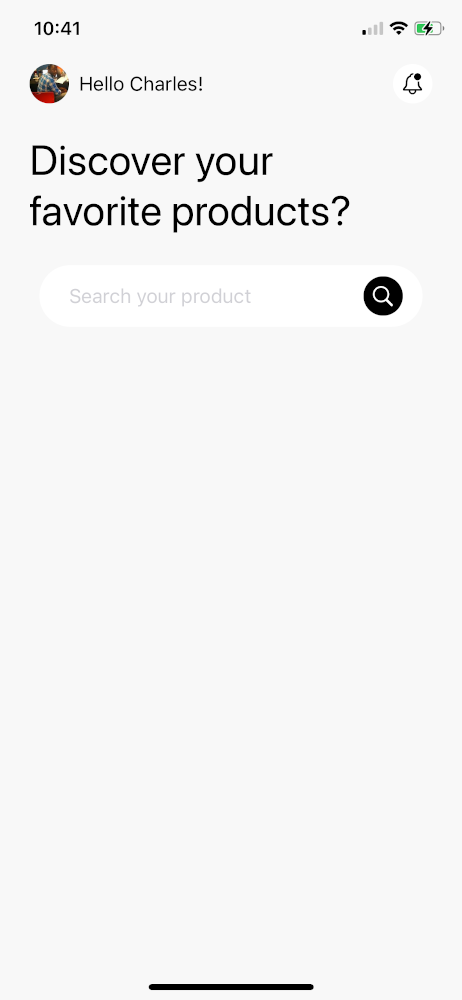
But wait a second….what about the ‘pills’??
We will cover that in Part 2 of this series.
Everything covered so far is available in the GitHub repo, in case you might have missed something.
Thanks for reading!


