
NetCore REST API/Dapper/SQLKata with VS Template KissApi

I have been searching for a Visual Studio template to generate a Clean Architecture ASP.NET Core REST API solution with boilerplate code for advanced features CRUD/Paging and apparatus Repository/Unit-of-Work, Dapper, SQLKata, Swashbuckle, and GenFu. Unable to find one, I decided to create the KissApi (Keep-It-Stupid-Simple Api) template and share it in the Visual Studio marketplace.
In this tutorial, I will go over the steps to download/install the template and use the template to rapidly prototype REST API.
Overview of KissApi template
Developers can use the Visual Studio template KissAPI to scaffold a clean architecture REST API solution consisting of four projects
- Domain
- Application
- Persistence
- WebApi
The solution tech stack provides loosely-coupled and inverted-dependency architecture with good design patterns and practices.
- ASP.NET CORE — a framework for creating RESTful services, also known as web APIs, using C#
- Repository and Unit of Work — an abstraction layer between the data access layer and the controller
- Dapper — the king of the C# Micro ORM for simple object mapper for .NET
- SQLKata — a fluent SQL query builder for C#
- Swashbuckle — Seamlessly adds a Swagger to WebApi projects! Combines ApiExplorer and Swagger/swagger-ui to provide a rich discovery, documentation, and playground experience to your API consumers
- GenFu — a realistic, easy to use mock data library
Download KissAPI Template
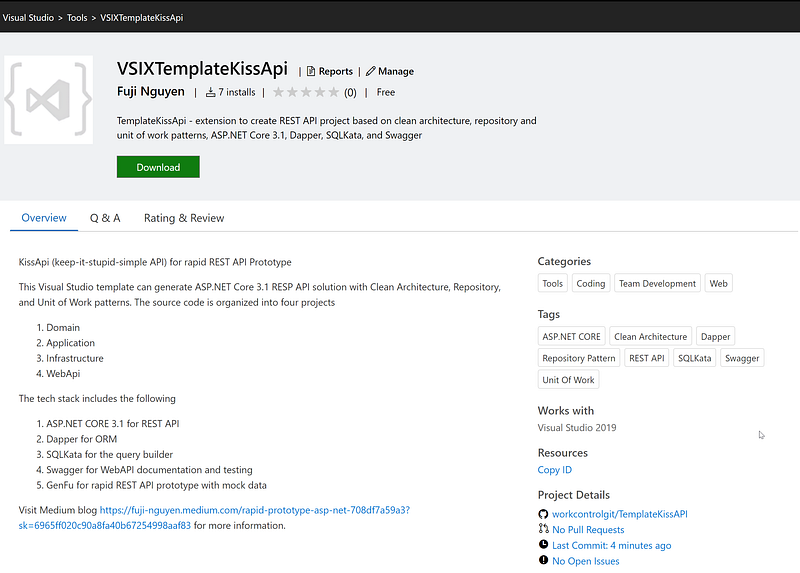
You can download the VSIXTemplateKissAPI from the Visual Studio Marketplace.
After download, click on the VSIXTemplateKissAPI.vsix to install the extension. If you are new to Visual Studio Extension, visit Manage extensions for Visual Studio for installation instructions.
Generate a New REST API Project with KissApi Template
The easiest way to create a new project is to start from a project template for a particular type of application or website. A project template consists of a basic set of pre-generated code files, config files, assets, and settings.
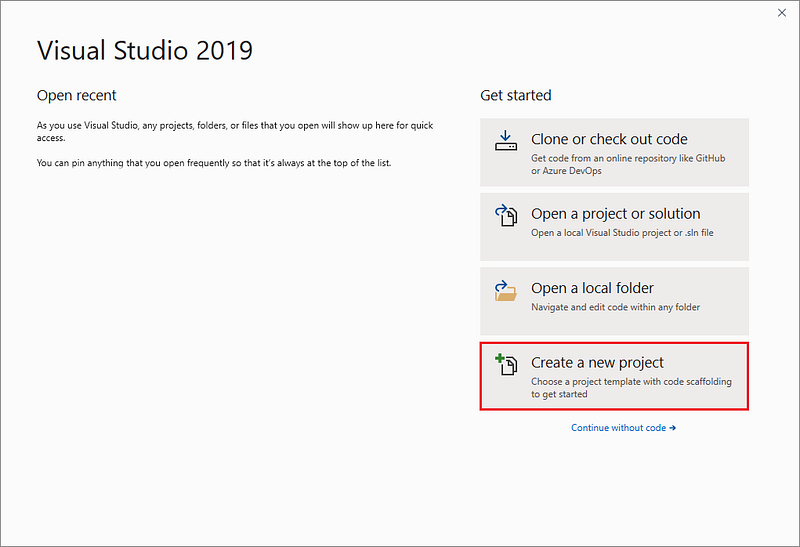
When you first open Visual Studio, the start window appears, and from there, you can choose to create a new project.
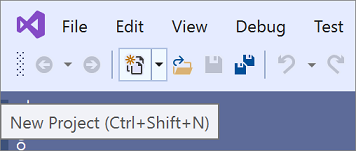
If the Visual Studio development environment is already open, you can create a new project by choosing File > New > Project on the menu bar or by clicking the New Project button on the toolbar.
Task 1 — Select a Template Type
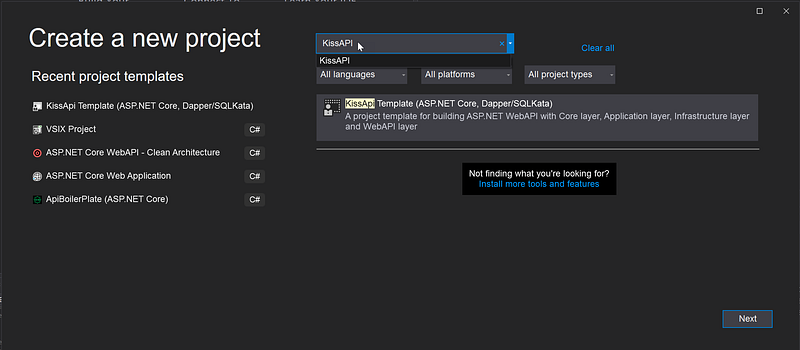
On the Create a new project page, a list of your recently selected templates appears on the left. The templates are sorted by most recently used.
If you’re not selecting from the recently used templates, you can filter all available project templates by entering search text into the search box to further filter the templates.
Task 2— Create a Solution
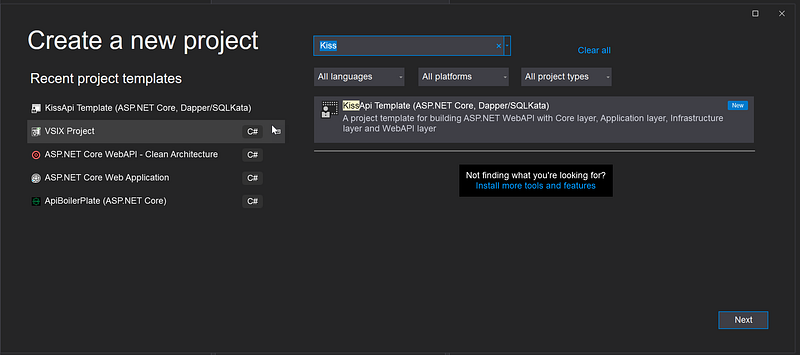
On the Create a new project screen, search for the “KissApi” template and click on the Next button
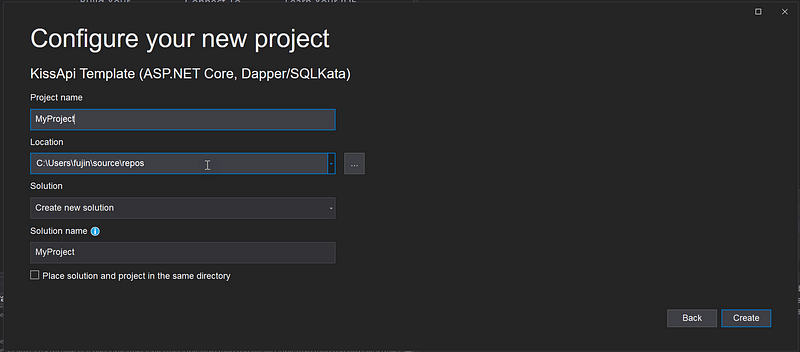
Enter the project name (ex. MyProject) and click on the Create button
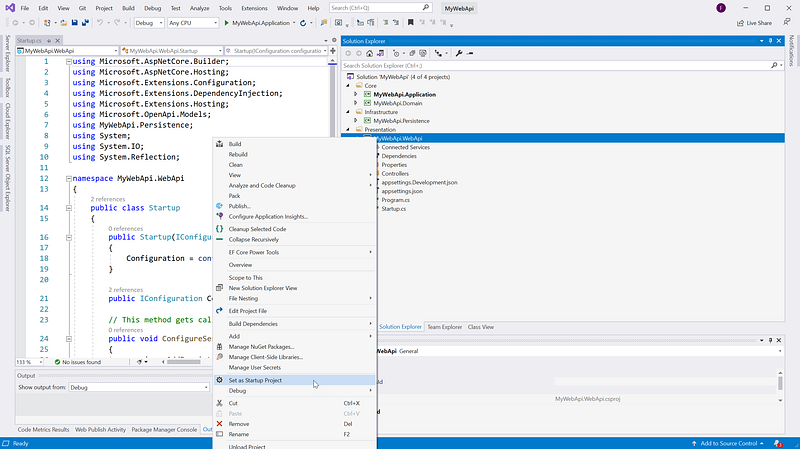
Right-mouse click on MyProject.WebApi and Set as Startup Project
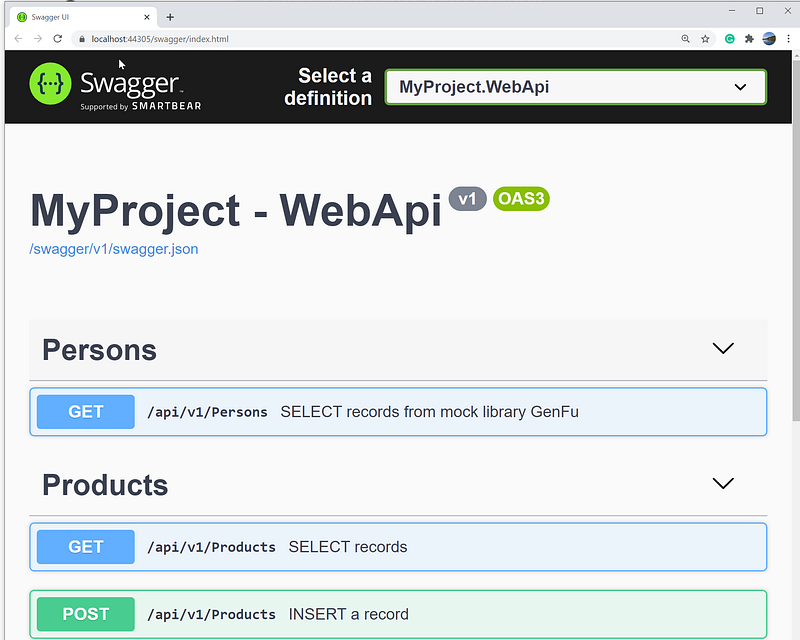
Hit F5 to run. The swagger should show in the browser
Run the SQL script below to create a database and table object. Notice that you may need to change the database name to match with the one in your appsettings.json in the WebApi project.
KissAPI Template Screencast
Check out the complementary screencast showing
- Scaffolding new project using the Visual Studio template KissAPI
- Browsing thru source code organization in the Clean Architecture solution
- Demonstration of REST API via Swagger
Check out related tutorials
- DevKit API Security — IdentityServer4 with Admin UI, ASP.NET WebAPI, and Angular Tutorial — a multipart tutorial for implementing Token Service to secure Clients and API Resources using OIDC/oAuth2/JWT
- Rapid Prototype of ASP.NET Core WebAPI with Swashbuckle and Bogus — use a combination of Swashbuckle.AspNetCore and Bogus libraries to construct and simulate REST endpoints
- Rapid Prototype Asp.Net Core REST API using OnionAPI Template — Visual Studio template to generate a Clean Architecture ASP.NET Core REST API solution with boilerplate code for advanced features such as data filtering, sorting, paging, and shaping
- CAT architecture pattern for modern app SPA/Mobile — the modern approach to build scalable and maintainable applications.
Summary
When managing the development, many organizations are struggling with governance and look for value-added process improvement tools. The KissApi template increases consistency while decreases delivery times.
In case you want to know how to secure the REST API project with oAuth2, check out my other tutorials DevKit WebAPI Security.
Have a great REST!


