
Python — Reading and Writing Data from Files
Prerequisites: Basic knowledge of any programming language and different file formats to store data. We will explore how to read the data from different files like csv, excel, JSON, html, and xml.
Jupyter notebook can be found here
As the first step to Machine Learning, we need to know to read data from files for data analysis. Different types of files formats which we can receive data can be:
- CSV — comma separated file
- XLS — Excel files
- JSON — Data stored in json format
- HTML — Hypertext Markup Language files
We will first start with Python’s built-in file object and then dive deeper into how to read different types of files using the pandas library.
Let’s start with creating a file, writing the data to the file, and then reading the file. Also, let’s not forget to close the file.
File Operations using Python’s File Object
We will use a file object which we will pass two arguments — filename and the mode in which we want to operate on the file — like if you want to open the file for reading or writing or appending.
open(Filename,Mode)
Different modes are
- w : file will be opened in write only mode. If a file is opened in “w” mode and a file already exists then the existing files content will be overwritten
- r : file will be opened in read only mode. This is the default mode
- a : file will be opened in append mode and the data will be written at the end of the file
- r+ : file will be opened in read and write mode
Files Types — Text and Binary
Files are opened in text mode by default that allows you to read and write data as strings of text.
If you want to open the file in the binary mode then append “b” to the mode.
Opening file in write only mode
Opening the “file_1.txt” in write only mode. If the file does not exists then it will create one and if file already exists then the contents will be overwritten. Always making sure to close the file
file = open("file_1.txt", "w")
file.write("This a test write\n")
file.close()
Now that we have written the data, we will read the contents of the file.
Reading the file in read-only mode
readline() reads a single line from the file
file = open("file_1.txt", "r")
str1 = file.readline()
print(str1)
file.close()
This a test writewriting to the file in append mode
file = open("file_1.txt", "a")
file.write("This should be written at the end of the file\n")
file.close()
opening the file in “r+” mode and reading all its content
file = open("file_1.txt", "r+")
for str1 in file.readlines():
    print(str1)
file.close()
This a test write
This should be written at the end of the fileReading the file with the with statement
with is a cleaner way to work with file objects as it does exception handling. The with statement does automatic opening and closing of files so that you do not need to remember to close the file.
with open("file_1.txt") as file:
print(file.readlines())['This a test write\n', 'This should be written at the end of the file\n']We can also write the data to a file using the with statement. Since we have used “w” mode the existing files content will be overwritten.
with open("file_1.txt", "w") as file:
    file.write("This is a with statement")

with open("file_1.txt", "r") as file:
print(file.readlines())['This is a with statement']We will now use pandas library to read a comma separated value(csv) file.
Writing to a csv file and reading from a csv file
We will first create some data in a dictionary called data
data ={"Name":['Jack', 'Jill', 'Em', 'David'],
           "Profession":['Manager', 'Analyst', 'Data scientist', 'VP'],
           "Experience":[10,5,2,20],
           "Education":['MBA', 'BS', 'MS','MBA']}
data{'Education': ['MBA', 'BS', 'MS', 'MBA'],
'Experience': [10, 5, 2, 20],
'Name': ['Jack', 'Jill', 'Em', 'David'],
'Profession': ['Manager', 'Analyst', 'Data scientist', 'VP']}
We will create a dataframe “df” from the dictionary and then write the data from dataframe to a csv file — “emp.csv”.
For creating a dataframe, we need to import pandas library first.
import pandas as pd
df = pd.DataFrame(data)df.to_csv("emp.csv")The csv file will be created in your default Jupyter directory. To know the default directory, use pwd (print working directory and) you can find the new file “emp.csv”
pwdNow that we have written the data to a csv file, let’s read the data from emp.csv file
csv_data = pd.read_csv("emp.csv")
csv_data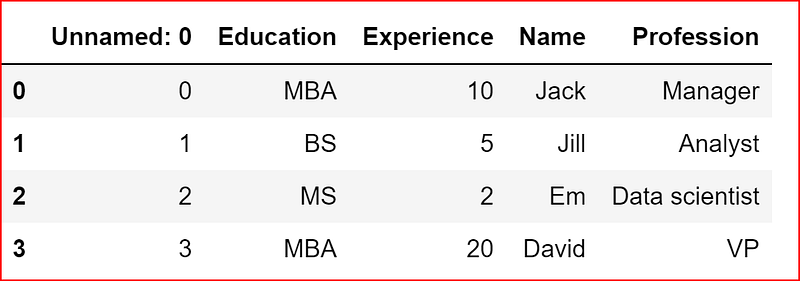
The data type for csv_data is a dataframe. So we can use all of the dataframe operations.
type(csv_data)pandas.core.frame.DataFrameTo know more about dataframe and dictionary.
Writing to an excel file and reading from an excel file
Here we will use the same df dataframe to write the data to an excel file in a sheet name “employee_name”
df.to_excel("emp_1.xls",sheet_name ="employee_data")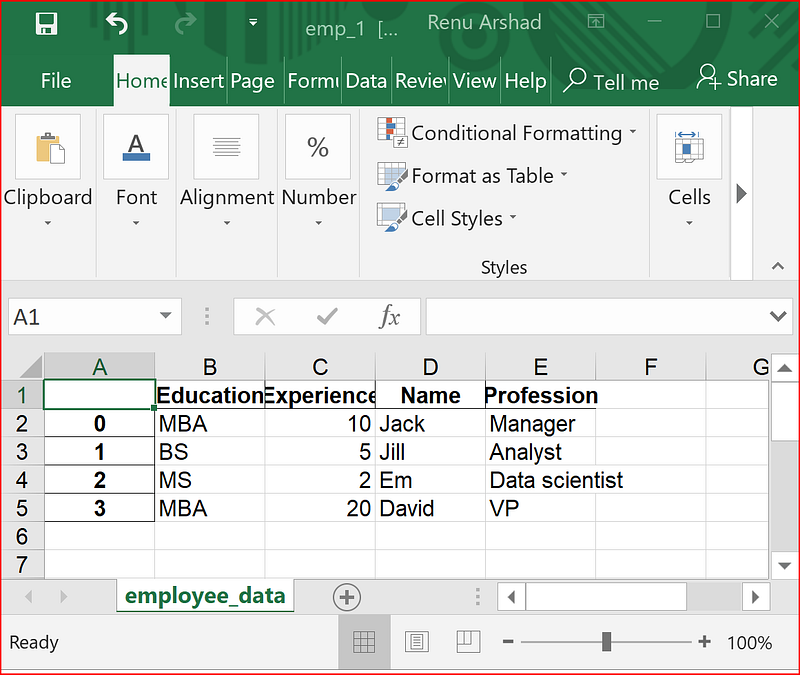
Now let’s read the data from the excel file emp1.xls sheet name “employee_data” into a dataframe xls_data.
xls_data = pd.read_excel("emp_1.xls", sheetname="employee_data")
xls_data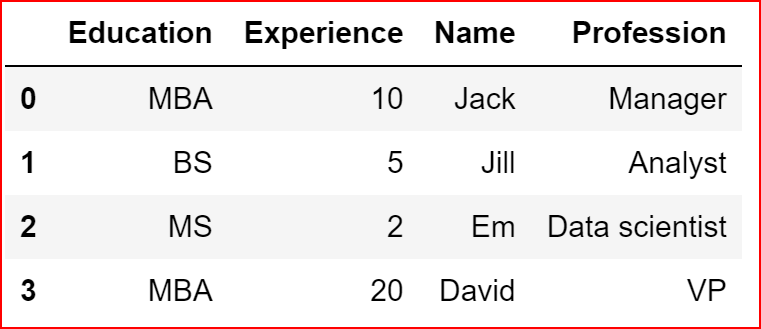
Writing data to a JSON file
Here we will use the same dataframe df to write to a json file
df.to_json('emp.json')Contents of the emp.json file
{“Education”:{“0”:”MBA”,”1":”BS”,”2":”MS”,”3":”MBA”},”Experience”:{“0”:10,”1":5,”2":2,”3":20},”Name”:{“0”:”Jack”,”1":”Jill”,”2":”Em”,”3":”David”},”Profession”:{“0”:”Manager”,”1":”Analyst”,”2":”Data scientist”,”3":”VP”}}
Now that we have written the data to a json file, let’s read the data
emp= pd.read_json("emp.json")
empIf you have a json object then we can put the contents to a List using json.loads() and then use all operation of a list for data manipulation.
Read here for operation of a List
area_json ="""
{ "office":
    {"medical": [
      { "room-number": 100,
        "use": "reception",
        "sq-ft": 50,
        "price": 75
      },
      { "room-number": 101,
        "use": "waiting",
        "sq-ft": 250,
        "price": 75
      },
      { "room-number": 102,
        "use": "examination",
        "sq-ft": 125,
        "price": 150
      },
      { "room-number": 103,
        "use": "examination",
        "sq-ft": 125,
        "price": 150
      },
      { "room-number": 104,
        "use": "office",
        "sq-ft": 150,
        "price": 100
      }
    ]},
    "parking": {
      "location": "premium",
      "style": "covered",
      "price": 750
    }
}
"""
home_data = json.loads(area_json)
home_data{'office': {'medical': [{'price': 75,
'room-number': 100,
'sq-ft': 50,
'use': 'reception'},
{'price': 75, 'room-number': 101, 'sq-ft': 250, 'use': 'waiting'},
{'price': 150, 'room-number': 102, 'sq-ft': 125, 'use': 'examination'},
{'price': 150, 'room-number': 103, 'sq-ft': 125, 'use': 'examination'},
{'price': 100, 'room-number': 104, 'sq-ft': 150, 'use': 'office'}]},
'parking': {'location': 'premium', 'price': 750, 'style': 'covered'}}we can also use a python data and dump into a json object.
Here we will use the data dictionary that we created earlier and dump as json data.
json_data = json.dumps(data)
json_data'{"Name": ["Jack", "Jill", "Em", "David"], "Profession": ["Manager", "Analyst", "Data scientist", "VP"], "Experience": [10, 5, 2, 20], "Education": ["MBA", "BS", "MS", "MBA"]}'Retrieve data from a URL
We will use two libraries for retrieving data from a URL — request and beautifulsoup. We will also use re to use regular expressions.
import requests
import re
from bs4 import BeautifulSoup
We will use one the url from one of my posts on medium and retrieve the text. we use the get method of request library to download the page. response will now have the content of the web page.
url = "https://readmedium.com/power-of-habit-how-to-accomplishing-big-goals-by-making-small-changes-5872a788fcb8"
response = requests.get(url)
response.content will contain the contents of the html page.
We will use the Beautifulsoup constructor and pass the html content that we have in response.content
soup = BeautifulSoup(response.content,'html.parser')We will now extract the Title by using the find method and then use get_text to extract the title.
We then find all the “p” tags in the html page with class property containing text like “graf graf — p”. Here we use regular expression as we want to find class property for the p tag with values like “graf graf — p”
title  = soup.find('title').get_text()
any_data = soup.find_all('p', class_=re.compile("graf graf--p"))
We will now iterate through any_data, which is a Resultset of bs4
print(title)for p in any_data:
print(p.get_text())Power of Habit — How to accomplish big goals by making small changes
Photo by Vidar Nordli-Mathisen on Unsplash
You might have heard that a 1000 mile journey begins one step at a time. I also used to be temporarily inspired by such quotes. But a few days would pass, and I would find it had slipped my mind.
Are you wanting to change things in your life?
Are you stuck in the same old circumstances and feel a need to change?
Do you want to meet a happy version of yourself in future?
Then read on…


