Tutorial | Python | Discord.py
Python Discord Bots: Formatting Text
How to add rich formatting to Python Discord bots

Looking for that extra flair for your Discord bot responses? Making fonts bold, italic, strikethrough, and other options will give you more control over how responses look. You can draw attention to certain parts of messages, hide other parts, and generally improve the look and feel of your bot’s messages.
Previously we added some flair to our messages by using embeds to organize information sent by the bot. Now we will use the Discord markdown options to spice things up. You may have already used this to format text in the Discord app. You can see some of the options explained on Discord’s website here. In particular, we will look at the following options:
- Simple formatting: Italic, bold, underline, strikethrough
- Secrets
- Blockquotes
- Code chunks
Simple Formatting
These are the easiest to perform. These are very similar to other places you may have seen markdown like on GitHub and in RMarkdown.
- Italic — single asterisks (
*) or single underscores (_) around the text - Bold — double asterisks (
**) around the text - U͟n͟d͟e͟r͟l͟i͟n͟e͟— double underscores (
__) around the text - S̶t̶r̶i̶k̶e̶t̶h̶r̶o̶u̶g̶h̶— double tildes (
~~) around the text
Example
Let’s create an italic command. It will show off how to format using italics with asterisks and underscores.

Now for a bold command. We want to explain how to get the bold formatting in the message. If we try to type a double asterisk out, it will make our text bold, so we need to escape the asterisks with backslashes (\).
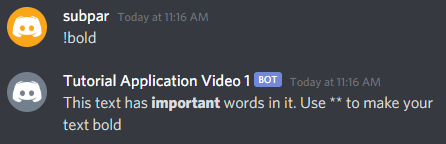
Escape any special character you want in the final message with a backslash (\)
Now for underline. We’ll underline the entire message to add some serious emphasis.

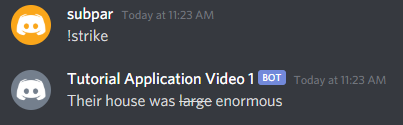
Let’s do strikethrough. This is helpful to emphasize an edit.
You can also combine these formatting tools. These will all work very similarly to the examples above. Here is a list of combinations from the Discord blog.
Secrets
Secrets are information that you don’t want to be read right when someone looks at the message. If you are talking about a movie that not everyone has seen, you can hide the spoilers behind the secret formatting.
Text between double pipes (||) is marked as secret. This text will appear as a black box in the chat. When a user clicks on the black box, it will reveal the text for that user only. Switching out of the current channel or server and coming back will cover the secret text again.
Example
For anyone in the server who hasn’t seen Star Wars: The Empire Strikes Back, we’ll Luke Skywalker’s father’s name as a secret. We’ll define a secret command. This command will send a message with Luke’s dad hidden behind secret formatting.
Here’s what it looks like before and after we click on the spoiler text:

Blockquotes
Blockquotes come in two types: single line and multiline.
Single Line Blockquotes
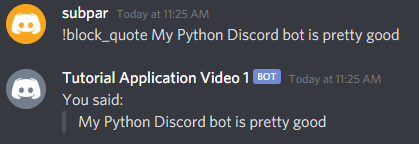
A single line blockquote is represented by a single greater than sign (>).
Let’s have the bot tell us what we just said. We’ll create a block_quote function. In the function parameters, pass ctx, *, and arg. This will ensure that everything following the command is read in as a single parameter.
Use command(ctx, *, arg) if you want everything after the command to be read as a single parameter
Multiline Blockquotes
What if we want to use multiple arguments as new lines in our quote? We can use a multiline quote. Multiline quotes are represented by a triple greater than sign (>>>).
We’ll name it multi_quote. We’ll change the parameters for this function to be ctx and *args. Now each word typed after the command will be stored in args as a list. The join command in the code inserts a new line character after each word. Every item from the args list ends up on a new line.
Use command(ctx, *args) if you want everything after the command to be read as a list of strings, separated by spaces

Code Chunks/Code Blocks
Just like with blockquotes, there are 2 types of code blocks: inline and multiline.
Inline Code Blocks
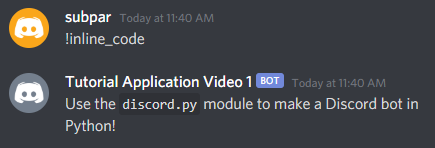
Inline code will be formatted in monospaced text with a slight border around it. It does not support syntax highlight because it is meant to reference a single variable or very short snippet.
Let’s create an inline_code function. We will only need ctx as a parameter. To get inline code formatting, wrap the text to format in single backticks (`).
Multiline Code Blocks
For more complicated code, you will want to add syntax highlighting and multiple lines. To create a multiline code chunk, wrap your code in triple backticks (```). To get the syntax highlighting, type the name of the language right after the backticks.
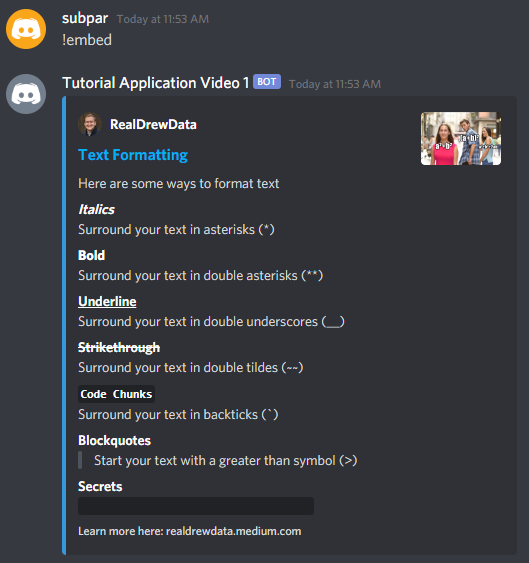
As an example, here is an embed that explains some of the text formatting shown in this post. In this case we are using python for our syntax highlighting. Other common languages with supported highlighting include c, cs (csharp), cpp (C++), css, json (JSON), r (R).
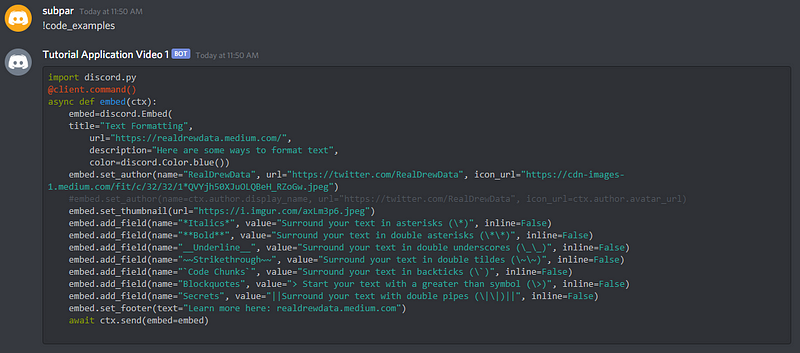
If you were to copy the command from that snippet into a Python Discord bot script, the embed will look like this: