
Tutorial | Python | Discord.py
Adding a Typing Indicator to Your Discord.py Bot
How to make your bot’s actions look more natural by having it type before it sends messages
Another in a series of improvements for our Discord.py bot, this time we are going to be adding typing indicators.
Typing indicators have become a mainstay in modern chat applications to allow us to see when someone is about to send something. Nothing is more annoying than those darned Android users and their green chat bubbles that don’t show when they are typing a message back! Let’s make our bots better than those people.
Never worked with Discord.py before? Check out my guide on how to build a simple bot here:
Giving the bot the ability to type before sending responses isn’t hard. In fact it relies on the following very simple line of code:
async with ctx.typing():
    # Long Calculation
The code breaks down pretty simply. The async tells python to execute the command asynchronously, meaning that other commands can still be executed while this one is. Next is the with keyword. This creates a context manager for ctx.typing(). ctx tells python where to display the typing indicator. In this case, we will be building a command that simulates a long running task, typing while the task is being executed. Let’s see it in action:
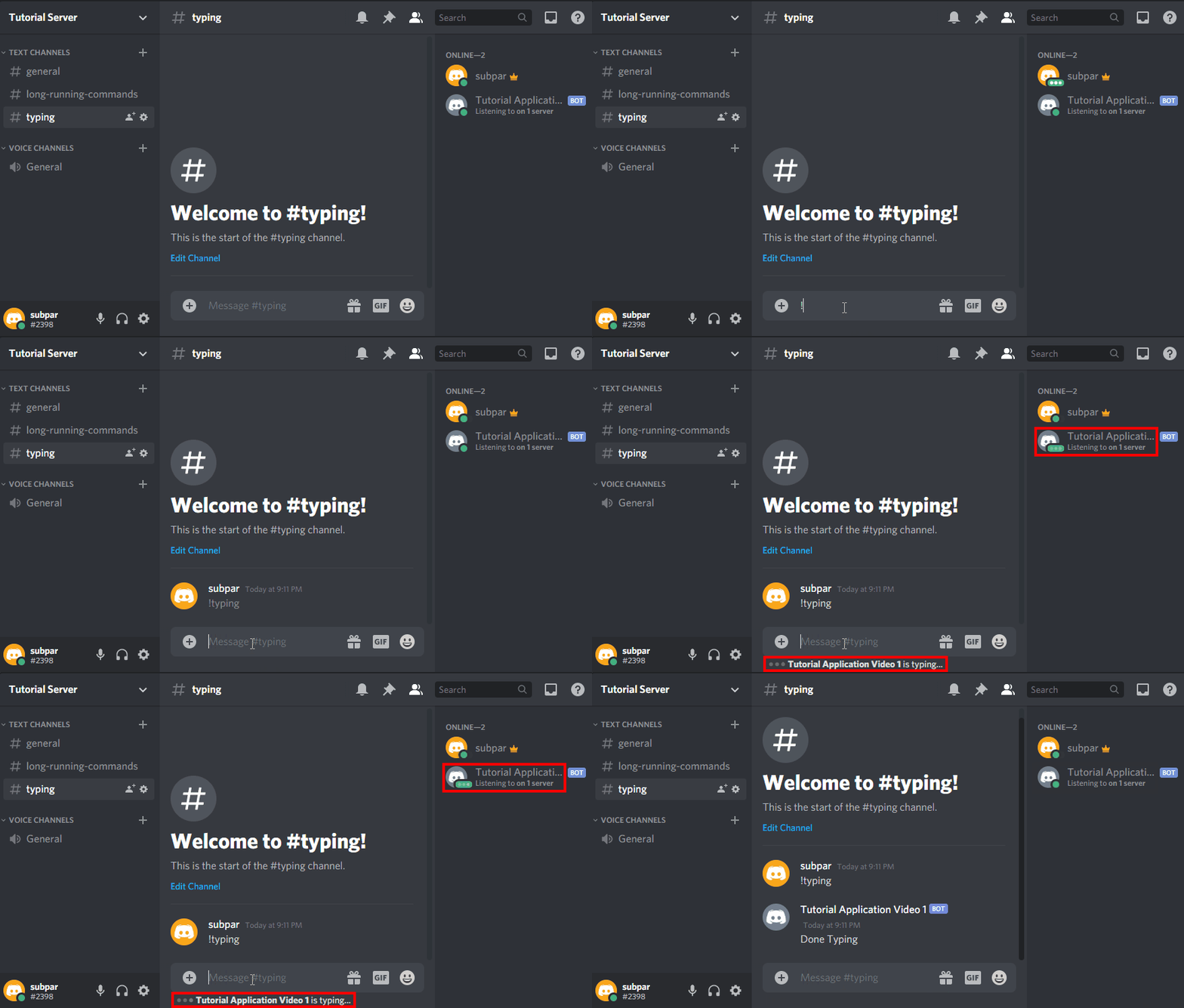
Pretty neat, huh? Let’s create this typing command:
Our command starts out like all other commands we have defined so far. We have the decorator and the function header. The function takes the context of the request, ctx, as an argument. The new part is where we use the typing method of the context object to create a context handler. A context handler is created when we use the with keyword. Anything that happens in the context handler will be done while the bot is typing.
To demonstrate how it works, we just added a sleep for 2 seconds. It is important to note that we are using the sleep from the asyncio module. This version makes it so that the bot is able to process other commands while typing here. sleep from the time module will prevent the bot from processing other commands.
Outside of the with context handler, we send our result to ctx. This gives it the appearance of typing while something is being calculated.
But I Don’t Have a Long Calculation!
Don’t worry, you don’t need a long calculation to take place to use the typing context manager. We can go back to our Hello World Command and add a typing indicator before replying. This will give the look that the bot was typing out “Hello World!” It will make the bot feel more alive and give it that extra little detail that makes it feel that much more polished and professional.
Congrats! Now instead of just responding to the command, the bot will type for half a second before replying!
But Real People Don’t Type for Exact Amounts of Time!
I hear you. Let’s make it even more real. We can make it happen with Python’s built in random module.
Let’s review our requirements. We want the bot to type for a random amount of time, within reasonable limits. This amount of time should have a decent amount of variation. We wouldn’t want it to just pick between 0.5 seconds and 1.5 seconds each time.
Based on these requirements, we need a function that generates floats between a specified range. The random module has this with the uniform function. It takes two numbers and picks a float between them with every number in the range being equally likely. Let’s see it in action:
>>> import random
>>> random.uniform(0.5, 2)
[1] 1.475443943500942
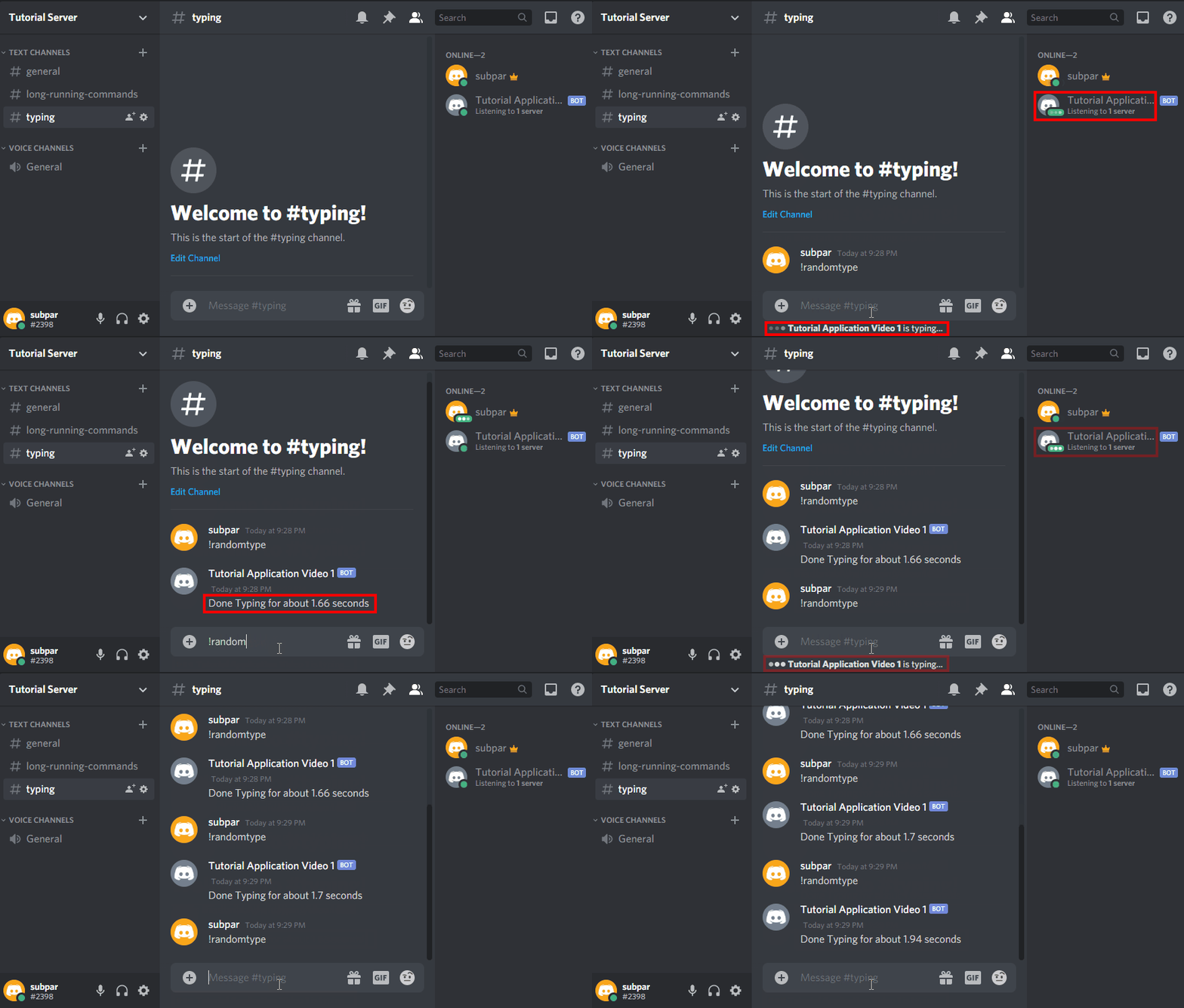
Each time you run it you will get a different number, so don’t worry if your output is different than mine. Let’s create this random number in our with block, then use asyncio.sleep to type for that many seconds before replying with how many seconds were typed for. We’ll just a use a little bit of string formatting to add the variable into the response.
Try it out, you’ll notice that the bot will type for a slightly different amount of time each time it responds.
Conclusion
Adding typing indicators to your bot is pretty simple. Just use the with keyword and ctx.typing to create a context handler for your typing task. Craving something a little fancier? Use the random module to add an element of chance to how long the bot types for each time.
Next up is more fun with formatting text. So far the bot has only had simple text responses. The next thing to tackle is how to use embeds and emoji, both regular emoji and Discord emoji.


