
OCR in Python with Amazon Textract
If you have always wanted to use OCR techniques but don’t know how to do it, AWS provides a service with everything you may need. I will tell you how you can use it in your projects.
What is OCR
Optical Character Recognition (OCR), consists on techniques to identify all those characters that appear in an image. OCR is highly used in multiple choice exams, where it identifies the answer the user has marked.
If we go even further, we can digitalize any file that includes text, such as images or books.
What is Amazon Textract
In the AWS (Amazon Web Services)ecosystem there exists a wide range of services that allow us to do many different things. Mainly based on cloud computing power (storage, servers, DNS, …), and nowadays also including many low-code AI
Amazon Textract is the AWS service that provides OCR functionalities.
What can you do with Textract
- Optical Character Recognition — Automatically detects text and numbers in a document.
- Forms extraction — Detects key-value pairs inside a form. It can identify the value that is contained in a field of a form.
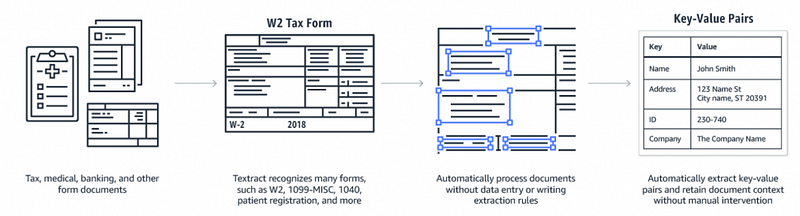
- Table extraction — Textract can identify the content structured in table inside a document. It can then be uploaded to a relational database in an easy way.
- Hand-written recognition — Apart from detect machine text, Textract can also read prefectly hand-written characters.
- Bounding boxes — All data extracted from an image has its corresponding bounding boxes coordinates.
Textract prices
Prices vary between regions. For every service, there is usually a cost for every million scanned pages with a reduction starting from this 1M. Services for which we pay include:
- API to detecto text in a document (OCR)
- API to analyze documents with tables
- API to analyze documents with forms
- API to analyze documents with pages and forms
If you are new to AWS (first 12 months), you have access to Textract’s free tier. This means you can scan up to 1000 pages per month using the API to detect text in a document and up to 100 pages per month using the API to analyze documents during the first 3 months.
Use case — Using the API to read text in an image
Next, I will show you an example of how to use the API to detect text from a document using Python and Google Colab. The example will consist of downloading an image from Google, loading it into Textract, and obtaining the text from the image.
Installing the SDK
The first step will involve installing the AWS SDK (Software Development Kit) for Python in our environment.
!pip install boto3If you are following the tutorial in Google Colab, it will ask you to restart the runtime environment, so we will do this. To do this, click on Runtime > Restart runtime in the navigation bar.
Import libraries
import boto3from IPython.display import Image
import requestsFirst, we import the libraries that we will need throughout the project. We will use the AWS SDK that we just installed (boto3).
Declaring variables
Next, we declare the name with which we are going to save the image, the URL from where we are going to download it, and our Amazon credentials.
FILE_NAME = 'text.png'
URL = 'https://upload.wikimedia.org/wikipedia/commons/4/4c/Texto_I_de_Gil_%281799%29.png'
# aws credentials
ACCESS_KEY = <ACCESS_KEY>
SECRET_KEY = <SECRET_KEY>The idea is that you replace
Under ‘Access keys for CLI, SDK, and API’, click on create access key. Download the .csv file. If you don’t do this, you won’t have the option to do it again; you will have to delete the key and create a new one.
If you open the Excel file, there you have your credentials.
Download the image
Now we will create a function to download the image.
def download_image(url, image_name):
  with open(image_name, 'wb') as handle:
          response = requests.get(url, stream=True)
if not response.ok:
print(response) for block in response.iter_content(1024):
if not block:
break handle.write(block)download_image(URL, FILE_NAME)We download it and show it.
image = Image(FILE_NAME, width=100, height=100)
image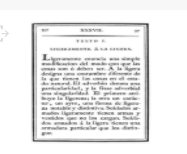
The image does not look very high quality, as I have set it to be 100x100 pixels. If you want, you can change the size to see it differently. In my case, I just wanted to verify that it was the correct image.
Text Detection
Now we move on to the fun part. You’ll be surprised how easy it’s going to be to detect the text from the image.
First, we connect to Amazon Textract with our credentials.
client = boto3.client('textract',
                      aws_access_key_id=ACCESS_KEY,
                      aws_secret_access_key=SECRET_KEY,
                      region_name='eu-west-1',)
Next, we read the file, load it into a bytearray format (which is simply a list of bytes), and launch the text detection API.
with open(FILE_NAME, 'rb') as document:
    imageBytes = bytearray(document.read())
# Call Amazon Textract
response = client.detect_document_text(Document={'Bytes': imageBytes})The variable ‘response’ contains the result of this detection. This response includes a list of ‘Blocks’, which correspond to all the elements detected in the image. What interests us are those blocks where the block type is ‘LINE’, because they correspond to the text in the image. So now we will print all the texts within the image.
for item in response["Blocks"]:
    if item["BlockType"] == "LINE":
        print(item["Text"])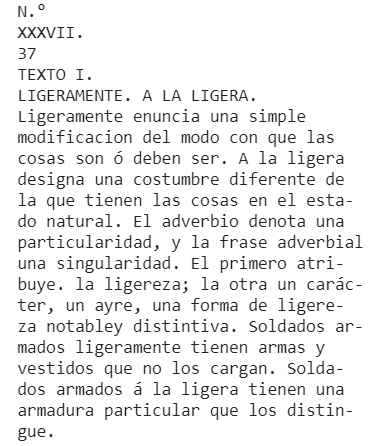
We can see that it has detected the text perfectly, although it has missed a tilde on some occasions. But it has been very easy to use this service.
Conclusions
In this post, we have seen how easy it is to use the Textract API to detect text in an image. I encourage you to try it with other images and compare the results. If you liked this post and want others in the same style, leave it in the comments.


