
How to get notified on Microsoft Teams if a build breaks!
Don’t be the guy who breaks a build right before end of work.

It’s Friday, 4:30. You finished that important feature. You commit and push, the CI Server will deploy it to the test system. Fantastic! On Monday, you can show the client your work.
But what is this? Why is the pipeline red? Everything worked just seconds ago! You look at the build history. Damn! Jack broke the build hours ago and did not fix it! Way to go, Jack …
What now? While Jack enjoys his weekend, you fix his stupid code. Otherwise, the client will be mad at you on Monday.
Don’t be like Jack. Let the CI server notify you if a build breaks. Receive a Teams message on broken builds.
Configure Microsoft Teams
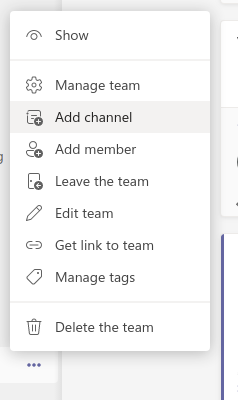
Add a channel to the team which should receive the notifications if you do not have one. Click on the dots beside the team name and choose Add Channel.
To add a Webhook, click on the dots beside the channel and click on Connectors .

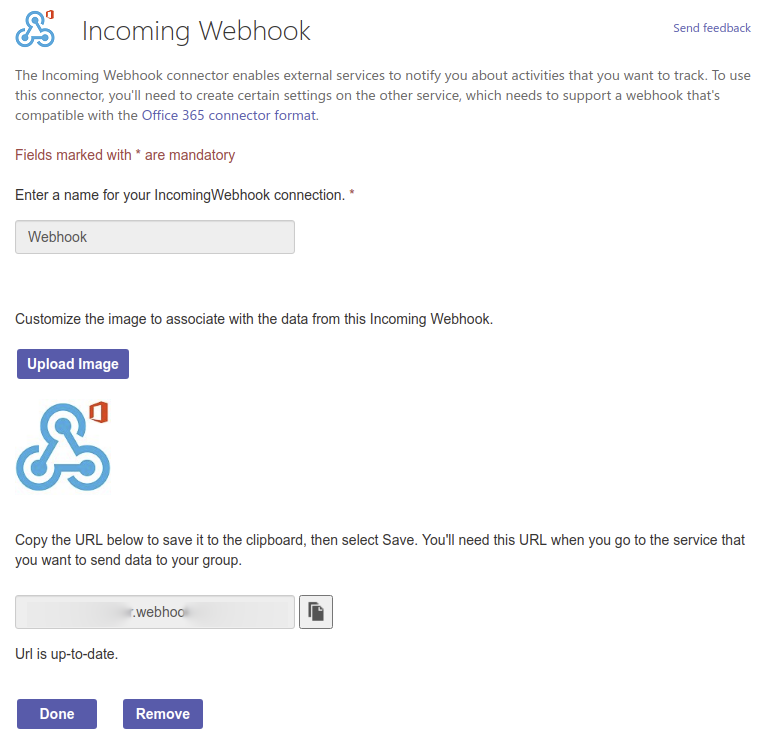
Configure an Incoming Webhook. Teams shows the Webhook URL once you click Create. Copy this URL in the next step.
Connect GitHub Actions and Teams
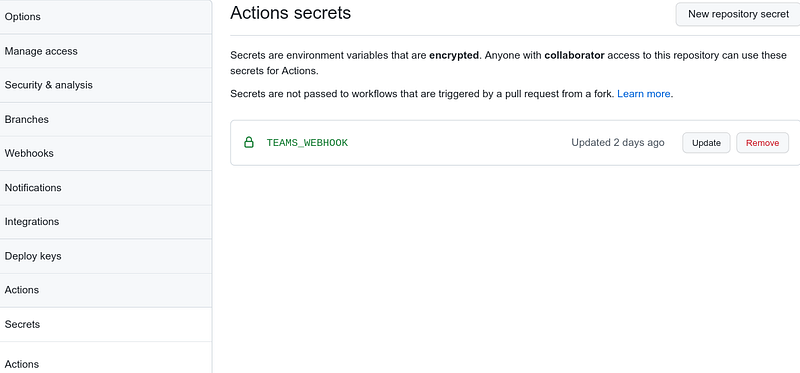
Open the repository which should notify you on failed builds. Go to Settings and then to Secrets . Add a secret for Actions with the name TEAMS_WEBHOOK.
Add the notification step to your workflow
Open your workflow.yml and add the following step:
This step only runs if the pipeline failed before. It creates the payload for the Teams Webhook and executes a POST request.
You will get a notification in Teams for the next broken build:
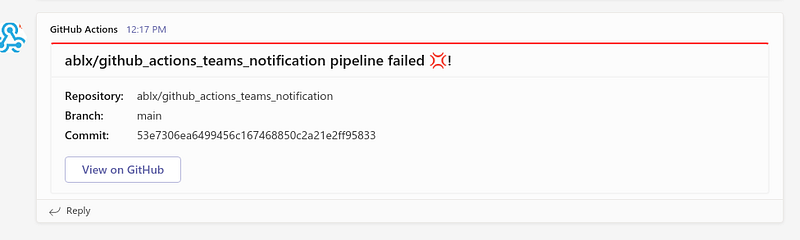
You can click on the button to open GitHub and see the broken pipeline. That’s it! Now you can react faster to broken pipelines!
Bonus: Teams payload in detail
Let’s inspect the payload:
Notice that we used GitHub Actions environment variables to add useful content to the message. You can see all available variables in the official documentation.
The themeColor field handles the red bar in the notification. See the Webhook documentation for more fields and examples.
Want to get more out of Teams? Check out the following article: