
How Alertmanager and Teams easily reduce incident response time proactive
Get notifications from the Alertmanager to Microsoft Teams
This tutorial is a bonus part of the Monitoring Stack Series.
Many companies use Microsoft Teams. Receiving alerts in Teams allows you to react faster. It makes working on an incident visible, as you can answer the message. Let’s add it to our monitoring stack!
As always, head over to GitHub to get the full code.
Configure Microsoft Teams
Alertmanager does not support Teams out of the box. You must use Webhooks to achieve this. The Webhook is used by prom2teams to write messages.
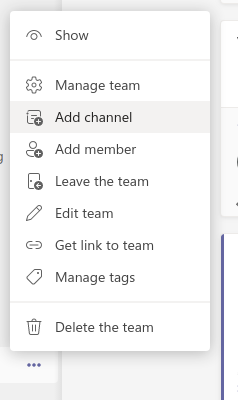
Add a channel to the team which should receive the notifications if you do not have one. Click on the dots beside the team name and choose Add Channel.
To add a Webhook, click on the dots beside the channel and click on Connectors .

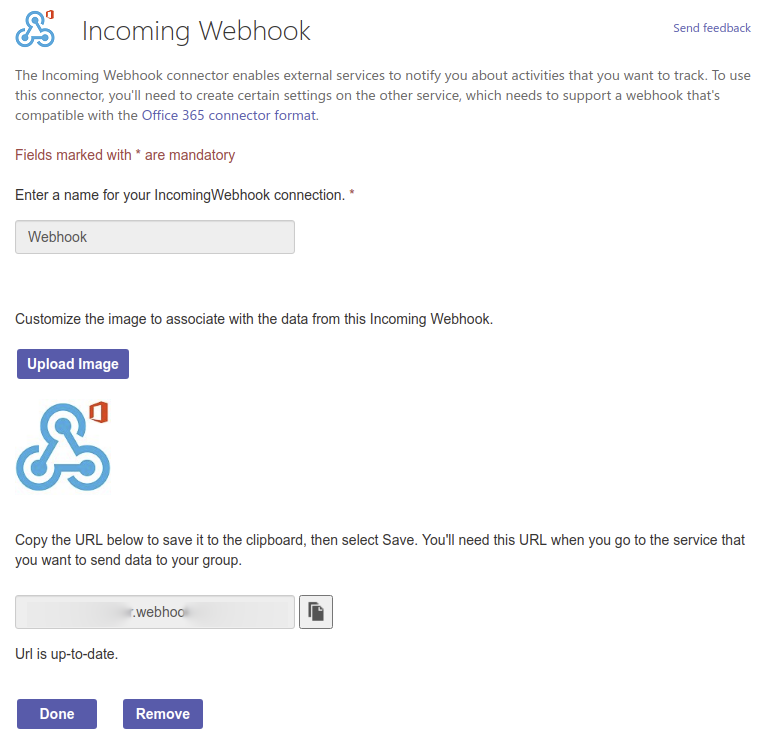
Configure an Incoming Webhook. Teams shows the Webhook URL once you click Create. Copy this URL in the next step.
Add prom2teams to the stack
prom2teams uses the webhook to send messages to Teams.
Add prom2teams to your docker-compose.yml :
Update your alerts
The Alertmanager uses labels to decide which alert goes to which notification channel. Change the prometheus/alerts.yml to contain the following:
Now you have two alerts with different labels.
Configure the Alertmanager
Change alertmanager/alertmanager.yml so that the Alertmanager is aware of prom2teams:
Now, the Alertmanager can publish to two channels. matchers define which channel to use.
The Alertmanager sends alerts with medium severity to Teams. This is repeated every four hours — until you fix it!
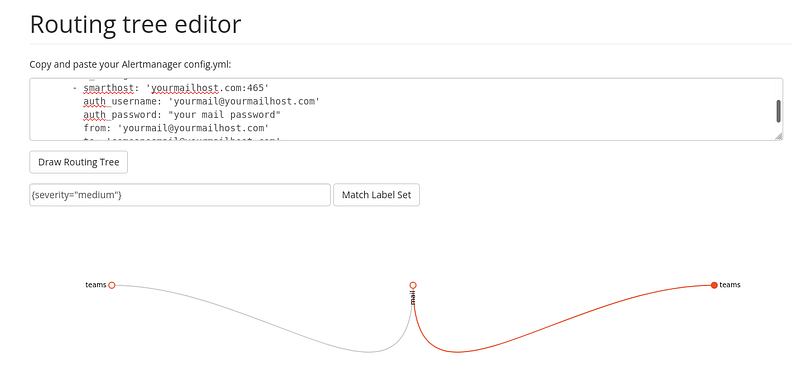
A handy tool to check your configuration is the routing tree editor. Add labels and values of your alert to see which route they will take.
Check the result
Start the stack with docker-compose up and wait until the alerts fire.
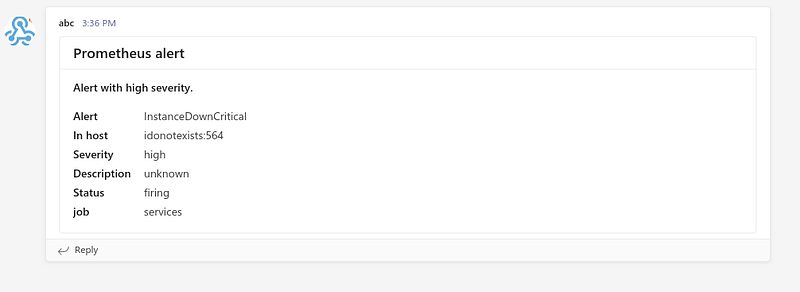
You will get a notification from Teams for the InstanceDownCritical alert:
And an email for the InstanceDown alert:

Which notification channels do you want to see next? Leave me a message!


