
Neovim: A Year-Long Journey of Efficiency, Customization, and Unleashing Editor Potential
There was a lot that happened in 2023 and one of the most fun was switching to Neovim and learning all I could about the editor. I wanted to reflect on my experiences and highlight what I learned.
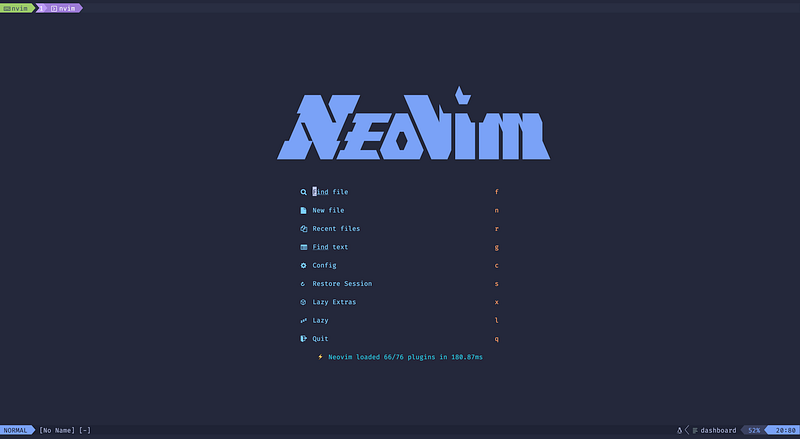
Efficiency
My typical workflow before starting to get into Vim, and eventually Neovim, was to have both a terminal (iTerm2) and IntelliJ or Rubymine open. You can open a terminal inside of either of those editors but for whatever reason I wanted to have longer running tasks in a separate terminal emulator.
I programmed in Java, Kotlin, Ruby, and Javascript so I switched between the different editors and my terminal often but I spent many years learning all the different keystrokes and got very efficient by pairing with some great engineers.
I could fuzzy search for files, run tests from within the editor, run simple commands in the built in terminal, and quickly modify files using multiple cursors or regex with ease.
But there is a limit to how far you can go within IntelliJ and adding plugins.
IntelliJ is also a memory hog and unless you have a lot of memory to allocate to it for indexing, you will feel the pain.
I grew tired of only being able to move to the front / back of lines and by words with Cmd and Option and the arrow keys respectively.
I also noticed how often I was moving my hands up and down on the keyboard between the home row and arrow keys and then also to the mouse to move windows or resize.
This is when I decided to use Vim / Neovim and take that initial productivity hit.
Figuring out keymaps and how to navigate around quickly takes time, not only to learn what they are but also adjust muscle memory. One of the plugins I wish I had found earlier is WhichKey to help with knowing all the options out of the gate.
This investment is quite a bit for some but if you can understand the fundamentals of Neovim and how you can customize the editor to what makes sense to you, then you can really become efficient.
In Neovim, once you understand the different keymaps and motions, you can be much more precise in your editing, for example:
If you want to delete the next 3 lines from your cursor you can use 3dd as opposed to holding shift, arrow key down 3 times, delete.
This saves you several keystrokes and you can repeat this using . , which saves you even more time.
If you wanted to delete from your cursor position to another word you can quickly do that using f or t.
Deleting up to the next period (.) can be done using dt.
If you wanted to delete the period as well use df.
Much faster than holding Shift + Option and hitting the right arrow a bunch of times. AND you can repeat that using .
Other tips:
- Use Motions for better efficiency
yiw— Yank inner word; doesn’t matter where your cursor is in the wordci{— Change inside curly braces; useful for clearing out a function - Use regexes for finding and replacing text quickly; know macros as an alternative or backup
:%s/\<\w/\u&/g— capitalize every first letter in file:%s/\(match\)/”\1"/g— wrap match in quotes OR to jump back forth between files and jumps - Use tmux; adds another layer of customization and ability to manage multiple coding sessions
One of the best parts of Neovim is you can continue to learn different ways of improving which is part of the fun.
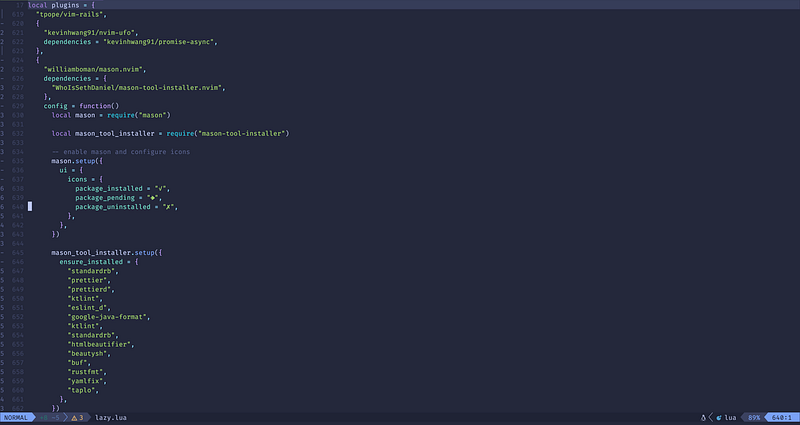
Customization
With Neovim, you have the flexibility to create a truly personal development environment (PDE).
If you don’t like a keyboard shortcut, change it. Make it something you understand. Change it 100 times. You can do what you want.
In doing this customization, you will better understand how the editor works and the mental overhead will be reduced.
Neovim is built for extendability, you should add plugins and configuration that pleases you. This is why Lua was chosen as the configuration language to encourage more and more involvement from the community in building various plugins.
Here is a great talk from TJ DeVries on what that extensibility provides:
Using autocommands, plugins, and custom keymaps you can quickly go from starting up your preferred terminal emulator to being productive with only a couple keystrokes.
Keymappings
I personally like to setup my keymappings using mnemonics where I have each letter match what I am trying to accomplish.
For example, to search using Telescope I use Space + f and then another key for the action.
Space + f + f is to Find Files
Space + f + c is to Find Code
Space + f + g is to Find Grep
For searching git commits I use Space + g.
This helps me to remember the keymappings but you can also setup WhichKey to provide hints when you get stuck.
vim.keymap.set("n", "<leader>t", "<cmd>lua require('neotest').run.run()<CR>", { desc = "Run Test" })Plugins
There are a TON of great plugins provided by the community like Telescope, dashboard.nvim, mason.nvim, octo.nvim, and many more.
If you want to incorporate a workflow into your Neovim instance, odds are there is a plugin already built for it.
Here is a list I keep up to date with plugins and other resources:
Proceed With Caution
When you are getting into Neovim it is REALLY easy to get lost in all the different ways you can configure your editor to be perfect. Don’t got overboard with customization unless you really want to and it interests you.
I have seen many folks go overboard and focus on their editor instead of building the applications or software they need to.
If you want a great base of functionality to get off the ground I’d recommend either Kickstart.nvim or using a distribution like LazyVim.
Conclusion
Looking back on everything I learned last year and how far I have come in being productive with Neovim is quite pleasing. I believe I am much faster in my workflows than when I used IntelliJ and iTerm2 but there is more room for improvement. There is still a ton I want to figure out and I hope to share that in a way that others can quickly learn it. I hope this inspires you to give Neovim a try and gives you some pointers on where to invest your time. Thanks for reading!
If you enjoyed this article, consider subscribing to Medium!
Here are a few other Neovim articles you should check out:
If you or your company are interested in having someone conduct technical interviews then please DM me on Twitter (@Exosyphon) or visit my website. If you enjoy topics like this then you might also like my Youtube channel. Have a great day!


