
Why Buffers, Windows, and Tabs are Foundational Concepts in Neovim
New to Neovim or just want to understand core concepts better? I’ll explain how Buffers, Windows, Tabs are used so you can better understand the power and flexibility they bring to your editor.
At first glance Neovim might look exactly like other editors you have used in the past, especially if you are using a distribution like NvChad, LazyVim, or AstroNvim.
When you have different files open you see them represented similar to tabs in editors like VSCode.
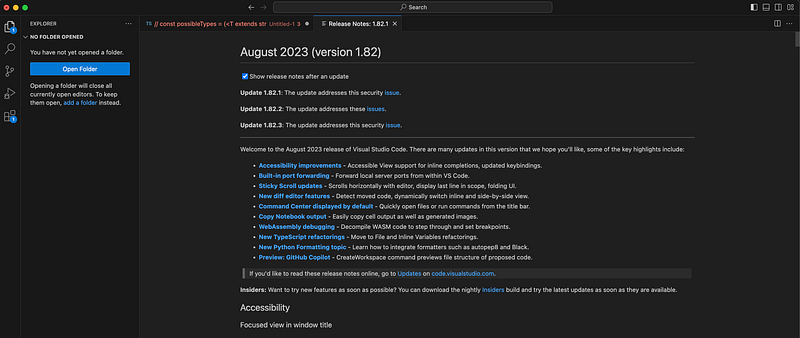
But Neovim allows you to do a lot more than what you are able to do in other editors.
Buffers
When you open a new file, that file gets loaded into memory. Because Neovim has a window already open you will see that file open and be viewable inside of that window.
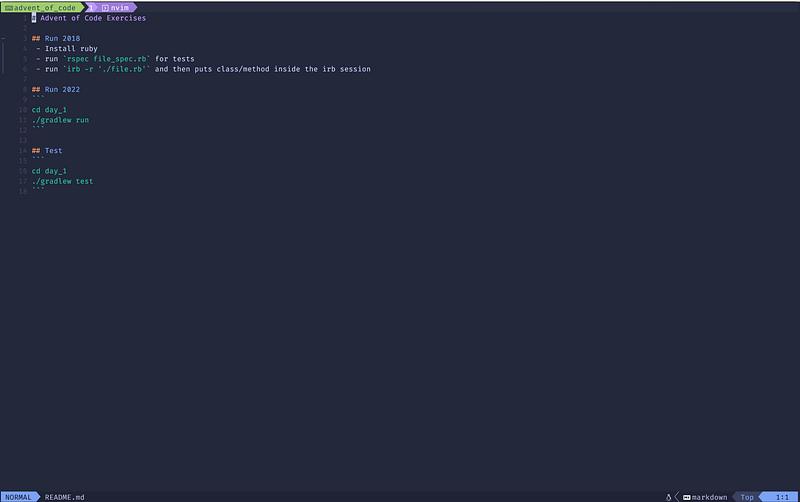
If I open a second file using e secondFile.txt then I will see that file loaded and viewable.
But what you should know is that our first file is still loaded in memory, just not viewable in our current window.
To load that first buffer back into the window we can use :bprevious or :bnext. These commands will go to the previous or next loaded buffer respectively.
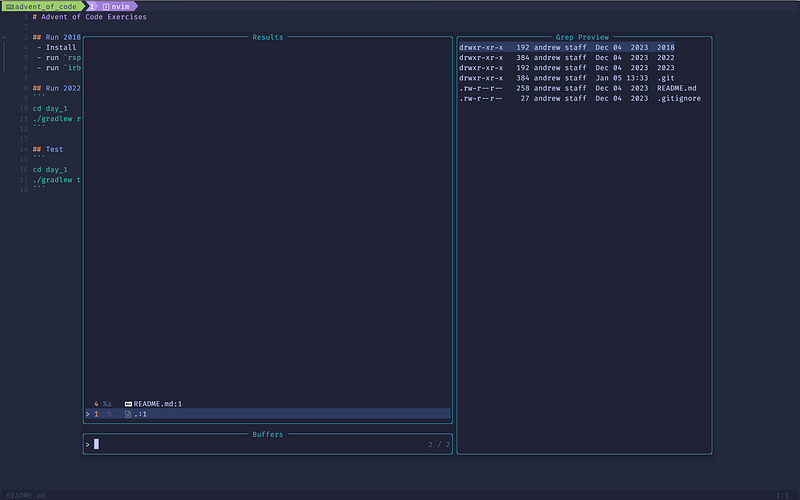
If you want to see what buffers you have open you can use :buffers.
If you have Telescope installed (which I would recommend if you don’t) then you can use :lua require(‘telescope.builtin’).buffers(). Which should look something like this:
Windows
Now that you understand buffers are simply files loaded into memory, you can use windows to customize your layout or how you view those buffers.
To open your current buffer in a vertical split, use :vs.
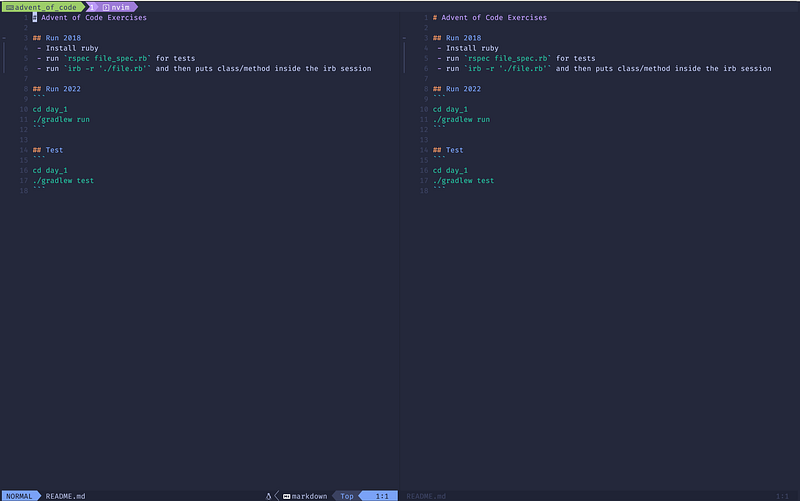
To open your current buffer in a horizontal split, use :sp.
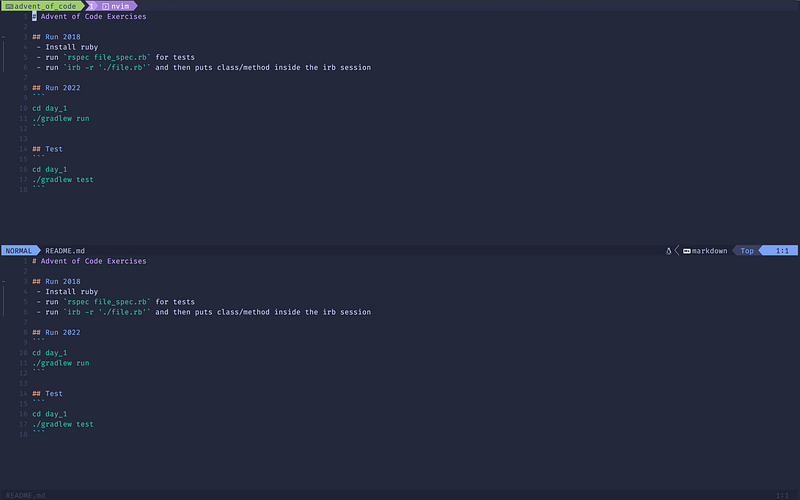
Or if you have Telescope installed you can open a vertical split or horizontal split using C-v or C-x respectively.
You can open as many windows as you would like and rotate them using C-w then x OR move a window from right to left using C-w then H.
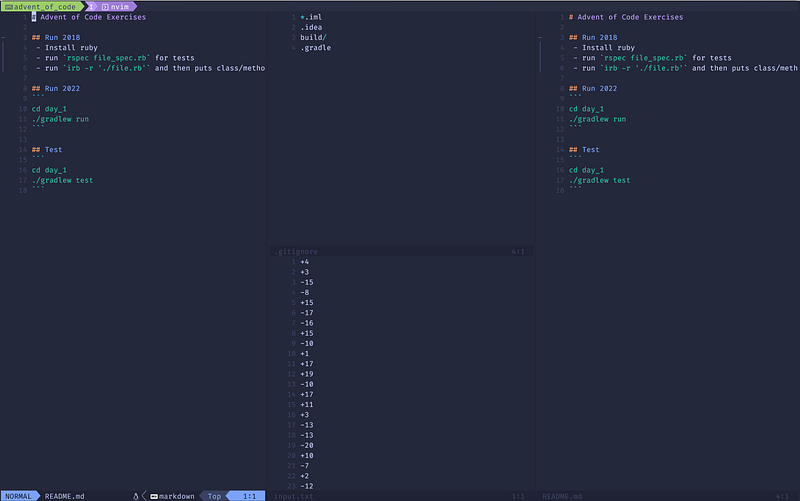
However you want to organize your windows or move them is only a keyboard shortcut away.
If you want to close a window you can use :q. If you want to close the buffer then you can use :bd.
This type of flexibility allows you to customize the editor to suit your needs. You can even setup configuration to automatically open windows a specific way on start so it is ready to go out of the box.
Tabs
Now that you have seen the power of windows and buffers. Let’s go one step further and talk about tabs.

Tabs are essentially sets of windows. You can create different windows, display different buffers in those windows and organize the windows how you like in a separate workspace.
Open a new tab using :tabe filename.
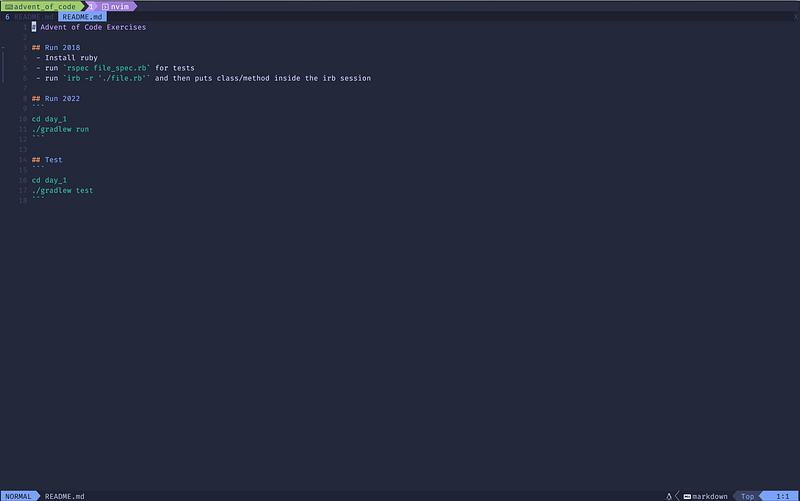
Now you can open buffers and different windows and this will be different from the first tab.
Switch back to the first tab using :gT and :gt to go to the previous and next tab respectively. Or you can go to a specific tab using <number>gt such as 1gt to go to the first tab.
Conclusion
I hope this has helped you understand the difference between other editors and how Neovim handles open files and the flexibility that it affords you. If you have interesting workflows with buffers, windows, or tabs please share in the comments!
If you enjoyed this article, consider subscribing to Medium!
Here are a few other Neovim articles you should check out:
If you or your company are interested in having someone conduct technical interviews then please DM me on Twitter (@Exosyphon) or visit my website. If you enjoy topics like this then you might also like my Youtube channel. Have a great day!


