
My Obsidian Setup (Part 29) — Home Dashboard Update
Something was missing from my dashboard, and I finally found what it was: a calendar. So, I just did an update to my Home Dashboard and also to my Projects Dashboard.
Here’s what it looks like now:
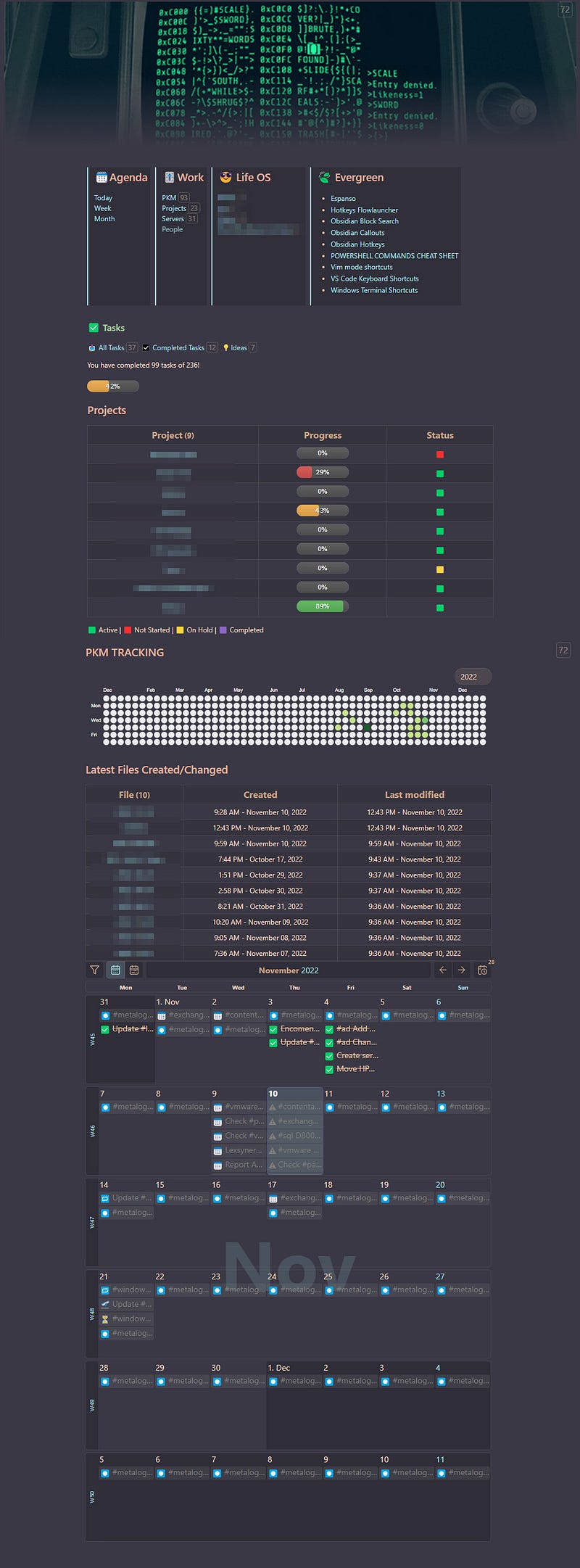
So I now have the following areas:
Shortcuts
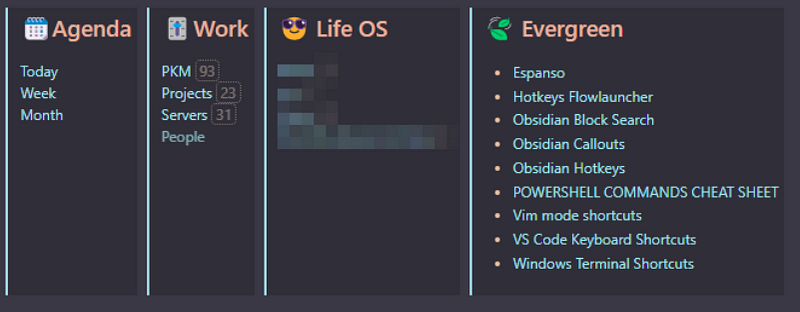
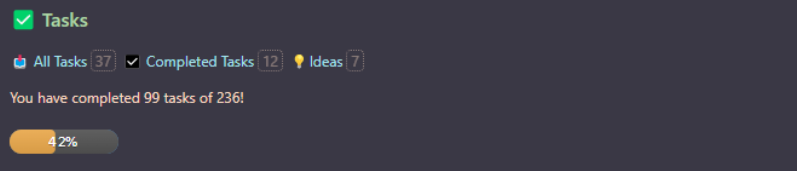
Tasks Info and Shortcuts
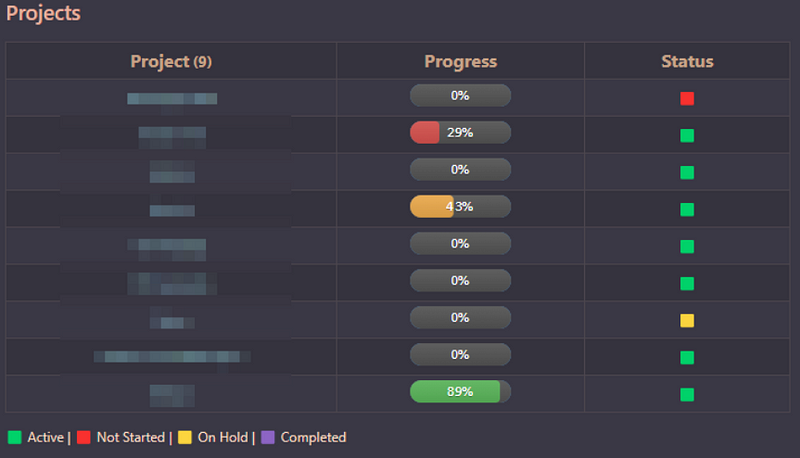
Projects Status and Progress
PKM Activity History
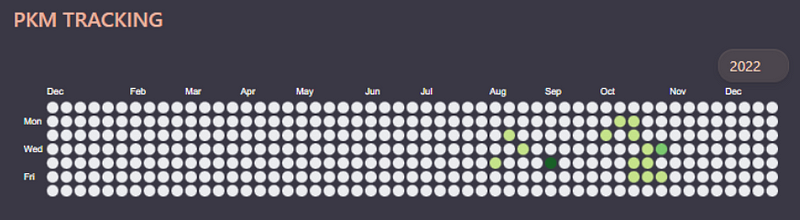
Last Files Created or Changed
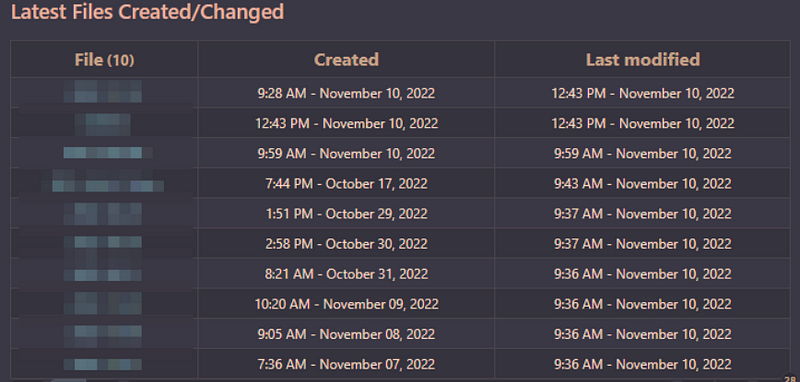
I’ve already shown how to create these areas here:
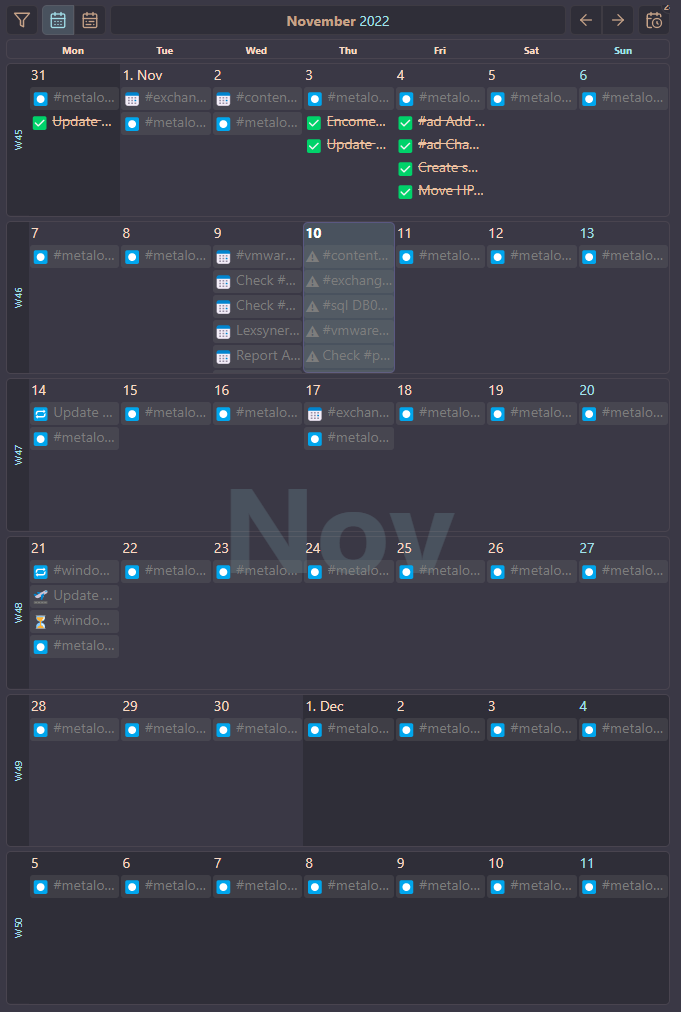
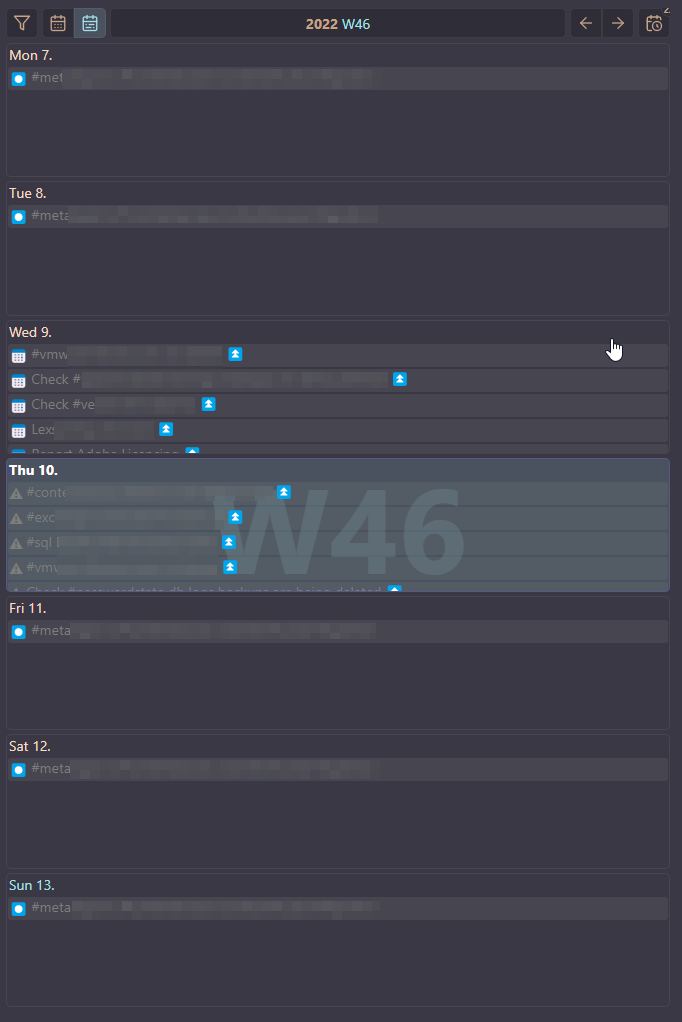
Now I’ve added a Tasks Calendar view:
Setup
This calendar view is using Obsidian-Tasks-Calendar. The views available with the Tasks plugin are great, but adding a quick visual of our tasks on a weekly or monthly calendar makes our Dashboard even better.
To use this plugin, download from the plugin's GitHub view.jsand view.css, and copy them to a folder on your vault. Next, add the following to your note:
```dataviewjs
await dv.view("tasksCalendar", {pages: "", view: "month", firstDayOfWeek: 1, options: "style1"})
```
If you copied the files into another folder then the default tasksCalendar, you have to replace:
await dv.view("Resources/tasks-calendar", {pages:...You can also set a specific location for the tasks:
pages: '"Task Management/Work"'Or use dv.pages:
pages: "dv.pages().file.tasks.where(t => t.tags.includes('#Pierre'))"
pages: "dv.pages().file.tasks.where(t=>!t.checked && t.header.subpath != 'Log')"
To set the default month or week view (the plugin has a button to switch between week and month):
view: "month"
view: "week"
Set the first day of the week (0=Sunday, 1=Monday):
firstDayOfWeek: 1
firstDayOfWeek: 0
Style Options:
You can select between different style options (style1, style2, …) to change the look of the weekly calendar view.
options: "style1"These are the main settings. You can check the complete documentation on the GitHub page.
My current Dashboard:
```dataviewjs
await dv.view("05 Resources/00-scripts/tasksCalendar", {pages: "", view: "month", firstDayOfWeek: 1, options: "style3"})
```
And for each project page I have the same setup, but:
{pages: "path-to-the-project-folder"You can read the previous parts of My Obsidian Setup series here:
Click here to be notified every time I publish a new story 😉.
If you’re not a Medium member yet and wish to support me or get access to all my stories, click here.


