When to use MS Loop
Instead of yet another guide on how to use MS Loop, I thought it would be more useful to discuss why use MS Loop.
Loop isn’t Obsidian
First, to all my Obsidian readers, Loop isn’t Obsidian. It’s more like Notion. Yes you can take notes in Loop, but there is no way to automatically link notes to each other, which is such a major value for Obsidian. There are other points like having your notes locked into the MS ecosystem but those are well-worn arguments that you should know well.
Bottom line: For individual note-taking, I think it’s still better to use a solution that has automatic detection of related notes and is more lightweight and platform agnostic.
Using Loop instead of the other MS Office Apps
Loop’s main value of Loop is that it’s a better way to collaborate in the MS Ecosystem. I think most of us are very familiar with managing different projects and workstreams in the normal mixture of Sharepoint, Teams, One Drive and Outlook.
1. Loop addresses the “when is the project big enough to create a Teams site?” problem
Most of the time, it is hard to know how large and complex a project is going to be. Most jobs start with one person deciding to initiate something, maybe in Word as a private note, or as a chat with a few collaborators. At some point, someone says — “Should we create a Teams site or Sharepoint for this?” And there’s a hesitation as setting one up can like feel too much of an investment. So even major projects can end up residing in a spider’s web of linked files of various types.
Lots of time is also spent making sure that:
- People are given access to the right files
- Updates are made to the right version of the file
Bottom line: MS Loop is best for discrete projects working with other people. And where the size of the project isn’t clear.
2. MS office apps still are relevant
But it doesn’t mean you should use Loop instead of Excel for calculations, or Loop instead of Powerpoint for presentations. Those apps are optimised for specific use-cases and should be used for them.
A checklist for when to use Loop
- Have a fleeting idea? Write it in Loop Ideas or Obsidian
- Start a Loop Workspace to put the idea and add to it when you have new thoughts
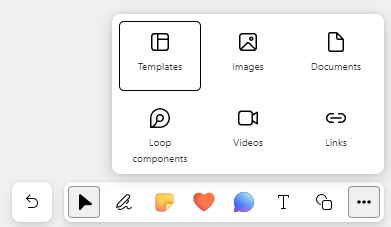
- Share the idea with other people using Loop Components in Outlook, Teams chat or Whiteboard. They will be able to add their thoughts to the component in the app they received the share.
- As the idea becomes more complex, use the Loop Workspace to create specific pages, structure (like tables of content), some of which can be read-only content (like “what is this project about) and other parts are for active collaboration (like brainstorming and voting)
- As your collaboration team gets bigger. Share specific pages or specific Loop Components with specific groups of people. Not everyone needs to have write access to everything.
Additional notes on Loop.
I might write them up in a fuller way later on.
Most useful content options:
- Table of contents — Something that I wish Obsidian had out of the box. Any headings you define while typing will be automatically included when you use the Table of Contents feature.
- Mention people using @, and Loop will tell you whether they already have access. (see below on a discussion about access).
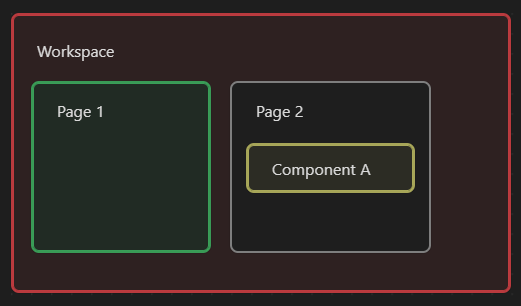
Hierarchy
Workspace
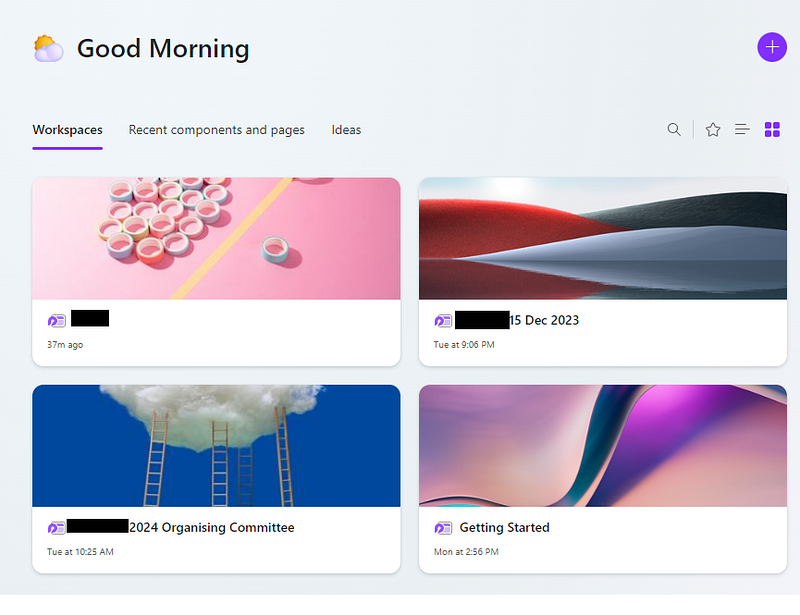
- This is a collection of pages.
Pages
- This is a collection of content, some of which are Loop Components that can be edited live in other MS products.
- You can paste links and images next to text.
Components
- Anything with a :: icon can be a component. Create a larger component by highlighting two or more pieces of content
- Each component will have its own page when created, but will be untitled and is not associated with the workspace in which it was created. Each component can be shared using a link.
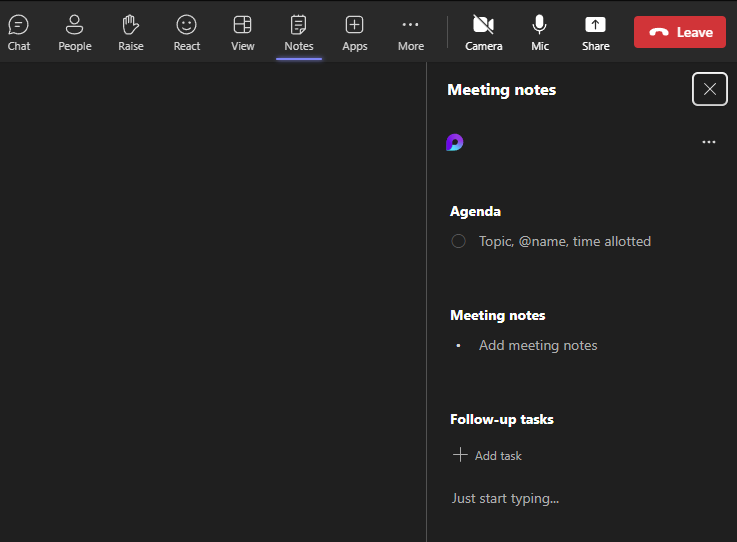
- You can copy+paste the link to a component into a Teams chat or Teams meeting notes (but not Teams channel post), Whiteboard, Outlook Email or in another Loop page/workspace. Note: Loop doesn’t seem to be ok with pasting the same component twice in a Loop page.
- Slightly confusingly, a component and page are listed in the same indent for a workspace. But the use-case is probably to Share that Component in another workspace.

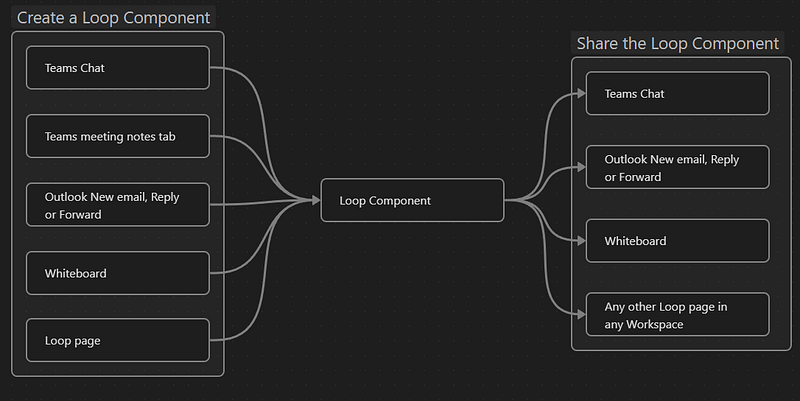
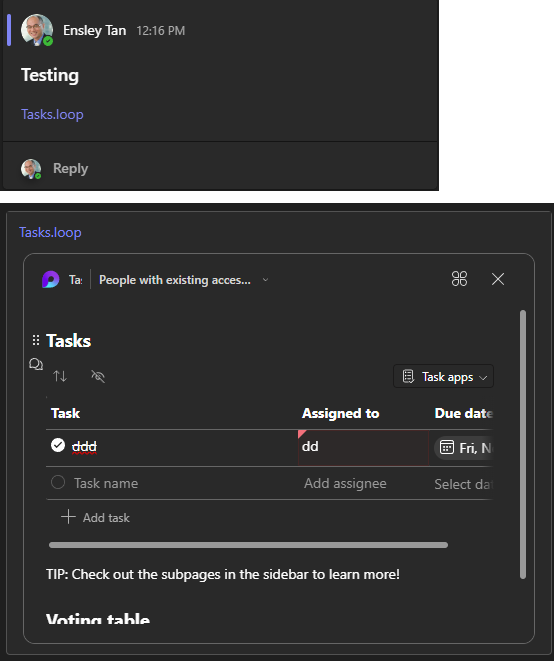
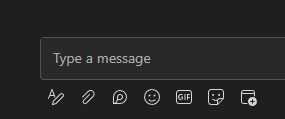
Loop Components appear differently depending on whether the app supports it. Below is what you see when a Loop Component link is shared in a Teams site (Loop unsupported) as opposed to a Teams chat (Loop supported).

Sharing and access
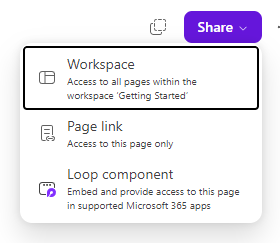
Access to content is also based on the hierarchy of Workspace → Page → Component. So someone can be given access to
- The whole Workspace and everything in it
- A specific page and everything in it
- A specific component