avatarEmre UYSAL

Free AI web copilot to create summaries, insights and extended knowledge, download it at here

5287

Abstract

="hljs-number">5</span> <span class="hljs-attribute">Nov</span> <span class="hljs-number">28</span> <span class="hljs-number">18</span>:<span class="hljs-number">00</span> <span class="hljs-attribute">shows</span> the last modification time </pre></div><div id="69f3"><pre><span class="hljs-keyword">Column</span> <span class="hljs-number">6</span> Desktop shows the <span class="hljs-type">name</span></pre></div><p id="2d9d">For hidden files and directories you can use <b>-a</b> option and hidden files starts with <b>.</b> in Linux.</p><p id="367b">To sort result according to size you can use <b>-S </b>option and if you want to reverse the sort you can use <b>-r</b> option.</p><figure id="4095"><img src="https://cdn-images-1.readmedium.com/v2/resize:fit:800/1*TUWPuVplTfLYbWK9UTdMwQ.png"><figcaption>sort according to ascending size using ls -lSr command</figcaption></figure><h2 id="4608">Administrative Access</h2><p id="d1b0">Using <b>su</b> and <b>sudo</b> commands you can have administrative access on Linux. The difference between <b>sudo</b> and <b>su </b>is; <b>sudo</b> gives administrative access only for the command to be executed.</p><div id="bc24"><pre><span class="hljs-keyword">su</span> [OPTIONS] sudo [COMMAND] examples sudo <span class="hljs-keyword">cat</span> example.txt <span class="hljs-keyword">su</span> -<span class="hljs-keyword">l</span></pre></div><figure id="46c3"><img src="https://cdn-images-1.readmedium.com/v2/resize:fit:800/1*I_Ag8mYHwhCIh0U-Ovmqew.png"><figcaption>reading a file with sudo command</figcaption></figure><h2 id="9547">Changing File Permissions and Ownership</h2><p id="cf90">In linux there are 3 ownerships of permissions; <b><i>users</i></b>, <b><i>groups</i></b> and <b><i>others</i></b>. For each ownership there are <b><i>read</i></b>, <b><i>write</i></b> and <b><i>execute</i></b> permissions.</p><p id="94b4"><b>r : read ➡️ 4 | w : write ➡️ 2 | e : execute ➡️ 1</b></p><div id="02a9"><pre>chmod <span class="hljs-selector-attr">[PERMISSIONS]</span><span class="hljs-selector-attr">[FILE]</span> chown <span class="hljs-selector-attr">[USER]</span><span class="hljs-selector-attr">[FILE]</span> examples chmod <span class="hljs-number">777</span> example<span class="hljs-selector-class">.txt</span> chown emreuysal example.txt</pre></div><p id="1187">Using <b>chmod</b> command you can change the file permissions.</p><figure id="0520"><img src="https://cdn-images-1.readmedium.com/v2/resize:fit:800/1*2A_-8Qtr4awGLIIifiGj6A.png"><figcaption>giving read permission for emreuysal user to a file</figcaption></figure><p id="7682">Using <b>chown</b> command you can change the file ownership.</p><figure id="0fc6"><img src="https://cdn-images-1.readmedium.com/v2/resize:fit:800/1*300CNMRkW6lYmeK89VU3VQ.png"><figcaption>change ownership of a file emreuysal to root</figcaption></figure><h2 id="d569">Viewing Files</h2><p id="5d78">For viewing file content you can use <b>cat</b>, <b>head</b> and <b>tail</b> commands.</p><div id="df3a"><pre>cat <span class="hljs-selector-attr">[FILE]</span> head <span class="hljs-selector-attr">[OPTIONS]</span><span class="hljs-selector-attr">[FILE]</span> tail <span class="hljs-selector-attr">[OPTIONS]</span><span class="hljs-selector-attr">[FILE]</span> examples cat example<span class="hljs-selector-class">.txt</span> head -n <span class="hljs-number">5</span> example<span class="hljs-selector-class">.txt</span> tail example.txt</pre></div><figure id="0c8f"><img src="https://cdn-images-1.readmedium.com/v2/resize:fit:800/1*vx3KU6N_8Re0a0QArdWKew.png"><figcaption>reading a file using head, tail and cat</figcaption></figure><p id="1584">To read all content of the file <b>cat</b> command is a good choice, but reading some number of the content from the start or end, you can use <b>head</b> or <b>tail</b> command, also <b>-n </b>option with a number allows to increase or decrease the number of the lines to be read.</p><h2 id="67d5">Copying, Moving and Removing Files</h2><p id="b1a4">Copying and moving files in Linux requires 2 parameters. First one is the <b>source</b> and the second one is the <b>destination</b>.</p><p id="2996">Copying a file is provided by <b>cp</b> command and moving a file is provided by <b>mv </b>command.</p><div id="41f0"><pre>cp <span class="hljs-selector-attr">[SOURCE]</span><span class="hljs-selector-attr">[DESTINATION]</span> mv <span class="hljs-selector-attr">[SOURCE]</span><span class="hljs-selector-attr">[DESTINATION]</span> rm <span class="hljs-selector-attr">[OPTIONS]</span><span class="hljs-selector-attr">[FILE]</span> examples cp example<span class="hljs-selector-class">.txt</span> Desktop/ mv Desktop/example<span class="hljs-selector-class">.txt</span> Documents/ rm -rf .</pre></div><figure id="167a"><img src="https://cdn-images-1.readmedium.com/v2/resize:fit:800/1*Mib7e3afZGvAWQuMkd9GzQ.png"><figcaption>copying and moving file to Documents</figcaption></figure><p id="0103">Lets remove file from Documents using <b>rm</b> command. Normally <b>rm</b> only removes given file but you can delete a directory using <b>-r </b>(recursive) option. Be careful when using this command because it does not send files to trash can, it deletes files permanently.</p><figure id="5416"><img src="https://cdn-images-1.readmedium.com

Options

/v2/resize:fit:800/1*Jugfi6QMULERQ9L1jl2SXQ.png"><figcaption>deleting file using rm command</figcaption></figure><h2 id="d542">Filtering</h2><p id="21d3">You can filter data using <b>grep </b>command and it supports advanced regex patterns to filter data professionally.</p><div id="186d"><pre><span class="hljs-keyword">grep</span> [<span class="hljs-keyword">OPTIONS</span>,PATTERNS etc.] examples cat sample.txt | <span class="hljs-keyword">grep</span> <span class="hljs-string">'[a-z]'</span></pre></div><figure id="e3a8"><img src="https://cdn-images-1.readmedium.com/v2/resize:fit:800/1*TXjQW4V0MkgWxYEvZV5ehQ.png"><figcaption>filter output of numbers.txt</figcaption></figure><p id="a358">The example above simply shows filtering output of cat command. First <b>grep</b> command shows the output containing 0 and the second one uses regex pattern that contains number between 0–9. By the way, <b>| </b>(pipe) means send output of the command on left hand side to right hand side command.</p><p id="c2df"><b>Shutdown, Password Update and Change Command Name</b></p><p id="2a6f">You can shutdown your computer using <b>shutdown</b> command but this command requires <b>root</b> privilages.</p><div id="67c6"><pre><span class="hljs-attribute">shutdown</span><span class="hljs-meta"> [TIME][MESSAGE]</span> <span class="hljs-attribute">examples</span> <span class="hljs-attribute">shutdown</span> +<span class="hljs-number">1</span> <span class="hljs-string">"bye bye"</span></pre></div><figure id="41d1"><img src="https://cdn-images-1.readmedium.com/v2/resize:fit:800/1*58ORMQZrHXe48d8ydLDSVw.png"><figcaption>shutdown command for 01:20 with goodbye message</figcaption></figure><p id="3116">When you need to update your password or another user password you can use <b>passwd</b> command.</p><div id="17b6"><pre>passwd <span class="hljs-selector-attr">[OPTIONS]</span><span class="hljs-selector-attr">[USER]</span> examples passwd emreuysal</pre></div><figure id="5320"><img src="https://cdn-images-1.readmedium.com/v2/resize:fit:800/1*tPA9zqaBa-L1iRG7Zw3iKg.png"><figcaption>password update for emreuysal user</figcaption></figure><p id="ad12">If you want to use shorter commands you can create shorter names for them using <b>alias</b> command.</p><div id="fdd5"><pre><span class="hljs-keyword">alias</span> [ARGUMENTS] examples <span class="hljs-keyword">alias</span> myname='<span class="hljs-keyword">echo</span> <span class="hljs-string">"emre"</span>'</pre></div><figure id="d47d"><img src="https://cdn-images-1.readmedium.com/v2/resize:fit:800/1*wvmaXyPVFdN09R_Nqh1z1g.png"><figcaption>alias for ls -l command</figcaption></figure><h1 id="9a55">Summary ⨋</h1><p id="688b">In summary, we worked on mostly used Linux commands and tried them. If you want to learn more about Linux and CLI, I strongly recommend registering a Linux Essentials course and follow my articles.</p><h1 id="a2a0">References 📖</h1><p id="691e">I will share 2 magical commands as a reference. Please try and see the outputs.</p><div id="5201"><pre><span class="hljs-keyword">man</span> <span class="hljs-comment">[COMMAND]</span> info <span class="hljs-comment">[COMMAND]</span> examples <span class="hljs-keyword">man</span> ls info cat</pre></div><h1 id="eae9">More…</h1><div id="41a0" class="link-block"> <a href="https://readmedium.com/how-to-avoid-gas-fees-when-selling-art-on-nft-marketplace-f8d115a3a098"> <div> <div> <h2>How To Avoid Gas Fees When Selling Art on NFT Marketplace?</h2> <div><h3>Calling all artists, musicians, photographers, Videographers, this is our moment to shine! This article can save you a…</h3></div> <div><p>medium.com</p></div> </div> <div> <div style="background-image: url(https://miro.readmedium.com/v2/resize:fit:320/1*YDzMLDh6HuqxHfosId6P1g.png)"></div> </div> </div> </a> </div><div id="6179" class="link-block"> <a href="https://readmedium.com/owasp-top-10-application-security-risks-20a035919fe2"> <div> <div> <h2>OWASP Top 10 Application Security Risks</h2> <div><h3>OWASP Top 10 Application Security Risks With Examples.</h3></div> <div><p>medium.com</p></div> </div> <div> <div style="background-image: url(https://miro.readmedium.com/v2/resize:fit:320/0*8YfF1imcfkmAJCYM.jpg)"></div> </div> </div> </a> </div><div id="3eba" class="link-block"> <a href="https://readmedium.com/olympic-medal-numbers-predictions-with-time-series-part-3-time-series-forecasting-255e732616d5"> <div> <div> <h2>Olympic Medal Numbers Predictions with Time Series, Part 3: Time Series Forecasting</h2> <div><h3>Fbprophet, Darts, AutoTS, Arima, Sarimax, and Monte Carlo Simulation</h3></div> <div><p>medium.com</p></div> </div> <div> <div style="background-image: url(https://miro.readmedium.com/v2/resize:fit:320/)"></div> </div> </div> </a> </div></article></body>

Mostly Used Linux Commands

Linux | Using Terminal Commands | Bash | Command Line Interface

Do you know “Linux” name comes from the folder that kernel uploaded and given by Ari Lemmke who runs the FTP server ?

Let’s start with basic information about Linux CLI and work on mostly used commands in daily life.

Introduction 📌

The Command Line Interface (CLI), is a non-graphical, text-based interface on computer system, where the user types in a command and the computer executes it.
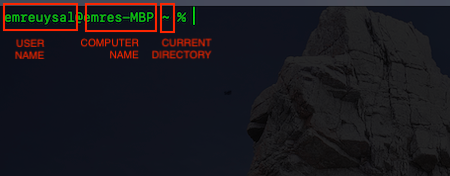
cli structure

Basic Command Syntax : command [options…] [arguments…]

ls -l Documents
  • arguments : An input that command acts on it. ➡️ Documents
  • options : A flag or switch that modifies behaviour of command. ➡️ -l

Commands 💻

Displaying current directory

Using pwd command you can display your current working directory.

pwd
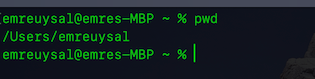
display current directory using pwd

Changing Directories

Using cd command you can change your current directory. Initial directory of the user is /home/<username> in Linux. The root directory is / .

cd [PATH]
examples
cd Desktop/
cd ..
cd 
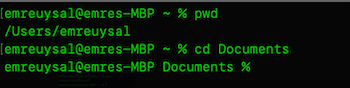
go to Documents using cd command

In Linux . represents the current directory and .. represents the directory above your current directory. You can go to upper directory using cd .. or you can go to user’s home directory using only cd or cd ~ command.

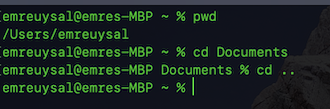
go to directory above Documents using cd ..
go user’s home using cd or cd ~

Listing Files

Using ls command you can list the directories and contents. Also ls command provides more detailed information about contents and directories using -l option.

ls [OPTIONS][FILE]
examples
ls -l 
ls -a
ls -l Desktop/
ls -lSr
ls -lr Documents/
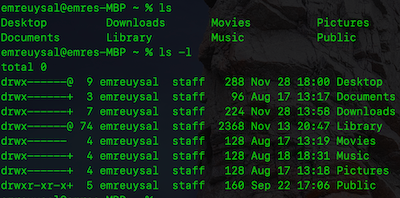
ls and ls -l command outputs

You can see that -l option adds additional information to result.

Column 1
drwx-w-r-x
1. symbol : file (-), directory (d), socket (s) etc
2,3,4. symbol : users permissions 
5,6,7. symbol : group permissions
8,9,10. symbol: others permissions
Column 2
emreuysal
shows the user owner
Column 3
staff
shows the group owner 
Column 4 
288
shows the size
Column 5
Nov 28 18:00
shows the last modification time 
Column 6
Desktop
shows the name

For hidden files and directories you can use -a option and hidden files starts with . in Linux.

To sort result according to size you can use -S option and if you want to reverse the sort you can use -r option.
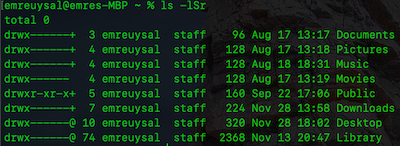
sort according to ascending size using ls -lSr command

Administrative Access

Using su and sudo commands you can have administrative access on Linux. The difference between sudo and su is; sudo gives administrative access only for the command to be executed.

su [OPTIONS]
sudo [COMMAND]
examples
sudo cat example.txt
su -l
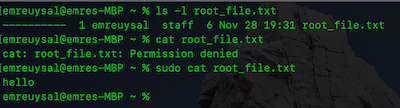
reading a file with sudo command

Changing File Permissions and Ownership

In linux there are 3 ownerships of permissions; users, groups and others. For each ownership there are read, write and execute permissions.

r : read ➡️ 4 | w : write ➡️ 2 | e : execute ➡️ 1

chmod [PERMISSIONS][FILE]
chown [USER][FILE]
examples
chmod 777 example.txt
chown emreuysal example.txt

Using chmod command you can change the file permissions.
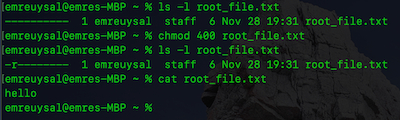
giving read permission for emreuysal user to a file

Using chown command you can change the file ownership.
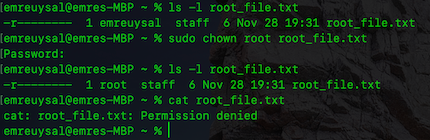
change ownership of a file emreuysal to root

Viewing Files

For viewing file content you can use cat, head and tail commands.

cat [FILE]
head [OPTIONS][FILE]
tail [OPTIONS][FILE]
examples 
cat example.txt
head -n 5 example.txt
tail example.txt
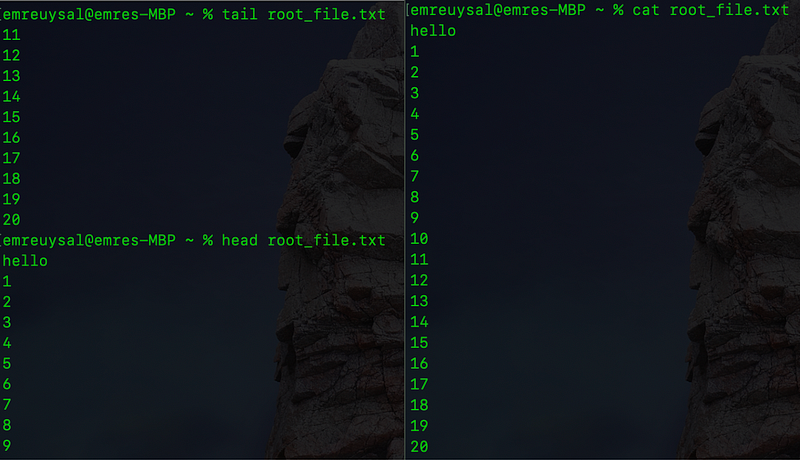
reading a file using head, tail and cat

To read all content of the file cat command is a good choice, but reading some number of the content from the start or end, you can use head or tail command, also -n option with a number allows to increase or decrease the number of the lines to be read.

Copying, Moving and Removing Files

Copying and moving files in Linux requires 2 parameters. First one is the source and the second one is the destination.

Copying a file is provided by cp command and moving a file is provided by mv command.

cp [SOURCE][DESTINATION]
mv [SOURCE][DESTINATION]
rm [OPTIONS][FILE]
examples
cp example.txt Desktop/
mv Desktop/example.txt Documents/
rm -rf .
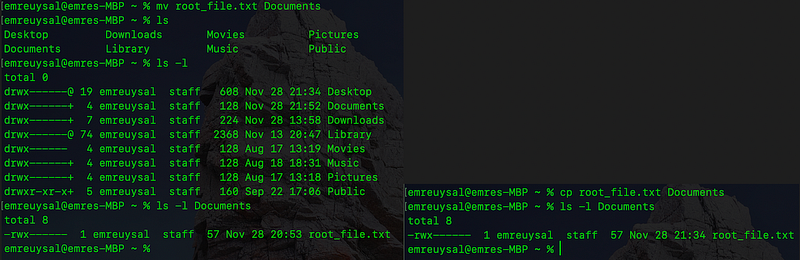
copying and moving file to Documents

Lets remove file from Documents using rm command. Normally rm only removes given file but you can delete a directory using -r (recursive) option. Be careful when using this command because it does not send files to trash can, it deletes files permanently.
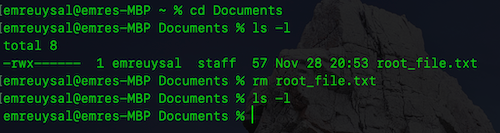
deleting file using rm command

Filtering

You can filter data using grep command and it supports advanced regex patterns to filter data professionally.

grep [OPTIONS,PATTERNS etc.]
examples
cat sample.txt | grep '[a-z]'
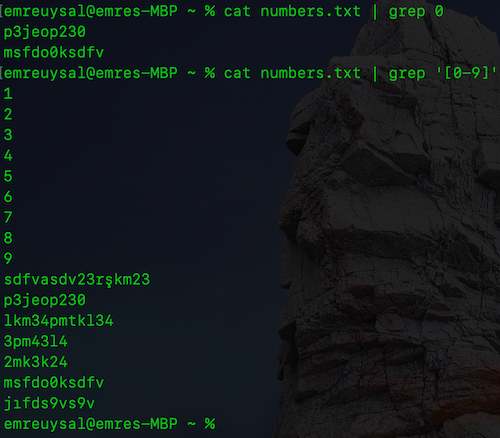
filter output of numbers.txt

The example above simply shows filtering output of cat command. First grep command shows the output containing 0 and the second one uses regex pattern that contains number between 0–9. By the way, | (pipe) means send output of the command on left hand side to right hand side command.

Shutdown, Password Update and Change Command Name

You can shutdown your computer using shutdown command but this command requires root privilages.

shutdown [TIME][MESSAGE]
examples
shutdown +1 "bye bye"

shutdown command for 01:20 with goodbye message

When you need to update your password or another user password you can use passwd command.

passwd [OPTIONS][USER]
examples
passwd emreuysal

password update for emreuysal user

If you want to use shorter commands you can create shorter names for them using alias command.

alias [ARGUMENTS]
examples
alias myname='echo "emre"'
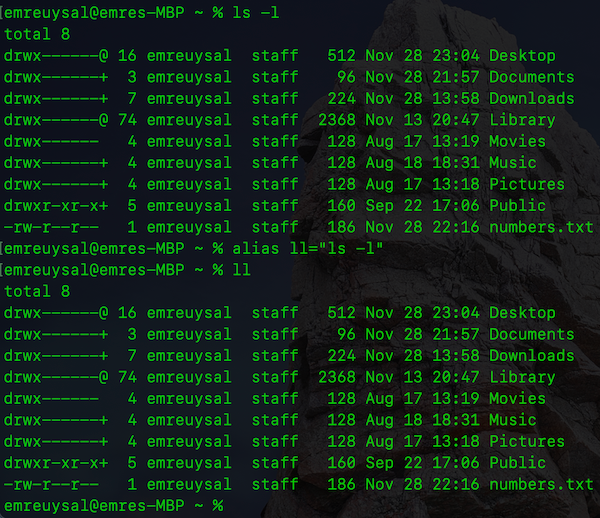
alias for ls -l command

Summary ⨋

In summary, we worked on mostly used Linux commands and tried them. If you want to learn more about Linux and CLI, I strongly recommend registering a Linux Essentials course and follow my articles.

References 📖

I will share 2 magical commands as a reference. Please try and see the outputs.

man [COMMAND]
info [COMMAND]
examples
man ls
info cat

More…

Linux
Linux Tutorial
Bash
Databulls
Technology
Recommended from ReadMedium