
MidJourney V6 Deep-Dive Series
Your Ultimate Guide to MidJourney’s “Style References” Feature — Replicate ANY Art Style You Want!🎨✨
Consistent Styles Made Simple: Step-by-Step Guide, Visual Aids & 5 Pro-Tips to Master this Powerful New Feature “Style References”!
If later you find any value in this article, throw me some Medium love! 🥰 To support my work: Clap up to 50 times, leave a message to share your thoughts & Be sure to follow for more future content like this one! 💌
Hello, fellow creatives! Ever stumbled upon an image that captured your imagination, but found yourself at a loss for words when trying to replicate its art style in MidJourney? You’re not alone — I’ve been there more times than I can count. But those days are now behind us!
MidJourney has rolled out an exciting update in V6, introducing a game-changing style consistency feature: “Style References” — This nifty feature gives you the power to mimic any art style seamlessly (and pretty accurately!) by using *ANY* image as a reference in your prompts. 🤯
Let’s dive into the world of “Style References” and unlock the full potential of MidJourney V6 together! 🤗🔥
📌 If you’re new to MidJourney V6, don’t worry! Here is <Your Quick Start Guide> to get started:
What is “Style References”?
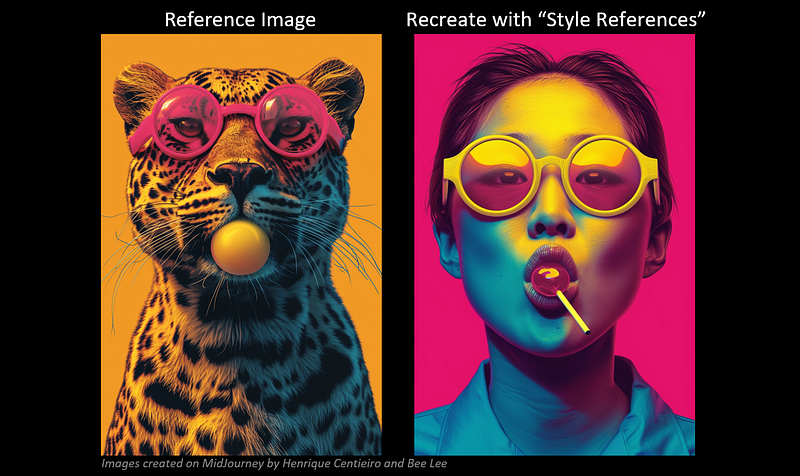
- It’s a new MidJourney style consistency feature that allows you to replicate any art style and transfer it to your new creations.
- You can use any images, and the feature will then use these images as references to generate the same style/vibe/aesthetic for your prompt.
- You can reference your MidJourney images, personal photos, or online finds.
- It works for both MidJourney V6 and Niji 6.
🗣️ David Holz, MidJourney’s founder, explained “Style References” during the MidJourney Office Hours on Jan 31:
“If you see an image and want to create something new in the style of this image, you can now give MidJourney that image, and it will try to make everything visually consistent with that image.”
👣 Easy Step-by-Step Guide to “Style References”
Step 1 — You need to have the URL(s) of your reference image(s) ready.
You can reference as many images as you want as long as you have their URLs.
Here’s how you get the image URLs:
📌 If your image is created on MidJourney
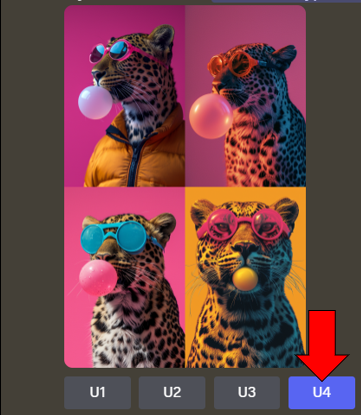
- You need to first upscale it by clicking [U1/U2/U3/U4] underneath the 2x2 grid:
- After your image is upscaled, enlarge it and click “Open in Browser”:
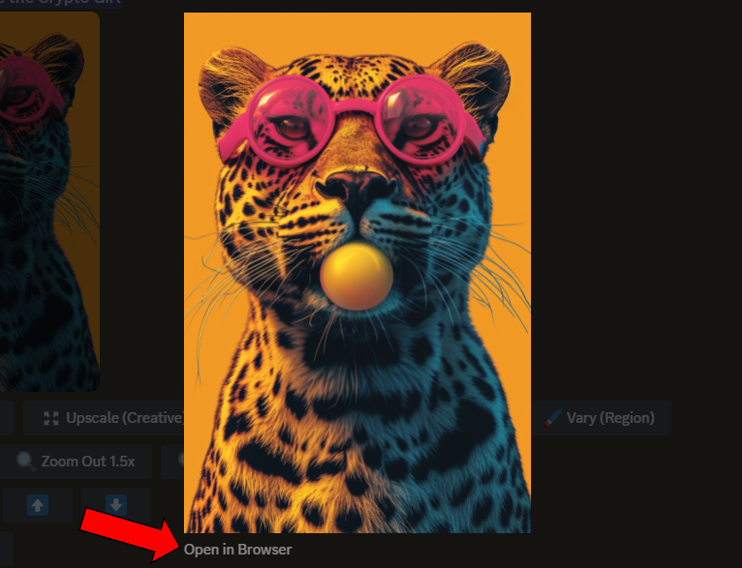
- Now that your image is opened on a separate browser, copy the image URL and have it ready.
📌 If your image is a personal photo or online find
- Upload the image to MidJourney Discord by clicking the [+] button at the prompt box:
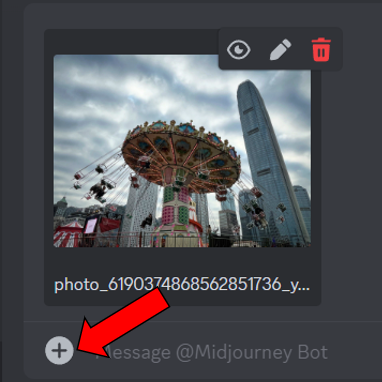
- After uploading, enlarge the image and click “Open in Browser”:
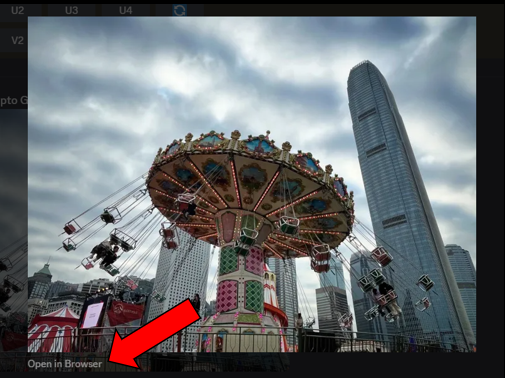
- Now that your image is opened on a separate browser, copy the image URL and have it ready.
Step 2 — Start prompting using “Style References”
- Go to your prompt box, type
/imagineand hit Enter - Type your prompt (what you want to create) then type
--sref - After
--sref, hit space, and place one (or more) URLs of your reference images (put space in between the URLs if you have more than one) - Your prompt should look like this:
<Your Prompt> --sref urlA urlB urlC
Step 3 — Define the weight of each reference image’s style
- In MidJourney, “weight” = importance
- When using multiple reference images, you can define the importance of the style of each image for the final creation.
- After each image URL, type
::then follow with a number to specify its importance (the higher the number, the more important it is) - For example, you are using two reference images (A & B), and you want your new creation to lean more towards image A’s style
- Then your prompt should look like this:
<Your Prompt> --sref urlA::2 urlB
💁🏻♀️ Personal Side Note: If you want an equal weight for each of your reference images, then you don’t need to specify.
Step 4 — Tune the weight of the overall style
- You can change the weight of the stylization as a whole by typing
--swthen follow with a number - By default, it’s set at 100 and can go up to 1,000. (0 = no style applied)
- For example, you want the overall style of the reference image to be very obvious in your new creation
- Then your prompt should look like this:
<Your Prompt> --sref urlA urlB --sw 800
💁🏻♀️ Personal Side Note: I’ll explore more on
--swlater in the Pro-Tips section.
Step 5 — Add other parameters (optional)
- After you do Steps 1 to 4, if you want to specify additional parameters like aspect ratios, etc., you can add them at the end like this:
<Your Prompt> --sref urlA urlB --sw 800 --ar 16:9
Step 6 — Finally, send out the prompt
- This is the most exciting step! 😍
- After you craft your “Style References” prompt, hit Enter and watch magic happen.
- Let’s check some awesome creations I’ve prepared for you in the next section! 👇🏻(I attached all the URLs of my reference images so you can copy them and have a try yourself. Have fun! 😉)
🎨 MidJourney “Style References” Image Showcase
💁🏻♀️ Let’s start with images with different art styles!
Three black and white cats in line wearing Kimono https://s.mj.run/L_9FM_n69ao --ar 4:3 --sw 100 --v 6.0 --s 50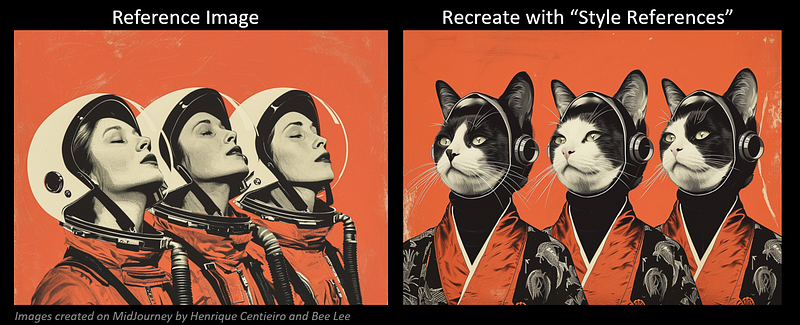
Batman flying in the sky --sref https://s.mj.run/IIcLOjTOAl0 --ar 16:9 --sw 200 --v 6.0 --s 50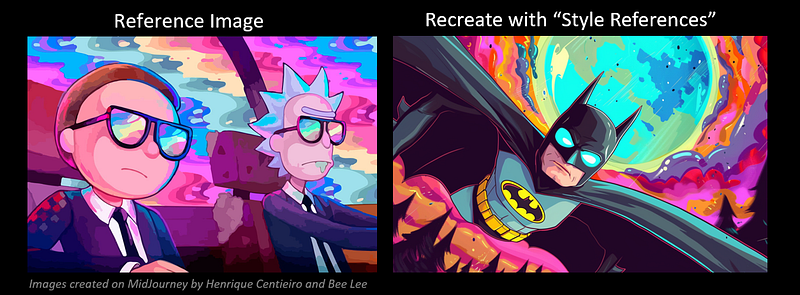
Robot in the city --sref https://s.mj.run/HtU_Mz12Xgg --ar 16:9 --sw 800 --v 6.0 --s 50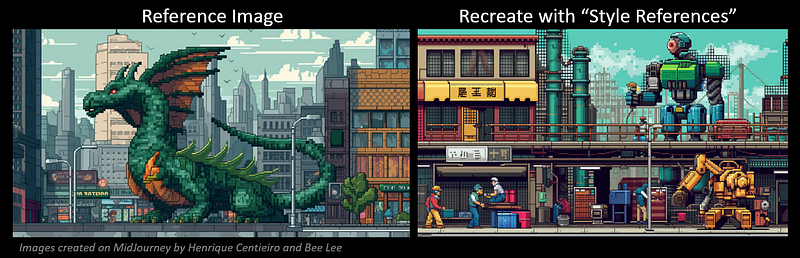
A woman with cloud and lightning on her head --sref https://s.mj.run/T6lyqqhwR6Q --ar 1:1 --sw 800 --v 6.0 --s 80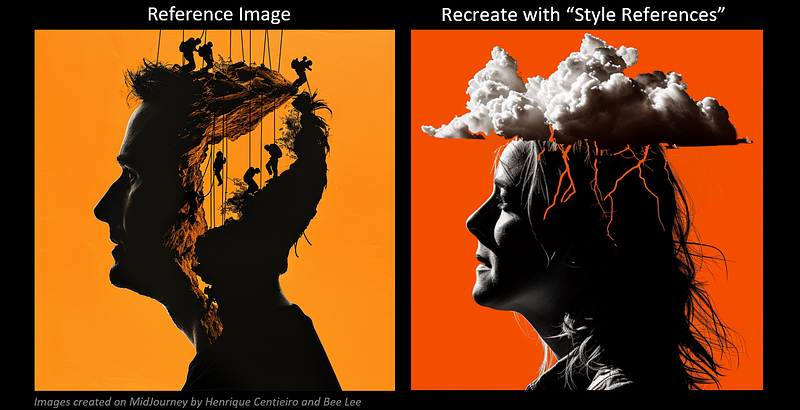
Cyber cat --sref https://s.mj.run/6OJUNKUB8Rc --ar 3:4 --sw 1000 --v 6.0 --s 50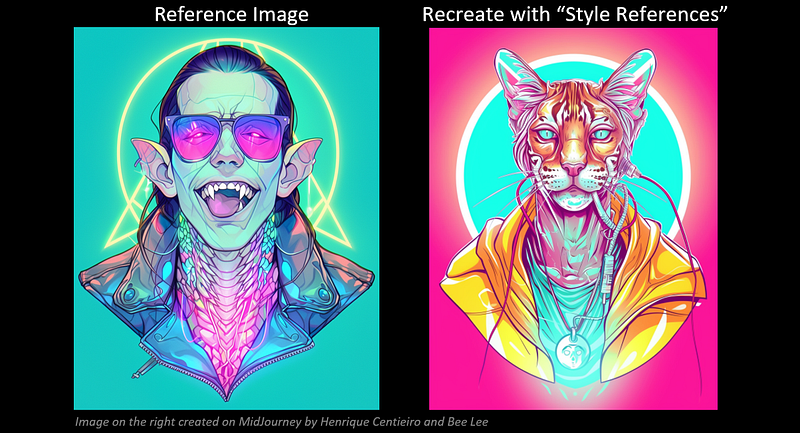
Middle aged woman and her dog --sref https://s.mj.run/wT5qE4mOp88 --ar 16:9 --sw 800 --v 6.0 --s 70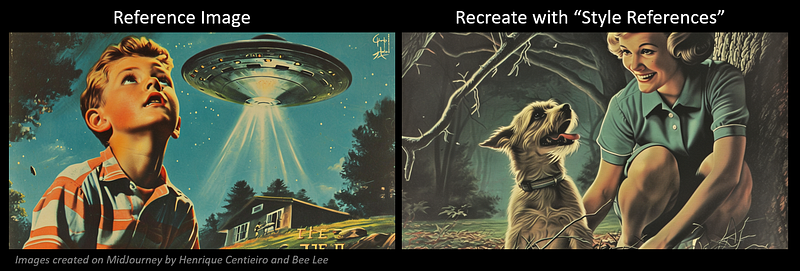
A carnival with ferris wheel --sref https://s.mj.run/ngvVGkbTNM0 --ar 1:1 --sw 1000 --v 6.0 --s 80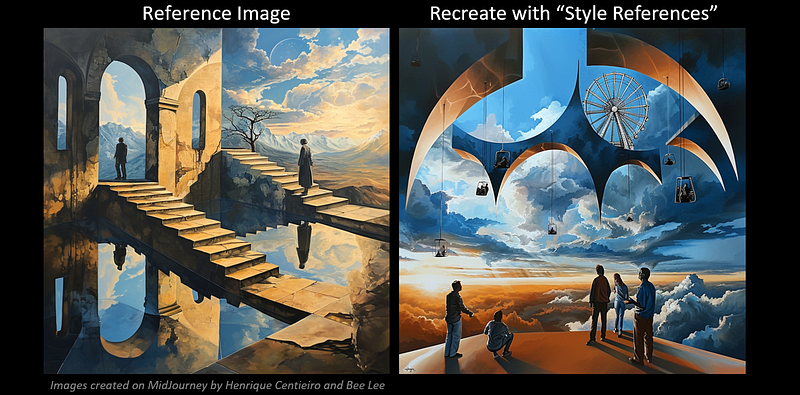
Superwoman in town --sref https://s.mj.run/fegDjR2QDu0 --ar 4:3 --sw 800 --v 6.0 --s 120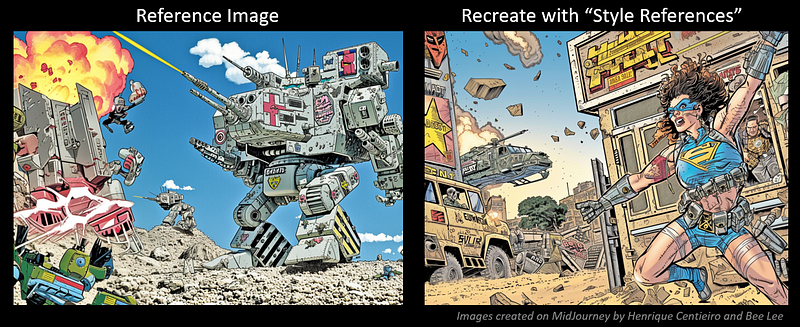
These styles are pretty amazing, isn’t it? If you want to explore more art styles to try on MidJourney, check out these articles:
💁🏻♀️ Now, let’s try some photorealistic MidJourney images!
A tabby cat looking out the window / A bicycle outside the door --sref https://s.mj.run/uuQB0M7DVhk --sw 800 --ar 9:16 --v 6.0 --s 70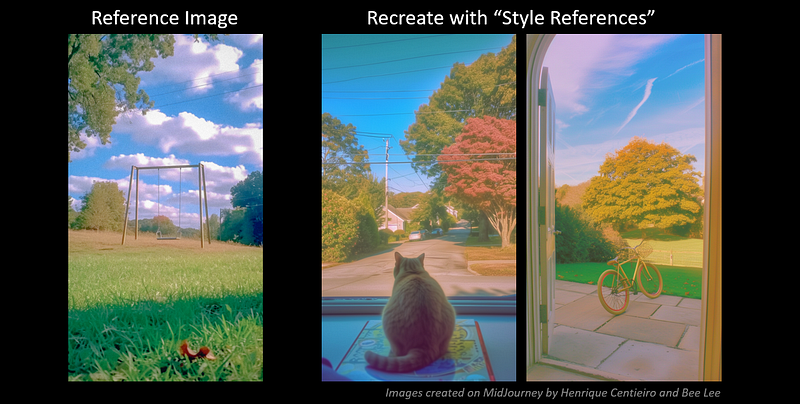
Young Asian male model in dark green sweater --sref https://s.mj.run/k8CvZzsO4LA --ar 3:4 --sw 500 --v 6.0 --s 50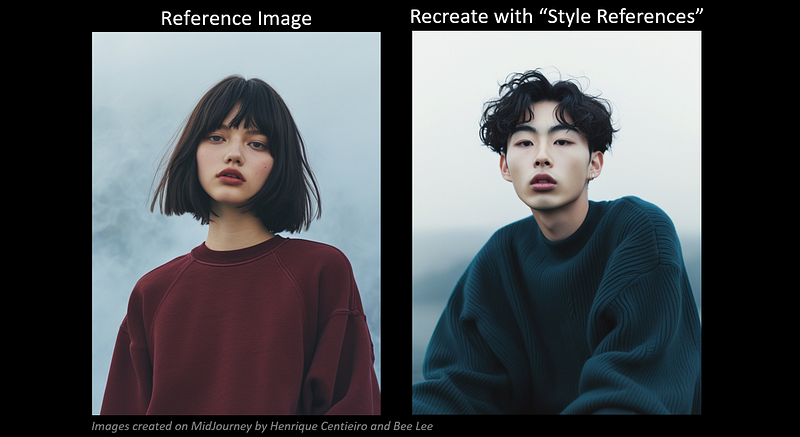
💁🏻♀️ How about using some real photos?
Photo of a picnic with a few friends --sref https://s.mj.run/mLvppfGIlPs --ar 4:3 --sw 800 --v 6.0 --s 70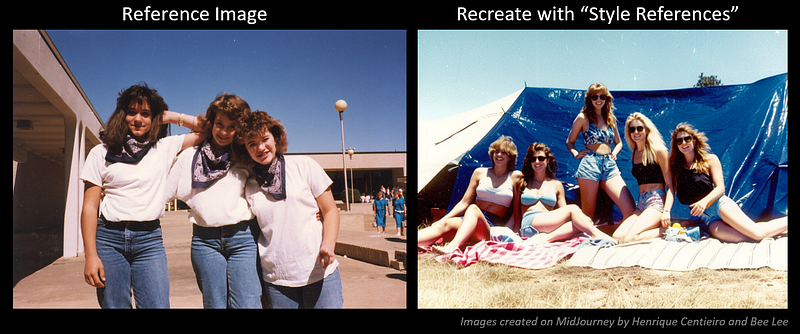
Photo of a Porsche 911 on the road in a remote place --sref https://s.mj.run/tCV1bknfOeE --sw 800 --v 6.0 --s 80 --ar 4:3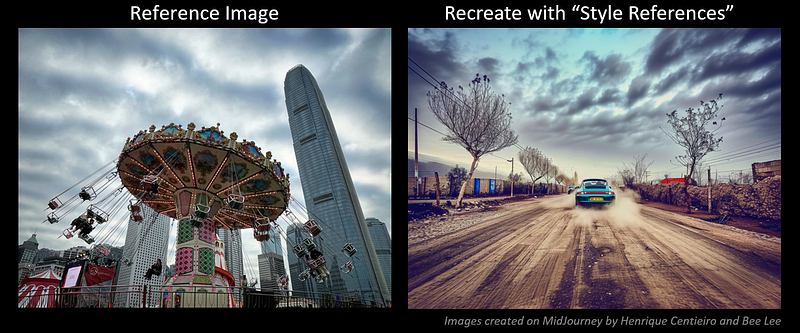
💁🏻♀️ You can also do Text Generation with “Style References”
A blonde woman with the speech bubble "Thanks honey!" next to a pot of flowers --sref https://s.mj.run/jq1SgZlgQh0 --ar 16:9 --sw 800 --v 6.0 --s 50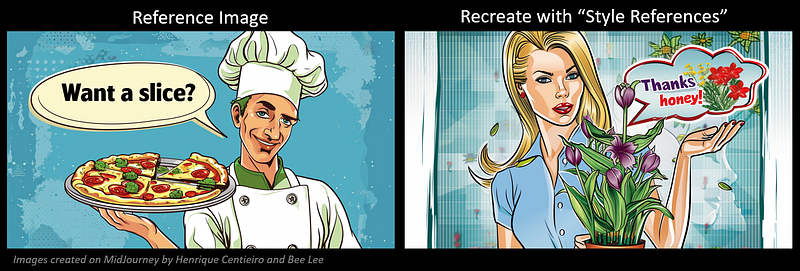
💁🏻♀️ How about creating a package design using “Image References”?
I took this reference image while I was in the grocery store just now: 😊
Package design of frozen french fries with the brand name in big, bold font "CRUNCHY" on isolated white background --sref https://s.mj.run/Kb3CRiftxBg --ar 4:3 --sw 800 --v 6.0 --s 80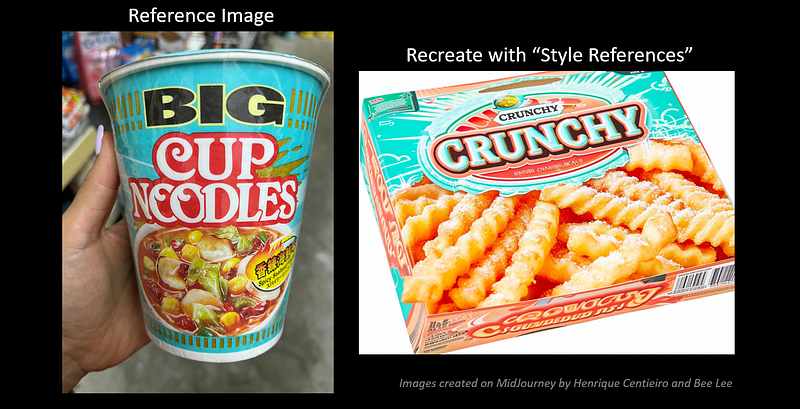
💁🏻♀️ Last bonus one — Recreating your favorite paintings!
In this one, I used one of my favorite paintings at home as the reference image:
Painting of a family of three gathering in the yard outside their house --sref https://s.mj.run/RjGciyuVw_M --ar 4:3 --sw 800 --v 6.0 --s 50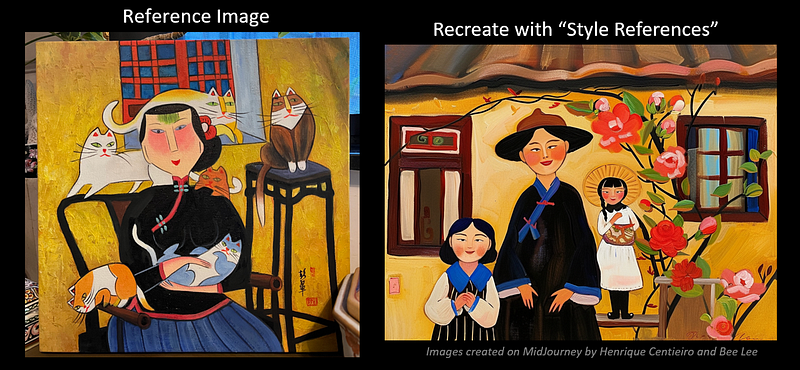
💁🏻♀️ Personal Side Note: When taking your own photos as reference images, make sure they’re well-lit and the subject is crisp and clear. If not, MidJourney might interpret any blurriness as an intentional style element. 😅
Additionally, consider cropping out any irrelevant background to minimize ‘noise,’ helping MidJourney focus on recreating the essentials.
💡 5 Pro-Tips to Master “Style References” on MidJourney
1 • Use multiple images as references
To explore the endless possibilities of “Style References”, you can experiment with several reference images for an added boost of creativity!
📌 Let’s take a look at this example, where I used two reference images:
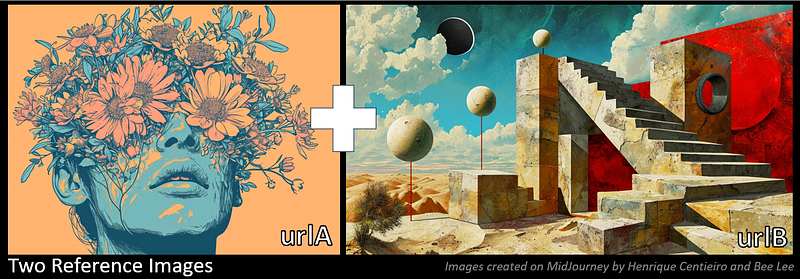
This is the prompt I used:
A woman --sref https://s.mj.run/4HFgrec2cQk::2 https://s.mj.run/4jTQ66Zzwzs --ar 16:9 --sw 800 --v 6.0 --s 100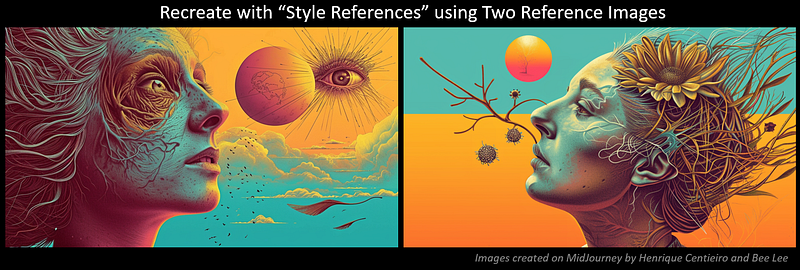
🧐 Observation:
I applied the image reference weight to ::2 for the reference image A, so you can see the style of the final images lean more towards reference image A while still preserving traces of style elements from image B — Pretty cool, isn’t it?
💁🏻♀️ Personal Side Note: While you can use as many reference images as you want for the “Style References” feature, the more images you use, the more “dilute” the styles of each reference image.
So, if you want to use multiple images, then setting relative weights of styles like this
--sref urlA::2 urlB::3 urlC::1will help.
2 • Try out different Style Weights with --sw
As mentioned earlier, you can change the weight of the overall stylization by typing --sw then follow with a number.
Through experimenting, I discovered that the overall style weight works slightly differently on different styles of reference images, so I suggest you try different variations to see what works for you!
📌 Let’s take a look at this example of how different Style Weight --sw can influence the results:
I used these two reference images:
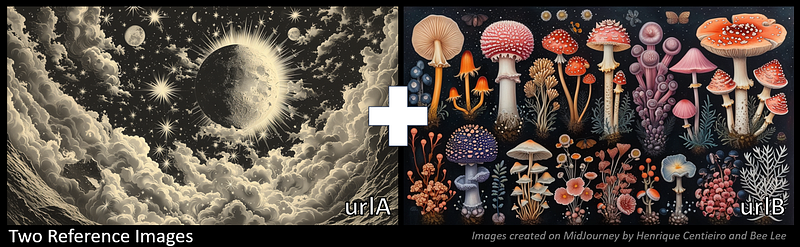
A photo of landscape --sref https://s.mj.run/8h2rd4J06GQ https://s.mj.run/B0ALRRe1x_M --s 100 --v 6.0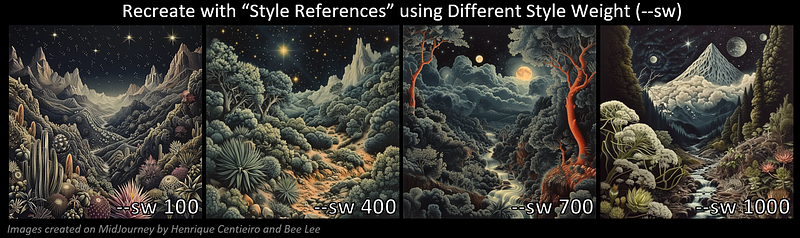
🧐 Observation:
--sw 100: Slight styles are seen from both reference images, A and B.
--sw 400: Starts to see more style elements popping up, including numerous stars from A and mushroom-like bushes from B.
--sw 700: Starts to see clouds and planets from A, and color themes from B.
--sw 1000: This captures the style of both A and B the best: Planet, stars, clouds, botanical illustration style of the bushes, and color theme can all be seen.
💁🏻♀️ Personal Side Note: Generally speaking,
--sw 800gives me a pretty consistent result to reflect the styles of my reference images so that’s my personal go-to setting.
I suggest you try out different
--swvalues to see what works best for your reference images.
3 • Use these --s settings for different styles of images
--sor--stylizevalue can affect how much the MidJourney default aesthetic is applied. Hence, the lower the--svalue, the less ‘opinionated’ your images will be.--svalue ranges from 1 to 1,000 (default is 100).
💁🏻♀️ Here is my recommendation on --s value on different type of images:
- Photorealistic images and text generation: Use lower
--svalue. My go-to is--s50–80. - For more artistic images (non-photorealistic): Use a minimum of
--s 100for the best results.
4 • Where is the best place to find cool images as references?
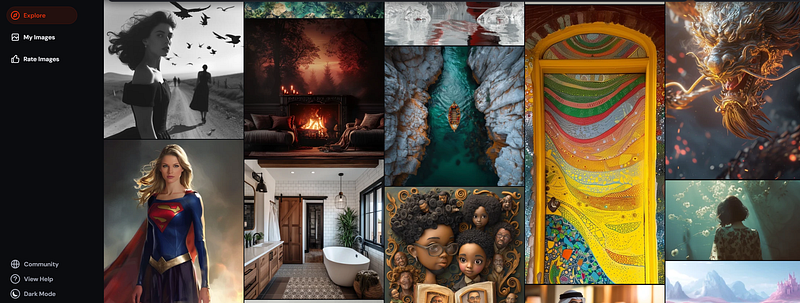
To avoid the hassle of online searches and copyright complications, your go-to resource should be MidJourney’s most updated website!
If you haven’t heard, MidJourney’s website has recently undergone several enhancements, including the revamped Explore Page: https://www.midjourney.com/explore
With this upgrade, the Explore Page now presents a much wider array of diverse art styles created by the MidJourney community. You’re bound to discover the perfect images to use as your “Style References” inspirations! 🎨✨
5 • If you already know how to prompt well, how does “Style References” benefit you?
Even if you think you know how to prompt for your desired images, using “Style References” to give MidJourney clear instructions on what to follow can really help push things in your desired direction.
📌 Let’s look at this example comparing with & without using “Style References”:
- Image in the middle: Reference image that I created on MidJourney. - Image on the left: Created with prompt only. - Image on the right: Created with the same prompt, plus applying “Image References” using the reference image with the Style Weight set to
--sw 800.
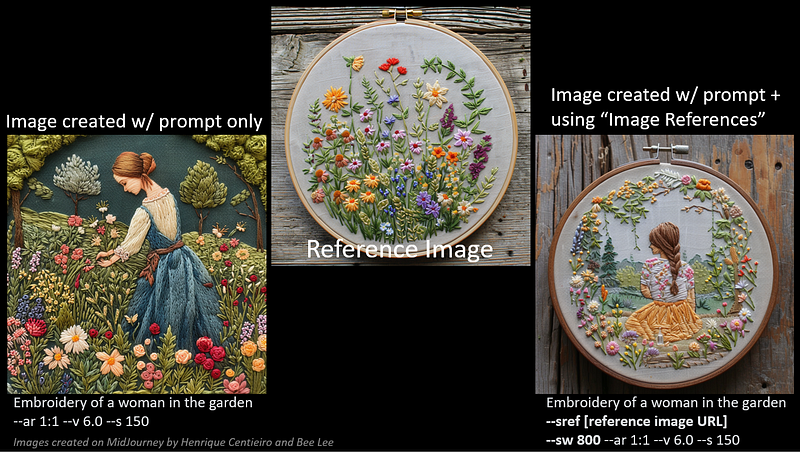
💁🏻♀️ Personal Side Note: As you can see, the left image I created using only the prompt is pretty cool; but the right image that was created with the help of “Style References” is so much closer to the style I want according to my reference image — such as the color tone, the image composition, the background and the overall ‘vibe’.
So, make good use of this powerful feature to create your perfect images on MidJourney! ✨
😊 Thank you for staying with me till the end.
I hope I’ve brought you some new insights (and eye candy😍) on this powerful feature “Style References”!
Stay tuned and enjoy the creative journey!
— Bee Lee 💃🏻
🥰 If you found any value in this article, why not throw me some Medium love? To support my work: Clap up to 50, leave a message to share your thoughts & Be sure to follow for more future content like this one! 💌
🤗 Hiya! I’m Bee Lee — An 8X Top Writer on Medium and a (really) Passionate Enthusiast of Generative AI.
My love for creating beautiful things and exploring the creative possibilities of Generative AI and MidJourney is unmatched, and sharing my wealth of experience and knowledge with you gives me great joy. 😊 I invite you to come join me as we dive deeper into the fascinating world of AI together! 🎨🤖⛵ Know more about me here.
- Meanwhile, feel free to check out all my other articles here to learn more Tips and Tricks on using MidJourney:
- Here is the folder for all the articles in my
:
- To learn more about how to create ultra-photorealistic MidJourney images, this is my highly-rated series where I shared my prompting formula and 100+ cheat codes:
🌞 Stay in touch:


