avatarTristan Wolff

Free AI web copilot to create summaries, insights and extended knowledge, download it at here

2925

Abstract

utpainting-56f3f93bfe0d">Midjourney</a></figcaption></figure><p id="865c">Now, below the <b>Variation</b> and <a href="https://readmedium.com/complete-guide-to-midjourney-v5-2-zoom-out-outpainting-56f3f93bfe0d"><b>Zoom Out</b></a><b> buttons</b>, you will find <b>a new set of commands:</b> <a href="https://emojipedia.org/left-arrow/">⬅️</a><a href="https://emojipedia.org/up-arrow/"></a>, <a href="https://emojipedia.org/right-arrow/">➡️</a>, <a href="https://emojipedia.org/up-arrow/">⬆️</a> and <a href="https://emojipedia.org/down-arrow/">⬇️</a></p><figure id="4fb3"><img src="https://cdn-images-1.readmedium.com/v2/resize:fit:800/1*sL5gaJ2icZqzfVdTv0DHBQ.png"><figcaption>Images by the author & <a href="https://readmedium.com/complete-guide-to-midjourney-v5-2-zoom-out-outpainting-56f3f93bfe0d">Midjourney</a></figcaption></figure><p id="3afc">Use these arrow key emojis to extend the canvas in any direction you like.</p><p id="6fb2">For example:</p><figure id="f197"><img src="https://cdn-images-1.readmedium.com/v2/resize:fit:800/0*zArR-wjQvCbuD789.png"><figcaption></figcaption></figure><figure id="ead6"><img src="https://cdn-images-1.readmedium.com/v2/resize:fit:800/0*ggQeTHE4s7xO3dxB.png"><figcaption>Images by the author & <a href="https://readmedium.com/complete-guide-to-midjourney-v5-2-zoom-out-outpainting-56f3f93bfe0d">Midjourney</a></figcaption></figure><p id="9778">Of course, you can do this multiple times and/or combine it with Zoom Out for <a href="https://readmedium.com/turn-chatgpt-into-a-midjourney-prompt-generator-a-step-by-step-guide-d447479f8a48">maximum effectiveness</a>.</p><div id="efc6" class="link-block"> <a href="https://bootcamp.uxdesign.cc/midjourney-5-2-is-a-game-changer-introducing-outpainting-variation-prompt-optimization-and-more-eccb83489829"> <div> <div> <h2>Midjourney 5.2 Is A Game Changer: Introducing Outpainting, Variation, Prompt Optimization, and More</h2> <div><h3>MJ Opening New Possibilities For AI Image Generation</h3></div> <div><p>bootcamp.uxdesign.cc</p></div> </div> <div> <div style="background-image: url(https://miro.readmedium.com/v2/resize:fit:320/0*zGSvMchpAivRcbm5.png)"></div> </div> </div> </a> </div><h2 id="bb74">Advanced Usage: Upscaling + Remix + Panning</h2><p id="56f5">To control the content generated when expanding an image using the panning feature, we need to change the prompt used in this process.</p><p id="bf71">In order to do this, we must first enable <b>“Remix Mode”</b>. Navigate to the bot’s settings by entering the command</p><div id="6eb2"><pre>/settings</pre></div><p id="419b">And in the follow-up menu activate “Remix mode”.</p><figure id="8413"><img src="https://cdn-images-1.readmedium.com/v2/resize:fit:800/1*cdEEpMRR--s-zyv44WtXww.png">

Options

<figcaption></figcaption></figure><p id="78ed">Now, when you upscale an image and extend it in any direction, you will see a dialogue box that let’s you alter the prompt and/or change additional parameters (in a very similar way <a href="https://readmedium.com/complete-guide-to-midjourney-v5-2-zoom-out-outpainting-56f3f93bfe0d">we did here</a>).</p><p id="0bc4">For example, upscaling the above base image with the prompt changed to:</p><div id="4733"><pre><span class="hljs-selector-tag">a</span> hat made of fruits</pre></div><figure id="08df"><img src="https://cdn-images-1.readmedium.com/v2/resize:fit:800/0*F-uQqmFZ7lLVRDFI.png"><figcaption>Images by the author &amp; <a href="https://readmedium.com/complete-guide-to-midjourney-v5-2-zoom-out-outpainting-56f3f93bfe0d">Midjourney</a></figcaption></figure><p id="dd70">Or:</p><div id="3949"><pre>man holding <span class="hljs-selector-tag">a</span> rabbit</pre></div><figure id="c2ea"><img src="https://cdn-images-1.readmedium.com/v2/resize:fit:800/0*-t4j0AHh85mlRZeZ.png"><figcaption>Images by the author &amp; <a href="https://readmedium.com/complete-guide-to-midjourney-v5-2-zoom-out-outpainting-56f3f93bfe0d">Midjourney</a></figcaption></figure><div id="d80a" class="link-block"> <a href="https://bootcamp.uxdesign.cc/the-midjourney-cheat-sheet-v5-2-34b65cb90ea3"> <div> <div> <h2>The Midjourney Cheat Sheet (V5.2)</h2> <div><h3>From prompts to parameters, settings and weights, all in one place</h3></div> <div><p>bootcamp.uxdesign.cc</p></div> </div> <div> <div style="background-image: url(https://miro.readmedium.com/v2/resize:fit:320/1*zac9ACvit3zf8wPvheAsiA.png)"></div> </div> </div> </a> </div><p id="88fe">➡️ Follow me to stay up to date on “AI &amp;Creativity”. If you want to support my work, become a Medium member using <a href="https://medium.com/@tristwolff/membership">my referral link and get full access to all my articles</a> (140+ and growing) and those of thousands of other writers. 🙏</p><div id="8aa1" class="link-block"> <a href="https://medium.com/@tristwolff/membership"> <div> <div> <h2>Join Medium with my referral link - Tristan Wolff</h2> <div><h3>As a Medium member, a portion of your membership fee goes to writers you read, and you get full access to every story…</h3></div> <div><p>medium.com</p></div> </div> <div> <div style="background-image: url(https://miro.readmedium.com/v2/resize:fit:320/0*g-j-1DbdaO_NnWyA)"></div> </div> </div> </a> </div><p id="598e">➡️ If you like my content, why not leave a “clap” at the end of this article, so more people can see it?</p></article></body>

Midjourney 5.2

Midjourney Just Dropped A New Killer Feature: “Panning”

Midjourney’s New Panning Feature Takes Your Designs to Another Level — Literally.
Images by the author & Midjourney

Midjourney is considered by many to be the leader of the pack when it comes to innovative Generative AI.

Whenever new features are implemented, the community gets excited and, within a few hours after release, shines with stunning new design concepts, workflows and applications.

This time, the panning feature went live and I promise you’ll have a lot of fun with it. Here’s why.

So, what’s panning?

If you’ve tried Midjourne’s Zoom Out feature, you’ve already seen the potential of what’s called “outpainting”.

While the Zoom Out feature allows you to expand the canvas on all sides at once, resulting in more of a zooming effect, Panning allows you to expand the canvas on only one of the two sides of the canvas.

How does Midjourney’s Panning function work

There are currently two ways you can use the new panning feature. Let’s start with the straightforward one:

Basic Usage: Upscaling + Panning

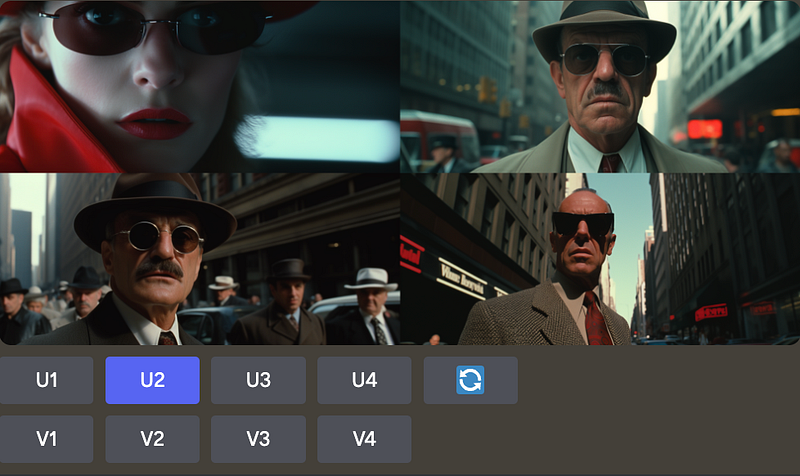
First, you create an upscale of an image by using the respective “U” button. So, for example, from an initial prompt like this:

1980s spy movie, Medium closeup shot from low-angle, off-center, 
35 mm film still shot on Kodachrome --ar 21:9

… I would get an image grid and upscale image no. 2:
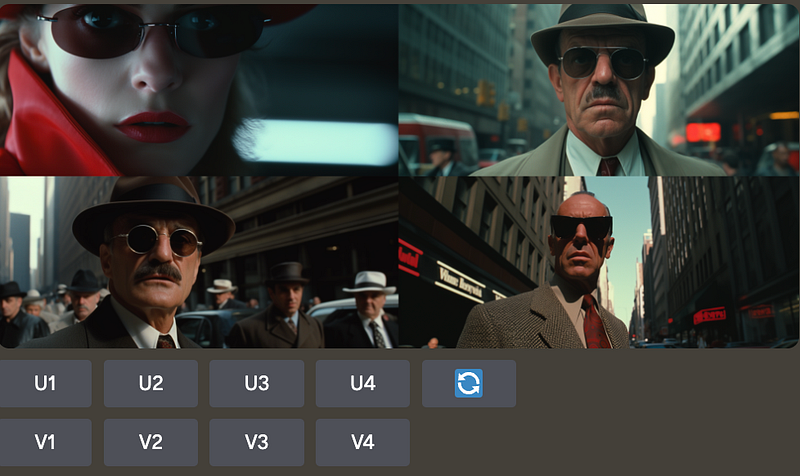
Images by the author & Midjourney

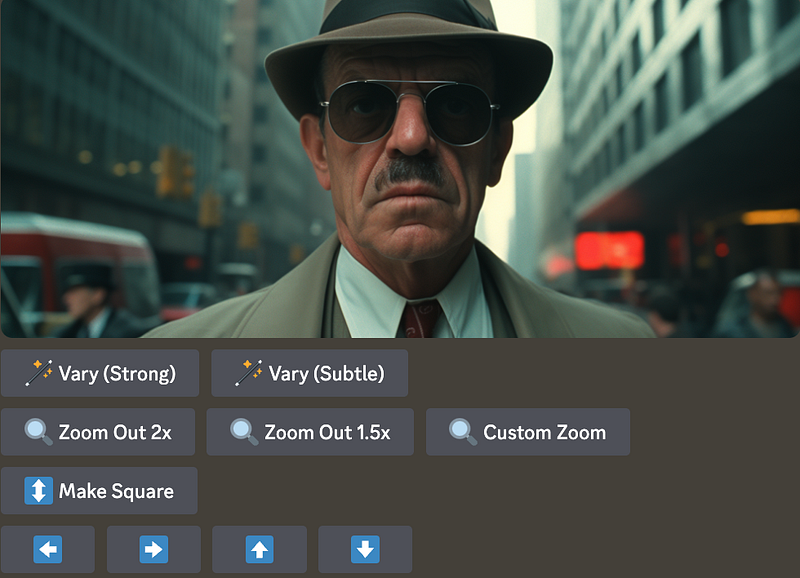
Now, below the Variation and Zoom Out buttons, you will find a new set of commands: ⬅️, ➡️, ⬆️ and ⬇️

Images by the author & Midjourney

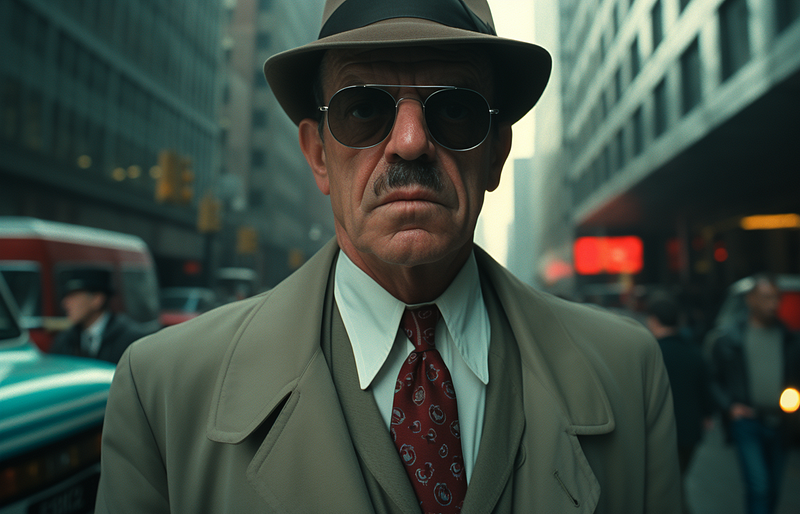
Use these arrow key emojis to extend the canvas in any direction you like.

For example:
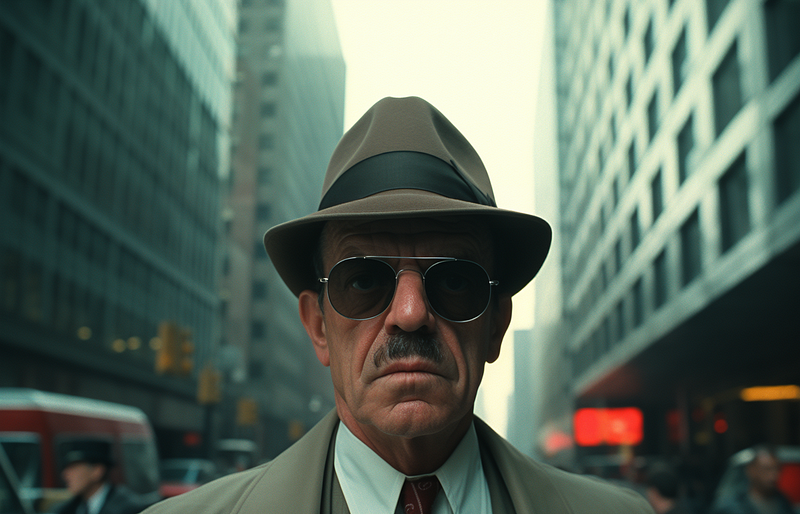
Images by the author & Midjourney

Of course, you can do this multiple times and/or combine it with Zoom Out for maximum effectiveness.

Advanced Usage: Upscaling + Remix + Panning

To control the content generated when expanding an image using the panning feature, we need to change the prompt used in this process.

In order to do this, we must first enable “Remix Mode”. Navigate to the bot’s settings by entering the command

/settings

And in the follow-up menu activate “Remix mode”.
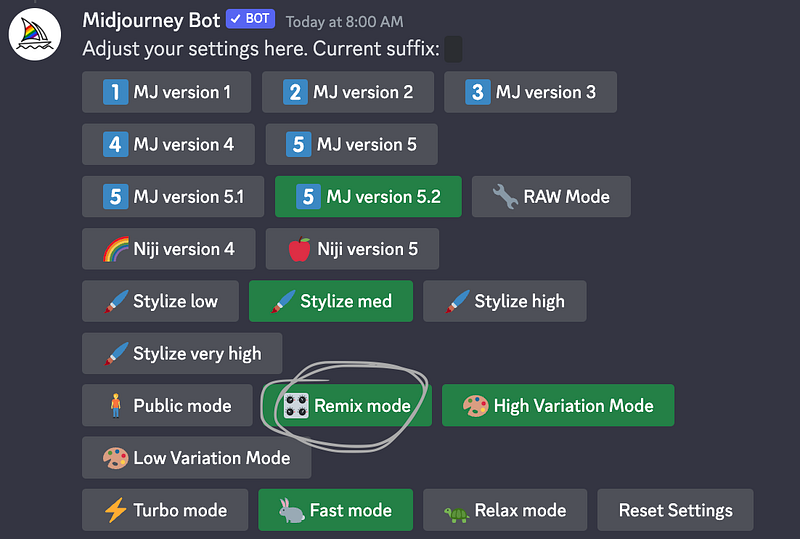
Now, when you upscale an image and extend it in any direction, you will see a dialogue box that let’s you alter the prompt and/or change additional parameters (in a very similar way we did here).

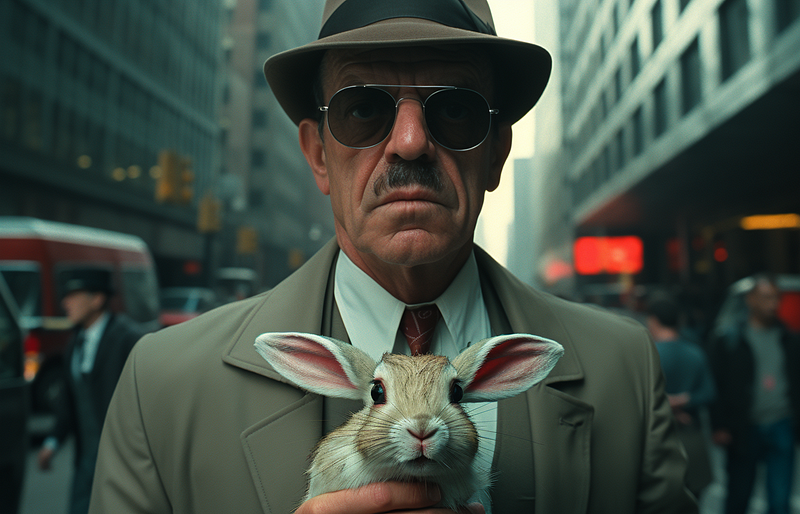
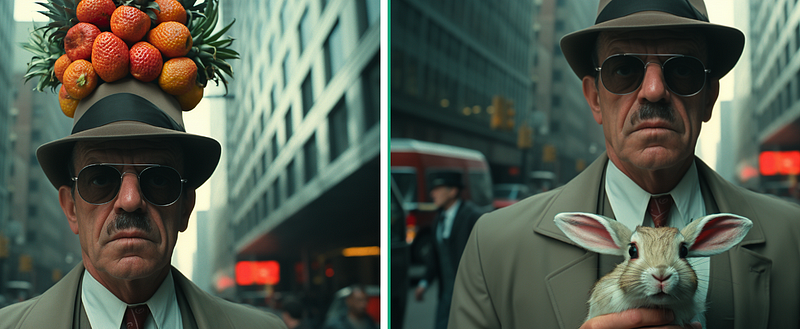
For example, upscaling the above base image with the prompt changed to:

a hat made of fruits
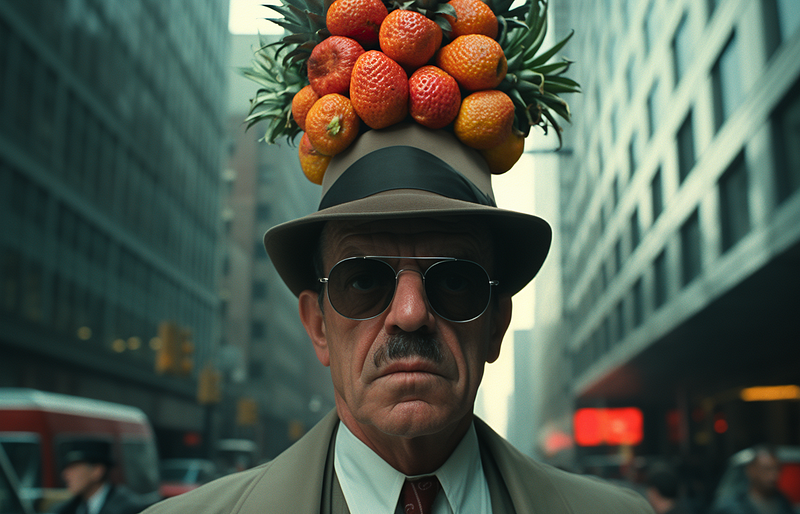
Images by the author & Midjourney

Or:

man holding a rabbit
Images by the author & Midjourney

➡️ Follow me to stay up to date on “AI &Creativity”. If you want to support my work, become a Medium member using my referral link and get full access to all my articles (140+ and growing) and those of thousands of other writers. 🙏

➡️ If you like my content, why not leave a “clap” at the end of this article, so more people can see it?

Artificial Intelligence
Design
Art
Creativity
Graphic Design
Recommended from ReadMedium