
Complete Guide To Midjourney V5.2 Zoom Out(Outpainting)
Get the best out of the new Midjourney feature
Midjourney’s new Zoom Out (or Outpainting) function is arguably the most important update in the Midjourney toolset since the introduction of V3.
Here’s a complete guide to what the new feature entails and how you can use it across different applications. We’ll cover:
- introduction to Zoom Out/Outpainting
- 1.5x, 2x and Make Square Zooms
- Custom Zoom
- current limitations and tools that might help you overcome them
What Is Zoom Out?
Midjourney’s Zoom Out, also known as Outpainting, is a process in which an AI model extends the content of an image beyond its original boundaries.
The model accomplishes this by predicting the additional content based on the patterns and features of the existing image.
Basic Usage
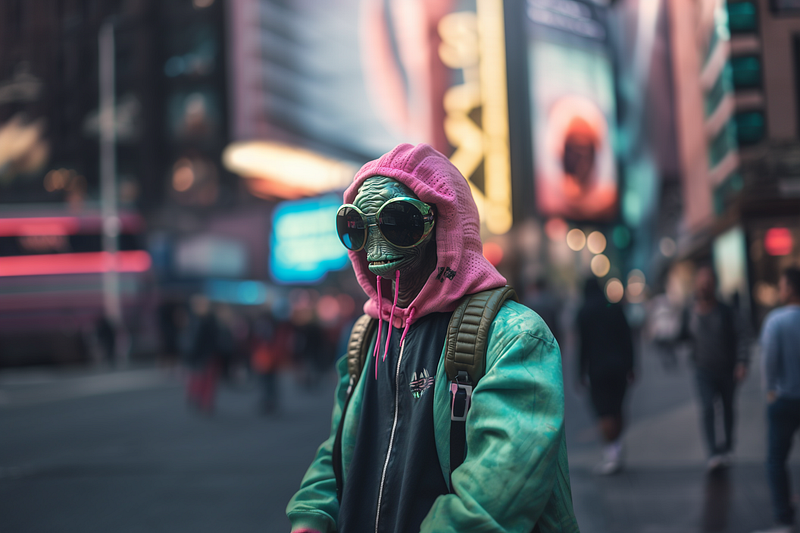
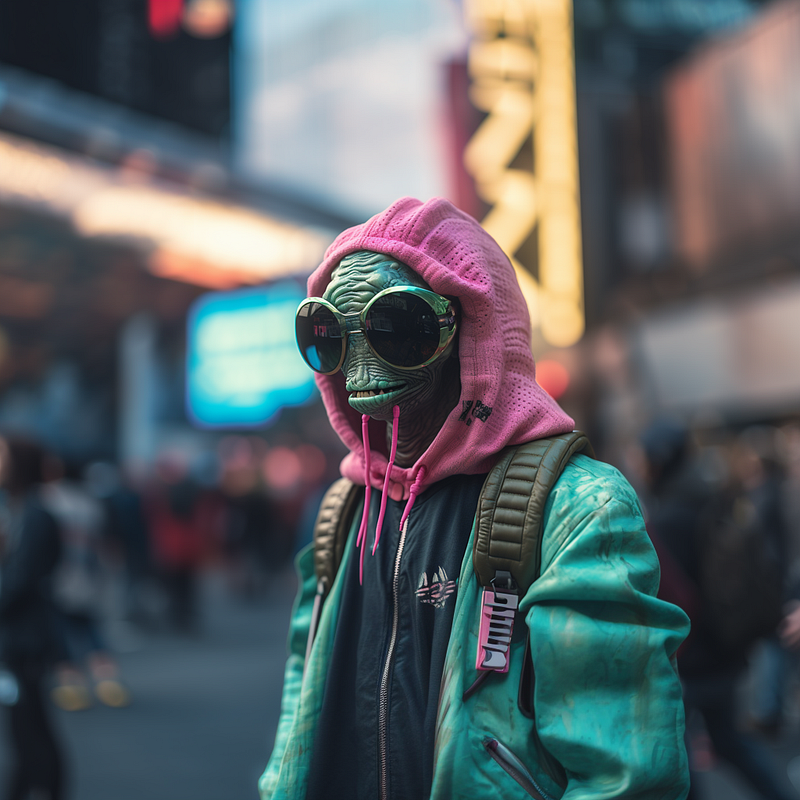
To create a zoom or outpainting all you need is an upscaled image to start from. Let’s start with this prompt:
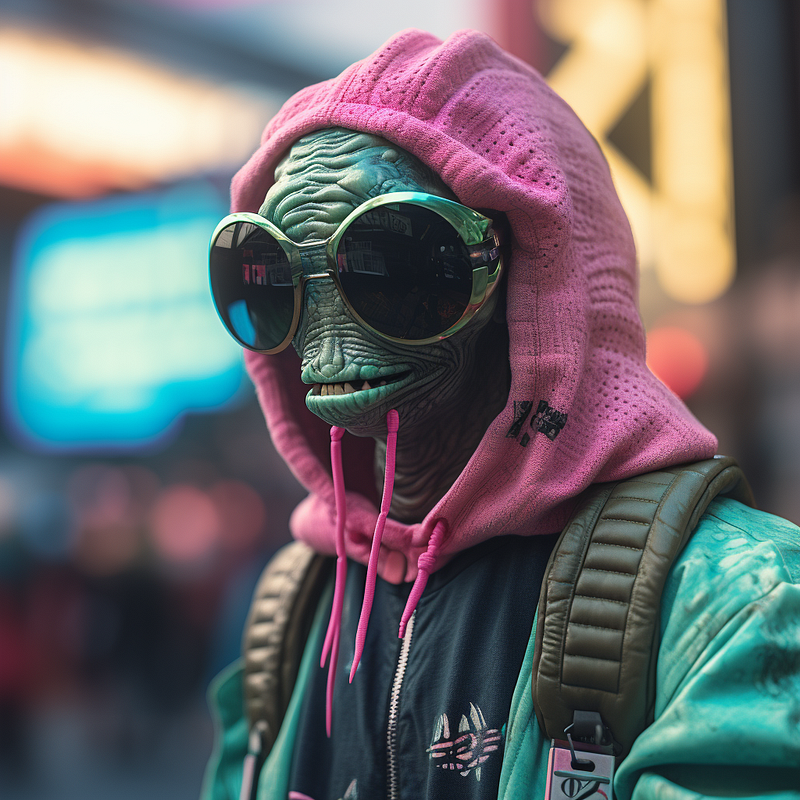
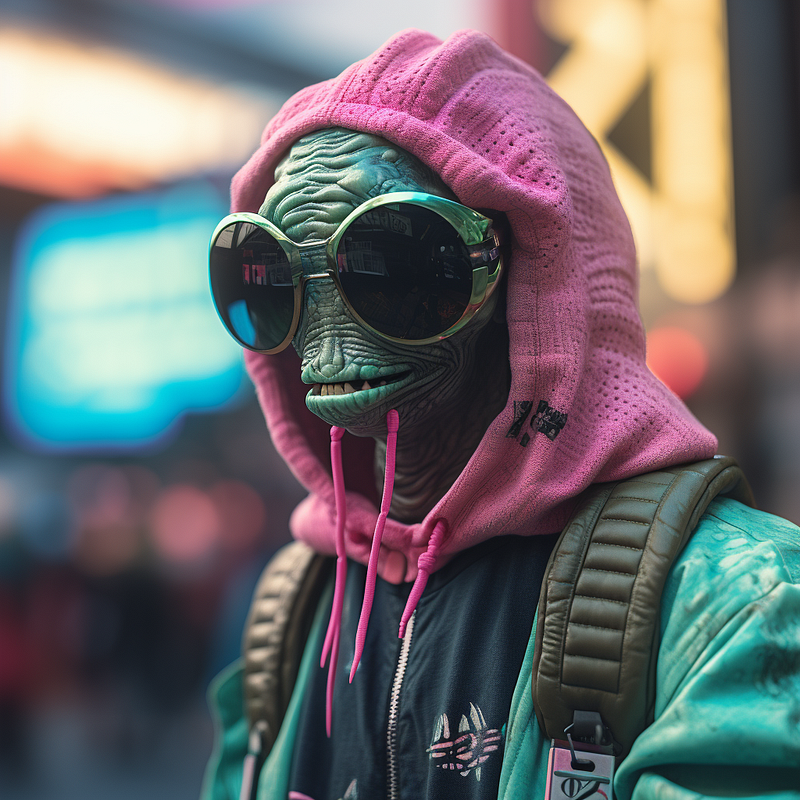
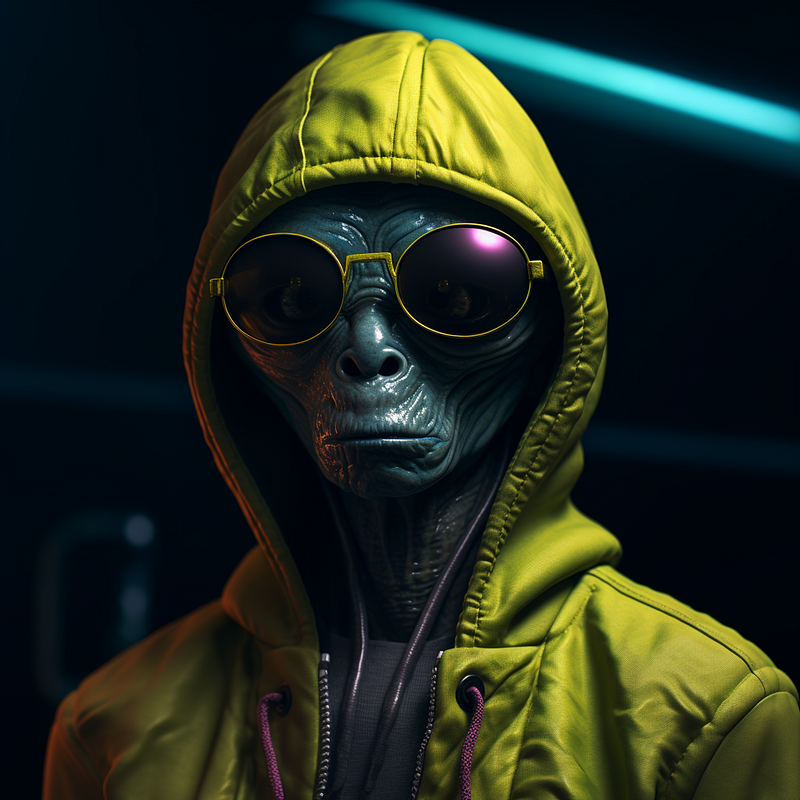
close up of an alien dressed in streetwearWe upscale the image and get:
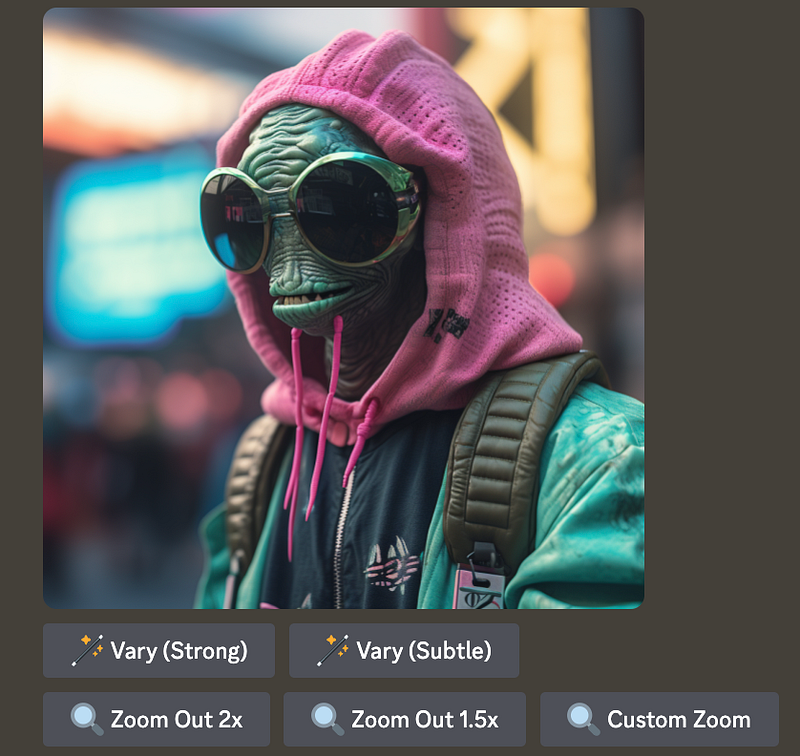
You can now choose between 1.5x, 2x and Custom Zoom.
We get a fourth option, however, when generating non-square images:
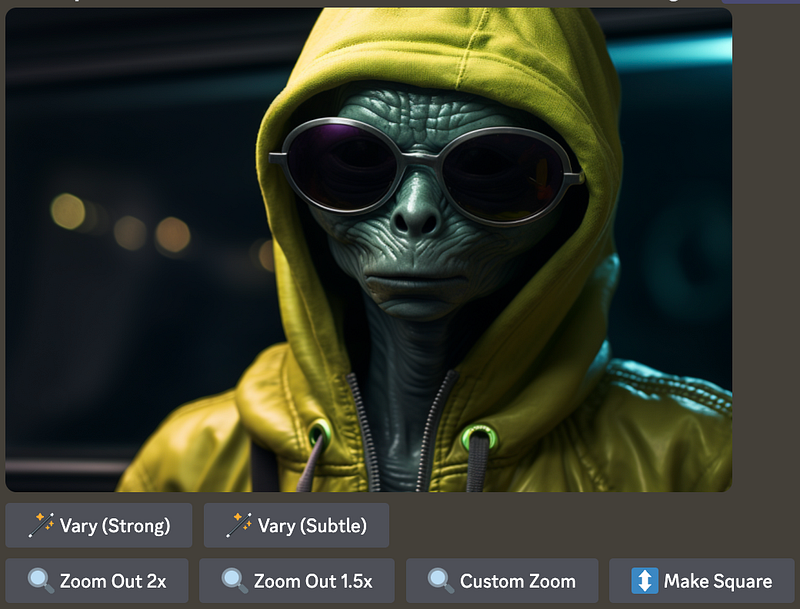
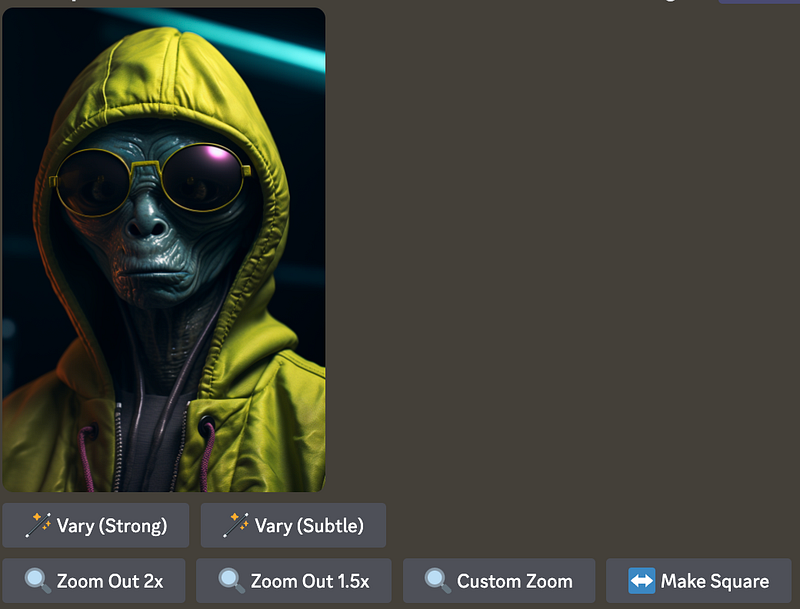
Comparing Make Square, 1.5x and 2x Zooms
If you start comparing the 1.5x, 2x and Make Square options, you will notice that the 1.5x and 2x Zoom options extend the canvas to all sides while Make Square will only extend the larger side of a non-square image.
First example: 1.5x Zoom and 2x Zoom (note: the relative size of he original motif is reduced):
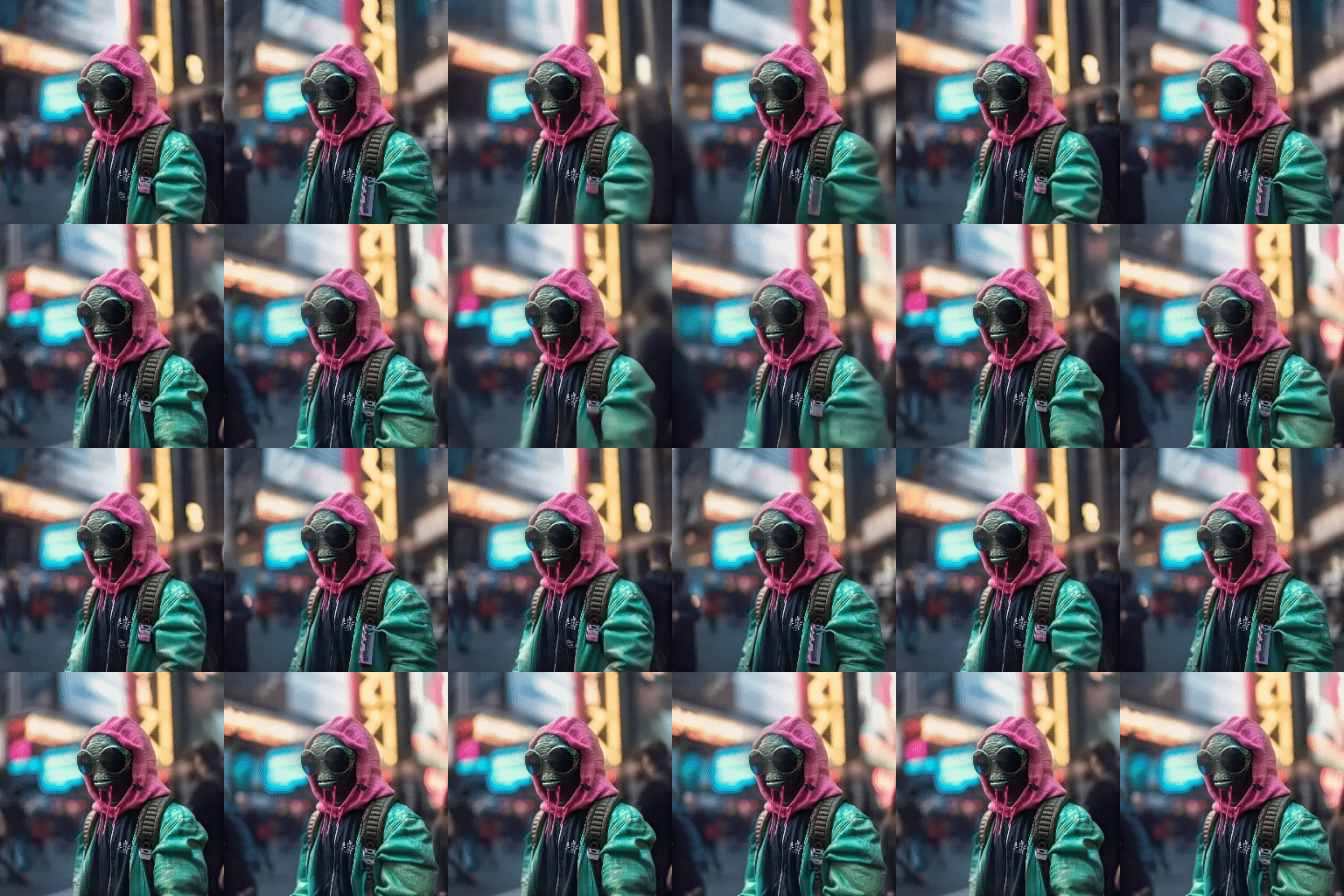
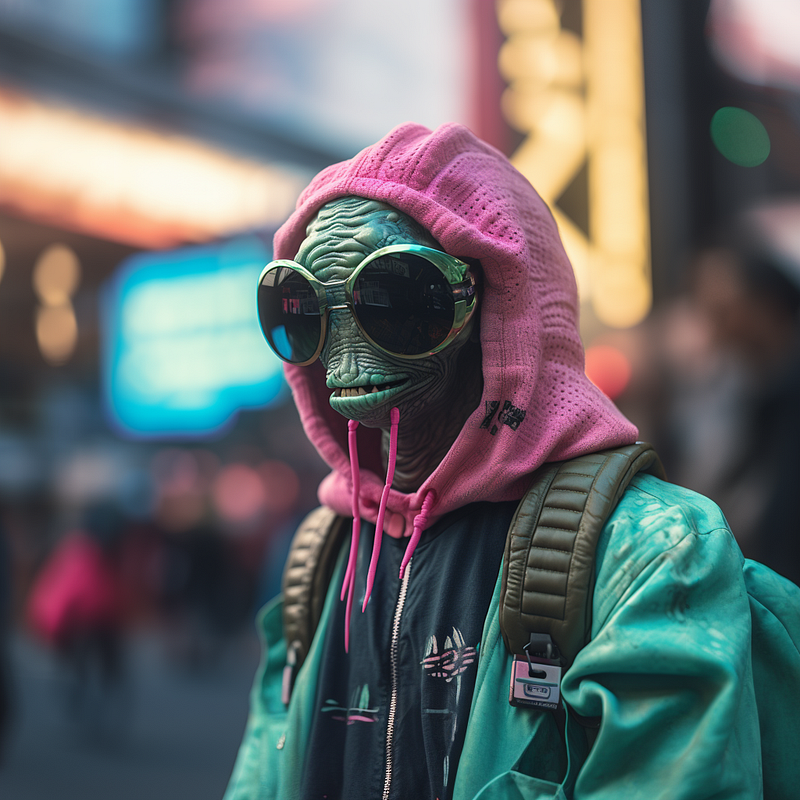
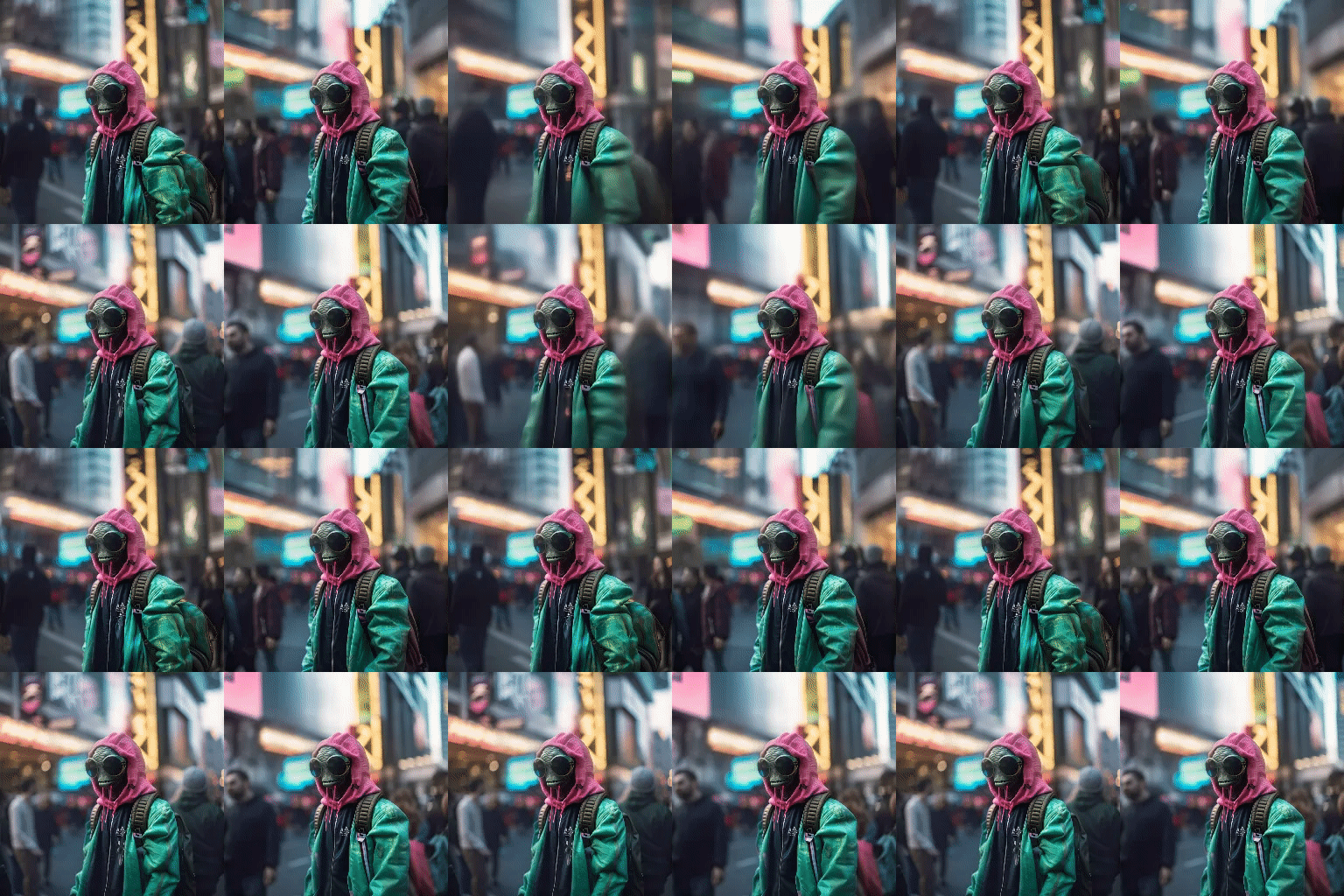
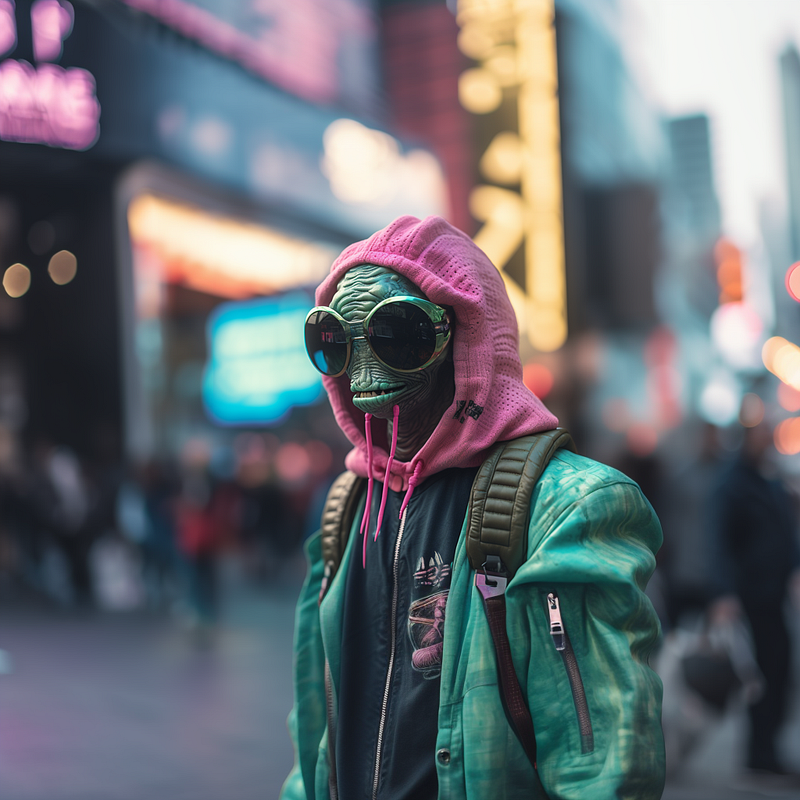
Now let’s have a look at the Make Square Zoom on 3:2 and 2:3 aspect ratio images:
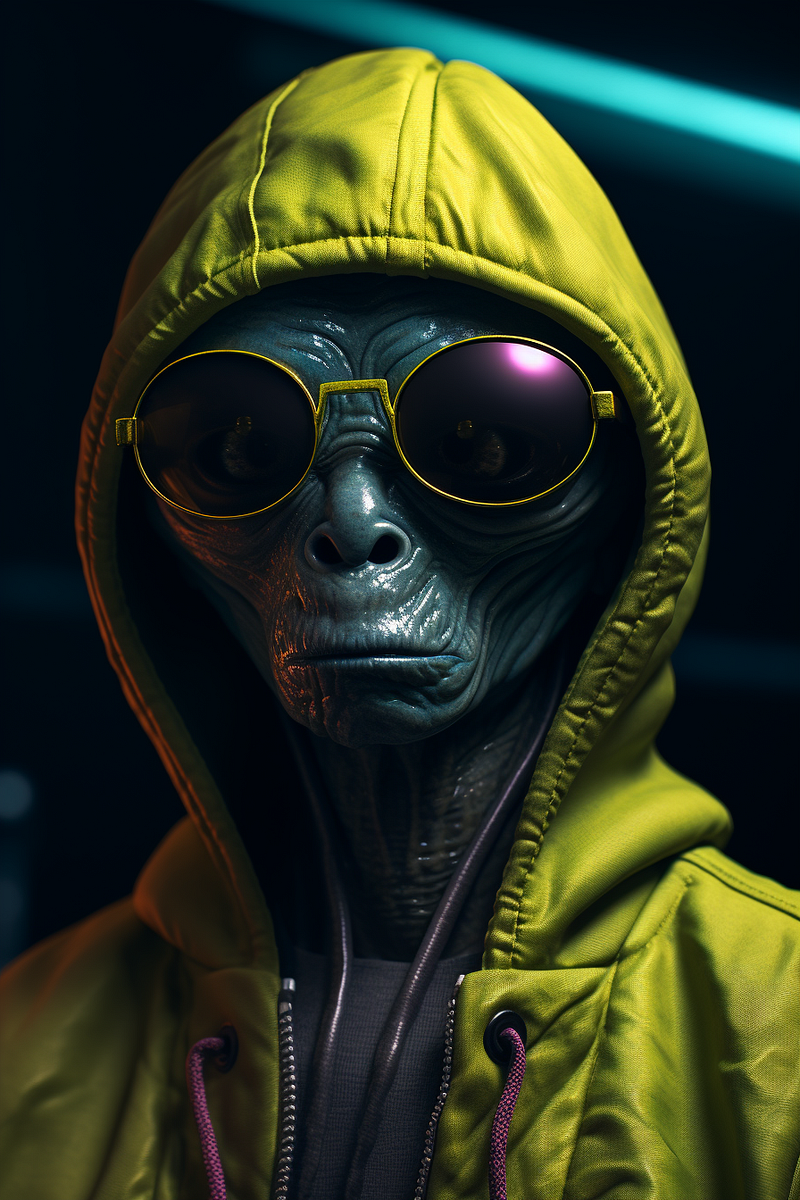
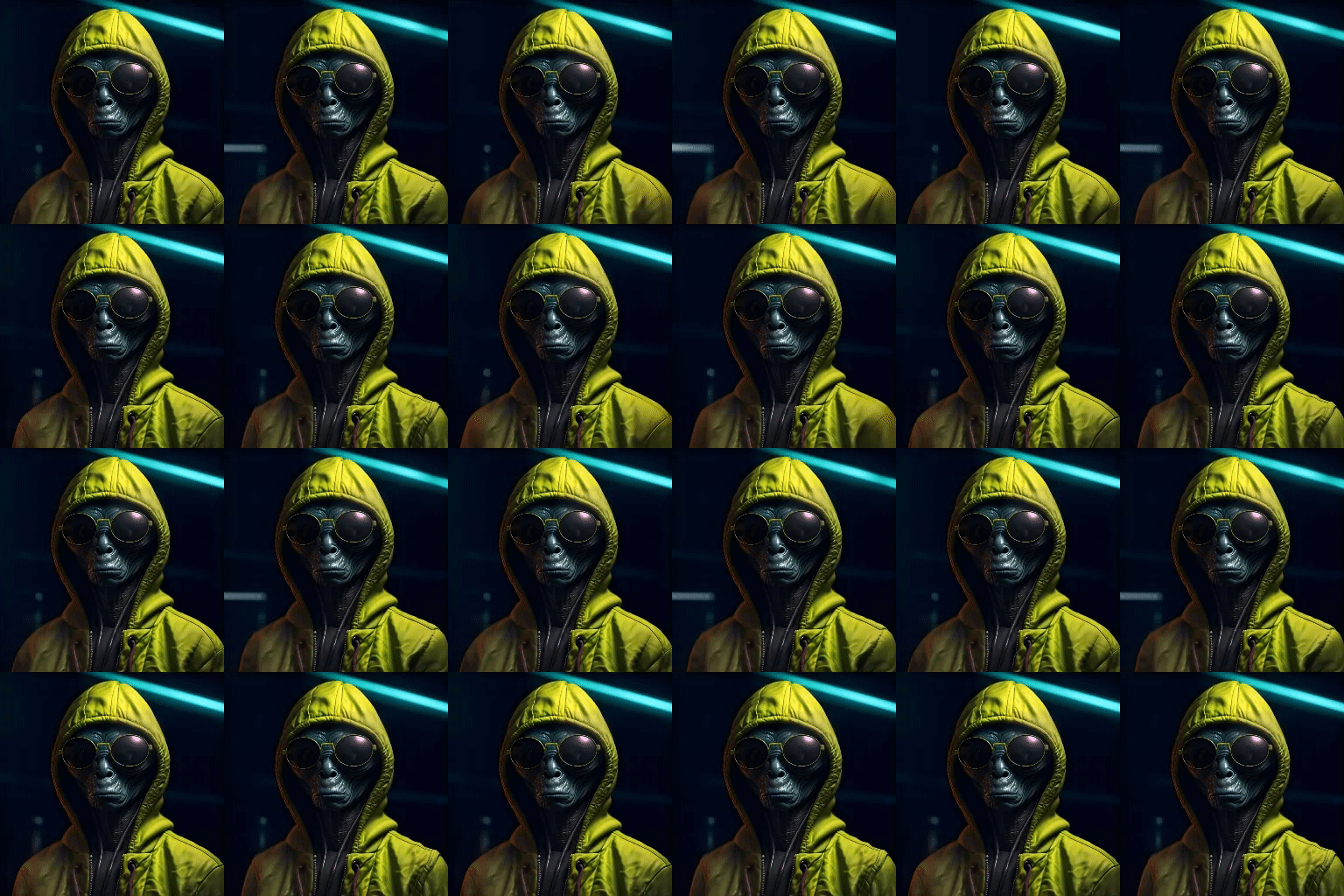
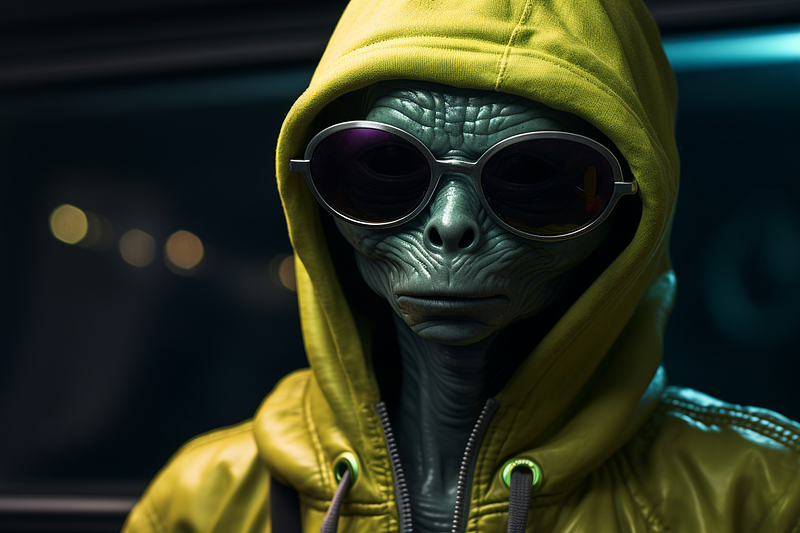
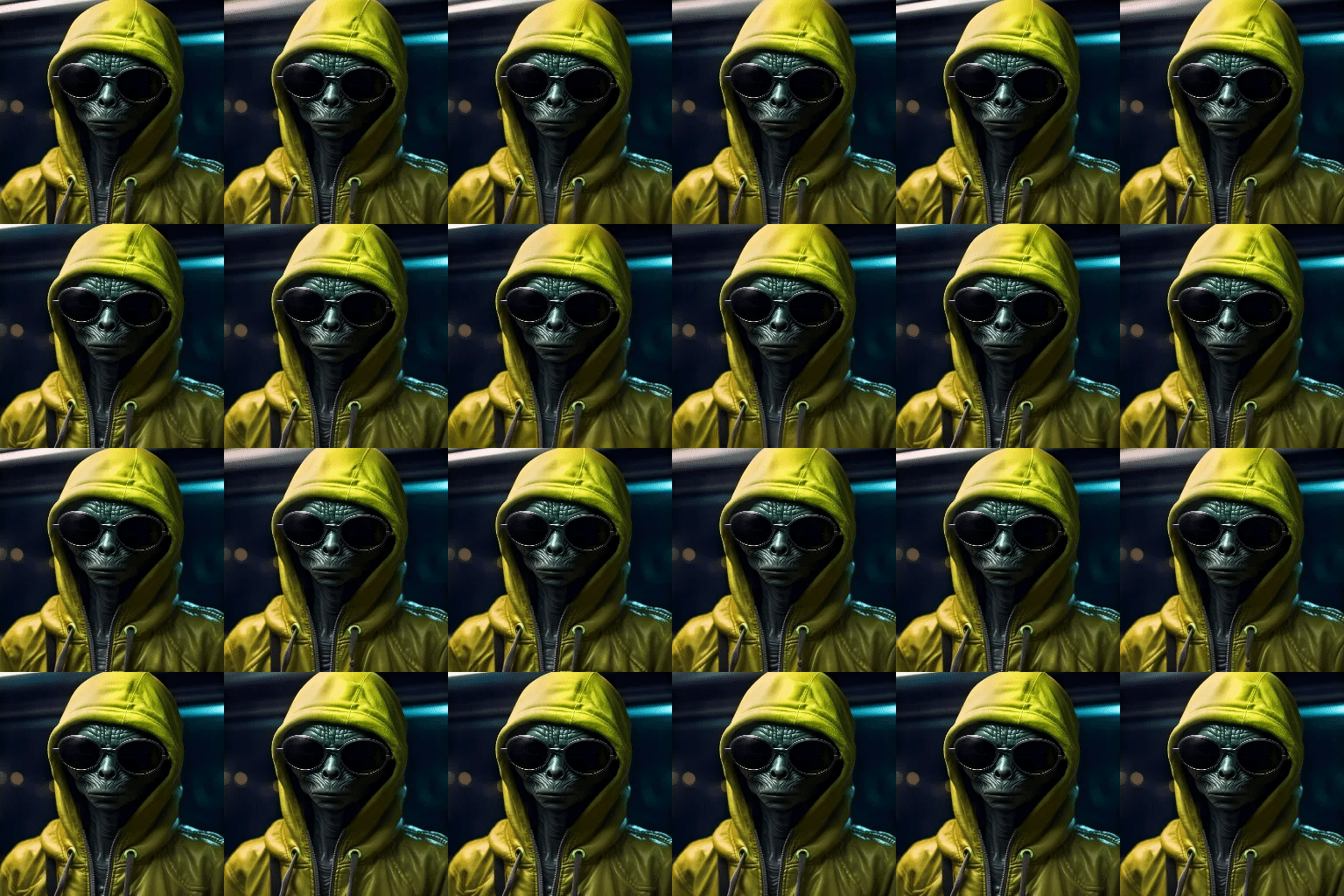
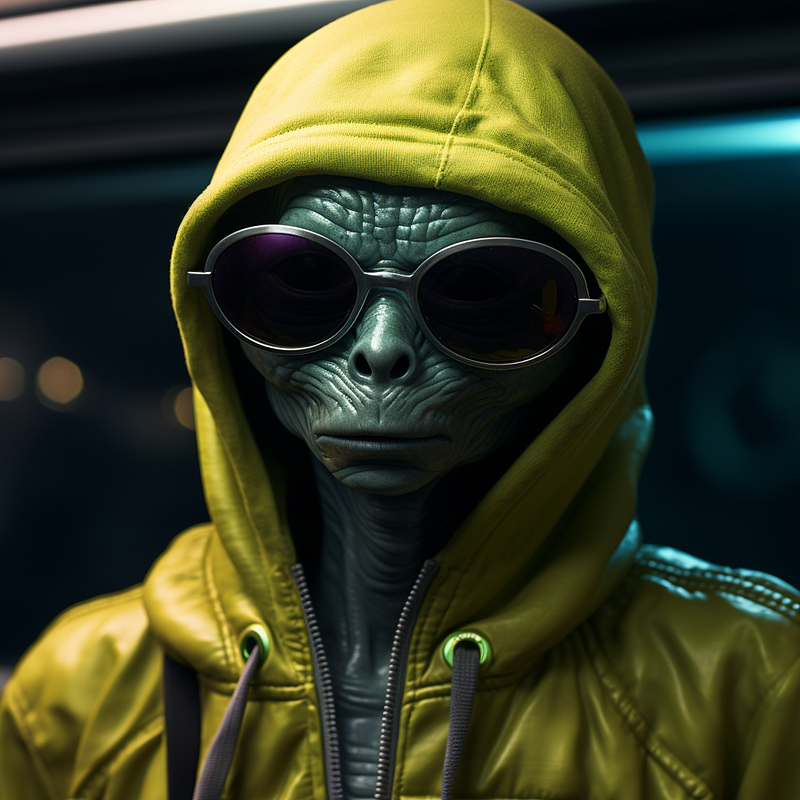
Make Square maintains the relative size of the original motif, it doesn’t “shrink”. This is because under the hood “Make Square” runs the following Zoom paramter:
--ar 1:1 --zoom 1This ensures that only the larger side of the image is extended.
Multiple Zooms
All of these Zoom features can be used on an image multiple times and in combination. For example, here’s the original 1:1 image with three 2x Zooms applied:
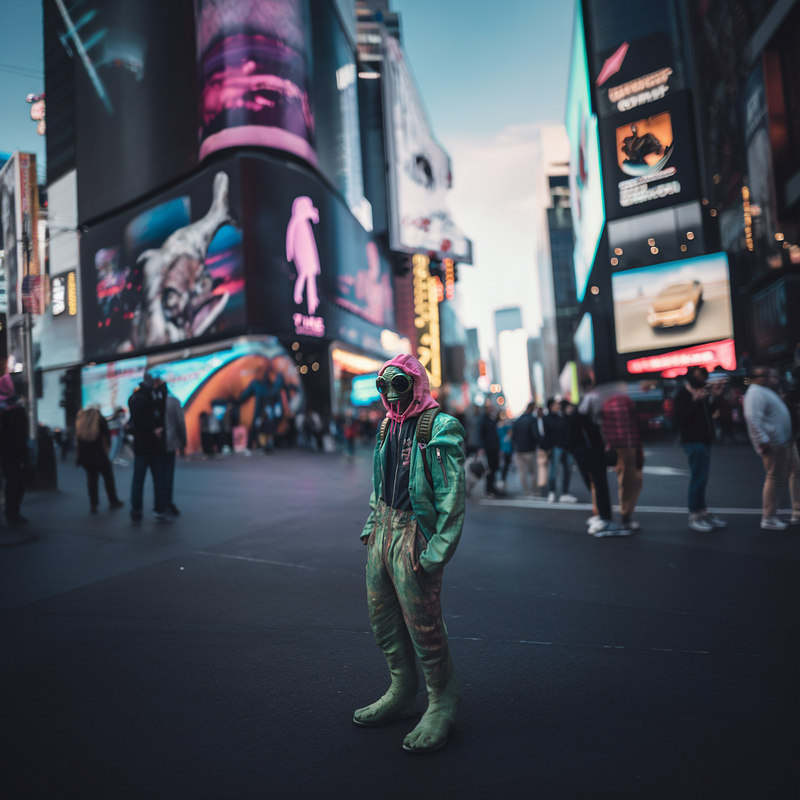
However, if you keep doing this, at some point the image will get very “experimental”, to say the least.
Here’s what happens to the above image when I repeat the 2x Zoom one more time:
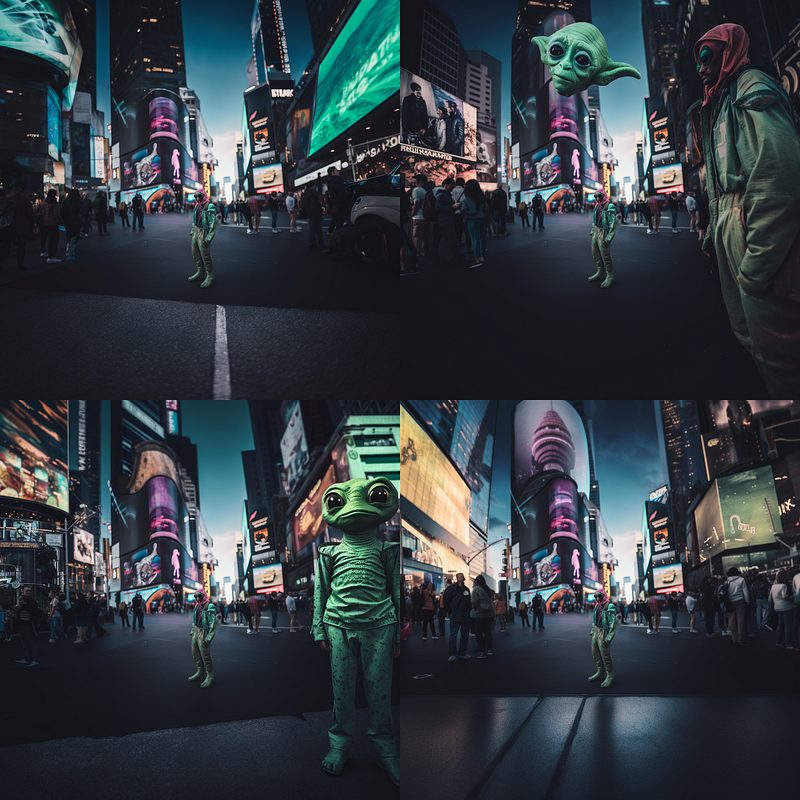
This is because every 1.5x or 2x Zoom has to work with the same prompt your original image has been generated with. Remember, we used this:
close up of an alien dressed in streetwearNow in every Zoom iteration the Midjourney model tries to make sense of the “close-up of an alien” part although we’re not in a close-up shot anymore. Hence, it starts adding close-up aliens all over the place. :)
Summary
- 1.5x and 2x Zooms extend the canvas on all four sides
- Make Square extends the canvas on the larger side of the image
- 1.5x and 2x Zooms reduce the relative size of the original motif
- Make Square maintains the relative size of the original motif
- 1.5x and 2x Zooms rely on the initial prompt
Custom Zoom
This is where it gets really interesting. As the name implies, we can now control all aspects of the Zoom Out. That means, we can
- set the aspect ratio
- set the Zoom ratio
- choose whether to keep the relative size of initial motif or shrink it
- change the prompt
- change parameters
All of these changes are made in the Zoom Out dialogue box that opens after you click “Custom Zoom”:
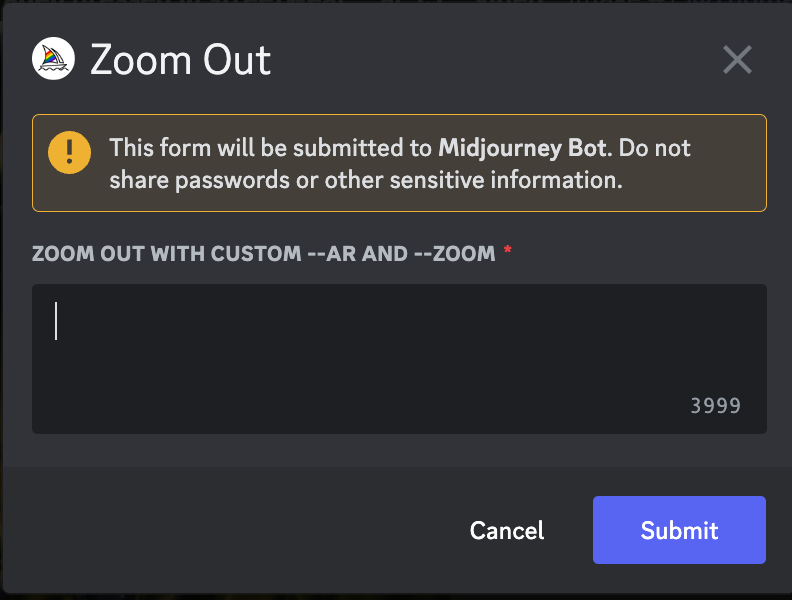
Setting the aspect ratio
Custom Zoom allows us to change the aspect ratio to anything we want, here are a few examples where I added --ar 3:2, --ar 16:9 and --ar 1:3 as aspect ratios to the original prompt and kept the Zoom level at --zoom 2.
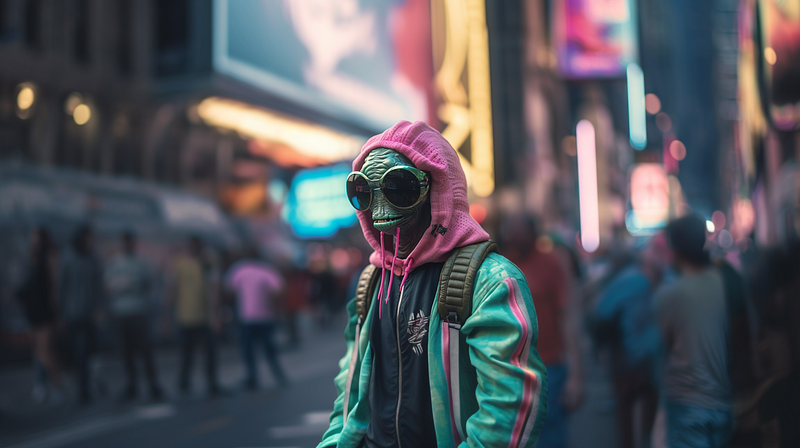
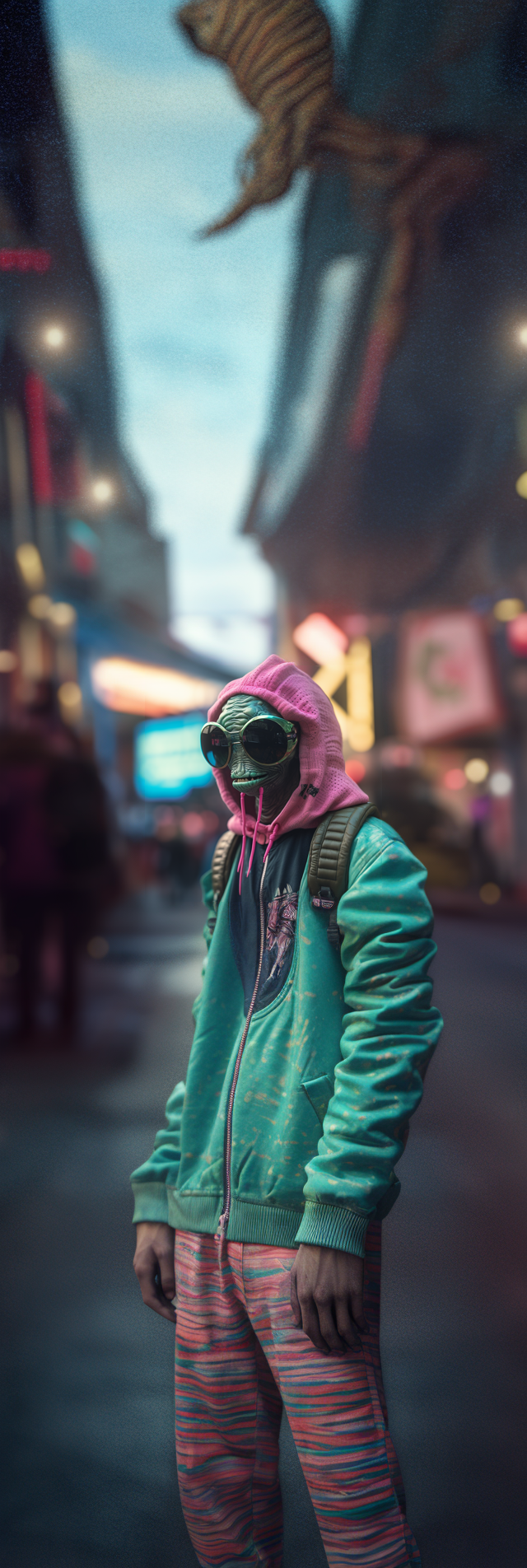
Setting the zoom level
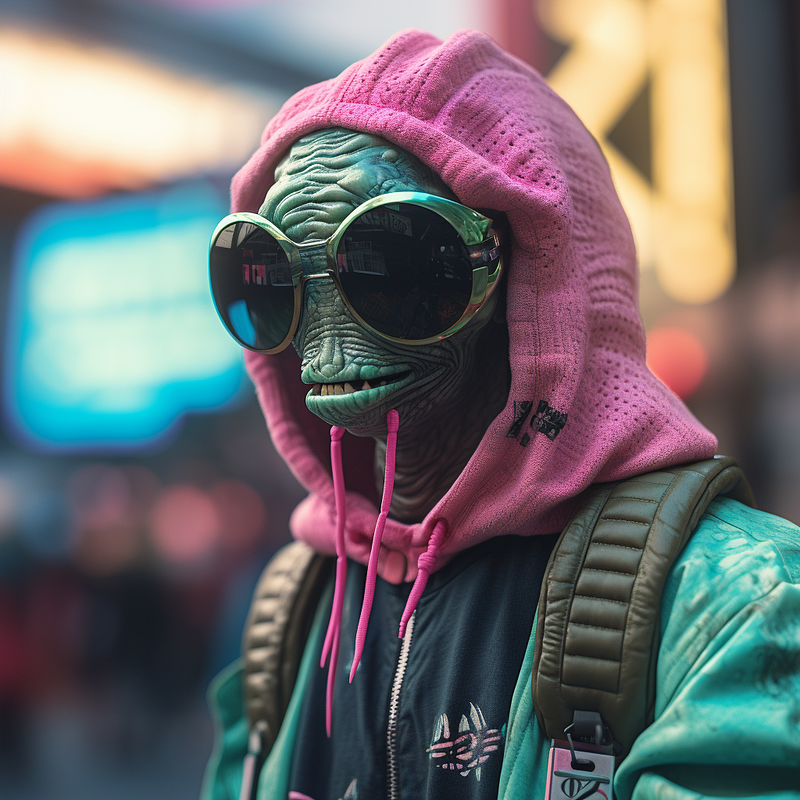
Similarly, we can vary the zoom level between 1 and 2. For example, the original image next to a 1.2x and a 1.8x zoom level:
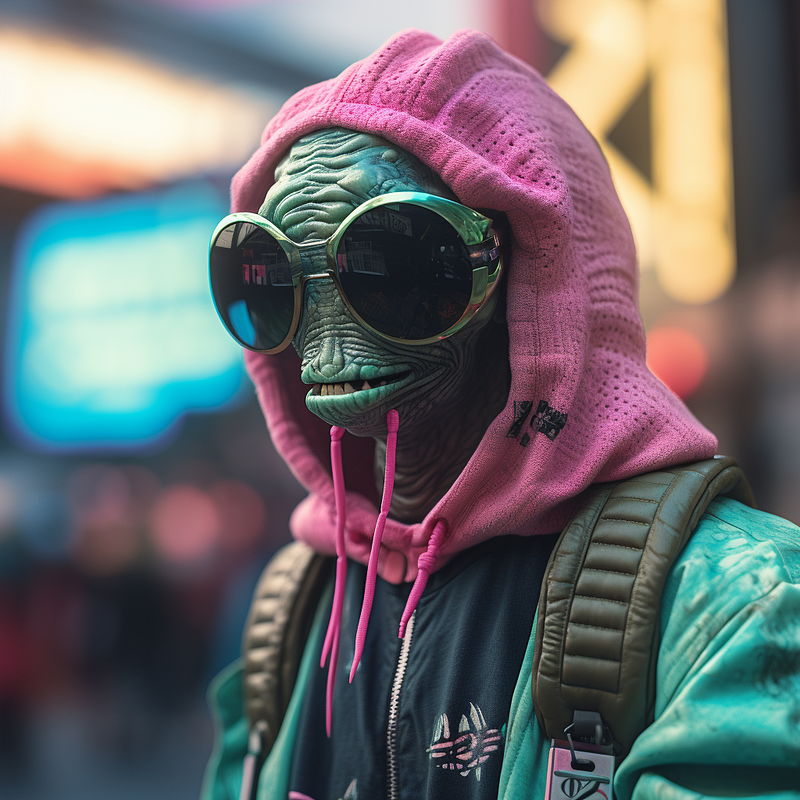
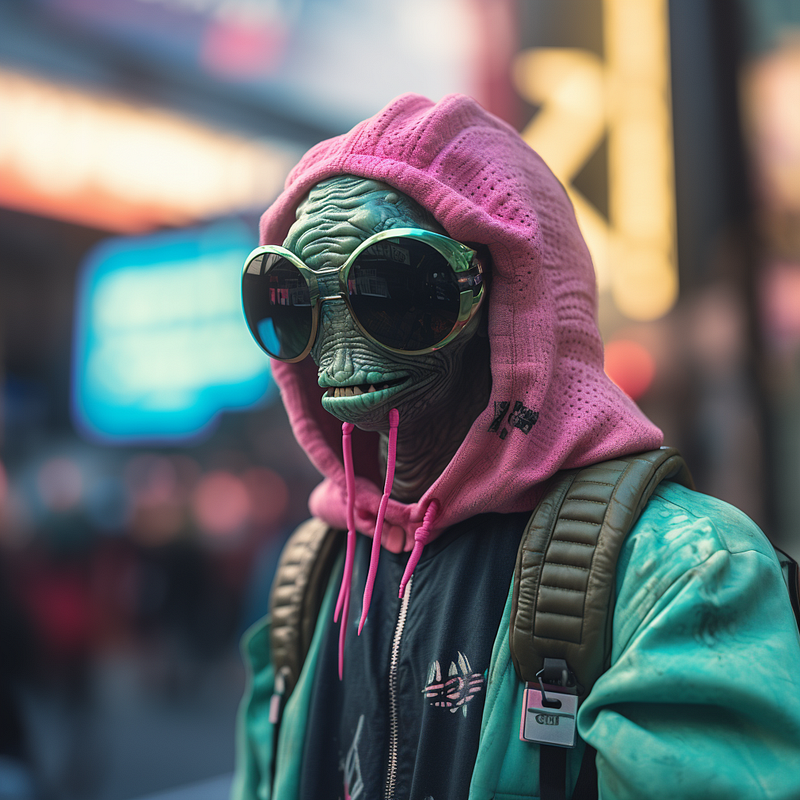
How to use “--zoom 1 “
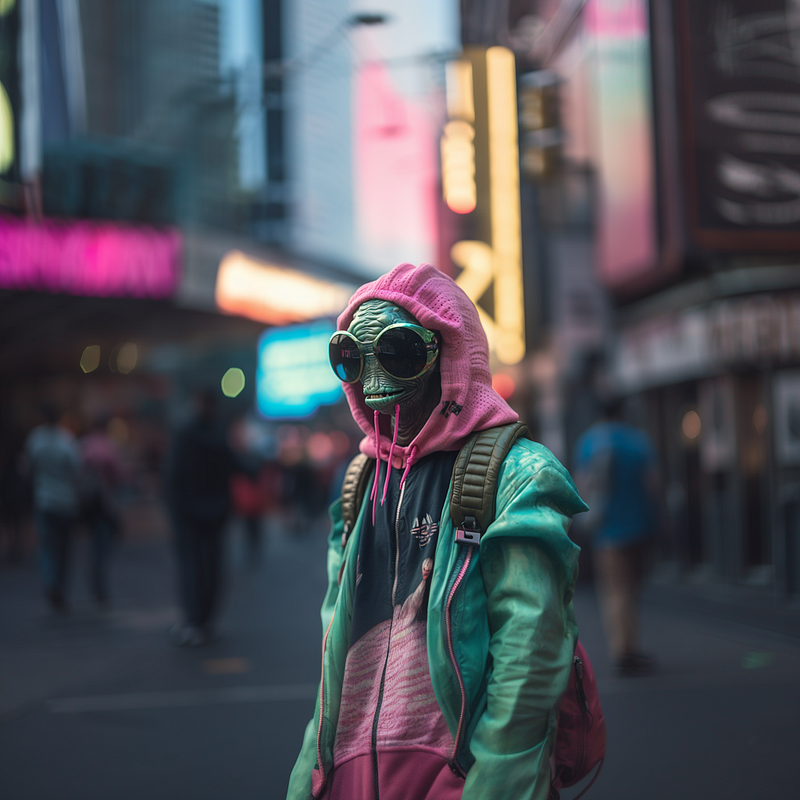
This is a special case of Zoom Out, because if your image is at 1:1 aspect ratio the --zoom 1 parameter does nothing at all. However, if you have a non-square image and add --zoom 1 during Custom Zoom, Midjourney will look for the largest side of your image and extend those sides of the canvas to make the zoomed out version a square (1:1) image again. Midjourney will also make use of your original image’s aspect ratio to create other formats.
Here’s an example. First I used Custom Zoom plus --ar 16:9 --zoom 1.5 to extend the whole image:
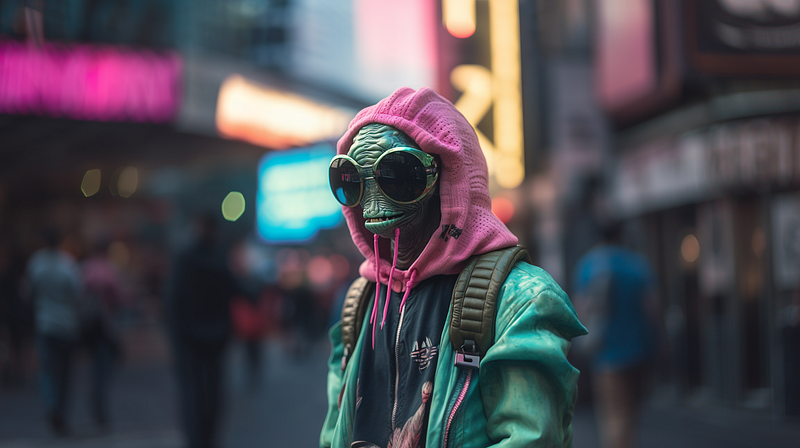
--ar 16:9 --zoom 1.5"If we apply another Custom Zoom on the 16:9 version and use
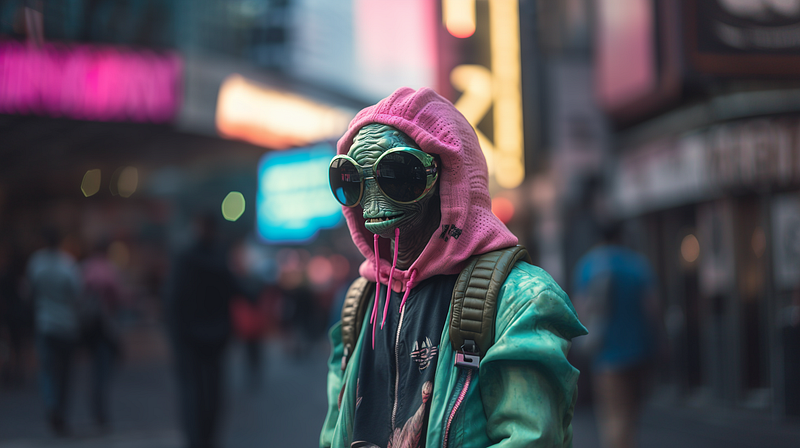
--ar 1:1 --zoom 1,
Midjourney creates a square image by extending the canvas on the larger sides.
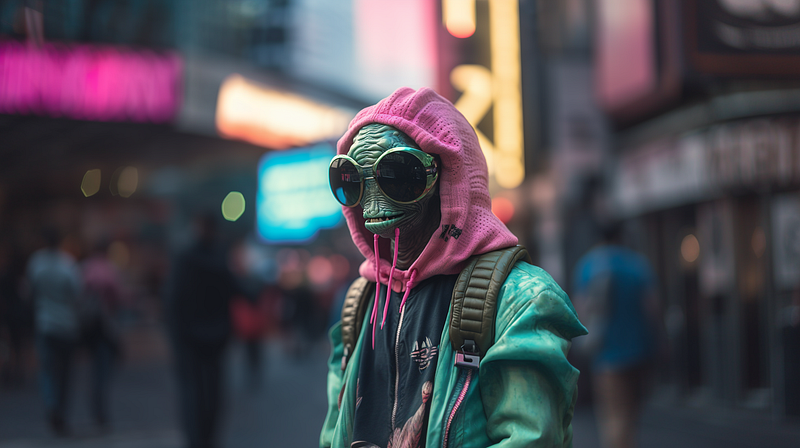
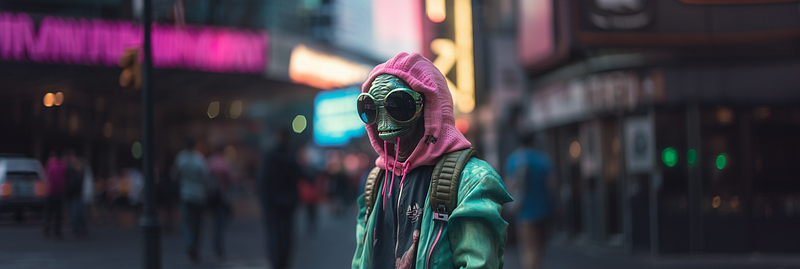
Similarly, when applying
--ar 3:1 --zoom 1 ,
Midjourney creates a 3:1 aspect ratio image by extending the canvas on the shorter sides.
Changing the prompt
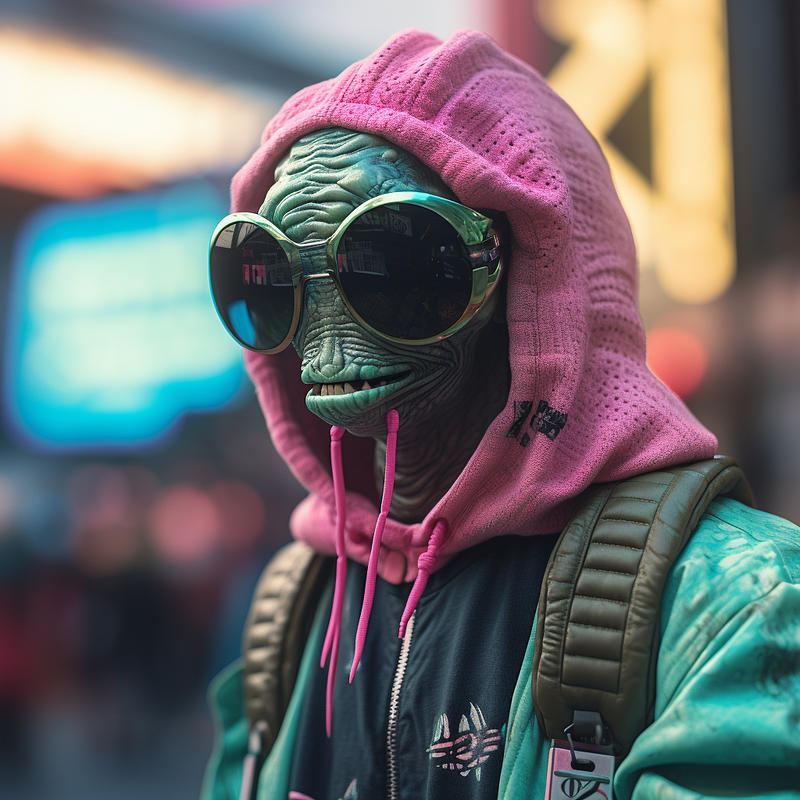
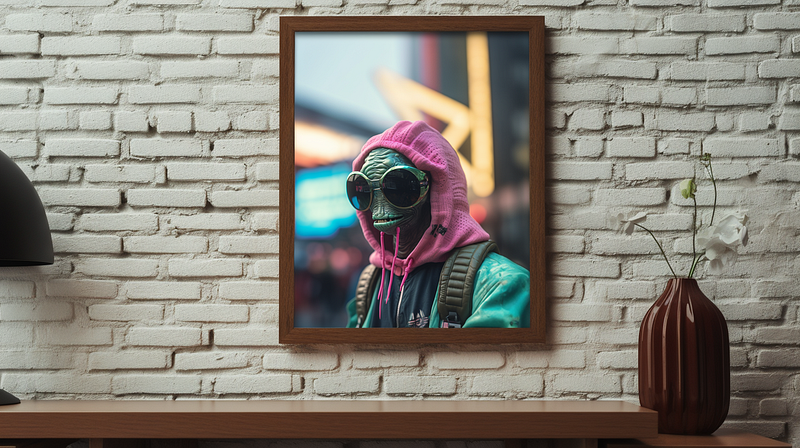
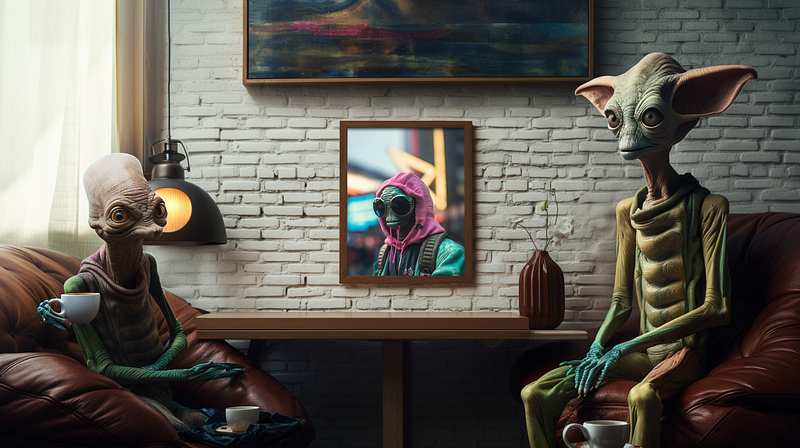
This is probably the most fun part of Midjourne’s Zoom Out feature. Custom Zoom allows to change the initial prompt to create exciting compositions and amazing effects.
Here’s an example that uses the prompt framed picture on the wall instead of the original one and changes the aspect ratio to 16:9 (at 2x zoom):
And here’s another one based on the above:
Limitations
Currently Midjourney does support Zoom Out only for generated images, not for uploaded ones. However, there are other tools out there offering similar features. I’d recommend you to check out:
- DALL-E from OpenAI has a pretty advanced outpainting feature that is only limited by the amount of credits you want to spend. Link: https://openai.com/dall-e-2
- Getimg.ai features an AI Editor that has an outpainting feature. Link: https://getimg.ai/
- Stability.ai recently released its Uncrop tool. Link: https://clipdrop.co/uncrop
Have fun exploring! 🚀
➡️ Follow me to stay up to date on “AI &Creativity”. If you want to support my work, become a Medium member using my referral link and get full access to all my articles (140+ and growing) and those of thousands of other writers. 🙏
➡️ If you like my content, why not leave a “clap” at the end of this article, so more people can see it?