
Midjourney inPainting is Out: Here is All You Need to Know
A Comprehensive Guide to Midjourney’s inPainting, Vary(Region)
Midjourney has just unveiled its inPainting feature. Yet another groundbreaking addition from Midjourney! Here’s everything you should know about this new feature.
How to use it?
- When you do upscales, you will see a new button “ Vary (Region)” under it and if you click it, a ‘editor’ will appear which will let you drag drop to choose a specific area of the image.
- Type
/settingto check and enable “remix mode” so you will be allow to change or modify the prompt for the region, you can type/settingto see and enable remix mode.
What’s its capability?
- Replacing an Element
- Repairing an Element
- Adding an Element
- Removing an Element
Next, I’ll demonstrate each of these using examples.
Example 1. Replacing an Element
Prompt : Craft a fashion photography session that embraces the geometric nature of Cubism. The model should strike dynamic poses to showcase the angularity of the design. Shoot under bright, directional light to create bold shadows and emphasize the multifaceted aspect of Cubism in your composition. — q 2 — ar 2:3 — v 5.2 — s 1000 — style raw
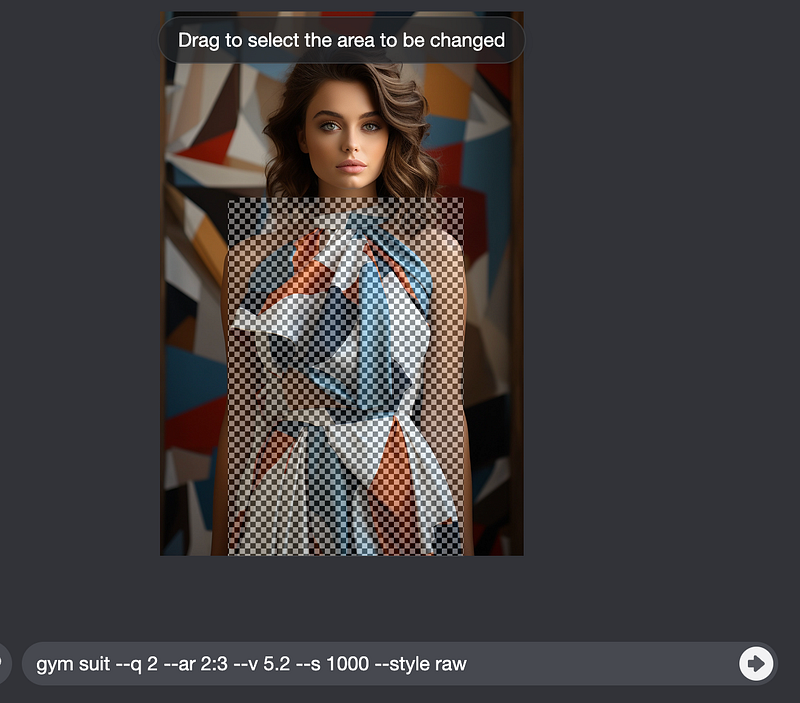
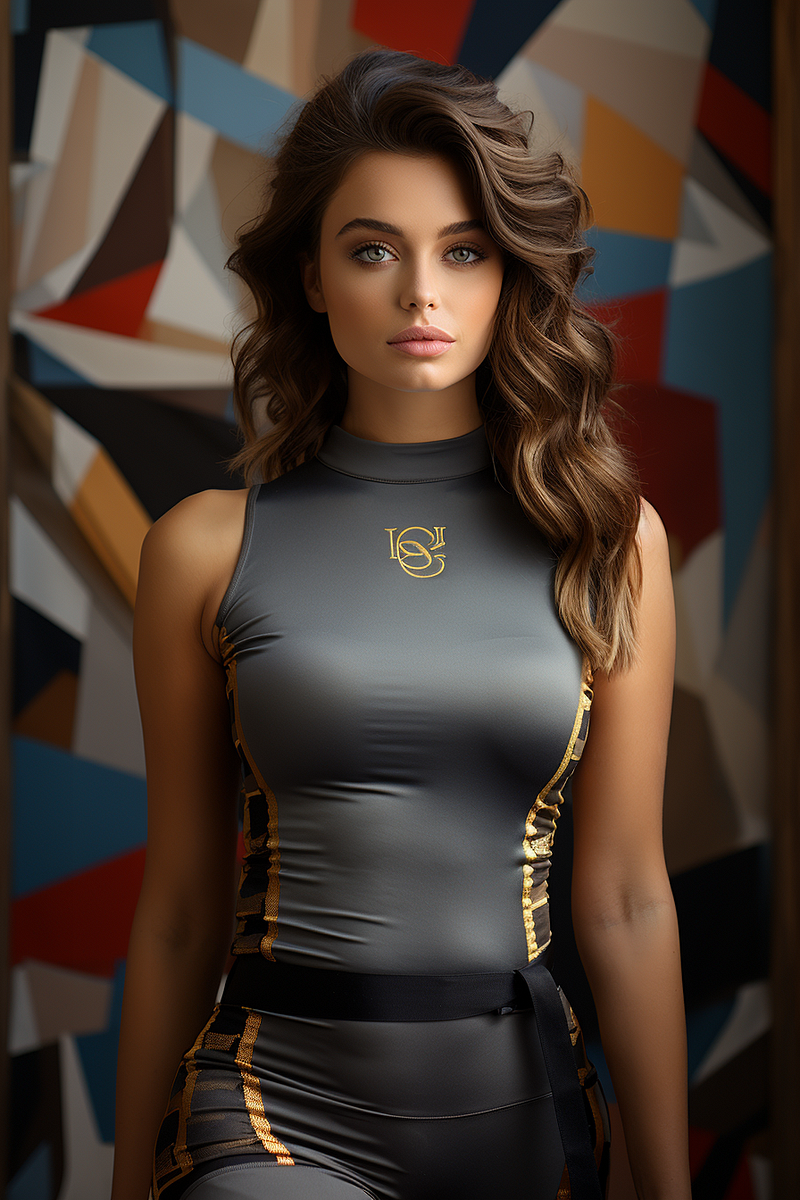
By modifying the prompt in the prompt box, you can make significant alterations to your image. For this example, we swapped from a fashionable dress to a gym suit.
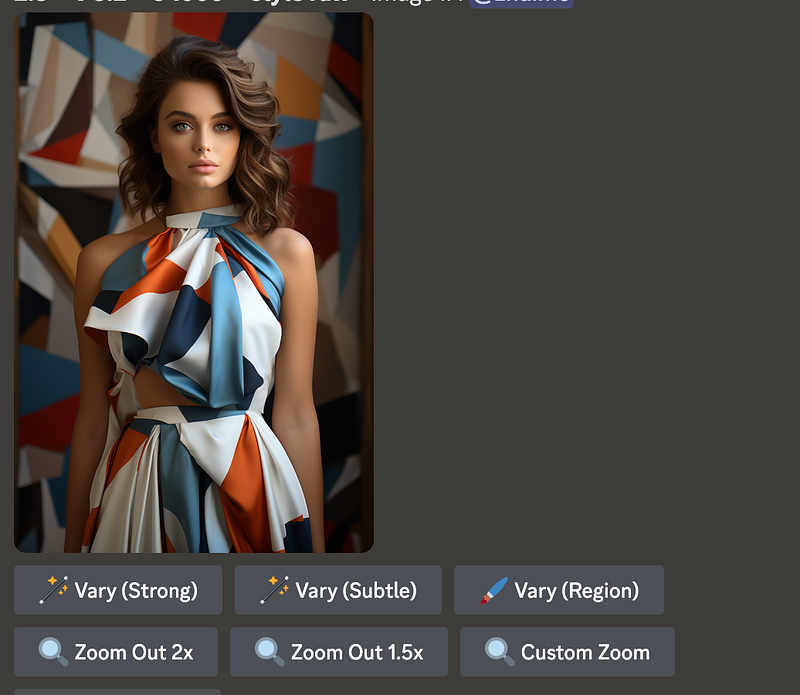
Click Vary (Region), confirm arrow, then choose the area, and replace the prompt with “gym suit” in the prompt.
Here we got, the girl with gym suit.
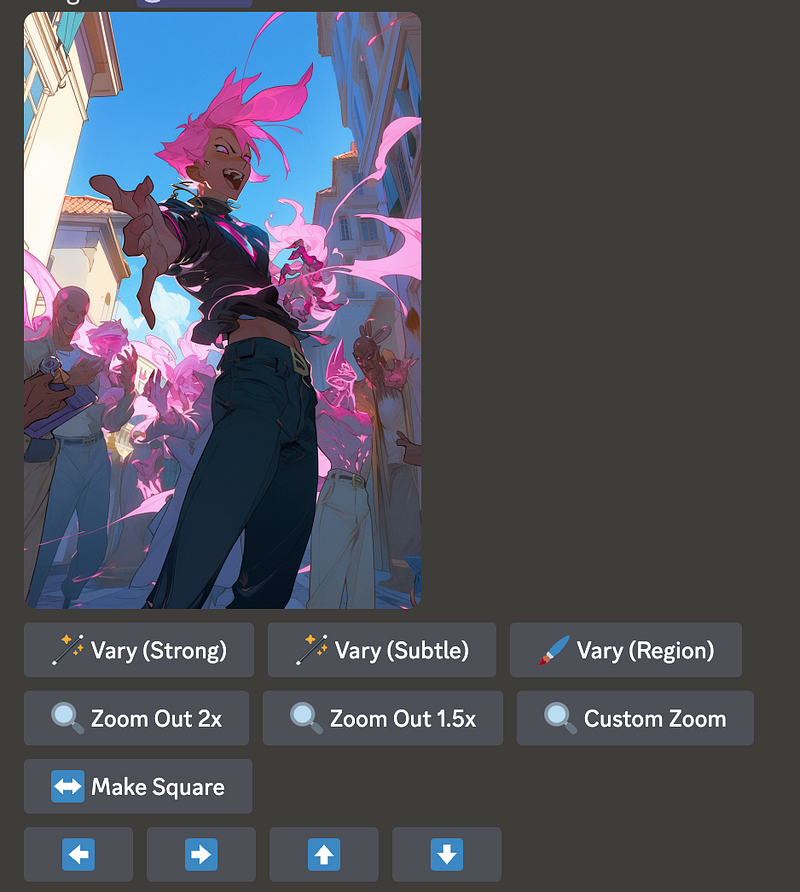
Check out more examples on replacing elements using Vary(region) inPainting.
Example 2. Repairing an Element
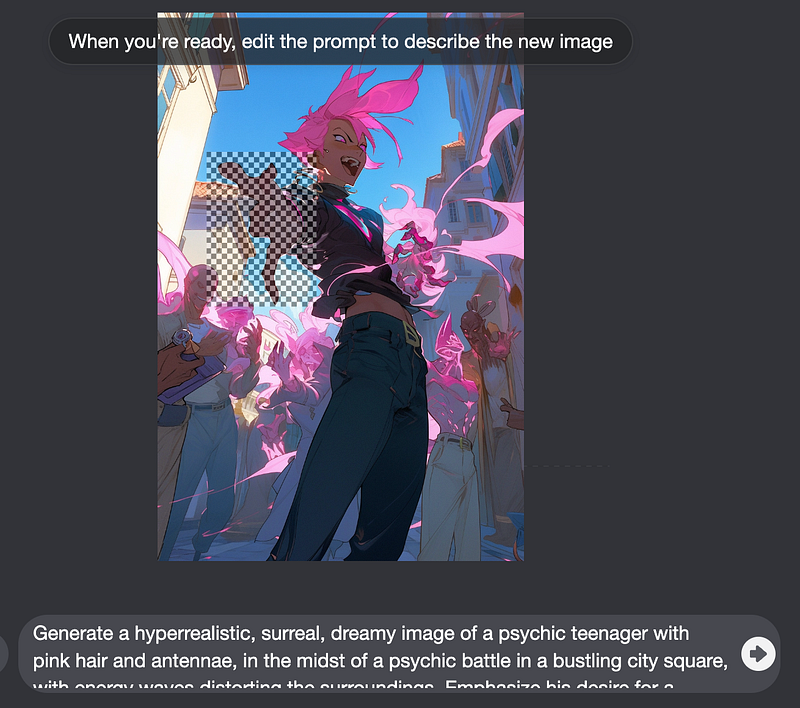
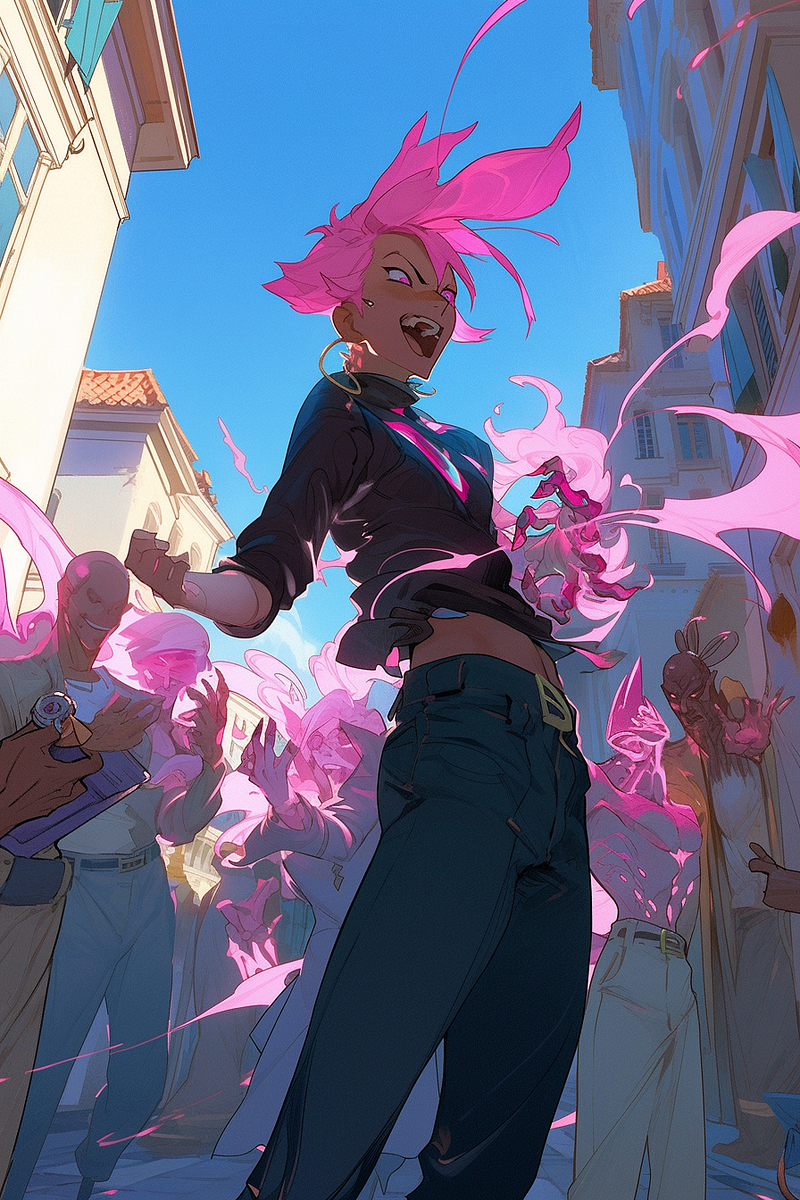
There’s no need to change the prompt when fixing an element. Just choose the area and press the confirm arrow to redraw the problematic part. In this example, we corrected the improperly shaped hand.
Select the section of the misshapen hand, click the confirm arrow.
Here we got image with fixed hand
Check out more examples on fixing misshapen hands using Vary(region) inPainting.
Example 3. Adding an Element
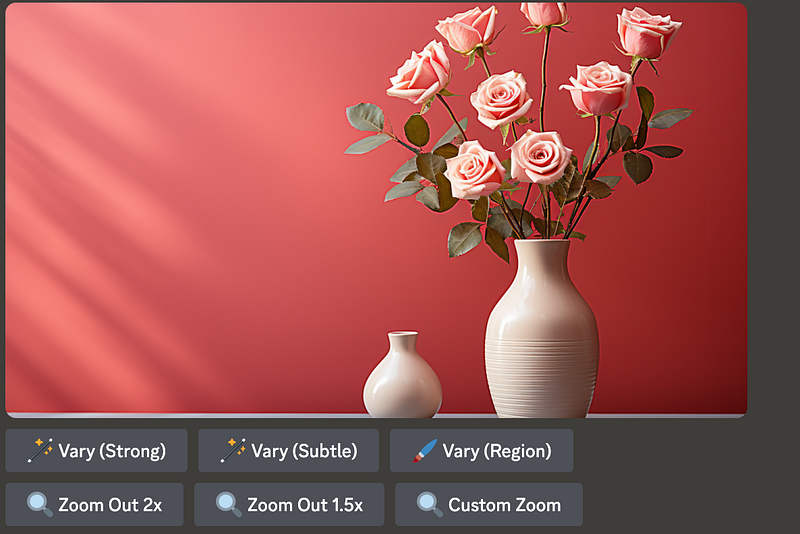
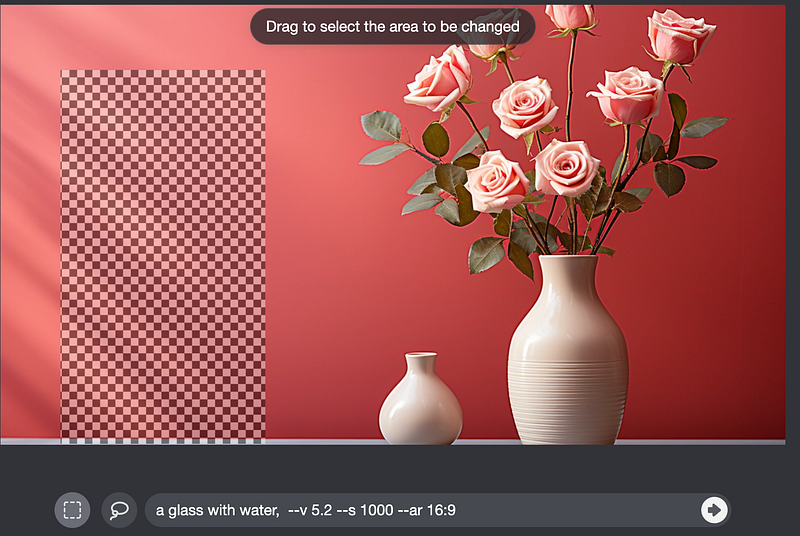
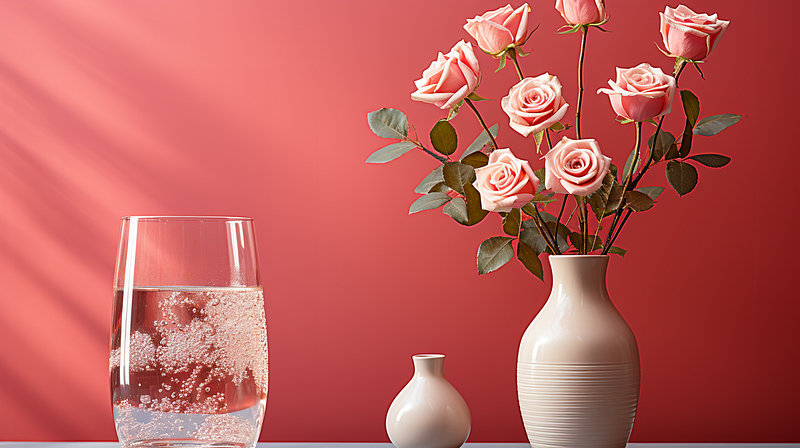
Prompt: minimalist style drawing, vase with roses, single color background — v 5.2 — s 1000 — ar 16:9
To introduce an element not present in the image, choose the area and then add the desired element to the prompt. In this example, we add a glass with water.
Example 4. Removing an Element
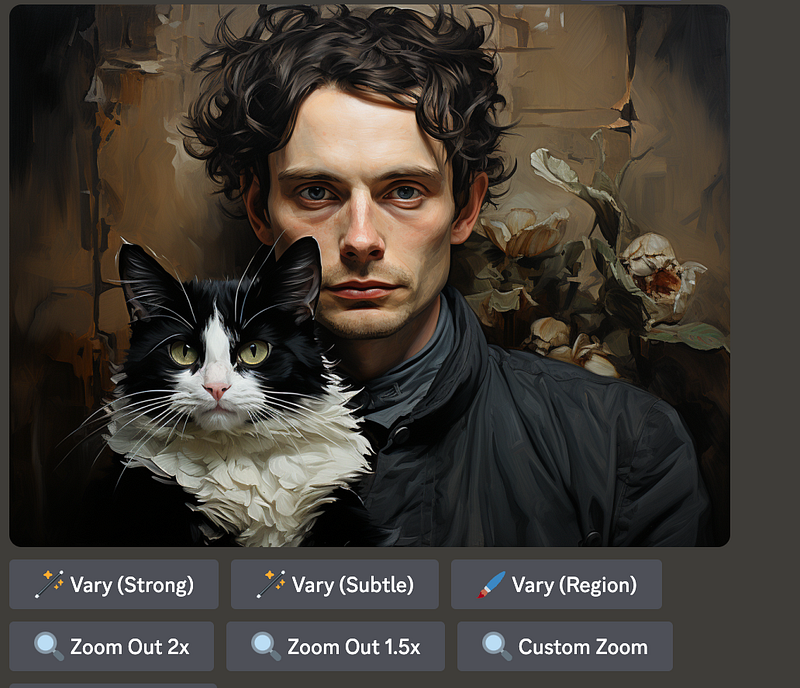
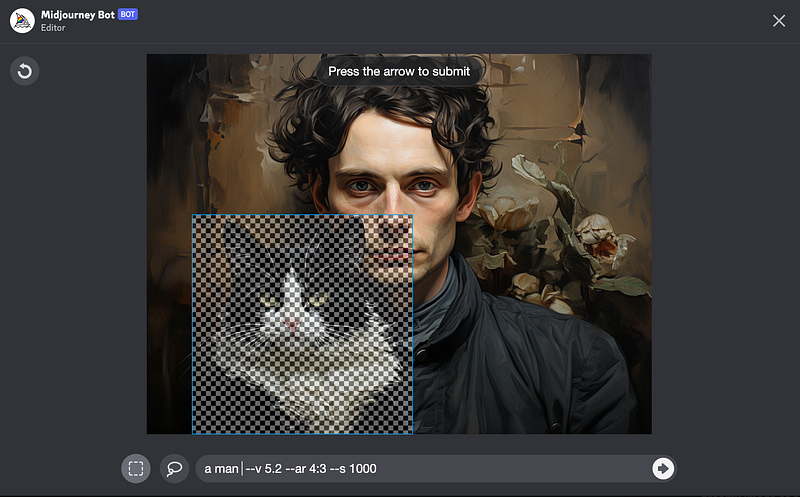
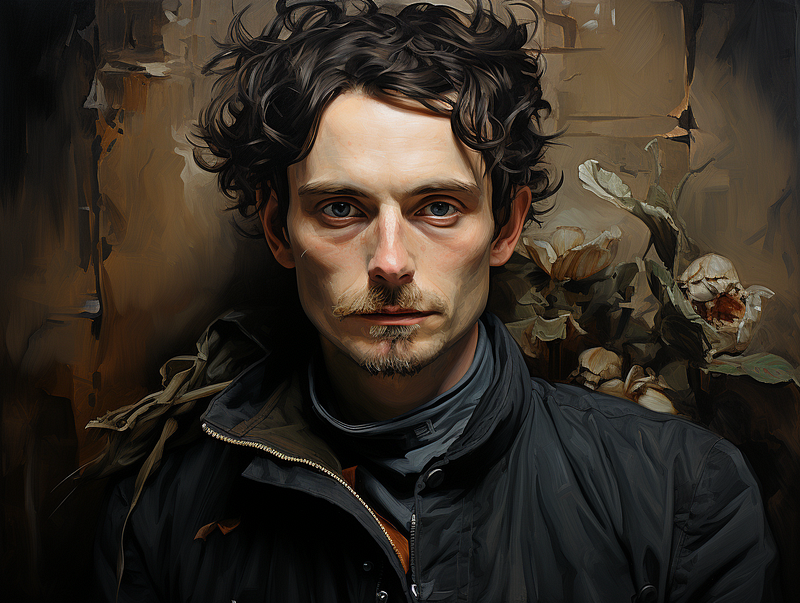
Prompt: a man with a cat — v 5.2 — ar 4:3 — s 1000
To delete an element, highlight the specific item and exclude that area from the prompt. In this case, we removed the cat.
Tips and Tricks
This feature works best on large regions of the image (20% to 50% of the image)
It’s not a magic fix and often it may be best to do a
Vary (Subtle)instead
Changing the prompt will work best if it’s a change that’s more matched to that image (adding a hat on top of a character) versus something that’s extremely out of place (a dolphin in a forest)
In a best-case-scenario you can use the ‘prompt remixing’ feature as a general purpose inPainting system.
—from Midjourney Discord announcement
Final Thoughts
In the ever-evolving world of digital art and image manipulation, Midjourney’s inPainting stands out as a testament to innovation and user-centric design. As we’ve explored its capabilities, it’s evident that this feature is not just another tool, but a game-changer. Whether you’re replacing, repairing, adding, or removing elements, inPainting offers a seamless experience. As with all pioneering technologies, the true potential unfolds with continuous exploration. So, dive in, experiment, and witness firsthand the transformative power of inPainting.