
Midjourney: How to use multiprompting to blend images like a pro
Time to say goodbye to /blend?
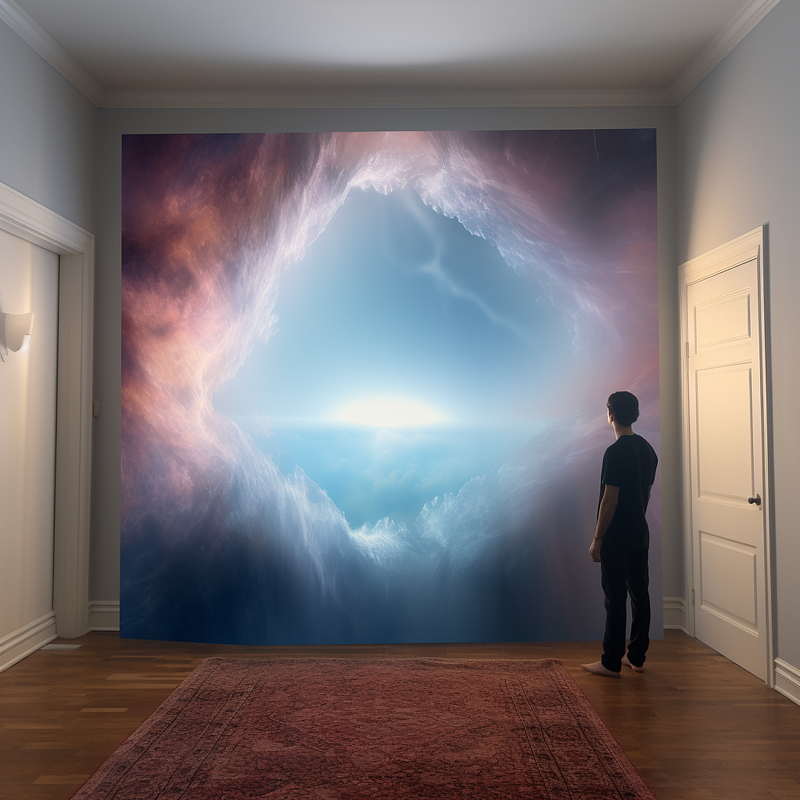
If you like /blend, no worries. You can keep using it. Midjourney didn’t say that they intend to discontinue /blend.
Today I’d like to show you another way to blend your images.
If you’re unfamiliar with multiprompting and the Slider Method, you can learn more about them by reading the related stories.
These stories will help you understand multi-prompt fundamentals, the considerations for assigning weight to a promptlet, and how to adjust your image.
Let’s say we want to blend the following images:
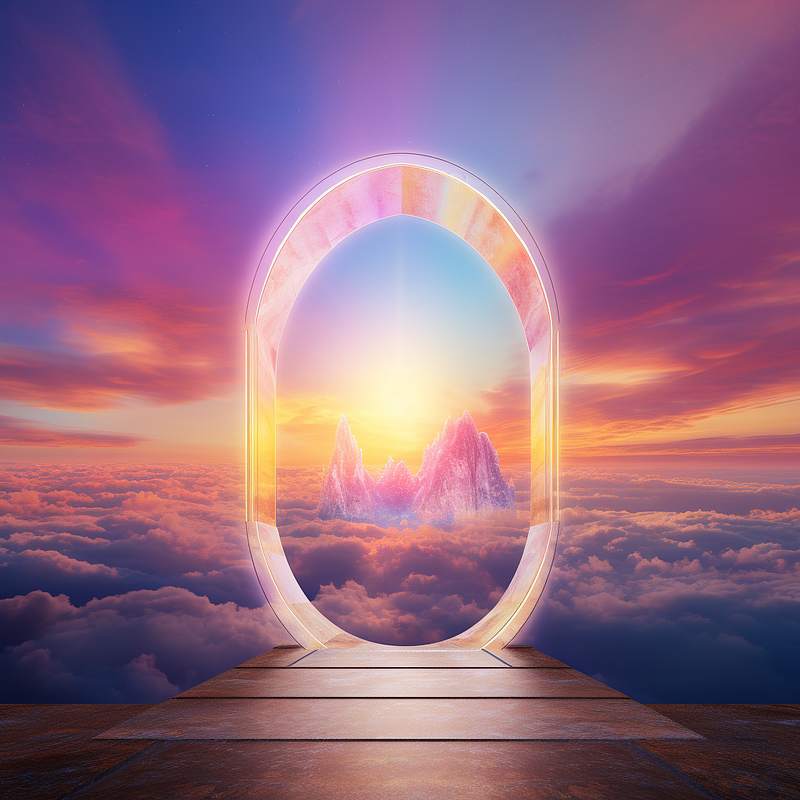
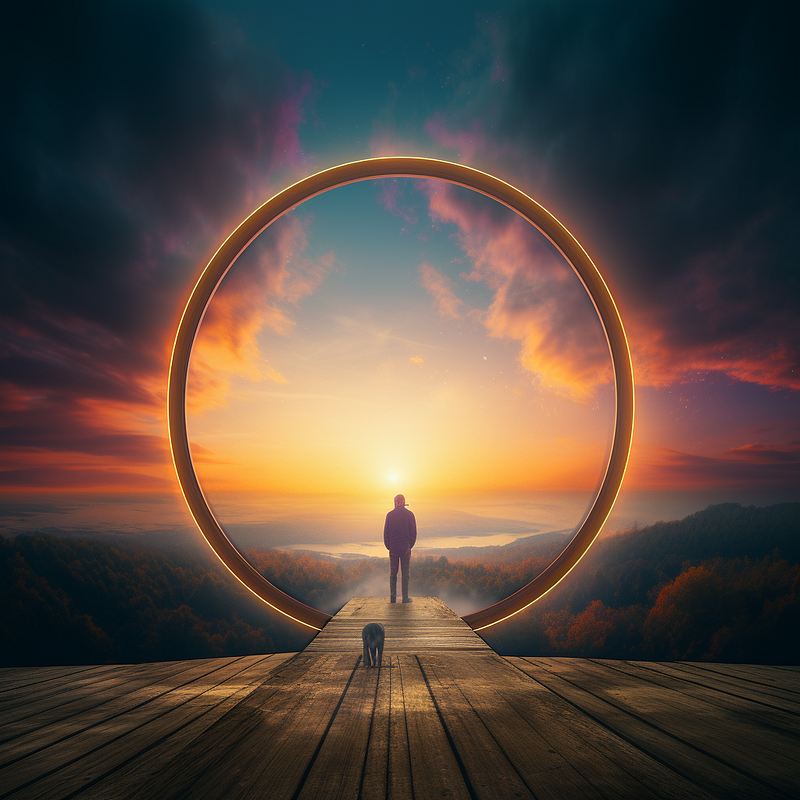
- Image 1 depicts a portal to another world created using this prompt:
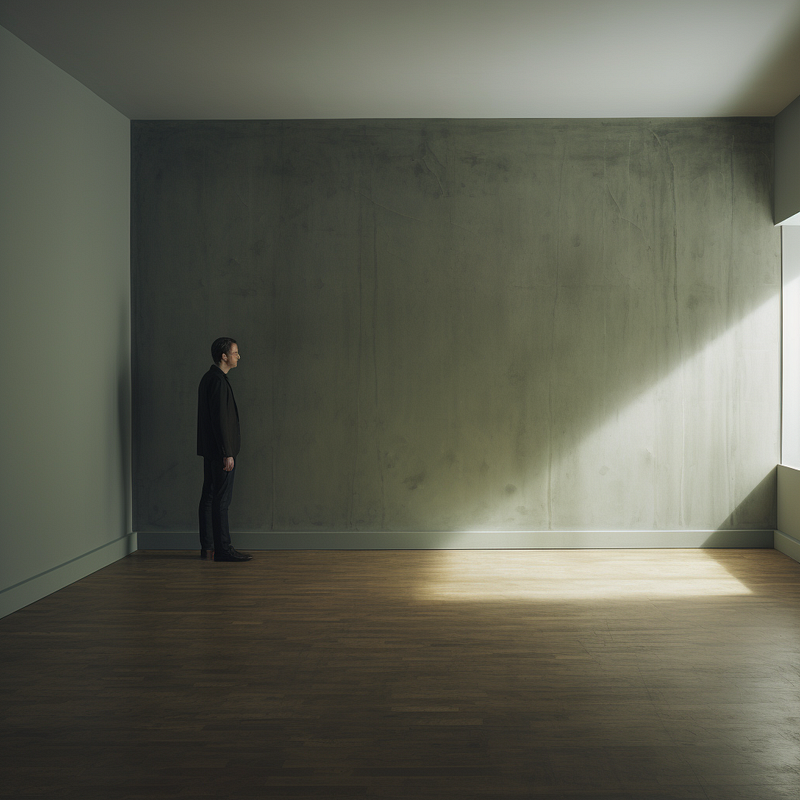
/imagine prompt: a photo of a vibrant oval portal opening to the heaven - Image 2 depicts a man standing in the corner, freeing up the central area created with an “invisible” layout technique:
/imagine prompt: photo of a huge invisible area in the room while a guy stands next to it
Basic blending operation
The plan is to build a portal next to that guy.
Because both images have the same aspect ratio of 1:1, they are ideal for blending.
To use /blend, upload the images, then press Enter.
For multiprompting, right-click on the image and select “Copy Link” near the bottom of the menu. Then, for each of the links, create a promptlet.
- Photos can also be dragged and dropped into Midjourney. After that, the links can be copied.
/imagine prompt: <URL for Image 1>:: <URL for Image 2>::
The results for /blendand multiprompting are similar.
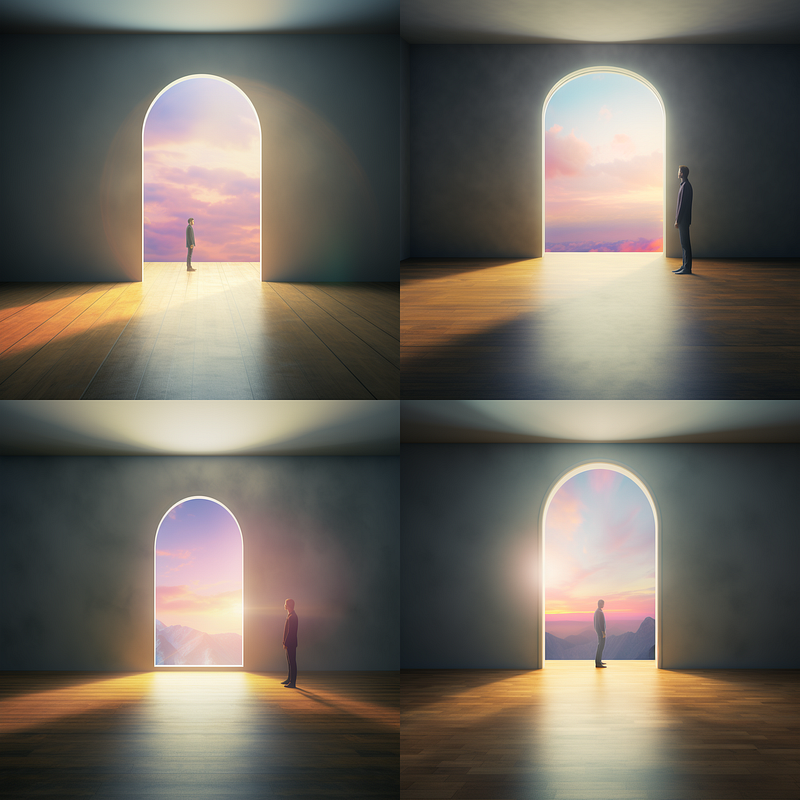
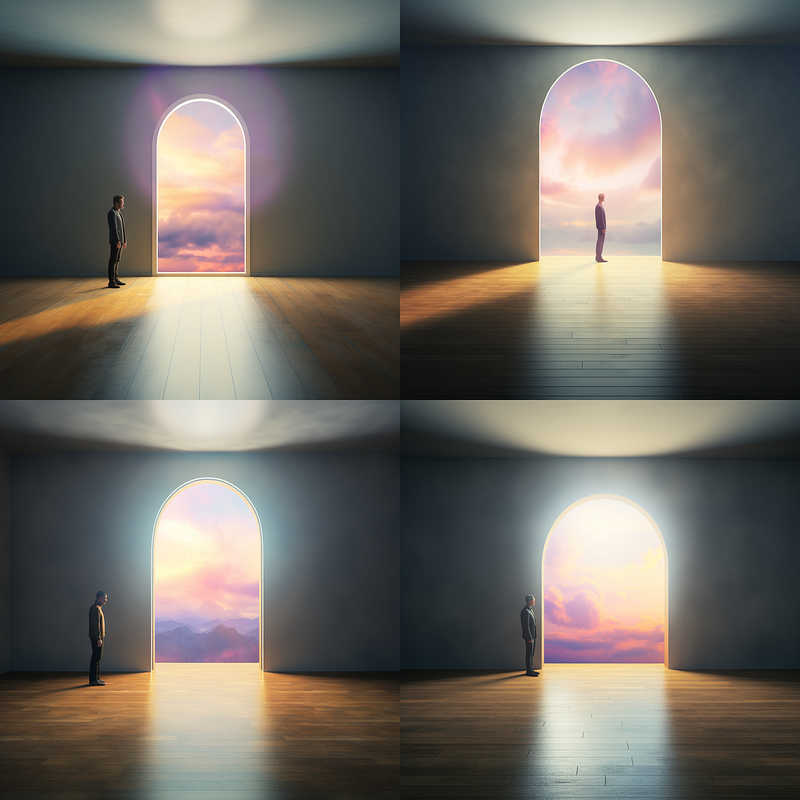
Multiprompting expands blending options
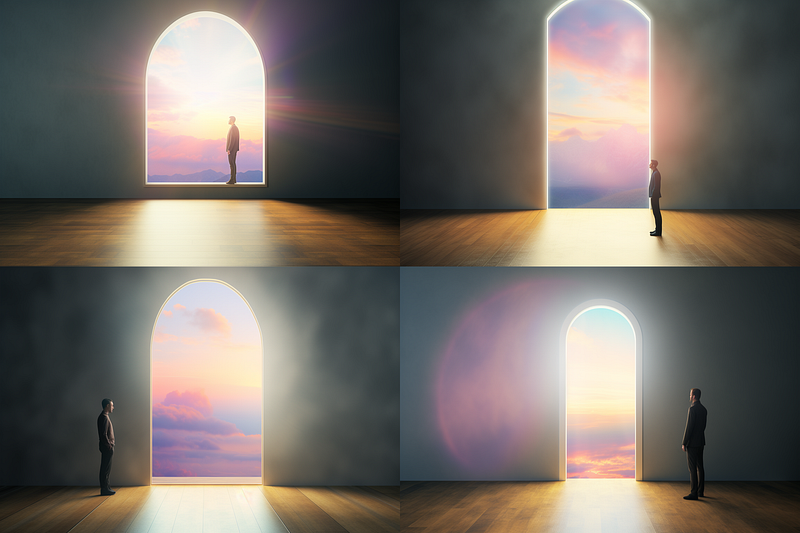
/imagine prompt: <URL for Image 1>:: <URL for Image 2>:: --ar 3:2
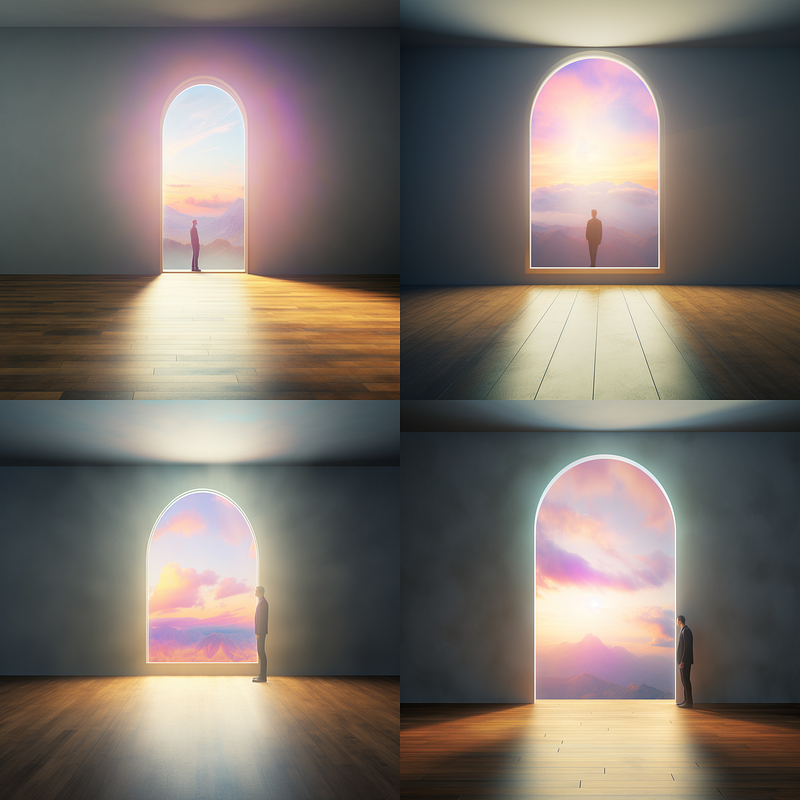
/imagine prompt: <URL for Image 1>::1.25 <URL for Image 2>::1
/imagine prompt: <URL for Image 1>::1 <URL for Image 2>::1.25
With multiprompting, you can use the sliders to change an image’s aspect ratio and its relative influence.
This is the main advantage of the multi-prompt; it gives you more control over the blending process than the /blend does.
The first prompt changed the aspect ratio from the default to 3:2. The second and third control the blending process by either putting more emphasis on the portal or the guy.
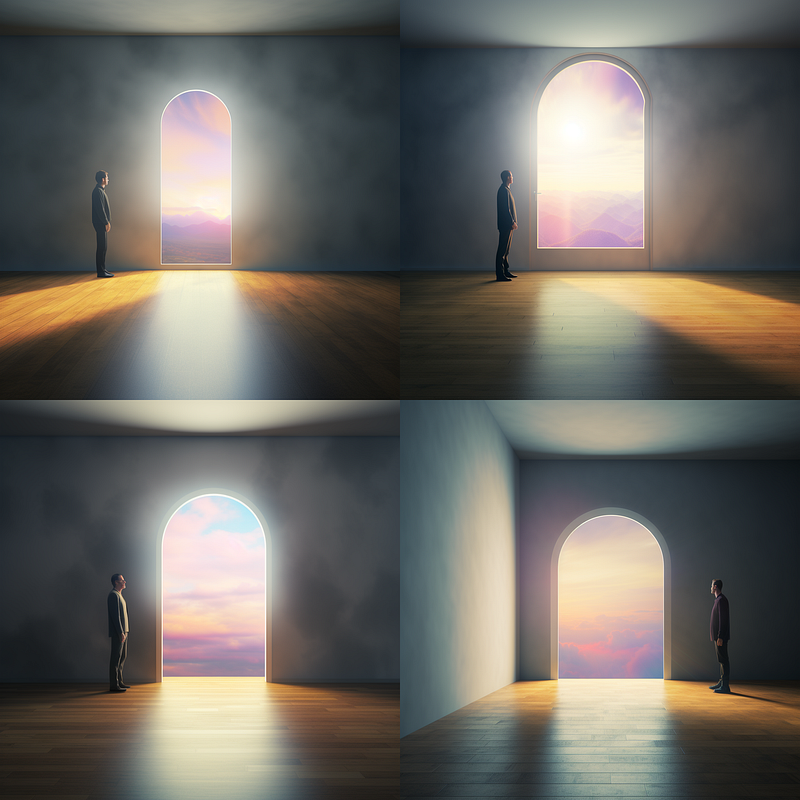
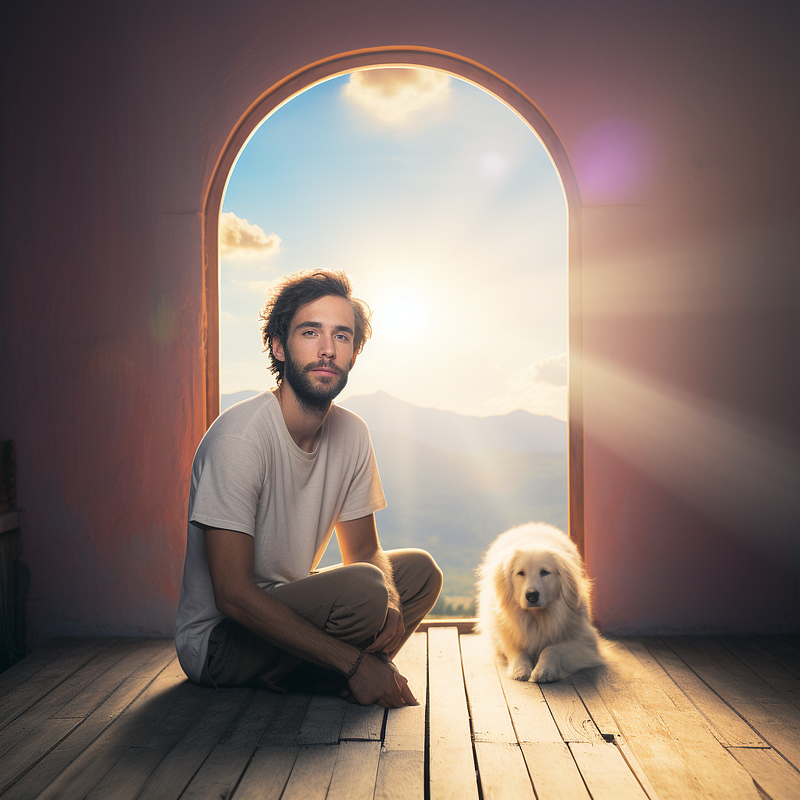
/imagine prompt: <URL for Image 1>::3 <URL for Image 2> a photo of guy with a dog::1
Need a dog with the guy? Place the dog inside your promptlet.
Blend the image with text
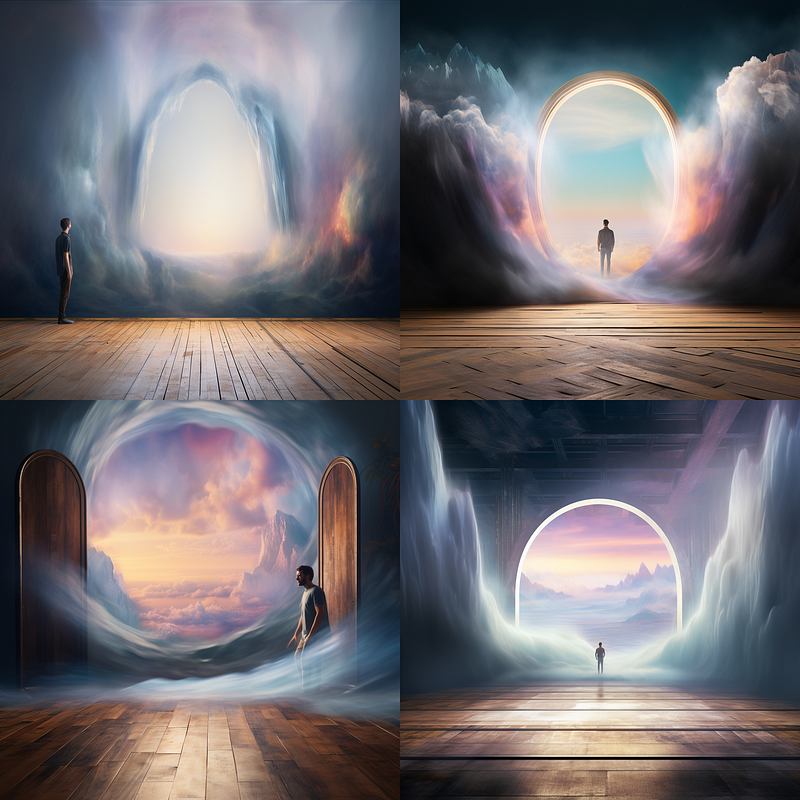
Since we know the prompt to create a picture of a guy in the corner, we can blend it directly with the portal image.
/imagine prompt: <URL for Image 1> a photo of a huge invisible area in the room while a guy stands next to it::1.25 a photo of a huge invisible area in the room while a guy stands next to it::1 room, interior, door, wall, floor tiles, ceiling::-0.25
The above multi-prompt looks complicated, but it’s just the repeats of the prompt to create “the guy in the corner.”
The first promptlet is given 1.25 weight to emphasize the desired composition.
The second promptlet put another emphasis.
To make the image more dramatic, the last promptlet with a negative value filters out some, but not all, of the room’s details.
/imagine prompt: <URL for Image 1> a photo of a huge invisible area in the room while a guy stands next to it::1.25 a photo of a huge invisible area in the room while a guy stands next to it::1 room, interior, door, wall, floor tiles, ceiling::-0.25So, are you ready to multiprompt?
Related stories
Conclusion
- Images can be blended using
/blendor multiprompting. - Multiprompting provides many blending options that
/blenddoes not. - You can also use multiprompting to combine an image and text.
I hope you like this story!
Please give me a clap or leave a positive comment to let Medium’s algorithm know that this story is helpful and has contributed to its platform’s success.
Your support inspires me to create similar or higher-quality content in the future!
Never miss a story. Follow me on Medium for updates, stories, and tips about Midjourney.
Join Medium today and read all my stories:


