avatarJoel Belton

Free AI web copilot to create summaries, insights and extended knowledge, download it at here

3328

Abstract

<h1 id="6196">Running Your Tests</h1><p id="4e5d">To run the test, open a terminal window and navigate to the directory where the <code>apache_test.robot</code> file is located. Then, run the following command:</p><div id="f239"><pre>robot apache_test.<span class="hljs-property">robot</span></pre></div><p id="8daf">When this test executes you should see Chrome open on your screen and navigate to our localhost address. Robot will then check to see if this operation has been successful and then compile a report for you to view.</p><p id="cd7d">This should have generated a few files in our directory about the output of our test. If we open the <code>report.html</code> in a web browser, we can see exactly what happened.</p><figure id="0c25"><img src="https://cdn-images-1.readmedium.com/v2/resize:fit:800/1*XE6v2OJTIosbFLLOvjY5NA.png"><figcaption>Robot Framework Report — Test Passed (screenshot)</figcaption></figure><h2 id="4bbf">Writing Keywords</h2><p id="02cb">Okay, that’s great and all but all we’re really doing is checking that we’re getting a <code>200</code> response code for our web server. We have no way of knowing if we’re actually displaying the right content. So let’s re-write some of this test to check if we’re seeing the homepage of our application.</p><p id="766c">In order to do this, we’re going to create a new <b>custom keyword</b>. This test would actually work fine without one, but creating keywords helps us keep track of what our tests are doing and means we can reuse them.</p><p id="9043">Firstly let’s change our original test to use a keyword instead for navigating to localhost. We’ll add a <code>Keywords</code> section to our robot file and create a new keyword for <i>‘Navigate to Server’ </i>that just opens Chrome the same way we were doing before. Then we’ll change the Test Case to just use the keyword instead.</p><div id="280b"><pre><span class="hljs-strong">*** Settings **</span>* Documentation Test for Apache web server Library SeleniumLibrary

<span class="hljs-strong">*** Keywords </span> Navigate to Server <span class="hljs-code"> Open Browser http://localhost:80 Chrome </span> <span class="hljs-strong">** Test Cases </span> Check Apache is running <span class="hljs-code"> Navigate to Server </span></pre></div><p id="ecef">This should have the same functionality as before, but now if we ever wanted to navigate to the web server for any other tests, we could reuse the same keyword instead of retyping our code. Personally, I like the look of this a little better as well.</p><p id="7e1d">Now let’s add some more functionality. We’ll create a new keyword to check if the page we’ve loaded really is the homepage of our application.</p><div id="76c5"><pre><span class="hljs-strong">** Keywords </span> Navigate to Server <span class="hljs-code"> Open Browser http://localhost:80 Chrome </span> Verify Page is Apache Default Page <span class="hljs-code"> Wait Until Page Contains Element xpath://h1[text()='It works!'] </span> <span class="hljs-strong">** Test Cases *</span>

Check Apache is running <span class="hljs-code"> Navigate to Server Verify Page is Apache Default Page</span></pre></div><p id="394e">This code defines a new keyword called “Verify Page is Apache Default Page”. It uses the

Options

<code>Wait Until Page Contains Element</code> keyword from the <i>SeleniumLibrary </i>to wait until the Apache test page is loaded successfully.</p><p id="6b1d">Since the homepage I’m running for this web server is just a standard Apache default index.html page, the only thing the page contains is the heading “It works!”. So we’ll configure Robot to look for that <code><h1></code> tag using an <code>xpath</code> locator.</p><p id="30ab">Now our test can be simplified to just be<i> ‘Navigate to Server’</i> followed by <i>‘Verify Page is Apache Default Page’.</i></p><figure id="0b3a"><img src="https://cdn-images-1.readmedium.com/v2/resize:fit:800/1*AtmDBkKbKNmRjipArvV_Eg.png"><figcaption>Additional Test succesful</figcaption></figure><h1 id="37c7">Variables in Robot Framework</h1><p id="7264"><i>Let's talk Variables.</i></p><p id="e293">Variables are used to store and manipulate data in Robot Framework. They are defined using the <code>*** Variables </code> section in the test file. For example:</p><div id="1039"><pre><span class="hljs-strong"> Variables *</span> ${BASE<span class="hljs-emphasis">_URL} http://localhost:80

<span class="hljs-strong">*** Keywords *</span> Check Apache is running Open Browser {BASE_</span>URL} Chrome</pre></div><p id="6d4e">In this code, you can see we’ve replaced our static call to localhost with a variable called <code>{BASE_URL}</code> . As you might expect, this works in exactly the same way as before but we’ve now parameterized our input so we can use it across multiple tests.</p><p id="fe92">That’s it! We’ve created our first test using Robot Automated test framework.</p><p id="258f">Thanks for reading, If you enjoyed this, I regularly post DevOps articles exclusively on Medium — If you would like to read more I recommend checking out the stories below.</p><div id="0e7b" class="link-block"> <a href="https://readmedium.com/the-power-of-infrastructure-as-code-how-iac-tools-enable-devops-practices-9494c84c2e54"> <div> <div> <h2>The Power of Infrastructure-as-Code: How IaC Tools Enable DevOps Practices</h2> <div><h3>Infrastructure-as-code (IaC) tools are a crucial part of DevOps practices. These tools let us define and manage our…</h3></div> <div><p>medium.com</p></div> </div> <div> <div style="background-image: url(https://miro.readmedium.com/v2/resize:fit:320/1*YxBRUnHoGIwt6jAHc4-lqw.jpeg)"></div> </div> </div> </a> </div><div id="a1f0" class="link-block"> <a href="https://readmedium.com/why-you-need-to-learn-go-if-youre-interested-in-devops-19839e7dd295"> <div> <div> <h2>Why you Need to Learn Go if you’re interested in DevOps</h2> <div><h3>GoLang has become a very popular programing language over recent years. The 2022 StackOverflow Developer survey lists…</h3></div> <div><p>medium.com</p></div> </div> <div> <div style="background-image: url(https://miro.readmedium.com/v2/resize:fit:320/1*pd5OjIjYsoPJ2YIcmvsWcg.jpeg)"></div> </div> </div> </a> </div></article></body>

Mastering Test Automation with Robot Framework

If you work in DevOps or Software development then learning how to automate your testing process is a must. Using popular testing frameworks like Robot Framework is an essential skill in today’s tech industry.

In this guide, we’ll guide you through a step-by-step tutorial of how Robot Framework works, how to write your first automated first tests and an overview of its simple yet powerful scripting language.

Robot Framework Test Automation (Art created by Author)

Automated Testing Robot Framework is a test automation tool based in Python and helps us automate a wide variety of test scenarios.

It provides its own set of built-in libraries that covers a wide range of testing capabilities. Robot Framework can automate the testing of databases, APIs, and even web UI testing - which we’ll demonstrate later in this blog.

Robot Framework also supports various other testing frameworks you may be used to like Selenium & Junit. Meaning we can integrate directly with existing processes and tools to easily run tests again different environments and platforms.

Enough talking, let's get hands-on with building our first test.

Installation & Setup

I’ll assume you already have some form of Code Editor & Python installed. If you need help installing either of these here are the download links for both Python & VSCode.

Once we have Python installed we can simply use PIP to grab the robot framework module as seen below.

$ pip install robotframework

We’re also going to need the robot framework selenium library for this test. So let’s get that installed as well.

$ pip install robotframework-seleniumlibrary

Writing our first test

In this example, we’re going to write a simple test that checks to see if an Apache server is running on localhost port 80. Start off by creating a new directory for your tests to live in.

Our first step is to create a new Robot Framework test file with the extension .robot. Let's call this file apache_test.robot. Open this file in a text editor and add the following code:

*** Settings ***
Documentation    Test for Apache web server
Library          SeleniumLibrary


*** Test Cases ***
Check Apache is running
    Open Browser    http://localhost:80    Chrome

This code defines a new test case called “Check Apache is running”. We're using the Open Browser keyword to open the Chrome browser and navigate to http://localhost:80. This should open the homepage if the web server is indeed running.

Let’s try running this test.

Running Your Tests

To run the test, open a terminal window and navigate to the directory where the apache_test.robot file is located. Then, run the following command:

robot apache_test.robot

When this test executes you should see Chrome open on your screen and navigate to our localhost address. Robot will then check to see if this operation has been successful and then compile a report for you to view.

This should have generated a few files in our directory about the output of our test. If we open the report.html in a web browser, we can see exactly what happened.
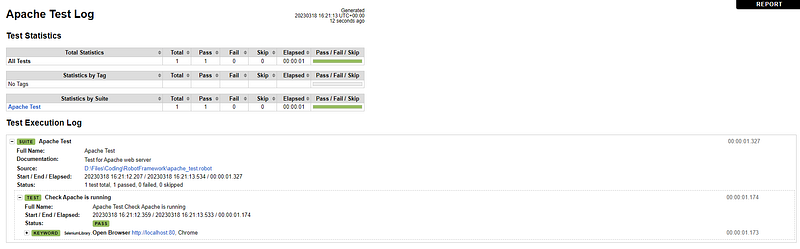
Robot Framework Report — Test Passed (screenshot)

Writing Keywords

Okay, that’s great and all but all we’re really doing is checking that we’re getting a 200 response code for our web server. We have no way of knowing if we’re actually displaying the right content. So let’s re-write some of this test to check if we’re seeing the homepage of our application.

In order to do this, we’re going to create a new custom keyword. This test would actually work fine without one, but creating keywords helps us keep track of what our tests are doing and means we can reuse them.

Firstly let’s change our original test to use a keyword instead for navigating to localhost. We’ll add a Keywords section to our robot file and create a new keyword for ‘Navigate to Server’ that just opens Chrome the same way we were doing before. Then we’ll change the Test Case to just use the keyword instead.

*** Settings ***
Documentation    Test for Apache web server
Library          SeleniumLibrary

*** Keywords ***
Navigate to Server 
    Open Browser    http://localhost:80    Chrome

*** Test Cases ***
Check Apache is running
    Navigate to Server   

This should have the same functionality as before, but now if we ever wanted to navigate to the web server for any other tests, we could reuse the same keyword instead of retyping our code. Personally, I like the look of this a little better as well.

Now let’s add some more functionality. We’ll create a new keyword to check if the page we’ve loaded really is the homepage of our application.

*** Keywords ***
Navigate to Server 
    Open Browser    http://localhost:80    Chrome

Verify Page is Apache Default Page
    Wait Until Page Contains Element    xpath://h1[text()='It works!']

*** Test Cases ***

Check Apache is running
    Navigate to Server
    Verify Page is Apache Default Page

This code defines a new keyword called “Verify Page is Apache Default Page”. It uses the Wait Until Page Contains Element keyword from the SeleniumLibrary to wait until the Apache test page is loaded successfully.

Since the homepage I’m running for this web server is just a standard Apache default index.html page, the only thing the page contains is the heading “It works!”. So we’ll configure Robot to look for that <h1> tag using an xpath locator.

Now our test can be simplified to just be ‘Navigate to Server’ followed by ‘Verify Page is Apache Default Page’.
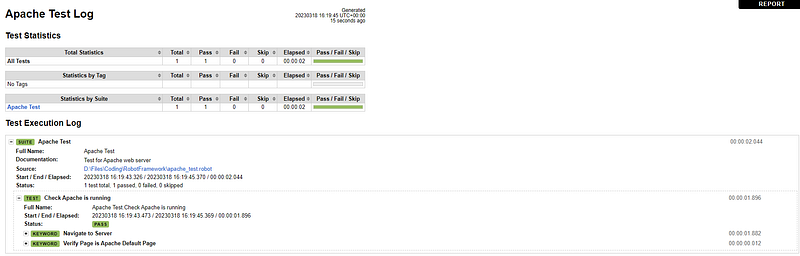
Additional Test succesful

Variables in Robot Framework

Let's talk Variables.

Variables are used to store and manipulate data in Robot Framework. They are defined using the *** Variables *** section in the test file. For example:

*** Variables ***
${BASE_URL}    http://localhost:80

*** Keywords ***
Check Apache is running
    Open Browser    ${BASE_URL}    Chrome

In this code, you can see we’ve replaced our static call to localhost with a variable called ${BASE_URL} . As you might expect, this works in exactly the same way as before but we’ve now parameterized our input so we can use it across multiple tests.

That’s it! We’ve created our first test using Robot Automated test framework.

Thanks for reading, If you enjoyed this, I regularly post DevOps articles exclusively on Medium — If you would like to read more I recommend checking out the stories below.

DevOps
Testing
Software Development
Technology
Automation Testing
Recommended from ReadMedium