
CODEX
Making a RTS game #3: Setting up in-game resources (Unity/C#)
Further down the rabbit hole: let’s add in-game resources and building costs to our RTS!
⬅️ Tutorial #2: Adding a very basic UI | TOC | Interlude #1: Introducing an event system ➡️
📕 Get the ebook and bonus material on Gumroad! 🚀 Find the code of this tutorial series on my Github!
In the previous articles of this series, we saw what a RTS video game is, how to program a core feature (placing buildings) and the basics of Unity’s UI system.
Another crucial part of RTS games is the management of in-game resources such as gold, wood, stone… Those resources can be collected by the player from the environment via different means (usually, using specific buildings that allow you to harvest a specific resource type) and then later re-used to produce and upgrade your units.

We won’t discuss resource collection today but rather focus on defining and using in-game resources for our building construction.
In particular, our current building placement system lets you place as many buildings as you want. In truth, we want buildings to consume resources and thus the construction to be available only if you have the required resources. So today, we’ll setup a basic system in-game resources by:
- defining a static variable to share our resources globally
- showing up the current amount of each resource type in our brand new UI
- adding costs to buildings and checking we have enough resources to pick a building type in the building menu
- consuming resources when we place a building
Defining the resources
First things first: we need to create a new class called GameResource to represent an in-game resource. Just like our BuildingData class, it is simply a pumped-up C# structure that contains data, so no need for the usual MonoBehaviour Unity inheritance:
Note: we could call this class Resource, without the "Game" prefix, but this term is generally somewhat reserved in Unity so this is better to avoid any unwanted conflict ;)
A resource just has a name (for display purposes, although for now I’m not sure it will be useful to be honest…) and a current amount that can be updated by adding to it. We consider that this addition can accept negative values, so “consuming 20 units of the resource X” corresponds to adding -20 to its current amount. This is why we have a little if-condition at the end of the AddAmount method - this avoids computing an invalid amount for a resource.
Now, we can make ourselves a list of game resource instances. Since we will need it in various scripts and we only have one list of in-game resources in the game, it is alright to use our Globals class and have a static list of resources.
For some programmers, global/static variables are not a good coding pattern. When using global variables, if you have an error, this variable is accessible from every function in your code, so it is hard to track where the error comes from. The important thing is therefore to know where you use the variable so that you’re able to track errors down to the proper functions. It is sometimes better to use patterns like the Singleton pattern. But it is heavier to put in place and it is not absolutely required here because our usage of this value is quite narrow in our project and there shouldn’t be any uncontrolled side-effects.
To easily reference our in-game resources and get one from its unique code, we don’t use an array (indexed by integers) but instead we use a C# Dictionary data type to have key-value pairs. It is available in the System.Collections.Generic package.
Showing the resources in the UI
In the last tutorial, we set up a basic UI with the building menu on the right. Let’s add a bar at the top of the screen that will eventually display the game resources amounts on the left and some system controls on the right. We can proceed exactly like before: first we add a panel as a child of the Canvas game object, then we give it a semi-transparent black background and finally we place it at the top of the screen and tell it to stretch it horizontally. (By the way, you can give your building menu a top-margin so it does not collide with your top-bar.)
In my UI, I’m going to use the wood plank texture I prepared recently, as shown in my timelapse from last week. I’ll put this as background for the top-bar, and another free wood plank texture for the building menu.
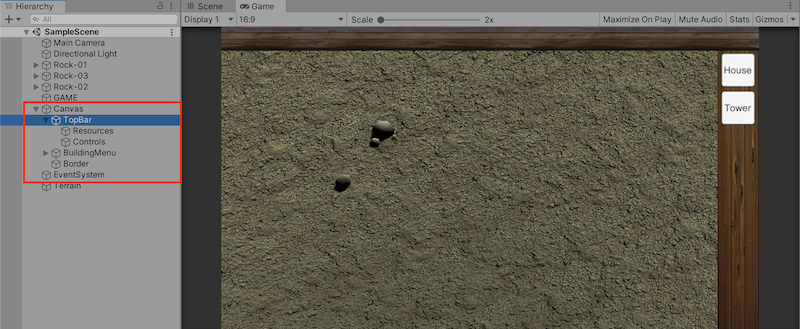
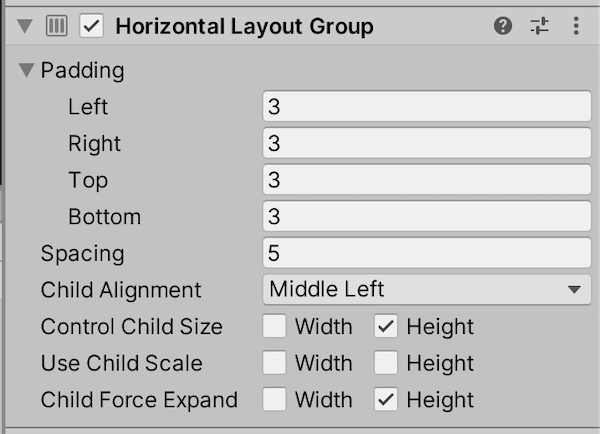
Now, I can add a horizontal layout to the top bar and force the children width and height. This way, the top bar layout is split in two horizontal block: the resources on the left and the system controls on the right. We will ignore the right part for the moment and focus on displaying the in-game resources in a row. To do that, we can simply add a panel as a child of our top bar and give it an horizontal layout, too, with some padding, spacing and children anchoring:
Just like we populated the building menu automatically from the static variable BUILDING_DATA, we can go through our GAME_RESOURCES and instantiate a little resource display for each. This is done in our UIManager class:
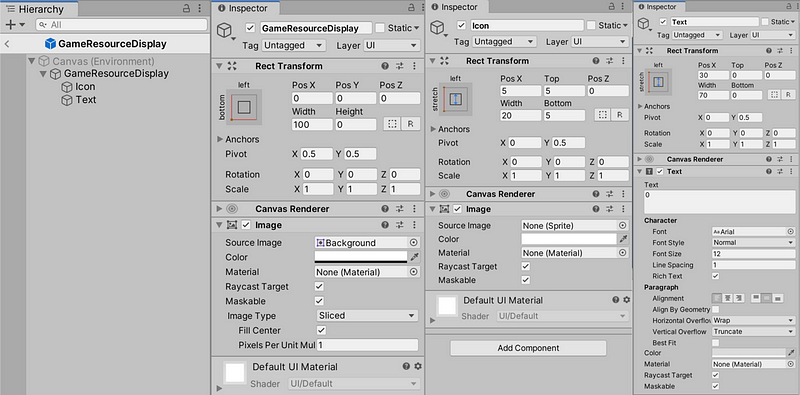
And just like for our building menu, we have public variables for the resources parent panel and the resource display prefab. This prefab is quite simple, it is just a panel containing an image (for the icon) and a text (for the current amount). Ultimately, we will need to pick the right icon when we instantiate the resource display but at this time it’s just a blank square. Here is the hierarchy and the properties of the objects in this prefab:
As we create the resource displays, we also store them in a Dictionary keyed by the resource unique code, _resourceTexts. This way, it will be very quick and easy to find the text of the display for a specific resource and update its value - see the _SetResourceText() function. The other method, UpdateResourceTexts(), is a shorthand to iterate through all in-game resource type and make sure all displays are up-to-date.
Adding costs to building
Alright, we have in-game resources. At that point, we are able to add new data to our BuildingData class to define how much a building of this type costs. We are going to use yet another Dictionary where the key is the resource unique code and the value is an integer equal to the amount of this resource required to build this type of building.
Also, we can define a little method to check that we have enough resource to buy a building of this type. This CanBuy() method just loops through the key-value pairs of resources needed for the construction of this type of building and checks that for all resource types, we currently have at least the required amount of this resource type (in the global GAME_RESOURCES variable we defined before).
Let’s then simply update our static list of building types with this new parameter in the constructor; for example, we can have the following:
In this case, building a House will cost 100 gold coins and 120 wood planks while building a Tower will cost 80 gold coins, 80 wood planks and 100 stones.
Checking for resources before/after placing buildings
Last but not least, we need to actually use these resource costs to do three things:
- when placing a building, at the moment you click to place it on the ground, the current resources should be updated — each resource in the building type’s cost Dictionary will get its current amount reduced
- before picking a building, when you want to choose the type from the building menu, you should only be allowed to choose the type(s) that can be bought with the current resources
- after you’ve placed your building, if you don’t have enough resources to keep on constructing this type of building, the “phantom” should not be renewed and you should exit the building placement mode
Consuming resources upon placement
Taking into account this cost in our building placement system is straightforward; we only need to update the Building class so that its Place() method loops through the resources and updates the current amounts. Another useful thing is to "transfer" the BuildingData's CanBuy() function into our Building class so we can call the first one more quickly:
Blocking unaffordable building types
In Unity’s UI system, buttons have an “interactable” flag that decides whether you can click them or not. When they are not interactable, clicking has no effect (it does not call the callback function) and the visual display is slightly altered (usually by making it darker, desatured or less opaque) so we clearly see it is disabled.
Our code currently loops through the building types to instantiate a button for each. What we will do is:
- check if the player can afford the building type when creating the button
- store the newly created button in a Dictionary (yes, another one ;) ) keyed by the building type unique code
- add a function to update all building buttons interactivity (it goes through the list of building types and runs the
CanBuy()on each to enable/disable the corresponding button retrieved from the Dictionary)
Here are the new bits of code in the UIManager class:
Now, let’s add a reference to our UIManager class instance in the BuildingPlacer class so we can call its CheckBuildingButtons() whenever we place a new building. Our _PlaceBuilding() function will also make use of the method we prepared earlier, UpdateResourceTexts(), to update the in-game resources displays.
Optionally cancelling the new build
At the moment, the _PlaceBuilding() method automatically calls the _PreparePlacedBuilding() one to create a new "phantom" building to place. We simply have to add an if-condition to cancel this behavior if the player cannot afford the building type currently selected anymore:
Conclusion
Today, we added an important feature to our RTS: the in-game resources such as gold, wood, stone… We haven’t implemented the resource collection part yet, so we are far from done on this topic, but at least we now have requirements and costs for building construction.
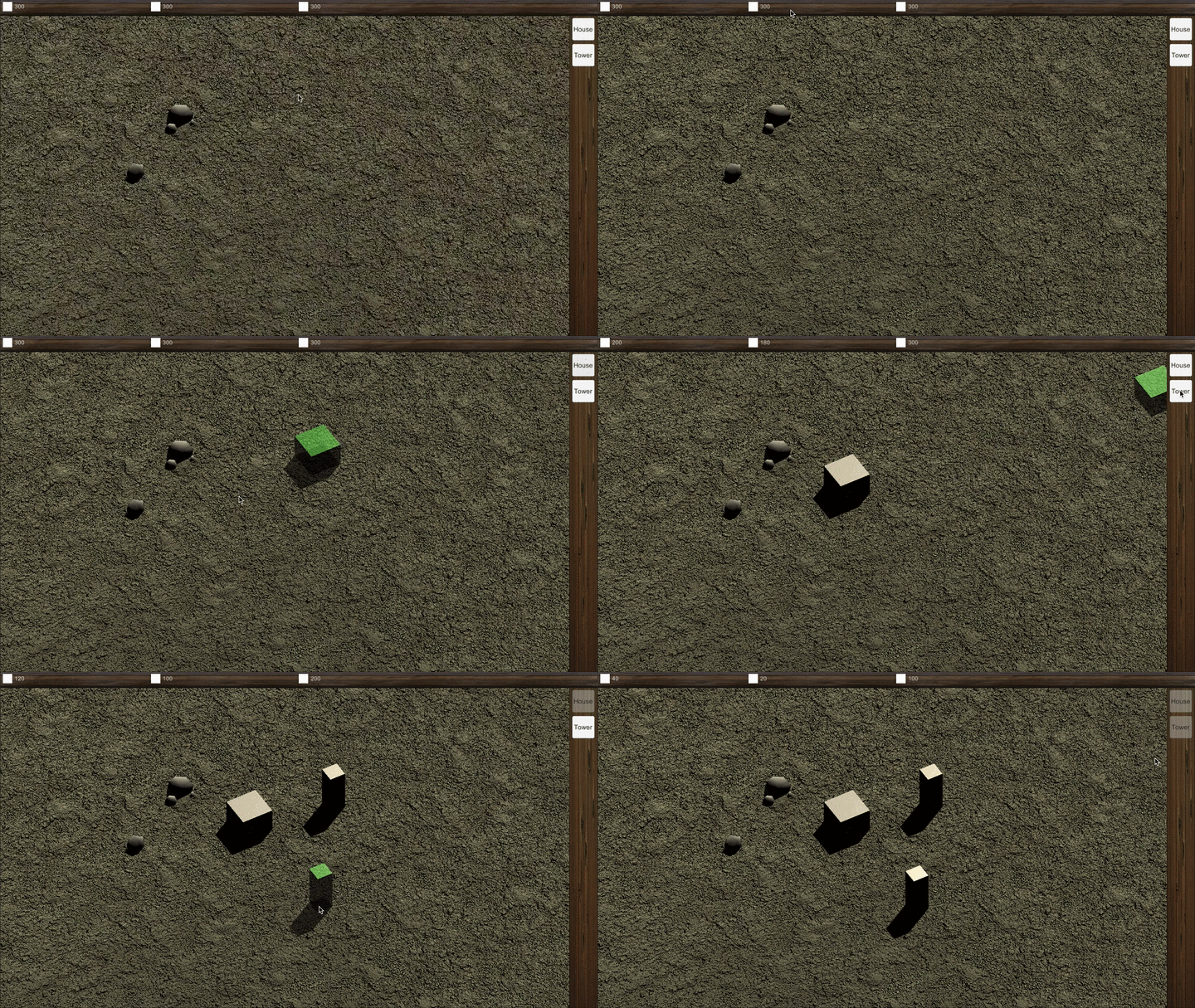
Next time, we will see how to select our buildings when they are fixed on the ground using either a simple mouse click or a bounding box dragged across the screen. But in the meantime, there will be a short interlude on how to implement a custom event sytem…
⬅️ Tutorial #2: Adding a very basic UI | TOC | Interlude #1: Introducing an event system ➡️
📕 Get the ebook and bonus material on Gumroad! 🚀 Find the code of this tutorial series on my Github!
If you liked this article, you can find more blog posts about tech, AI and programming on my website :)


