
The macOS Ventura 13.3 Update Is Much Bigger Than We’ve Expected — 11 Amazing Features!
It’s as huge as its sister update iOS 16.4
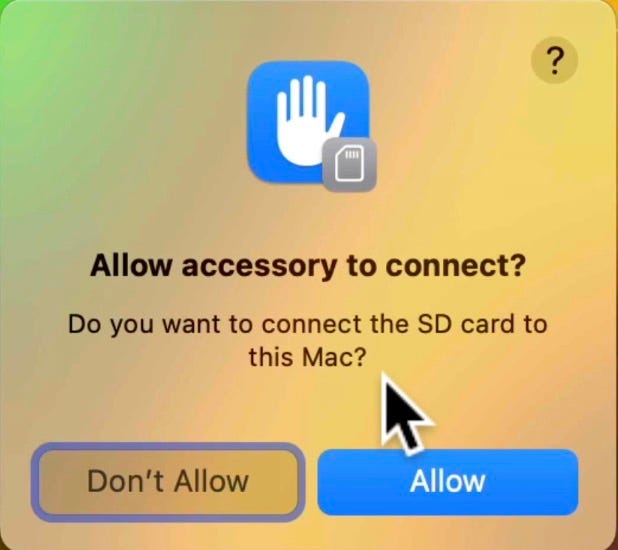
#1. User Approval before Accessing SD Cards
You might already know about “Allow accessories to connect” option in System Settings ⚙️ < Privacy & Security ✋.
It lets you choose if your Mac would directly access accessories or should ask for your approval before doing that. However,
This didn’t apply for SD cards till now. They promptly connected — which isn’t an ideal case. So,
From now, on M-Series MacBooks, you might’ve to approve the connection to an SD card acc. to your setting.
#2. Remove Image Background right in Freeform ✏️
Freeform is Apple’s free new whiteboarding app.
Simply put, it’s a plain infinite canvas where you, and your collaborators can add pretty much anything you need to work with — text, pics, videos, docs, pdfs, and webpages, and even Markup them.
It’s got a new feature with macOS 13.3.
You can now remove an image’s background directly in the app — by clicking image < image glyph < Remove Background.
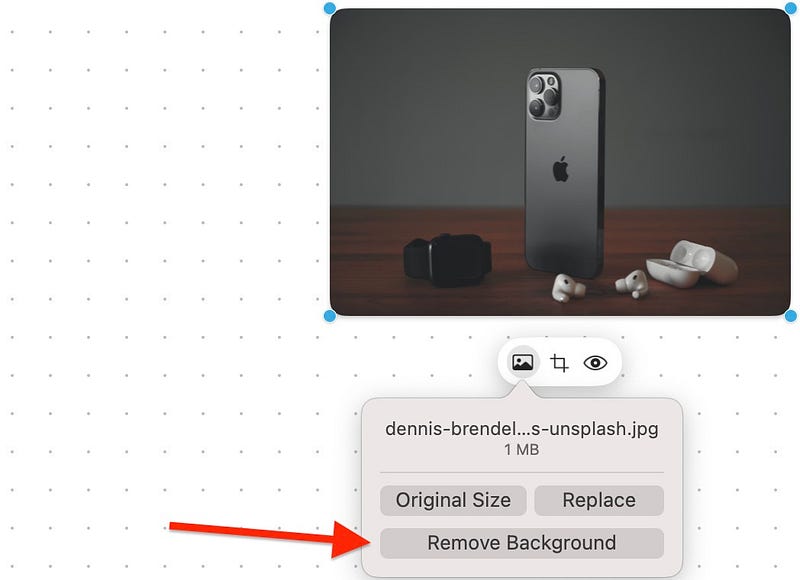
This wasn’t possible before — you only had to remove background outside Freeform, and then import it. Tedious.
#3. Wording Changes for Wallpaper Categories
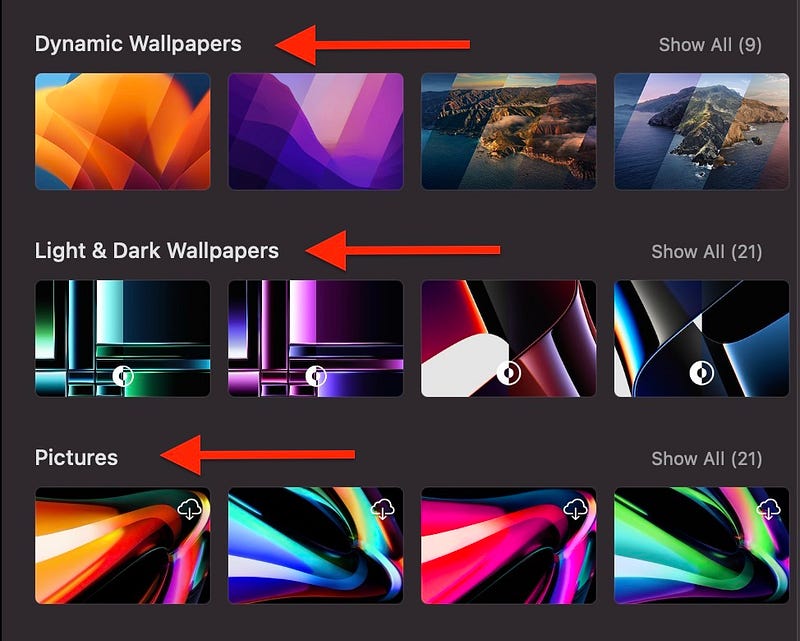
Go to System Settings ⚙️ < Wallpapers.
You’ll find there subtle wording changes to the wallpaper category headings.
_____ is changed to _____. Fill in the blanks with:
- Dynamic Desktop → Dynamic Wallpapers
- Light & Dark Desktop → Light & Dark Wallpapers
- Desktop Pictures → Pictures.
#4 New Siri Voices 💁♀️
If you’ve set* system language to Arabic or Hebrew, you’ll now have two new Siri voices → (Listen them below!)
Arabic:
Male:
Female:
Hebrew:
Male:
Female:
* In System Settings ⚙️ < Siri & Spotlight < Languages.#5. “Show resolutions as list” 🖥️
If you use a secondary monitor, you’ll find this useful. Go to Settings ⚙️ < Displays ☀️ < Advanced…, and you’ll see a new toggle — “Show resolutions as list’.
Toggle it on, and you’ll see some suggested resolutions in Displays ☀️ menu.
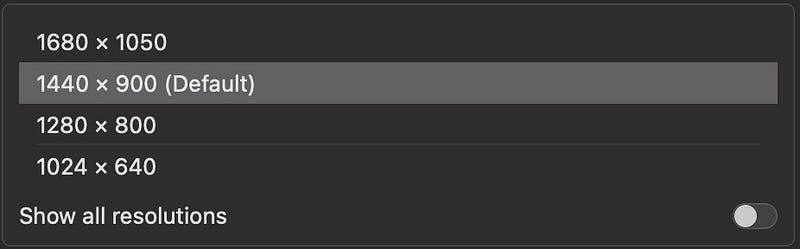
Btw, if you toggle ‘Show all resolutions’ here, you’ll see all the resolutions possible, suggested and non-suggested.
#6. 21 New Emojis
Apple introduces 21 new emojis to comply with the Unicode 15.0 Standard.
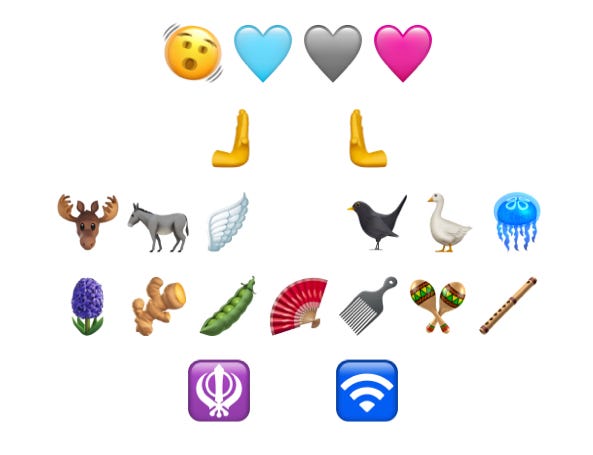
Here are their descriptions. You can also copy the emojis if you want.
- 🫨 — Shaking face
- 🩵 — Light blue heart
- 🩶 — Grey heart
- 🩷 — Pink heart
- 🫸 — Righwards pushing hand
- 🫷 — Leftwards pushing hand
- 🫎 — Moose face
- 🫏 — Donkey
- 🪽 — Wing
- 🐦⬛ — Black bird
- 🪿 — Goose
- 🪼 — Jellyfish
- 🪻 — Hyacinth flower
- 🫚 — Ginger root
- 🫛 — Pea pod
- 🪭 — Folding hand fan
- 🪮 — Hair pick
- 🪇 — Maracas
- 🪈 — Flute
- 🪯 — Khanda sword and shield symbol
- 🛜 — Wireless network symbol
Note, you can’t see any emoji unless you’re on iOS 16.4 or macOS 13.3.
#7 New Shortcut Blocks
iOS 16.4 totally got 12 new Shortcut blocks. I’ve covered them all in #1 of this article →
7 of those 12 are compatible with macOS →
- Set Stage Manager
- Set True Tone
- Shut Down: Shuts down or restarts your device.
- Lock Screen
- Set VPN: Connects, disconnects, or changes On Demand setting for an existing VPN config.
- Set AirDrop Receiving to any of the three options available.
- Set Night Shift
Try them out!
#8. Dark Mode Support for Plain Text Files 📄
TextEdit’s long had dark mode support for text files.
It now arrives to Safari too.
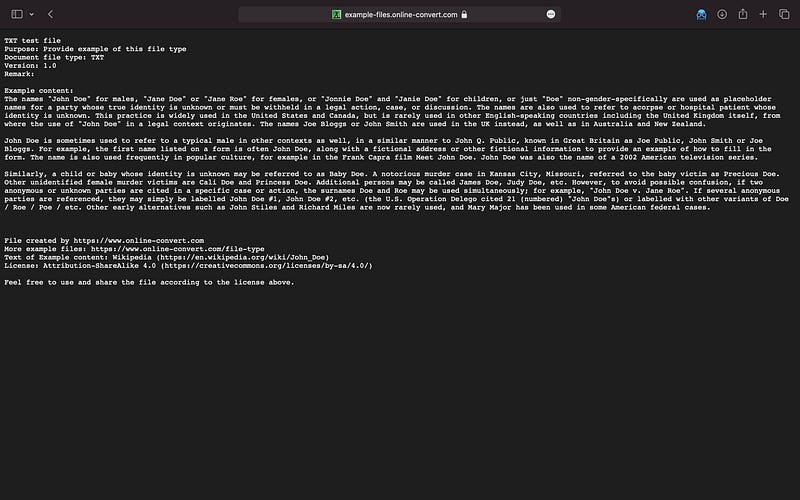
So if you ever view text files online (or offline by opening them with Safari), you’ll now observe they respond to the native Appearance setting — light or dark.
If Dark Mode:
#9. Sniff Duplicates across Shared Photo Libraries
macOS 13 brought two iconic features — Shared Photo Library and Duplicates in Photos.
macOS 13.3 gets a fusion of these both and will let you sniff out duplicates photos even from Shared Photo Libraries.
More info about Shared Photo Library in #9 of this article.
#10. Dim Flashing Lights 😵💫
I know a guy who gets disoriented and nauseated for a while when he sees repeated flashing or strobing lights, especially in movies.
He suffers from Photosensitive Epilepsy.
macOS 13.3 brings a feature I can suggest him toggling on — ‘Dim Flashing Lights’ — in ‘Settings ⚙️ < Accessibility 🚹 < Display 🖥️ < Motion’.

This will sense any flickering lights that might come up next in supported playing media, and will dim it when it plays.
The video timeline will also display when such flickers happen — cautioning him about such moments.
#11. Home Upgrade Available 🏠
macOS 13.1 Developer Betas teased an update for ‘Home’ Underlying architecture — and I’ve covered it for iOS in #3 of this article ⬇️. But,
Sadly, it’s pulled out from the public release due to pesky bugs like:
- Linked devices missing out from the app,
- Devices getting struck with “configuring/updating” status,
- Invitations to share Home with others failing,
- Breaking Home video recording.
Anyways, not to worry, it’s back again with macOS 13.3. Hope there are no (or not-so-pesky) bugs this time.
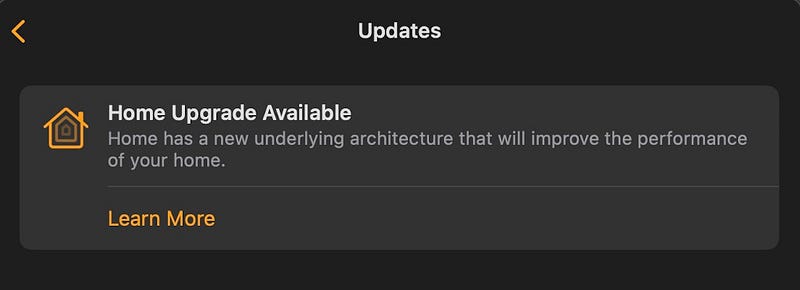
To update the architecture, click three-dots glyph < Home Settings ⚙️ < Software Update < Learn More.
After this update, you’ll experience better compatibility and smoother performance from your HomeKit and Matter-compatible devices.
For more notes on ‘Matter’, refer to #7 of this article:
For more a’macOS’zing features, read these.
Join 310+ others to get notified whenever I publish a new story. Reward me with a tip (below) if you liked this one!


